SUMIF & SUMIFS Conditional Addition Formulas
Learn conditional addition in Excel with SUMIF and SUMIFS. Filter revenue by region, apply date criteria, use wildcards, and Learn the reversed syntax order.

SUMIF & SUMIFS Conditional Addition Formulas
When analyzing corporate sales, you rarely want to add every single row in a table. Instead, you need targeted totals: total sales in the North region, revenue generated by the Enterprise team, or orders exceeding $20,000.
The SUMIF and SUMIFS formulas add values only when rows meet specific criteria. But there is a famous trap that trips up almost every Excel user: the syntax order is reversed between the two formulas!
This guide explains how conditional math works, why modern analysts prefer SUMIFS for all tasks, and how to apply text wildcards and comparison operators cleanly.
SUMIF (Single Criterion)
Sums values based on a single rule. Places the sum_range at the very end of the formula arguments.
SUMIFS (Multi-Criteria)
Sums values based on one or multiple criteria. Places the sum_range at the very beginning of the arguments.
Quick Comparison: The Reversed Syntax Trap
| Formula | Max Criteria | Sum Range Position | Syntax Pattern |
|---|---|---|---|
| SUMIF | 1 Condition | Last Argument | =SUMIF(criteria_range, criteria, [sum_range]) |
| SUMIFS | Up to 127 Conditions | First Argument | =SUMIFS(sum_range, criteria_range1, criteria1, ...) |
Professional Tip: Because SUMIFS handles a single condition just as easily as multiple conditions, senior financial analysts standardize on SUMIFS for all formulas. That way, you never mix up the sum range position.
How the Conditional Sum Engine Works
1. Writing Comparison Operators
When evaluating numerical thresholds (like sales greater than $20,000), wrap the operator in double quotes:
=SUMIFS(D2:D6, D2:D6, ">20000")If the threshold value is stored in another cell (e.g. H1), join the operator and cell with an ampersand (&):
=SUMIFS(D2:D6, D2:D6, ">=" & H1)2. Using Text Wildcards (* and ?)
SUMIFS supports standard Excel wildcards for flexible matching:
- Asterisk (*): Matches any sequence of characters. For example,
"Tech*"matches "Technology", "Technical", and "Technician". - Question Mark (?): Matches exactly one single character.
"Part-??"matches "Part-01" but not "Part-100".
3. Range Dimension Alignment Rule
In SUMIFS, every criteria range must have the exact same number of rows and columns as the sum range. Pairing D2:D100 with a criteria range of A2:A50 immediately triggers a #VALUE! error.
Real-Life Workplace Scenarios
1. Regional Executive Dashboards
Calculating regional sales without altering raw transaction records:
=SUMIFS(RevenueCol, RegionCol, "North", QuarterCol, "Q4")2. High-Value Deal Tracking
Highlighting revenue from major transactions exceeding target thresholds.
Common Mistakes to Avoid
- Reversing Range Arguments: Accidentally putting the sum range at the end of a SUMIFS formula will break your calculation.
- Mismatched Range Sizes: Ensure all criteria ranges span the exact same row count as your sum range.
Practice conditional sums in our spreadsheet playground below.
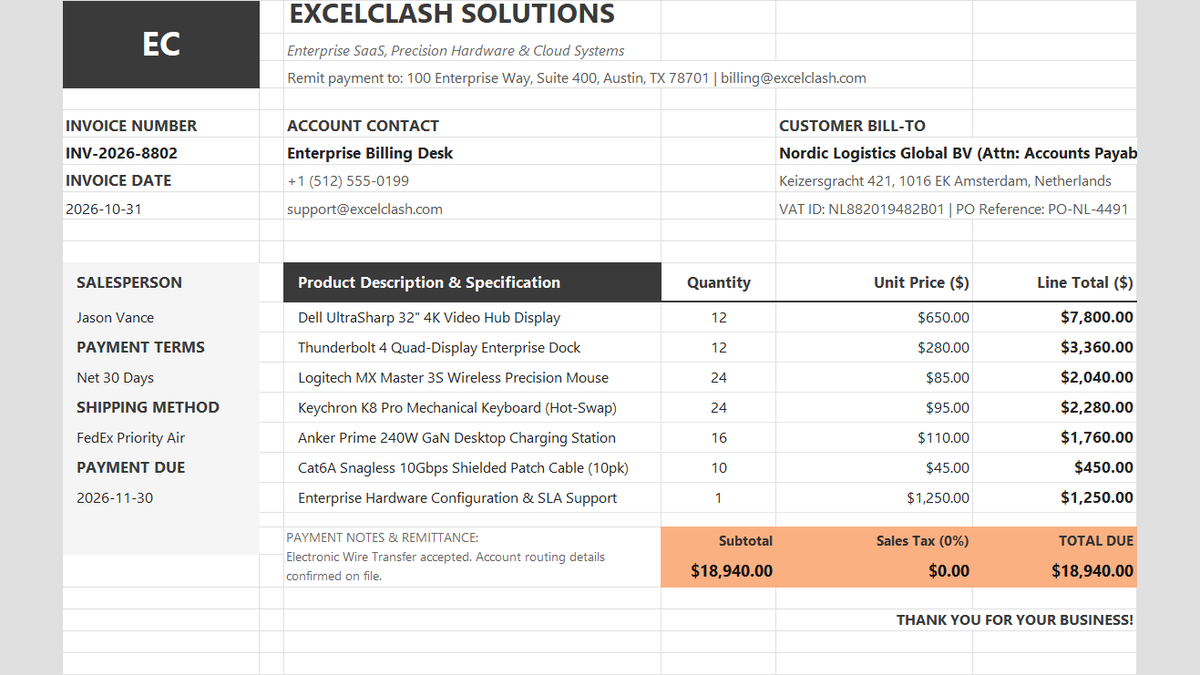
Ready to apply SUMIF & SUMIFS Conditional Addition Formulas in a real workbook?
See how math formulas automate row totals, tiered discounts, and tax computations.
Open Automated Commercial Sales InvoiceShare This Lesson
Spread the word with your peers and challenge your friends