INT & TRUNC Integer Math Formulas
Learn the critical difference between INT and TRUNC in Excel. Extract whole integers, strip time from timestamps, and handle negative numbers accurately.

INT & TRUNC Integer Math Formulas
In daily spreadsheet reporting, you often need to discard decimals. You might want to count completed production cycles, determine whole days of delivery transit, or strip the time portion off a date-time stamp.
Excel provides two primary functions for removing decimals: INT and TRUNC. On positive numbers, both formulas return identical results. For example, both =INT(4.75) and =TRUNC(4.75) return 4.
However, when dealing with negative values, financial adjustments, or temperature logs, they behave very differently. Not knowing this difference can cause subtle discrepancies in accounting balances.
INT Formula
Always rounds downward to the nearest lower integer. On negative numbers, it moves away from zero (-4.2 becomes -5).
TRUNC Formula
Simply cuts off the decimal places without rounding. On negative numbers, it moves toward zero (-4.2 becomes -4).
Quick Comparison: INT vs TRUNC vs ROUNDDOWN
| Input Number | INT(val) | TRUNC(val) | ROUNDDOWN(val, 0) | Behavior Distinction |
|---|---|---|---|---|
| 4.75 | 4 | 4 | 4 | Identical for all positive numbers |
| 4.12 | 4 | 4 | 4 | Identical for all positive numbers |
| -3.65 | -4 | -3 | -3 | INT moves down to lower number; TRUNC chops towards zero |
| -1.05 | -2 | -1 | -1 | INT moves further negative; TRUNC keeps the integer prefix |
Financial controllers prefer TRUNC when cleaning up negative ledger adjustments because they want to discard the cents without changing the dollar magnitude to a higher negative bracket.
How the Integer Extraction Engines Work
1. The Mechanics of INT (Always Lower)
The INT formula takes a single argument:
=INT(number)Mathematically, INT calculates the true floor function. Because -5 is lower than -4.2 on the number line, INT returns -5.
2. The TRUNC Formula and Decimal Precision
The TRUNC formula provides an optional second argument:
=TRUNC(number, [num_digits])If you omit [num_digits], Excel chops all decimals, returning a pure integer. But unlike INT, you can specify how many decimal places to preserve without rounding up:
=TRUNC(3.14159, 2) ' Returns 3.14 (does not round up to 3.15)3. Stripping Time from Excel Timestamps
In Excel, dates are whole numbers and times are decimal fractions (e.g., 45200.75 represents 6:00 PM on a given date). To isolate the pure date and discard the time:
=INT(TimestampCell)This converts the cell into a midnight date stamp, making lookups and grouping in pivot tables clean and reliable.
Real-Life Workplace Scenarios
1. Calculating Completed Work Batches
If an assembly line takes 3.2 hours per batch and runs for 22 hours:
=INT(22 / 3.2) ' Returns 6 completed batches2. Extracting Cents for Reconciliation
To inspect only the fractional cent portion of account balances:
=Balance - TRUNC(Balance)Common Mistakes to Avoid
- Assuming INT and TRUNC Are Interchangeable on Negatives: As shown above,
=INT(-2.1)yields -3, which alters financial balance categories. Use TRUNC when removing cents from negative ledger balances. - Using TRUNC When True Rounding Is Needed: Remember that TRUNC never rounds up. If you need 3.99 to become 4.00, use
ROUND, not TRUNC.
Audit the transit times in our spreadsheet playground below.
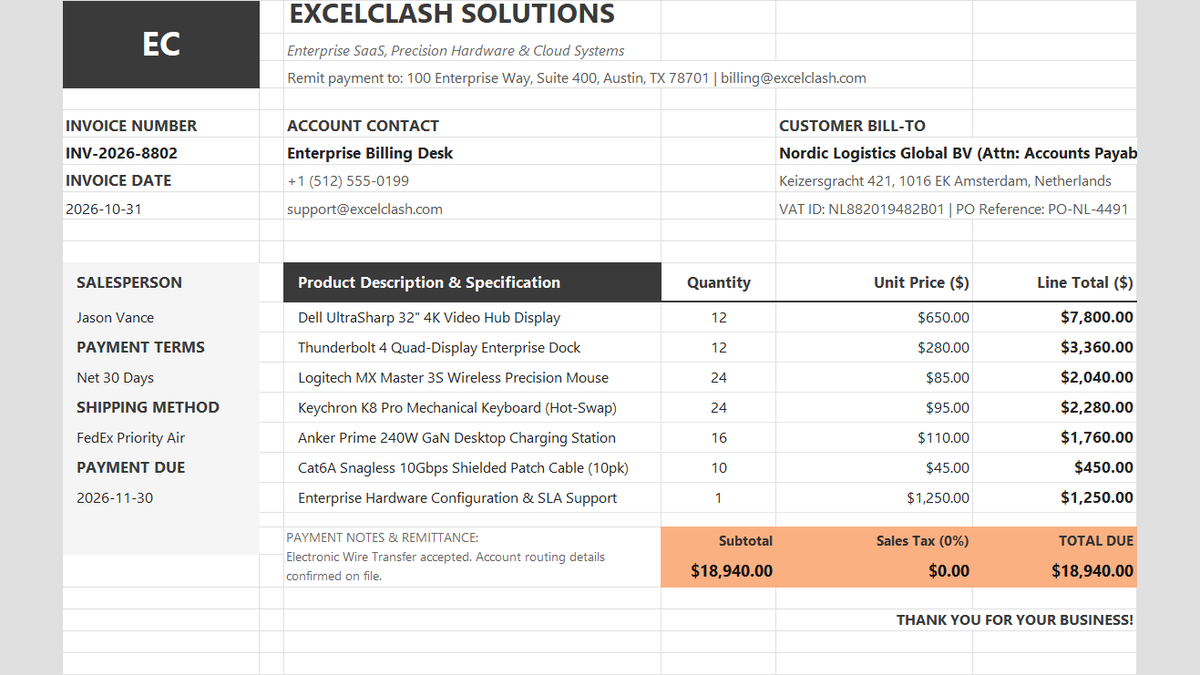
Ready to apply INT & TRUNC Integer Math Formulas in a real workbook?
See how math formulas automate row totals, tiered discounts, and tax computations.
Open Automated Commercial Sales InvoiceShare This Lesson
Spread the word with your peers and challenge your friends