PRODUCT Mathematical Multiplication Formula
Learn how to multiply ranges of numbers in Excel with PRODUCT. Safely ignore text labels, calculate compound growth factors, and compute volume cleanly.

PRODUCT Multiplication Formula
When calculating physical shipping volumes (Length × Width × Height), multiplying prices by quantities, or compounding multi-year inflation rates, most Excel users immediately reach for the asterisk operator (*). You write formulas like =B2*C2*D2*E2*F2.
While the asterisk works on small numbers, it is fragile. If a single cell contains a text label like "Pending" or a blank note, the asterisk crashes your entire worksheet with a #VALUE! error.
The PRODUCT formula is Excel's robust multiplication engine. It multiplies entire continuous ranges in one clean reference and automatically ignores text and empty cells without crashing.
Asterisk Operator (*)
Requires typing cell by cell. Crashes with a #VALUE! error if any referenced cell contains non-numeric text.
PRODUCT Formula
Multiplies large arrays (e.g. PRODUCT(B2:D2)). Gracefully skips text labels and empty cells without throwing errors.
Quick Comparison: Asterisk (*) vs PRODUCT
| Multiplication Method | Formula Example | Behavior on Text Cells | Accepts Range Arrays? | Best Used For |
|---|---|---|---|---|
| Asterisk Operator (*) | =B2 * C2 * D2 | Returns #VALUE! error | No (must reference individual cells) | Quick 2-cell calculations (Price * Units) |
| PRODUCT Formula | =PRODUCT(B2:D2) | Safely ignores text cells | Yes (continuous ranges and arrays) | Volume calculations, multi-year compound interest |
Operations engineers handling warehouse freight schedules rely on PRODUCT because shipment spreadsheets often contain status notes like "TBD" or "Hold".
How the PRODUCT Engine Works
1. Syntax and Range Arguments
The PRODUCT formula accepts up to 255 individual arguments or continuous ranges:
=PRODUCT(number1, [number2], ...)You can mix arrays, individual cells, and static multipliers:
=PRODUCT(B2:D2, 1.10) ' Multiplies B2:D2 and adds a 10% buffer2. The Zero-Value Cascade Rule
In multiplication, any number multiplied by zero equals zero. If even a single cell in your referenced range contains 0, the entire formula will return 0. Always audit your dataset to confirm that zero values represent real zeros and not missing data.
3. Compounding Growth Factors
To calculate cumulative returns or inflation over five years, do not add the percentages. Multiply their growth factors (e.g. 1.03 for +3%):
=PRODUCT(F2:F6)This yields the exact cumulative compound multiplier over the multi-year timeline.
Real-Life Workplace Scenarios
1. Logistics Freight Volume
Calculating package cubic volume in logistics manifests:
=PRODUCT(Length, Width, Height)2. Investment Multi-Period Compound Factor
Financial planners project cumulative fund growth over multiple irregular quarters by multiplying quarterly yield factors together.
Common Mistakes to Avoid
- Unintended Zeros in Ranges: Including an empty cell formatted as 0 will reset the entire product to zero.
- Supplying Percentages Directly: To compound a 5% gain, multiply by
1.05, not0.05(which would shrink your principal by 95%).
Calculate package volumes and compound inflation in our spreadsheet playground below.
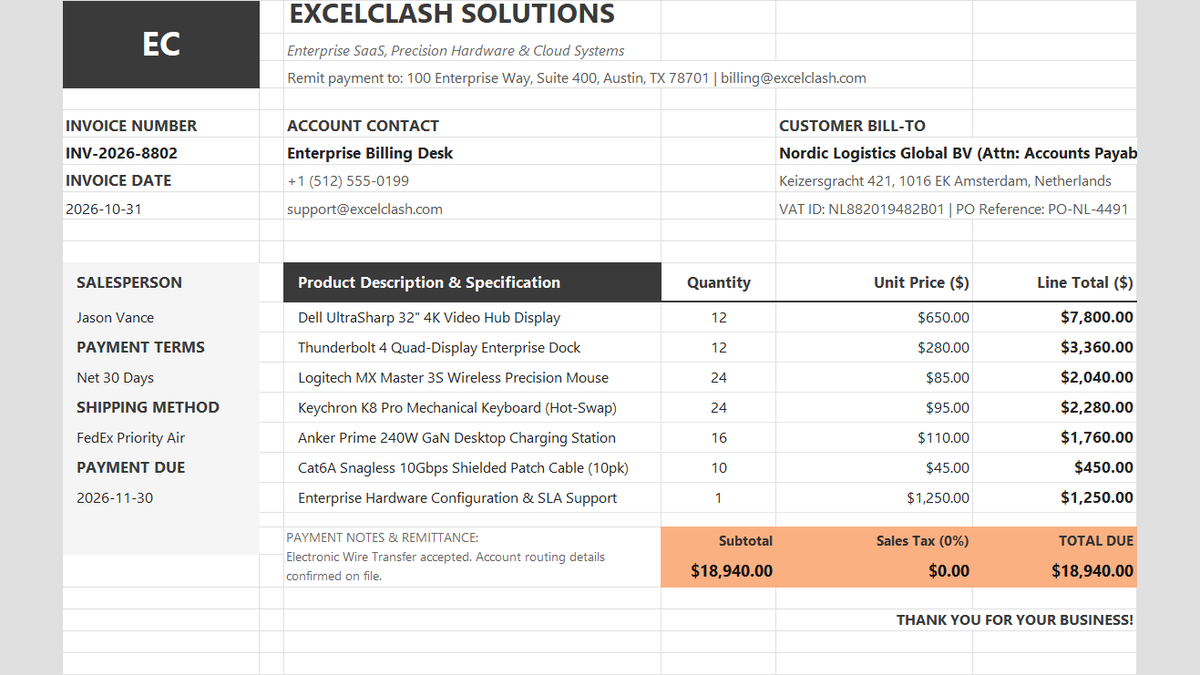
Ready to apply PRODUCT Mathematical Multiplication Formula in a real workbook?
See how math formulas automate row totals, tiered discounts, and tax computations.
Open Automated Commercial Sales InvoiceShare This Lesson
Spread the word with your peers and challenge your friends