SUM Addition Foundation Formula
Learn the Excel SUM formula. Safely add continuous ranges, avoid the silent text trap, sum across multiple columns, and use the Alt + = AutoSum shortcut.

SUM Addition Foundation Formula
The SUM formula is the most widely used function in spreadsheet history. When calculating monthly revenues, operational expenses, or inventory headcount, you need a quick way to add numbers across rows and columns.
Beginners often start by typing individual plus signs: =C2+C3+C4+C5+C6. But using plus signs is fragile. If a cell contains a status note like "Pending" or "Waived", the plus sign triggers an immediate #VALUE! error.
The SUM formula eliminates this danger by adding entire ranges in memory and safely ignoring text cells. This guide explains how to use SUM across continuous and disjointed ranges, avoid the silent text trap, and speed up your workflow with the AutoSum shortcut.
Plus Operator (+)
Requires adding cells one by one. Crashes with a #VALUE! error if any referenced cell contains non-numeric text.
SUM Formula
Adds large contiguous blocks (e.g. SUM(C2:D6)). Automatically skips text cells and empty rows without throwing errors.
Quick Comparison: Plus Sign (+) vs SUM Formula
| Addition Method | Formula Example | Behavior on Text Cells | Accepts 2D Blocks? | Best Used For |
|---|---|---|---|---|
| Plus Operator (+) | =C2 + C3 + C4 | Returns #VALUE! error | No (cell by cell) | Simple 2-cell additions (Base + Bonus) |
| SUM Formula | =SUM(C2:C6) | Safely skips text notes | Yes (e.g. C2:D6) | Financial summaries, expense ledgers |
How the SUM Engine Works
1. Syntax and Multiple Arguments
=SUM(number1, [number2], ...)SUM accepts up to 255 separate ranges or individual numbers separated by commas:
=SUM(C2:C6, D2:D6, 5000) ' Adds two ranges and a static bonus2. The Silent Text Trap
While SUM's ability to ignore text is a strength, it can occasionally catch you off guard. If numbers are imported from CSV files as text (often preceded by an apostrophe like '150), SUM silently ignores them and returns 0 without showing an error message! If your sum returns zero when numbers are visible on screen, convert those text cells to real numbers.
3. The AutoSum Keyboard Shortcut
Instead of manually typing the formula, click the cell directly below or to the right of your numbers and press:
- Windows: Alt + =
- Mac: Cmd + Shift + T
Excel detects the contiguous numbers and types the entire =SUM(...) formula for you instantly.
Real-Life Workplace Scenarios
1. Multi-Quarter Financial Statements
Finance teams summarize total annual divisional performance by highlighting 2D multi-column ranges: =SUM(C2:F50).
2. Cumulative Running Totals
To create a running total down a column, fix the starting row with an absolute dollar sign: =SUM($C$2:C2). As you drag the formula down, the range expands dynamically.
Common Mistakes to Avoid
- Double-Counting Subtotals: If you use SUM at the bottom of a sheet that already contains departmental subtotals, you will double your numbers. Use
SUBTOTALinstead. - Circular References: Including the cell that contains the formula in the sum range (e.g. typing
=SUM(C2:C7)in cell C7) triggers a circular calculation loop.
Practice adding division revenues in our spreadsheet playground below.
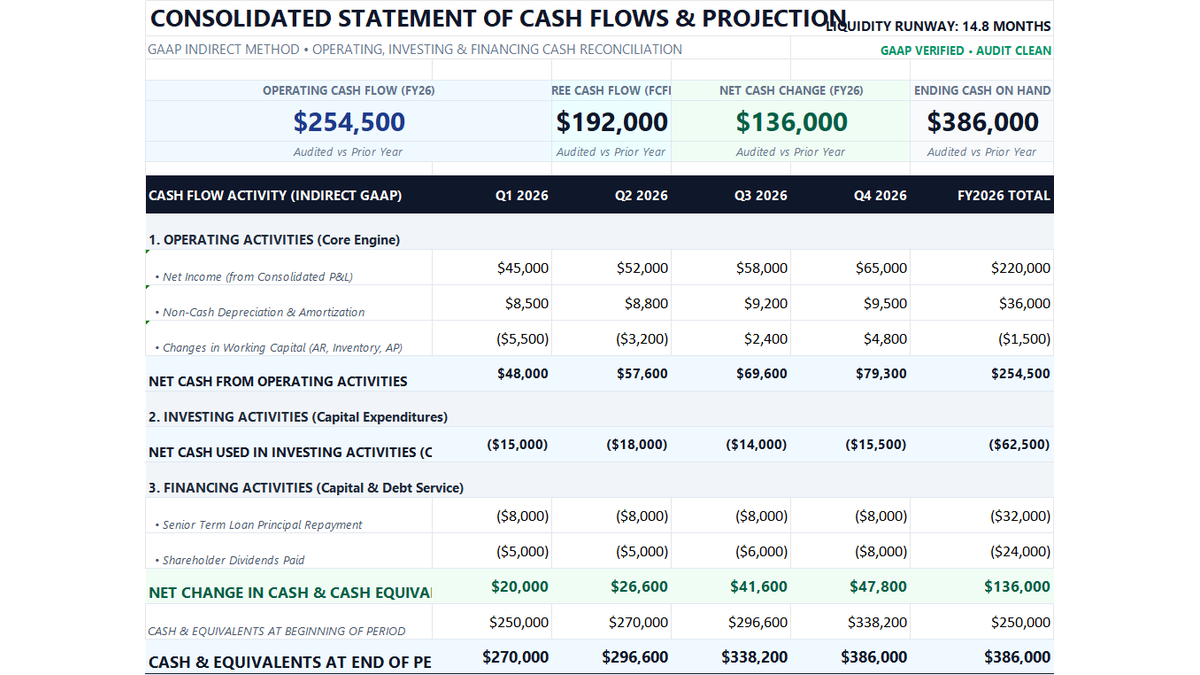
Ready to apply SUM Addition Foundation Formula in a real workbook?
Calculate cumulative inflows, operational burns, and rolling monthly cash balances.
Open 12-Month Cash Flow StatementShare This Lesson
Spread the word with your peers and challenge your friends