RAND & RANDBETWEEN Random Number Formulas
Generate unbiased test datasets, audit sample selections, and Monte Carlo numbers using Excel RAND and RANDBETWEEN. Learn how to freeze volatile values cleanly.

RAND & RANDBETWEEN Generator Formulas
Whether you are creating synthetic data for software testing, picking random invoice samples for financial fraud audits, or running Monte Carlo risk simulations, you need unbiased random numbers.
Excel provides two built-in random generators: RAND and RANDBETWEEN. However, both functions come with a critical trait: they are volatile functions. Every time you press Enter, sort data, or open the workbook, Excel recalculates and changes all your random values!
This guide explains how to generate random decimals and integers, scale random numbers into custom ranges, and freeze generated values permanently so your audit samples stay consistent.
RAND()
Generates an evenly distributed continuous decimal number greater than or equal to 0 and less than 1. Takes no arguments.
RANDBETWEEN(bottom, top)
Returns an evenly distributed random whole integer between the bottom and top bounds (inclusive). Perfect for lottery draws and IDs.
Quick Comparison: RAND vs RANDBETWEEN
| Formula | Output Type | Default Range | Required Arguments | Best Application |
|---|---|---|---|---|
| RAND() | Continuous Decimal | 0.000000 to 0.999999 | None (empty parentheses) | Probabilities, Monte Carlo models, random sorting |
| RANDBETWEEN(min, max) | Discrete Integer | User specified (inclusive) | 2 (bottom and top limits) | Random audit sampling, invoice selection, simulation roll |
Warning: Because random functions recalculate on every worksheet change, never leave active RAND formulas in an audit spreadsheet you send to clients or regulators. Always copy and paste as static values once your sample is picked.
How the Random Engines Work
1. The Syntax of RAND()
The RAND formula requires empty parentheses:
=RAND() ' e.g. Returns 0.684219To scale a random decimal to a custom range (such as between 50 and 150):
=Min + RAND() * (Max - Min)
=50 + RAND() * (150 - 50)
2. The Syntax of RANDBETWEEN()
Specify the inclusive lower and upper whole numbers:
=RANDBETWEEN(bottom, top)
=RANDBETWEEN(1000, 9999)    ' Returns 4-digit ID
Note: If bottom is greater than top, Excel returns a #NUM! error.
3. The Freeze Protocol (Preserving Your Sample)
To lock your random sample permanently:
- Select the cells containing the formulas.
- Press
Ctrl + Cto copy. - Press
Ctrl + Shift + V(or Right-Click -> Paste Special -> Values).
Now the random numbers become fixed static values that will never change again.
Real-Life Workplace Scenarios
1. Independent Compliance Audit Selection
Compliance teams draw 50 random transaction IDs from a pool of 10,000 ledger rows using RANDBETWEEN(1, 10000) to guarantee objective, unmanipulated sample selection.
2. Randomizing List Order (Shuffling)
To shuffle a roster of candidates or survey participants, insert a helper column with =RAND() and sort the table from smallest to largest.
Common Mistakes to Avoid
- Typing Values in Parentheses for RAND: Writing
=RAND(100)produces an error. RAND takes no arguments. - Reversed Bounds in RANDBETWEEN: Writing
=RANDBETWEEN(50, 10)triggers a#NUM!error because the bottom bound exceeds the top.
Generate audit test data in our spreadsheet playground below.
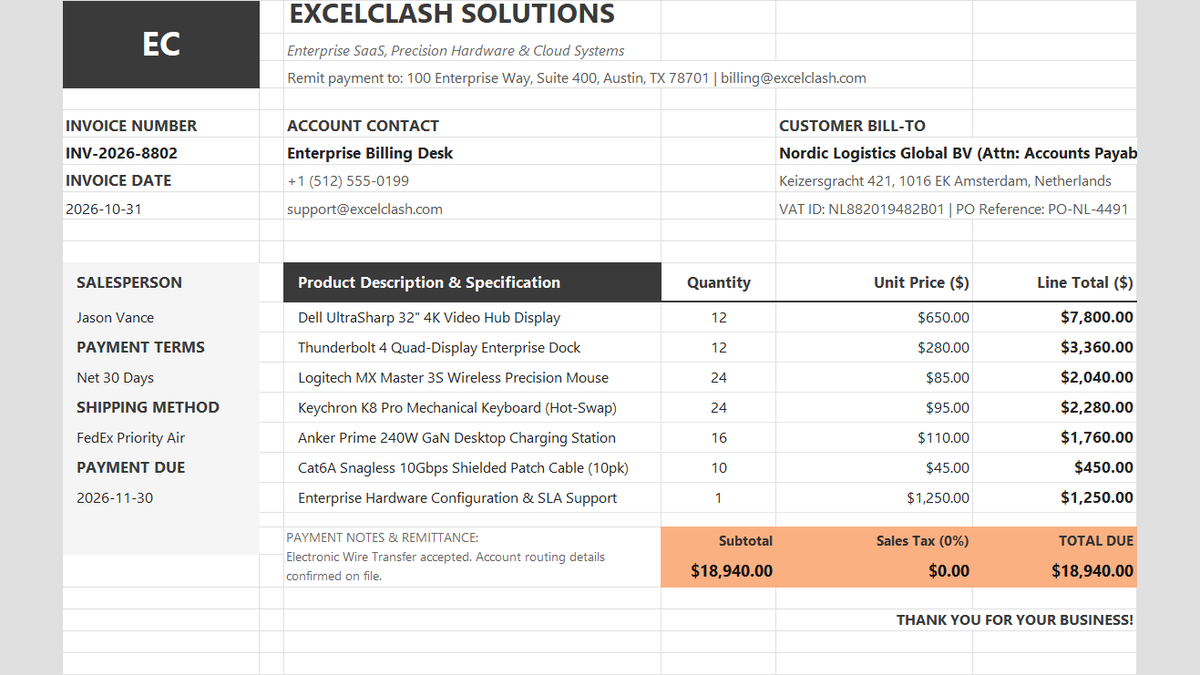
Ready to apply RAND & RANDBETWEEN Random Number Formulas in a real workbook?
See how math formulas automate row totals, tiered discounts, and tax computations.
Open Automated Commercial Sales InvoiceShare This Lesson
Spread the word with your peers and challenge your friends