SUBTOTAL Dynamic Filtered Formula
Learn the Excel SUBTOTAL formula. Calculate sums, averages, and counts on visible filtered rows while preventing accidental double-counting automatically.

SUBTOTAL Dynamic Filtered Formula
When analyzing sales records or inventory logs, you often use Excel's column filters to focus on a single region or product category. However, if you have a standard =SUM(D2:D100) formula at the bottom of your table, you will encounter a serious problem.
A standard SUM formula does not care if rows are hidden by a filter. It continues adding all hidden rows, leaving the total completely unchanged. A sales manager might filter the table to see Europe sales, but the total at the bottom continues to show global revenue!
The SUBTOTAL formula is designed specifically for filtered lists. It dynamically calculates totals for visible rows only and automatically ignores nested subtotal rows to prevent double-counting.
Filters Awareness
Automatically adjusts totals when rows are filtered, displaying the true summary of what is visible on screen.
Anti-Double-Counting
If your range contains other SUBTOTAL formulas, the grand total ignores them automatically, preventing duplicate counts.
Quick Comparison: SUM vs SUBTOTAL
| Feature | Standard SUM | SUBTOTAL(9, ...) | SUBTOTAL(109, ...) |
|---|---|---|---|
| Ignores Filtered-Out Rows? | No (adds all rows) | Yes | Yes |
| Ignores Manually Hidden Rows? | No | No | Yes |
| Ignores Other Subtotals? | No (double-counts) | Yes | Yes |
| Best Used For | Unfiltered tables | Filtered tables | Modern interactive dashboards |
How the SUBTOTAL Engine Works
1. Syntax and Function Numbers
=SUBTOTAL(function_num, ref1, [ref2], ...)- function_num: A number that selects the operation (SUM, AVERAGE, COUNT, etc.) and specifies how hidden rows are treated.
- ref1: The range you want to summarize.
2. The Two Number Series (1-11 vs 101-111)
Excel provides two number series for the first argument:
- Codes 1 to 11: Ignore rows hidden by AutoFilter, but include rows that were hidden manually (Right-Click -> Hide).
- Codes 101 to 111: Ignore all hidden rows, whether hidden by filter or manually hidden.
3. Most Common Function Numbers
- 109: SUM (Visible rows)
- 101: AVERAGE (Visible rows)
- 102: COUNT (Numeric cells only)
- 103: COUNTA (Non-empty cells)
- 104: MAX
- 105: MIN
Real-Life Workplace Scenarios
1. Regional Sales Reporting with Filters
Placing =SUBTOTAL(109, D2:D500) at the top of a sales tracker allows managers to filter by country or rep and instantly see accurate filtered revenue.
2. Multi-Level Departmental Budgets
When compiling sub-division totals into a corporate roll-up, using SUBTOTAL on each department allows a grand total formula at the bottom (=SUBTOTAL(109, D2:D200)) to sum everything without double-counting departmental lines.
Common Mistakes to Avoid
- Placing SUBTOTAL Inside Filtered Ranges: If you place the subtotal on a row that gets filtered out, your formula disappears! Place subtotal rows above the data or outside the filtered table.
- Using Code 9 Instead of 109 for Manual Hides: If team members manually hide rows, code 9 will still include them. Prefer 109 for full visual fidelity.
Audit visible rows and sales data in our spreadsheet playground below.
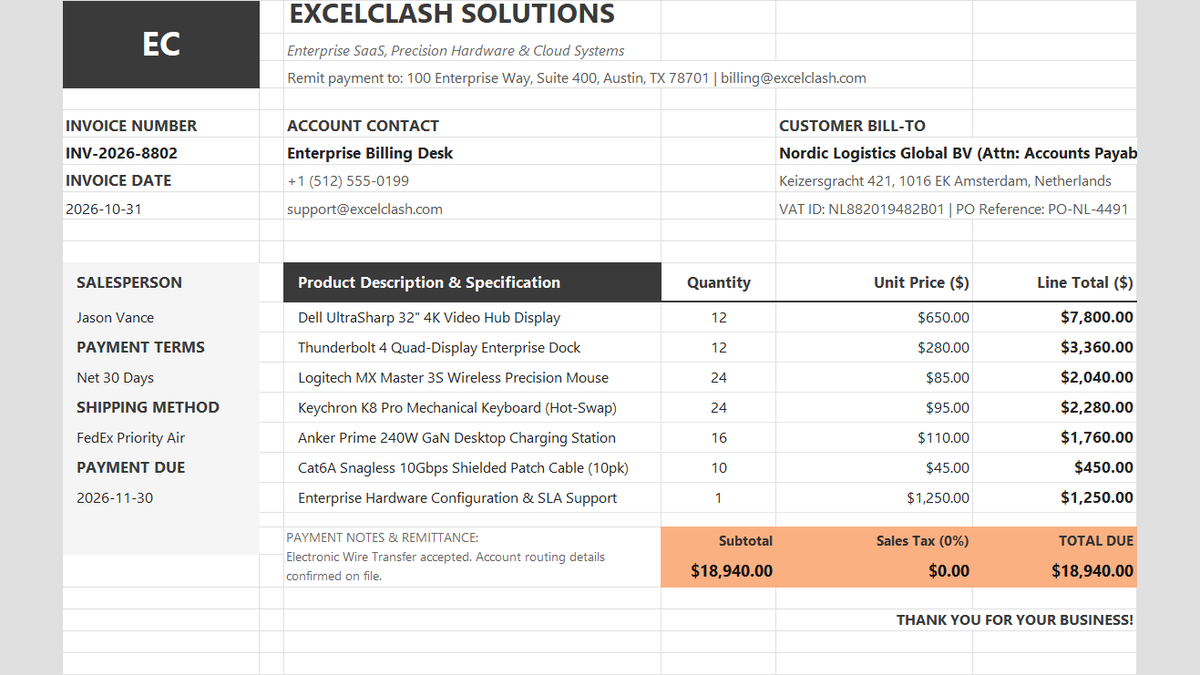
Ready to apply SUBTOTAL Dynamic Filtered Formula in a real workbook?
See how math formulas automate row totals, tiered discounts, and tax computations.
Open Automated Commercial Sales InvoiceShare This Lesson
Spread the word with your peers and challenge your friends