ROUND, ROUNDUP & ROUNDDOWN Formulas
Eliminate 1-cent reconciliation discrepancies in Excel with ROUND, ROUNDUP, and ROUNDDOWN. Control decimal places and round to powers of ten cleanly.

ROUND, ROUNDUP & ROUNDDOWN Formulas
Corporate tax accountants and billing clerks often encounter a baffling problem on printed invoices. Two numbers displayed on screen appear to add up incorrectly: for example, $10.25 + $10.25 = $20.51!
This 1-cent discrepancy happens because clicking the "Decrease Decimal" button on Excel's toolbar only changes visual formatting. Excel still stores the full floating-point fraction (10.254 + 10.254 = 20.508). When summed, Excel adds the hidden fractions and rounds the total to $20.51, confusing clients and auditors alike.
The ROUND, ROUNDUP, and ROUNDDOWN formulas eliminate this issue permanently. They alter the underlying mathematical value stored in Excel's calculation engine, ensuring that on-screen numbers match real financial cash flows.
ROUND
Follows conventional rounding rules: digits 1 to 4 round downward, while digits 5 to 9 round upward to the specified precision.
ROUNDUP & ROUNDDOWN
ROUNDUP forces numbers away from zero (vital for packaging minimums). ROUNDDOWN forces numbers toward zero without rounding up.
Quick Comparison: Visual Formatting vs ROUND Formulas
| Action | Visual Result | Underlying Memory Value | Sum of Two Cells (10.254 + 10.254) | Auditor Approved? |
|---|---|---|---|---|
| Format Cells (2 decimals) | $10.25 | 10.254000 | $20.51 (1-cent mismatch) | No (leads to billing disputes) |
| =ROUND(Cell, 2) | $10.25 | 10.250000 | $20.50 (Exact match) | Yes (reconciliation matches) |
| =ROUNDUP(Cell, 0) | $11.00 | 11.000000 | $22.00 | Yes (for minimum billing rules) |
How the Rounding Engines Work
1. Syntax and the num_digits Argument
=ROUND(number, num_digits)
=ROUNDUP(number, num_digits)
=ROUNDDOWN(number, num_digits)
2. The Three Modes of num_digits
- num_digits > 0: Rounds to decimal places.
=ROUND(12.3456, 2)returns 12.35. - num_digits = 0: Rounds to the nearest whole integer.
=ROUND(12.6, 0)returns 13. - num_digits < 0: Rounds to the left of the decimal point (powers of ten)!
-1rounds to the nearest 10 (e.g. 48 becomes 50).-2rounds to the nearest 100 (e.g. 480 becomes 500).-3rounds to the nearest 1,000 (e.g. $1,254,800 becomes $1,255,000).
3. Executive Summary Rounding
When presenting macro-level financial reports to board directors, exact dollar amounts create unnecessary visual clutter. Using =ROUND(Revenue, -3) converts exact numbers into neat thousands ($1,255K) cleanly.
Real-Life Workplace Scenarios
1. Corporate Sales Tax
Always wrap tax formulas in ROUND to eliminate hidden micro-cents:
=ROUND(Subtotal * TaxRate, 2)2. Project Contingency Budgeting
Budget managers round anticipated contractor hours up to the next full ten-hour block using =ROUNDUP(Hours, -1) to prevent under-budgeting.
Common Mistakes to Avoid
- Relying on Toolbar Buttons for Math: Formatting buttons only change pixels on the monitor, not the numbers used in later calculations.
- Positive vs Negative Digits: Using 2 rounds to cents; using -2 rounds to hundreds. Double-check the sign of your second argument.
Audit tax amounts and round numbers in our spreadsheet playground below.
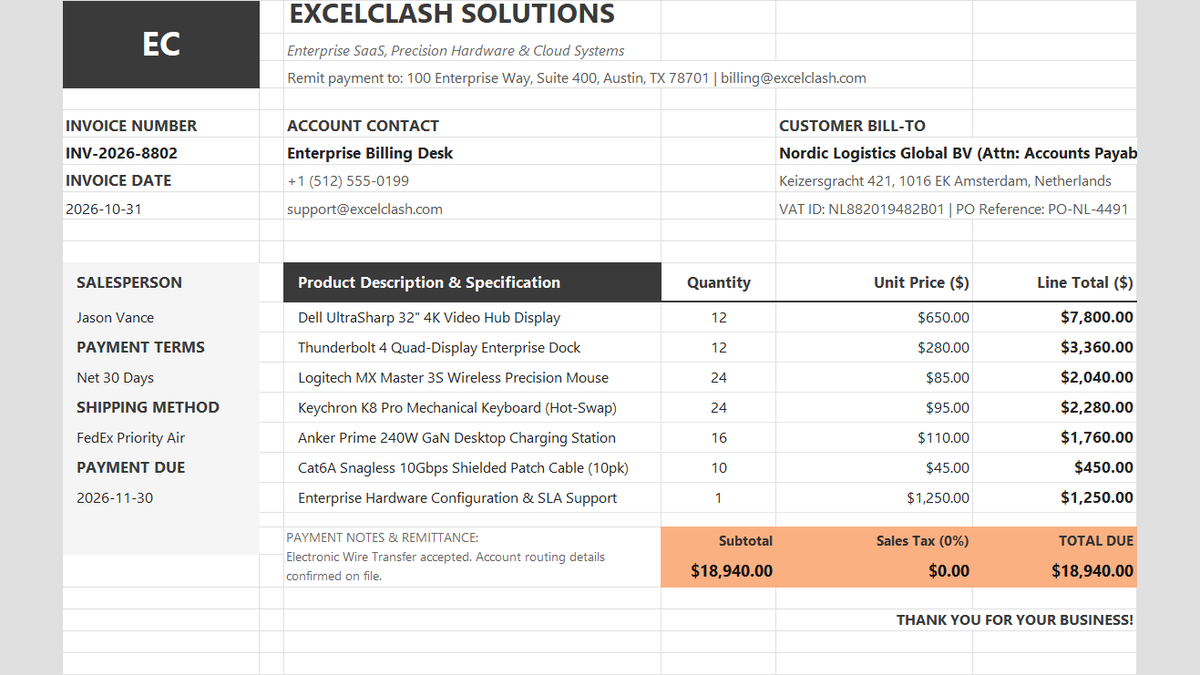
Ready to apply ROUND, ROUNDUP & ROUNDDOWN Formulas in a real workbook?
See how math formulas automate row totals, tiered discounts, and tax computations.
Open Automated Commercial Sales InvoiceShare This Lesson
Spread the word with your peers and challenge your friends