VALUE, T & N Data Type Coercion
Learn how to convert text numbers in Excel using VALUE, T, and N. Fix numbers formatted as text, convert booleans, and clean calculation data.

When downloading sales invoices or bank activity reports from web portals, numbers frequently arrive formatted as plain text strings (like "$1,250.00" or "450.50"). A telltale sign is a small green warning triangle in the cell corner, or the text aligning to the left side of the column.
Because Excel's SUM function silently ignores text strings, your financial totals may return zero. Excel provides three coercion formulas to convert text data into real numeric values: VALUE, N, and T.
Quick Comparison: Data Coercion Formulas
| Formula | Input | Output | Common Practical Purpose |
|---|---|---|---|
VALUE(text) |
Text-formatted number or currency string | True mathematical number | Converting imported web currency values into real numbers for math. |
N(value) |
Any value (booleans, dates, numbers) | Number (TRUE becomes 1, FALSE becomes 0) | Converting TRUE/FALSE flags into 1 and 0 for mathematical weighting. |
T(value) |
Any value | Returns text if text, blank if number | Filtering out numbers to ensure only text labels remain. |
The Left-Alignment Clue
In Excel, true numeric values automatically align to the right side of a cell by default. If a column of dollar amounts aligns to the left, Excel is treating those entries as text words. Wrapping the cell with VALUE() instantly converts it into a right-aligned number ready for calculation.
Hands-on Practice Playground
Use the transaction journal below to coerce stubborn text numbers into real numbers and convert boolean flags into calculation weights. Follow each objective to complete the exercise.
In cell C2, convert text price B2 into a real number using VALUE.
In cell C2, convert the text price in B2 into a real calculable number using the VALUE formula.
In cell E2, convert audit flag D2 into a numeric value (1 or 0) using N.
In cell E2, convert the logical audit flag in D2 into a number (1 for TRUE, 0 for FALSE) using the N formula.
In cell C3, convert the text amount in B3 into a real number using VALUE.
In cell C3, convert the text amount in B3 into a real number using VALUE.
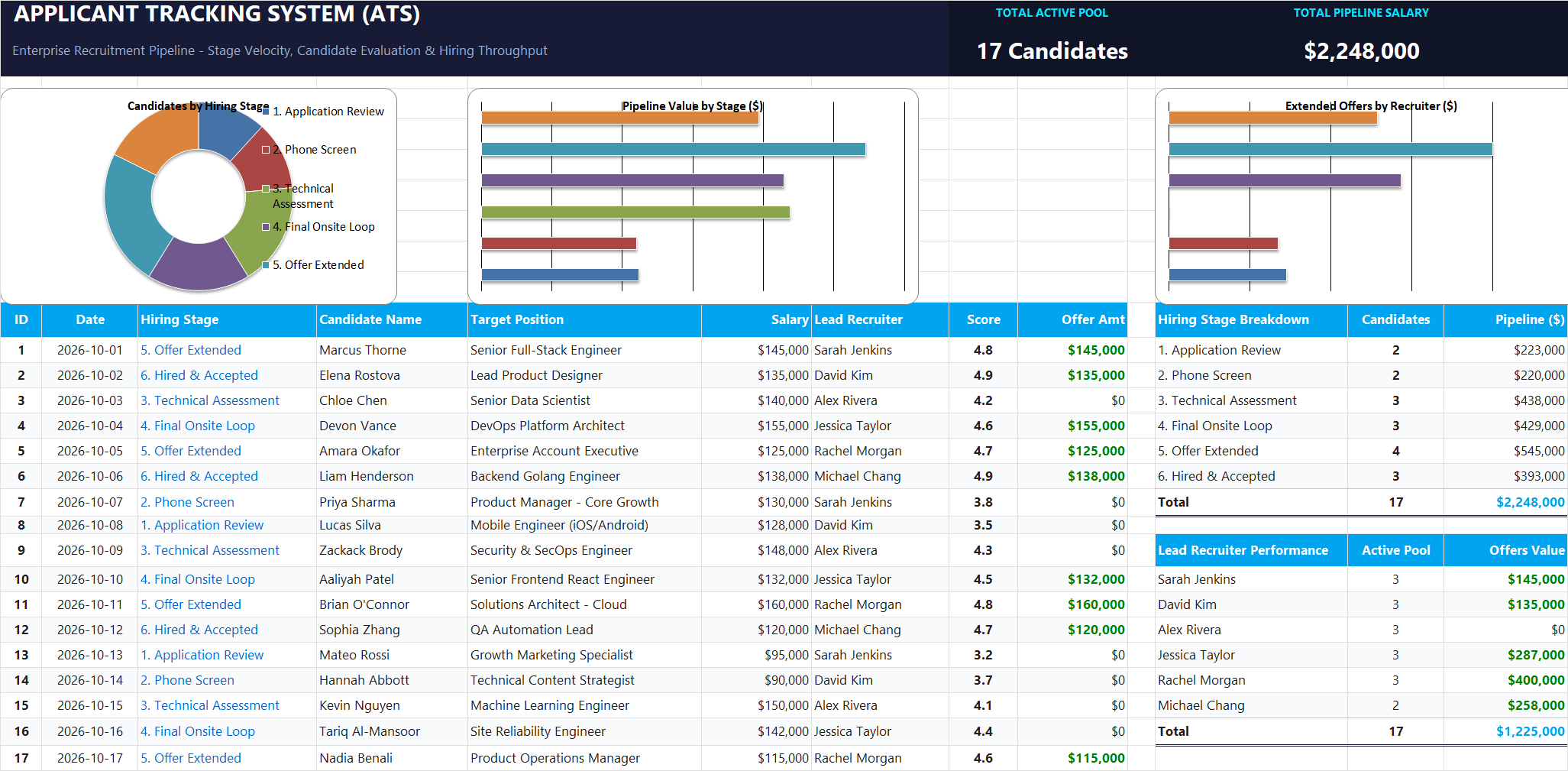
Ready to apply VALUE, T & N Data Type Coercion in a real workbook?
Clean and format applicant names, email strings, and internal tracking codes with text formulas.
Open Applicant Tracking System (ATS)Share This Lesson
Spread the word with your peers and challenge your friends