FIND & SEARCH String Lookup Formulas
Learn how to locate text positions in Excel using FIND and SEARCH. Discover case-sensitivity differences, wildcards, and dynamic text slicing.

To extract names from email addresses (everything before the "@" symbol) or pull transaction identifiers from log files, you first need to find the character position number where that separator symbol occurs.
Excel provides two position-finding formulas: FIND and SEARCH. While both locate the starting position of a substring, understanding their case sensitivity rules prevents broken text formulas.
Quick Comparison: FIND vs SEARCH
| Formula | Case Sensitive? | Supports Wildcards? | Best Fit in Real Work |
|---|---|---|---|
FIND(find_text, within_text) |
Yes ("HR" does not match "hr") | No | Strict case-sensitive codes, password audits, and case verification. |
SEARCH(find_text, within_text) |
No ("HR" matches "hr", "Hr", "hR") | Yes (? and *) |
Parsing email domains, website URLs, and general text searches. |
Common Error: The #VALUE! Miss
If the text you are searching for is not present inside the target string, both formulas immediately return a #VALUE! error. If you are auditing optional text markers, wrap the lookup with IFERROR:
=IFERROR(SEARCH("@", A2), 0)Hands-on Practice Playground
Use the user directory and security log below to locate symbol positions and test case sensitivity. Follow each objective to complete the exercise.
In cell C2, find the exact position of "@" using FIND.
In cell C2, locate the exact character position of the "@" symbol (from cell B2) inside the email address in A2 using the FIND formula.
In cell D2, find the position of "@" using SEARCH.
In cell D2, locate the "@" symbol position using the SEARCH formula.
In cell D3, locate target "HR" inside lowercase code "CODE-hr-9921-US" using SEARCH.
Notice row 3 has lowercase "hr". In cell D3, locate uppercase target "HR" from B3 inside code A3 using SEARCH (which ignores case).
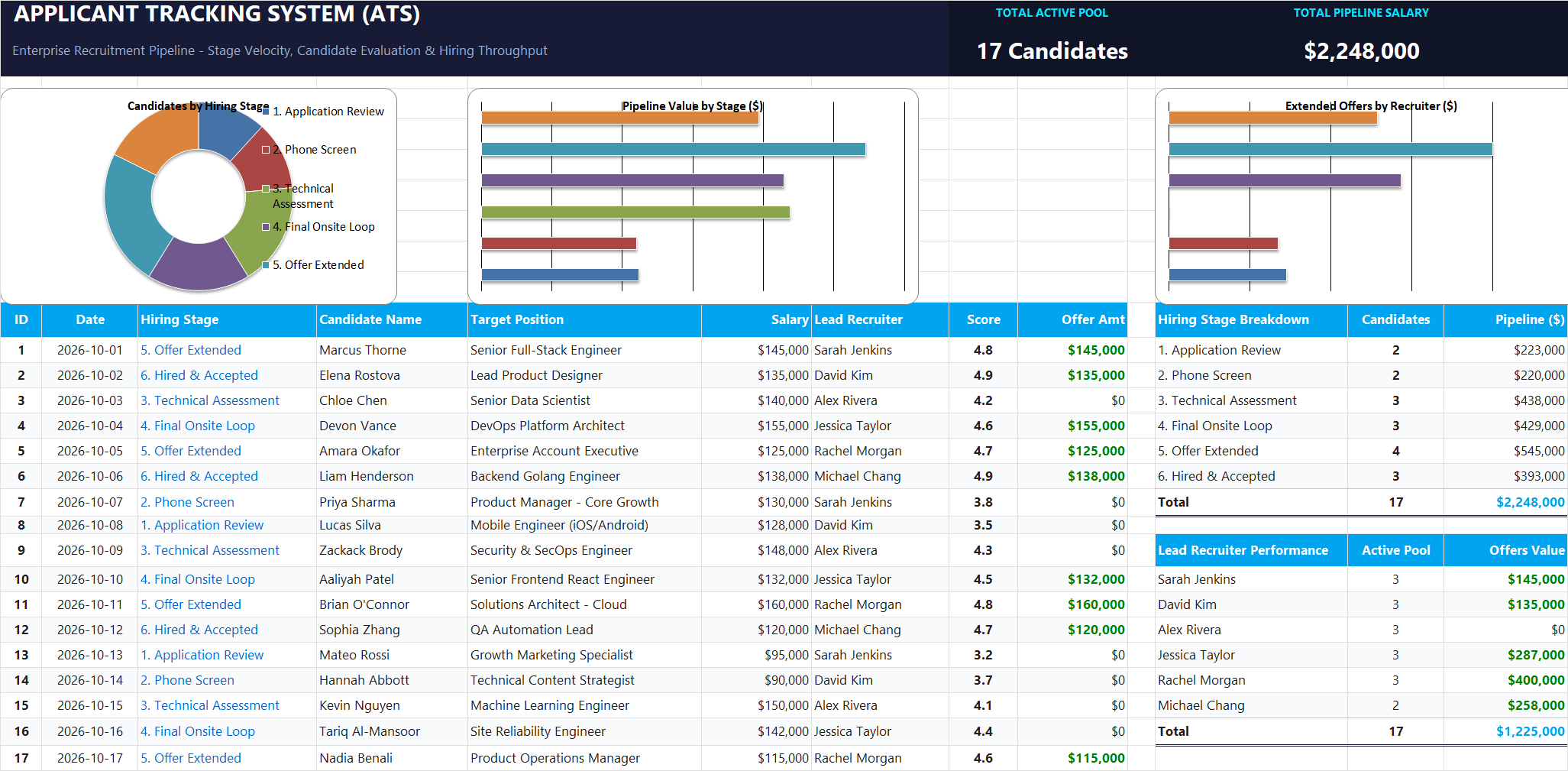
Ready to apply FIND & SEARCH String Lookup Formulas in a real workbook?
Clean and format applicant names, email strings, and internal tracking codes with text formulas.
Open Applicant Tracking System (ATS)Share This Lesson
Spread the word with your peers and challenge your friends