Number Formatting with TEXT Formula
Learn how to convert numbers into formatted text strings in Excel with TEXT. Format currencies, leading zeros, and dynamic date strings for executive reports.

Number Formatting with TEXT Formula
When you write executive summaries in Excel, you often combine text phrases with numbers. You might write a formula like ="Total Sales: " & C2. But when you press Enter, Excel produces something raw like Total Sales: 1250500.5. The dollar sign, comma separators, and neat two decimal places disappear completely.
The same problem happens with dates and invoice numbers. Combine a date with a string, and Excel displays a meaningless number like 46332. Combine an account code like 00452, and Excel strips the leading zeros down to 452.
The TEXT formula solves this issue permanently. It takes any raw number or serial date and converts it into a formatted text string using custom format patterns. This guide shows how to format currency, pad zeros, and build dynamic narrative sentences cleanly.
Format Cells Dialog (Ctrl+1)
Keeps the underlying number intact for math, but reverts to raw numbers when concatenated inside text formulas.
TEXT Formula
Converts numbers into formatted strings permanently, preserving commas and currency symbols inside combined narrative text.
Quick Comparison: Visual Cell Formatting vs TEXT Formula
| Formatting Method | Keeps Format in Text Strings? | Value Remains a Real Number? | Can Be Added with SUM? | Best Used For |
|---|---|---|---|---|
| Format Cells Dialog (Ctrl+1) | No (reverts to raw value in text strings) | Yes | Yes | Standard worksheets, math tables, and financial modeling |
| TEXT Formula | Yes (permanently baked into the text) | No (becomes text string) | No (SUM treats it as 0) | Summary cards, executive narrative sentences, and CSV exports |
Warning: Because the output of the TEXT formula is text, standard math formulas like SUM or AVERAGE will ignore it or return zero. Use the TEXT formula only in presentation columns, email text blocks, or final report strings—never in the middle of calculation steps.
Understanding the TEXT Formula Syntax
The TEXT formula takes two simple arguments:
=TEXT(value, format_text)- value: The numeric value, cell reference, or date you want to format.
- format_text: A text string enclosed in double quotation marks containing standard Excel formatting codes (such as
"$#,##0.00"or"yyyy-mm-dd").
Essential Number Format Codes
The secret to controlling the TEXT formula lies in understanding format placeholders:
1. Zero Placeholder (0)
Forces Excel to display a digit, even if that digit is zero. This is essential for invoice numbers, postal codes, and employee IDs.
- Formula:
=TEXT(452, "000000") - Result:
"000452"
2. Number Placeholder (#)
Displays significant digits only and omits non-essential zeros. Combined with commas, it creates standard thousand separators.
- Formula:
=TEXT(1250500.5, "$#,##0.00") - Result:
"$1,250,500.50"
3. Date & Time Placeholders (d, m, y)
Converts raw serial date numbers into readable calendar formats.
"yyyy-mm-dd"displays2026-11-04"mmm dd, yyyy"displaysNov 04, 2026- Formula:
="Report Date: " & TEXT(F2, "mmm dd, yyyy")
Four-Section Format Codes for Advanced Reports
Excel format strings support up to four sections separated by semicolons:
Positive format ; Negative format ; Zero format ; Text formatFor instance, you can format financial balances so positive amounts show a plus sign, negative values are wrapped in parentheses, and zeros display a simple dash:
=TEXT(C2, "$#,##0.00;($#,##0.00);"-"")If C2 is 1500, the formula shows $1,500.00. If C2 is -450, it displays ($450.00). If C2 is 0, it cleanly shows -.
Common Mistakes to Avoid
- Forgetting Double Quotes Around Format Codes: Writing
=TEXT(C2, $#,##0.00)causes a syntax error. The code must always be enclosed in quotation marks:=TEXT(C2, "$#,##0.00"). - Performing Math on TEXT Results: Trying to do
=SUM(D2:D10)on columns formatted withTEXTresults in0. Always run your mathematical summaries on the raw numeric columns first. - Locale Separator Differences: Depending on your regional Windows settings, decimals and thousand separators may swap (comma vs period). Check your regional settings if you see an unexpected pattern.
Practice formatting raw financial accounts in our spreadsheet playground below.
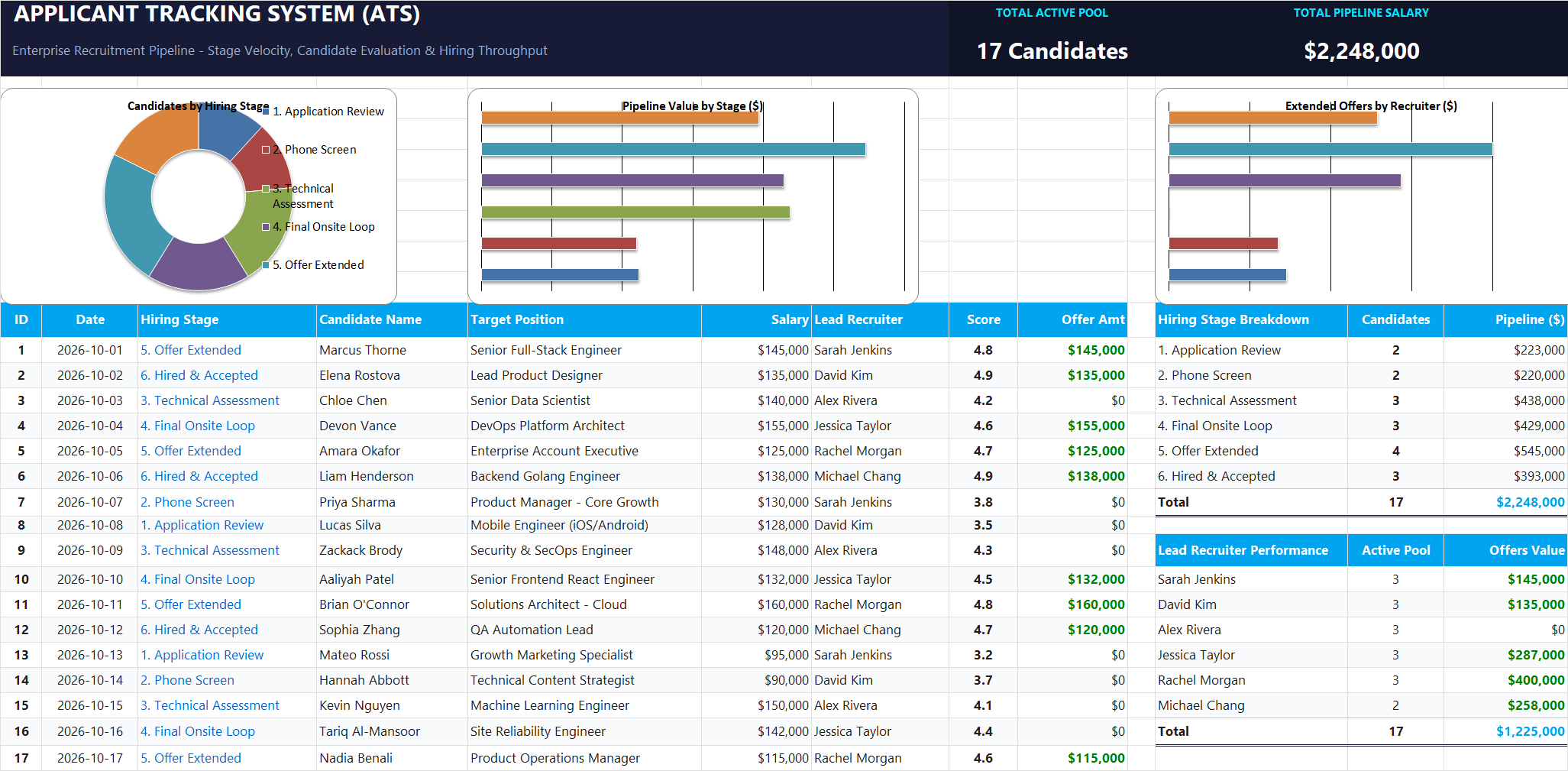
Ready to apply Number Formatting with TEXT Formula in a real workbook?
Clean and format applicant names, email strings, and internal tracking codes with text formulas.
Open Applicant Tracking System (ATS)Share This Lesson
Spread the word with your peers and challenge your friends