SUBSTITUTE & REPLACE String Formulas
Learn how to swap text in Excel using SUBSTITUTE and REPLACE. Discover how to replace words by name, mask phone numbers, and overwrite coordinates.

When customer databases or company assets undergo rebranding, thousands of records must be updated. For instance, an email domain might change from "@oldcorp.com" to "@newbrand.com" across all rows.
In other scenarios like data privacy compliance, you need to mask the middle digits of phone numbers ("555-890-1234" becomes "555-XXXX-1234") by overwriting specific character coordinates. Excel provides two distinct text swapping formulas: SUBSTITUTE and REPLACE.
Quick Comparison: SUBSTITUTE vs REPLACE
| Formula | What It Looks For | Case Sensitive? | Best Fit in Real Work |
|---|---|---|---|
SUBSTITUTE(text, old_text, new_text, [instance]) |
A specific word or character sequence | Yes | Swapping company email domains, cleaning slash punctuation, or replacing specific words. |
REPLACE(text, start_num, num_chars, new_text) |
A numeric character position range | Not applicable (overwrites position) | Masking credit card digits, phone numbers, and fixed-format serial IDs. |
Choosing the Right Tool
- Use SUBSTITUTE when you know what word you want to replace, regardless of where it appears in the sentence.
- Use REPLACE when you know where the characters sit (e.g. "replace 4 characters starting at character 5").
Hands-on Practice Playground
Use the customer records below to practice domain swapping and phone number privacy masking. Follow each objective to complete the exercise.
In cell D2, swap the old domain in A2 with new domain C2 using SUBSTITUTE.
In cell D2, replace the old domain in A2 (matching text B2) with the new domain in C2 using the SUBSTITUTE formula.
In cell E2, replace the first 7 characters of email A2 with "contact" using REPLACE.
In cell E2, replace the first 7 characters of email A2 with "contact" using the REPLACE formula starting at position 1.
In cell E3, mask the middle digits of phone number A3 with "XXXX".
Customer phone in A3 needs middle masking. In cell E3, replace 3 digits starting at character position 5 with "XXXX" (from C3) using the REPLACE formula.
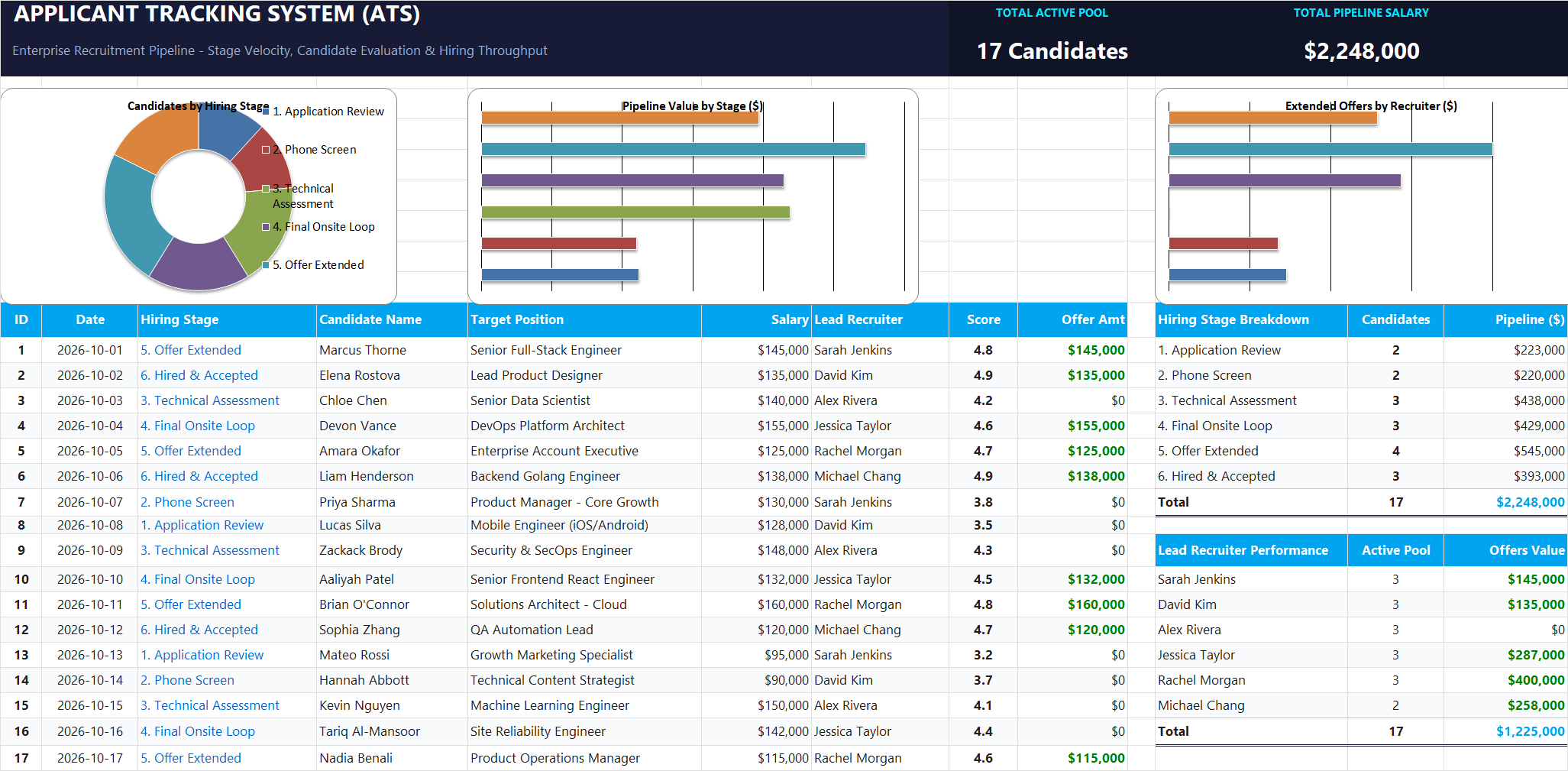
Ready to apply SUBSTITUTE & REPLACE String Formulas in a real workbook?
Clean and format applicant names, email strings, and internal tracking codes with text formulas.
Open Applicant Tracking System (ATS)Share This Lesson
Spread the word with your peers and challenge your friends