CHAR, UNICHAR & CODE Formulas
Learn how to use CHAR, UNICHAR, and CODE in Excel to insert in-cell line breaks, generate checkmarks and bullets, and inspect character numbers.

Logistics dispatchers and invoice preparers often need to format multi-line mailing labels inside a single cell (e.g. Street Address on line 1, City and Postal Code on line 2). Typing manual Alt + Enter breaks across thousands of rows is impossible.
At the same time, dashboard designers want clean visual status icons like checkmarks (✔), stars (★), and directional trend arrows without inserting heavy image files. Excel provides three dedicated character-code formulas: CHAR, UNICHAR, and CODE.
Quick Comparison: Character Number Formulas
| Formula | Input | Output | Most Famous Office Use Case |
|---|---|---|---|
CHAR(number) |
ASCII code (1 to 255) | ASCII character | Inserting in-cell line breaks using CHAR(10). |
UNICHAR(number) |
Unicode decimal code | Unicode symbol | Generating checkmarks (10004), stars (9733), and arrows (9650). |
CODE(text) |
First letter of text | Numeric ASCII code | Inspecting hidden characters or identifying ASCII numbers. |
The Essential Wrap Text Rule
When you insert a line break with CHAR(10), Excel will only display the text on two lines if the cell has Wrap Text enabled. If Wrap Text is off, the text will appear on one line with an odd square character.
Hands-on Practice Playground
Format mailing labels and insert KPI status icons using the customer address table below. Follow each objective to complete the exercise.
In cell C2, combine street address A2 and city/postal B2 separated by an in-cell line break using CHAR(10).
In cell C2, combine street address A2 and city/postal B2 separated by an in-cell line break using CHAR(10) and the ampersand operator.
In cell E2, convert the Unicode code in D2 into a checkmark using UNICHAR.
In cell E2, convert the Unicode number from D2 into a visual checkmark symbol using the UNICHAR formula.
In cell E3, convert code D3 into a star icon using UNICHAR.
In cell E3, convert the code number in D3 into a star icon using UNICHAR.
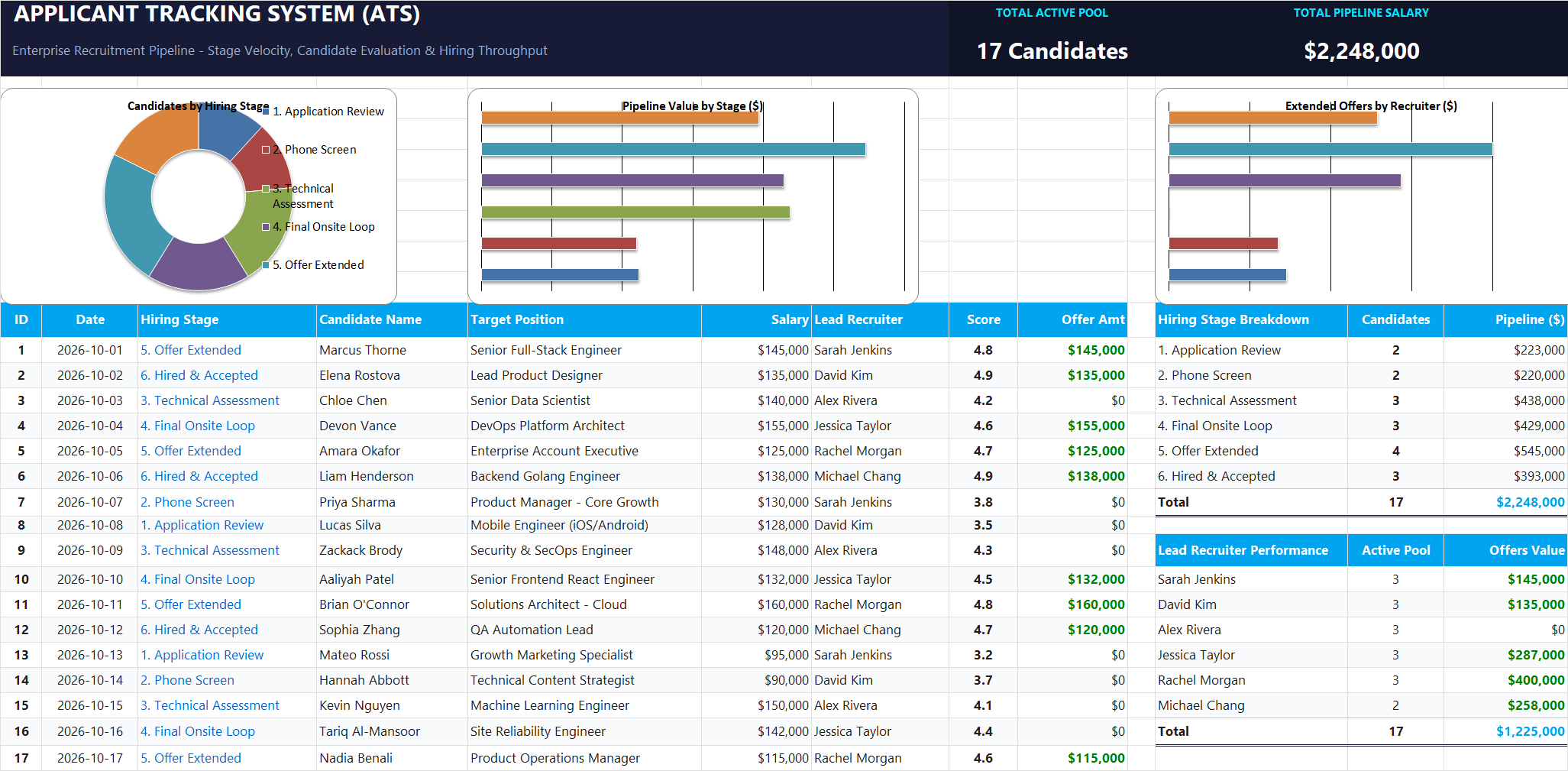
Ready to apply CHAR, UNICHAR & CODE Formulas in a real workbook?
Clean and format applicant names, email strings, and internal tracking codes with text formulas.
Open Applicant Tracking System (ATS)Share This Lesson
Spread the word with your peers and challenge your friends