TEXT String Formatting Formula
Learn how to convert numbers into formatted text strings in Excel with TEXT. Preserve currency symbols, dates, and percentages in dynamic sentence labels.

When creating automated billing summaries or executive report titles, analysts often concatenate customer names with balances and due dates:
="Dear " & A2 & ", your balance of " & B2 & " is due on " & C2Without formatting, the resulting message looks broken: "Dear Acme Corp, your balance of 12450.5 is due on 46332". The dollar sign disappears, comma separators vanish, and the calendar date reverts to an unreadable raw serial integer like 46332.
Excel provides the TEXT formula to convert numbers and dates into formatted strings with custom number formatting codes.
Syntax and Format String Rules
=TEXT(value, format_text)The second argument must always be wrapped in double quotes:
- Currency:
=TEXT(B2, "$#,##0.00")→ "$12,450.50" - Date:
=TEXT(C2, "mmm dd, yyyy")→ "Nov 15, 2026" - Percentage:
=TEXT(0.125, "0.0%")→ "12.5%"
The Text Data Type Reminder
Once converted using TEXT, the resulting value is a text string, not a true number. Do not run SUM on text-formatted cells; use this formula for reporting headers, customer emails, and narrative sentences.
Hands-on Practice Playground
Use the client invoicing schedule below to format currency values, clean date strings, and assemble executive messages. Follow each objective to complete the exercise.
In cell D2, convert balance B2 into currency text with code "$#,##0.00" using TEXT.
In cell D2, convert raw balance B2 into formatted currency text with a dollar sign, commas, and two decimals using the TEXT formula with code "$#,##0.00".
In cell E2, convert date C2 into formatted date text using code "mmm dd, yyyy".
In cell E2, convert due date C2 into formatted text displaying abbreviated month, day, and 4-digit year using the TEXT formula with code "mmm dd, yyyy".
In cell F2, build the complete executive message combining client name, formatted balance, and due date.
In cell F2, combine the customer greeting: "Dear " & A2 & ", your balance of " & D2 & " is due on " & E2.
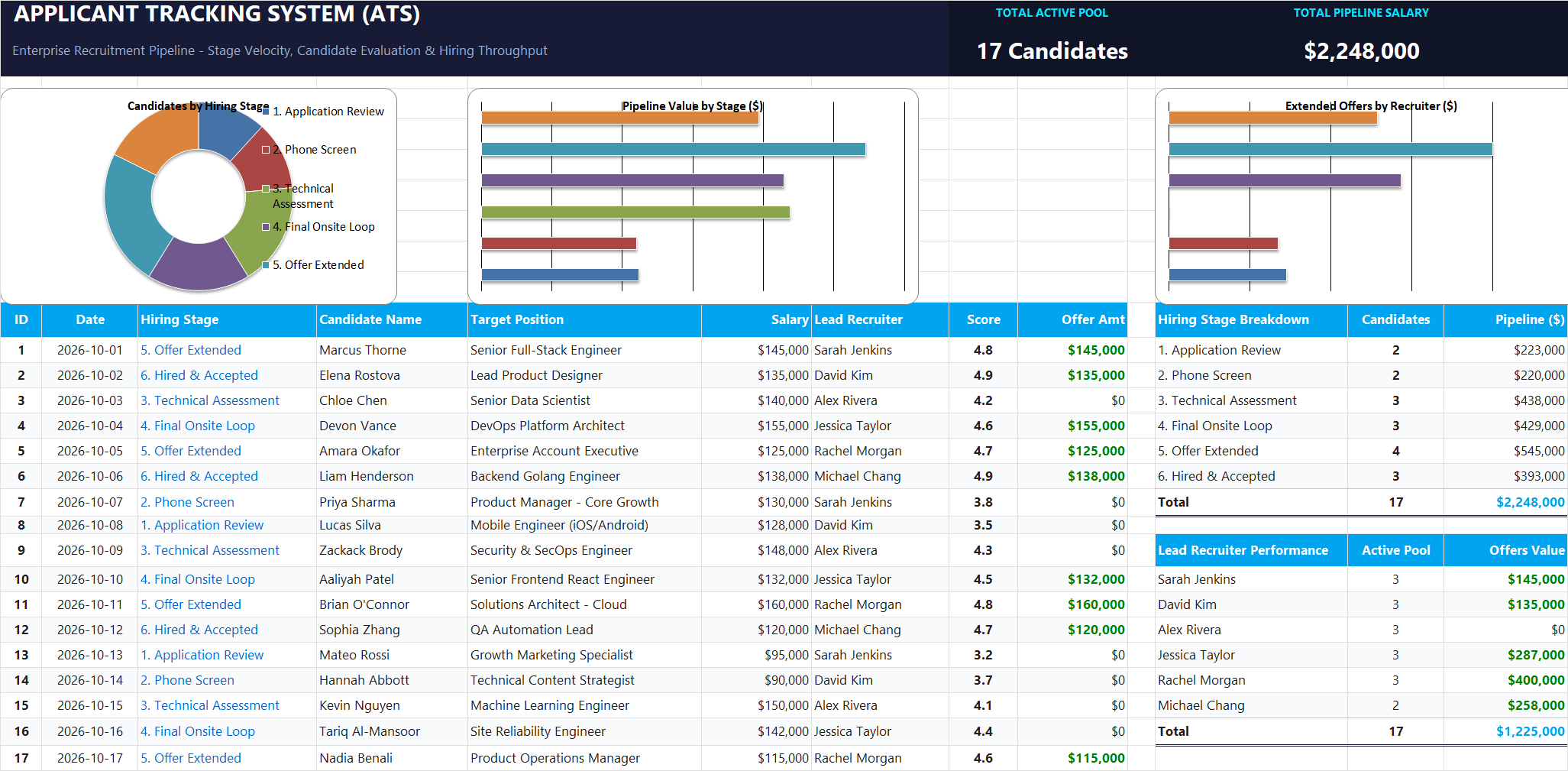
Ready to apply TEXT String Formatting Formula in a real workbook?
Clean and format applicant names, email strings, and internal tracking codes with text formulas.
Open Applicant Tracking System (ATS)Share This Lesson
Spread the word with your peers and challenge your friends