TRIM & CLEAN Data Cleansing Formulas
Learn how to use TRIM and CLEAN in Excel to fix extra spaces, remove invisible non-printable characters, and prevent VLOOKUP #N/A lookup errors.

When importing vendor ledgers or bank statements into Excel, lookup formulas like VLOOKUP or XLOOKUP frequently return an unexpected #N/A error—even when the vendor name looks identical on screen.
The culprit is almost always invisible spaces at the beginning or end of text, or non-printable ASCII control characters exported from older ERP databases. Excel provides two essential cleaning formulas: TRIM and CLEAN.
Quick Comparison: TRIM vs CLEAN
| Formula | What It Removes | What It Keeps | Common Practical Purpose |
|---|---|---|---|
TRIM(text) |
Leading spaces, trailing spaces, and multiple repeated spaces | Single spaces between words | Fixing vendor names and customer lists before running lookup formulas. |
CLEAN(text) |
The first 32 non-printable ASCII characters (ASCII 0 to 31) | All standard letters, numbers, and visible punctuation | Removing line breaks, tabs, and escape codes from mainframe database dumps. |
The Power Combination: =TRIM(CLEAN(cell))
In high-volume data workflows, analysts combine both formulas into a single protective wrapper:
=TRIM(CLEAN(A2))This first strips all invisible control characters, and then removes all remaining extra spaces. It is the gold standard for cleaning raw imported data before creating pivot tables or financial summaries.
Hands-on Practice Playground
Use the vendor accounting table below to remove extra spaces and strip unwanted system characters. Follow each objective to complete the exercise.
In cell C2, clean extra spaces from vendor name A2 using TRIM.
In cell C2, remove all leading, trailing, and repeated spaces from vendor name A2 using the TRIM formula.
In cell D2, remove non-printable characters from system code B2 using CLEAN.
In cell D2, remove the invisible non-printable system characters from code B2 using the CLEAN formula.
In cell E3, perform a complete cleanup on code B3 by nesting CLEAN inside TRIM.
In cell E3, perform a complete data cleanse on dirty code B3 by combining both TRIM and CLEAN formulas together.
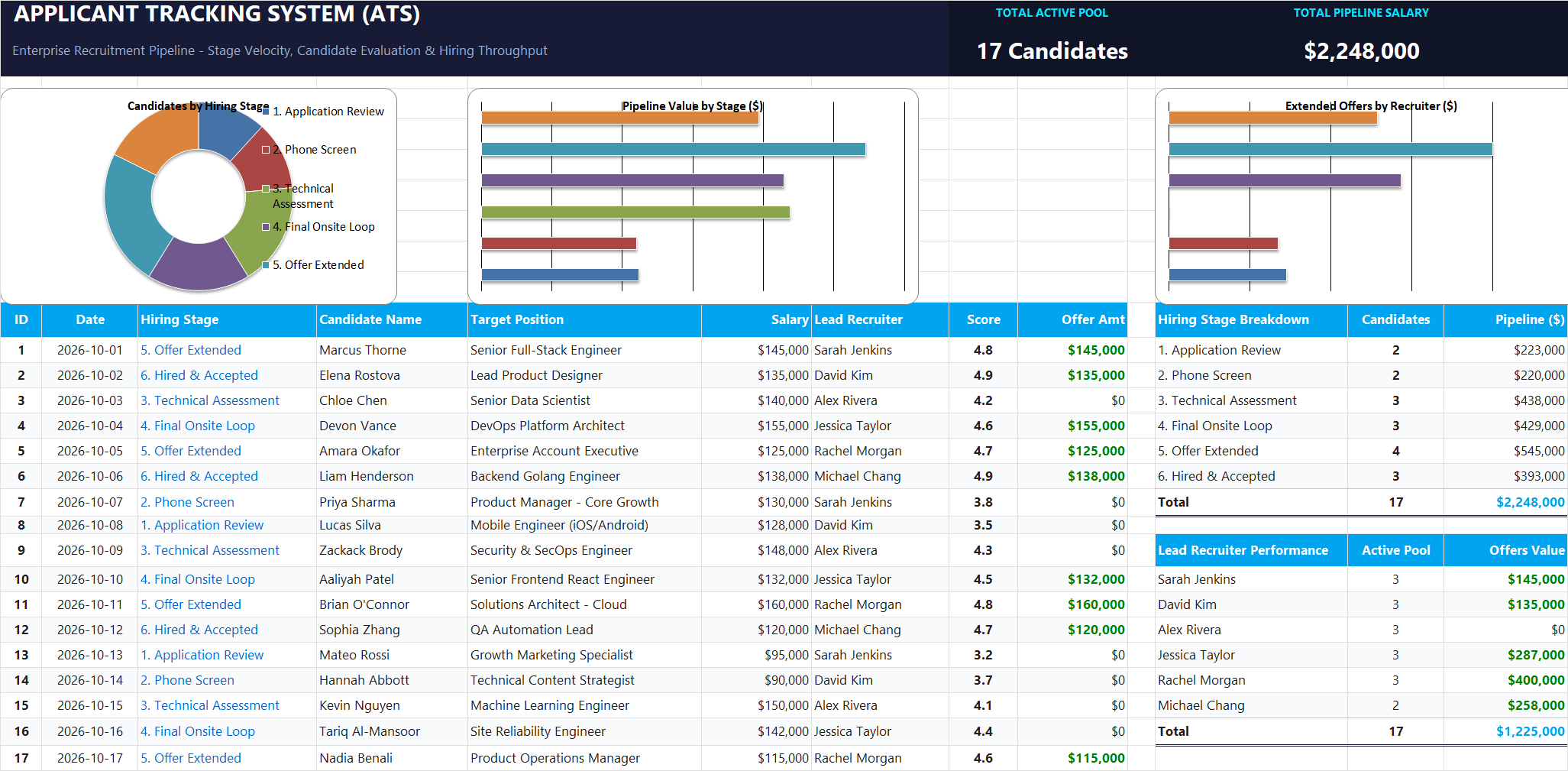
Ready to apply TRIM & CLEAN Data Cleansing Formulas in a real workbook?
Clean and format applicant names, email strings, and internal tracking codes with text formulas.
Open Applicant Tracking System (ATS)Share This Lesson
Spread the word with your peers and challenge your friends