
CONCAT & TEXTJOIN String Formulas
Learn how to combine text in Excel using CONCAT and TEXTJOIN. Discover how to add custom delimiters, ignore blank cells, and build clean mailing labels.

E-commerce fulfillment centers and logistics teams frequently assemble recipient addresses, invoice descriptions, and contact cards by merging text split across separate columns (such as First Name, Middle Name, and Last Name).
Merging text with simple ampersand operators (=A2 & " " & B2 & " " & C2) works fine until a customer has no middle name. When cell B2 is empty, that formula leaves an awkward double space ("Maria Santos"). Excel provides two modern text combining formulas: CONCAT and TEXTJOIN.
Quick Comparison: CONCAT vs TEXTJOIN
| Formula | Automatic Delimiter? | Skips Empty Cells? | Best Fit in Real Work |
|---|---|---|---|
CONCAT(t1, [t2], ...) |
No (must add manually) | No | Simple 2-cell merges and quick code assembly. |
TEXTJOIN(delim, skip_empty, range) |
Yes (defined once upfront) | Yes (when ignore_empty = TRUE) |
Combining address fields, CSV export strings, and lists with optional parts. |
How TEXTJOIN Eliminates Double Spaces
The TEXTJOIN formula puts the delimiter and blank-handling rules right at the front:
=TEXTJOIN(", ", TRUE, A2:C2)When Excel encounters Maria Santos (where Middle Name is blank), TEXTJOIN automatically bypasses the empty middle cell and returns clean text without trailing separators or extra spaces.
Hands-on Practice Playground
Use the customer shipping directory below to assemble full names and formatted mailing tags. Follow each objective to complete the exercise.
In cell D2, join First Name A2 and Last Name C2 separated by a space using CONCAT.
Join First Name A2 and Last Name C2 with a single space in between in cell D2 using the CONCAT formula.
In cell E2, create a mailing tag using TEXTJOIN with a comma-space delimiter and ignore_empty set to TRUE.
In cell E2, combine the name parts from A2 to C2 using TEXTJOIN with a comma and space delimiter (", "), and set the ignore_empty argument to TRUE so empty middle names are skipped.
In cell D3, assemble the full name for Maria Santos.
In cell D3, create the full name for Maria Santos by combining A3, a space, and C3 with CONCAT.
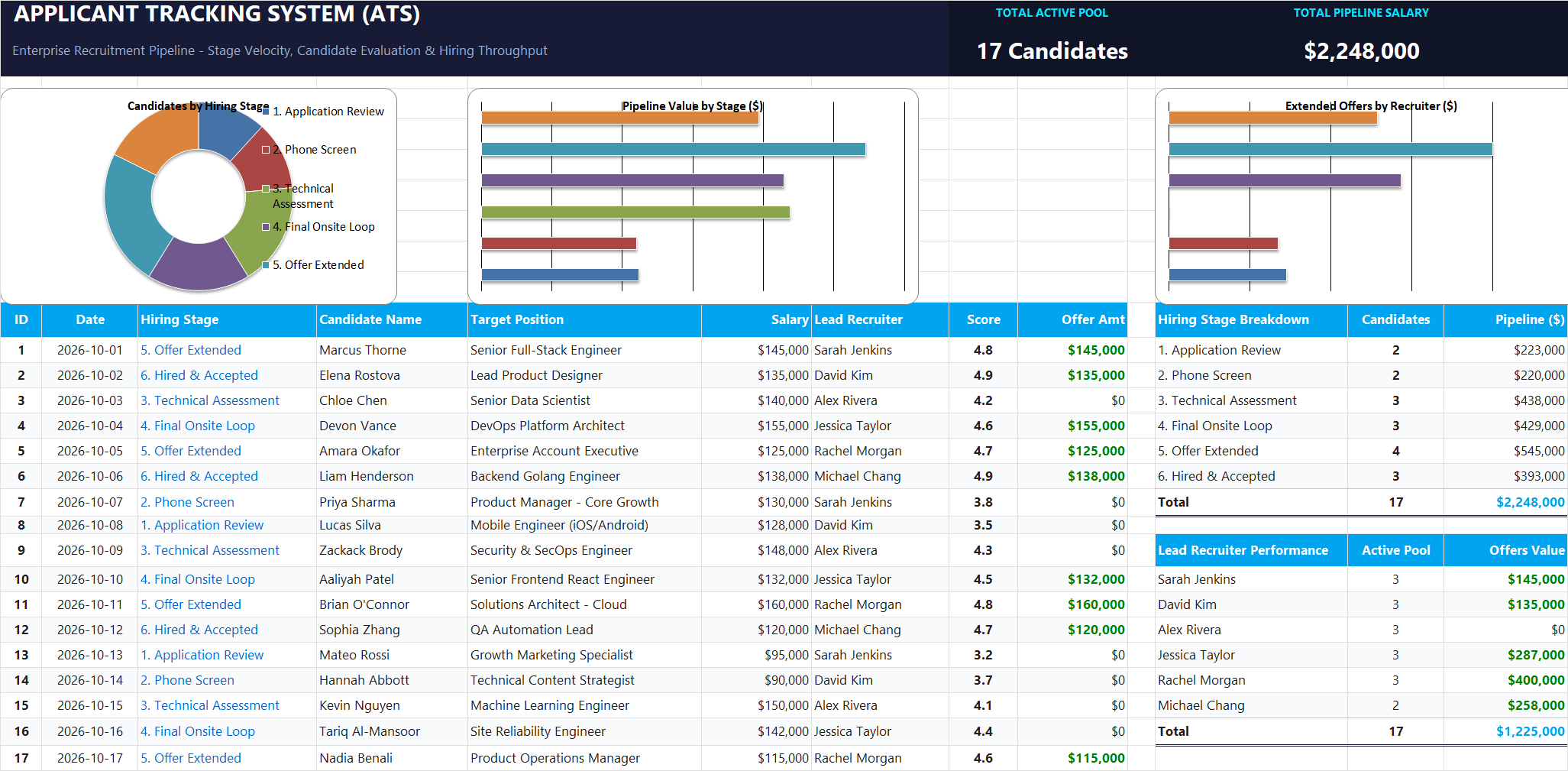
Ready to apply CONCAT & TEXTJOIN String Formulas in a real workbook?
Clean and format applicant names, email strings, and internal tracking codes with text formulas.
Open Applicant Tracking System (ATS)Share This Lesson
Spread the word with your peers and challenge your friends