LEFT, RIGHT & MID String Slicing
Learn how to slice text strings in Excel using LEFT, RIGHT, and MID. Extract product SKU codes, area codes, and middle sequence IDs easily.

Inventory databases and retail ERPs frequently store composite identifiers within a single cell (such as "US-ELEC-88192"). These strings combine several data points: the first two characters represent the origin country, the middle four represent the department category, and the final five represent the batch lot number.
Splitting these components manually into separate columns for reporting is tedious and error-prone. Excel provides three dedicated text extraction formulas: LEFT, RIGHT, and MID.
Quick Comparison: Slicing Directions
| Formula | Starting Anchor | Required Arguments | Best Fit in Real Work |
|---|---|---|---|
LEFT(text, [num_chars]) |
First character on the far left | Text, number of characters | Extracting country codes, area codes, and SKU prefixes. |
RIGHT(text, [num_chars]) |
Last character on the far right | Text, number of characters | Extracting serial suffixes, file extensions, and account endings. |
MID(text, start_num, num_chars) |
Specific character index in the middle | Text, start position, character length | Extracting middle department codes and embedded dates. |
The Numbers-as-Text Trap
When you extract digits using RIGHT(A2, 5), Excel outputs those digits as a text string, not a true mathematical number. If you attempt to sum or average those extracted digits, Excel will ignore them. To convert the extracted characters into real numbers, wrap the formula in VALUE(): =VALUE(RIGHT(A2, 5)).
Hands-on Practice Playground
Use the product inventory table below to extract origin prefixes, department codes, and batch serials. Follow each objective to complete the exercise.
In cell B2, extract the 2-character country prefix from SKU A2 using LEFT.
In cell B2, extract the 2-character country prefix from SKU A2 using the LEFT formula.
In cell C2, extract the 4-letter category from SKU A2 starting at character 4 using MID.
In cell C2, extract the 4-letter category from SKU A2 starting at character position 4 using the MID formula.
In cell D2, extract the final 5 characters from SKU A2 using RIGHT.
In cell D2, extract the final 5 characters from SKU A2 using the RIGHT formula.
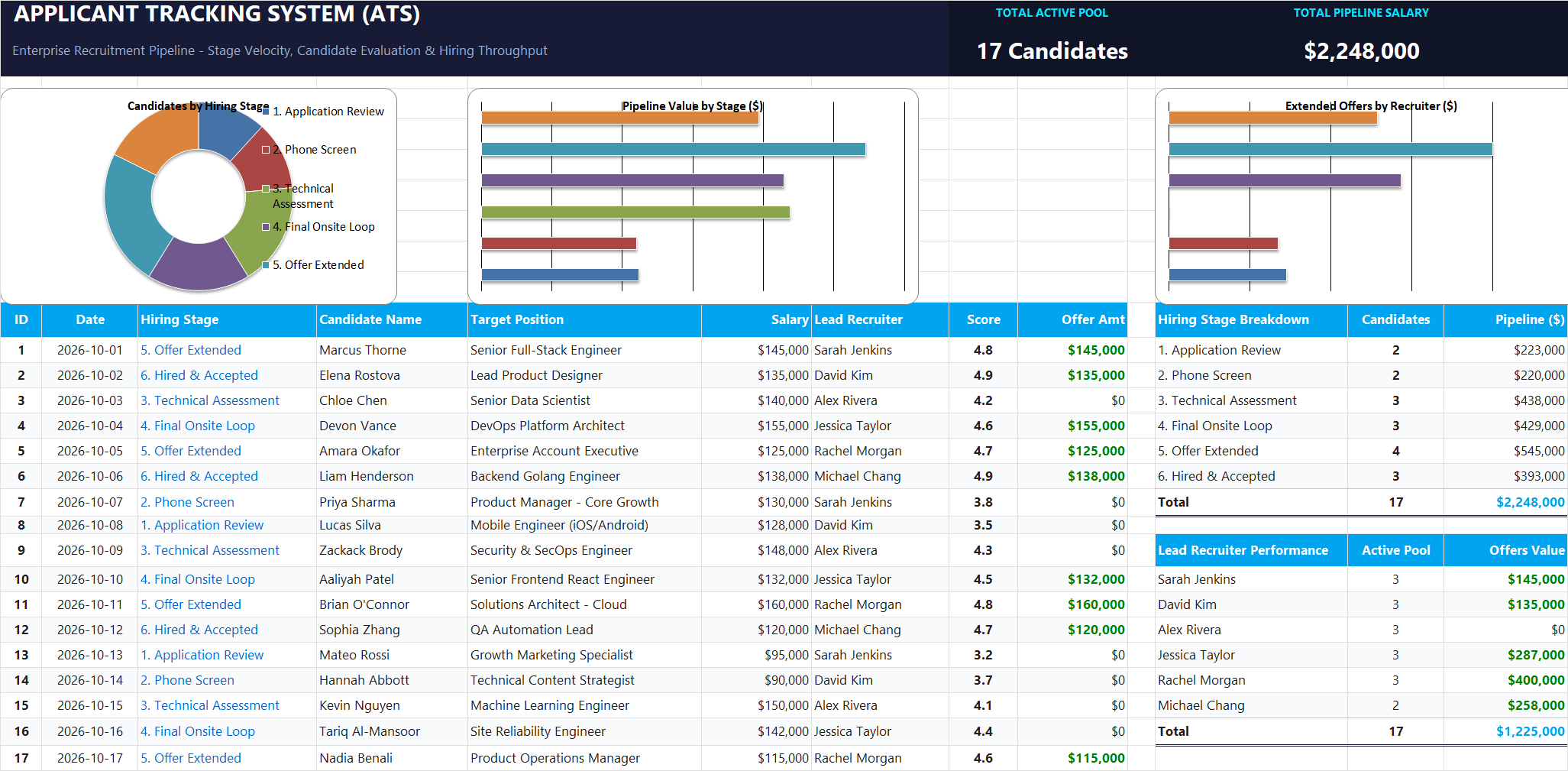
Ready to apply LEFT, RIGHT & MID String Slicing in a real workbook?
Clean and format applicant names, email strings, and internal tracking codes with text formulas.
Open Applicant Tracking System (ATS)Share This Lesson
Spread the word with your peers and challenge your friends