LEN & REPT Text Length Formulas
Learn how to use LEN and REPT in Excel to audit SMS character limits, repeat text symbols, and build visual in-cell star ratings without charts.

Marketing teams managing SMS campaigns or push notifications must monitor character counts closely to prevent messages from spilling into two paid message segments (exceeding 160 characters). At the same time, operations managers want quick in-cell visualizations like customer star ratings (★★★★★) without creating cluttered external charts.
Excel provides two simple yet powerful text utility formulas: LEN and REPT.
Quick Comparison: LEN vs REPT
| Formula | Input | Output | Common Practical Purpose |
|---|---|---|---|
LEN(text) |
A single text string | Whole number character count | Verifying SMS character limits, phone number lengths, and postal codes. |
REPT(text, number_times) |
A character symbol + repetition count | Repeated text string | Building in-cell star ratings (★), progress bars (|), and repeated padding. |
The LEN Space Counting Rule
LEN counts every single character, including spaces, tabs, and punctuation. If your text contains accidental spaces at the end, LEN counts them. To measure only visible text, pair it with TRIM: =LEN(TRIM(A2)).
Hands-on Practice Playground
Measure promotional message lengths and construct star rating indicators using the campaign tracker below. Follow each objective to complete the exercise.
In cell B2, count the characters in marketing message A2 using LEN.
In cell B2, measure the total character count (including spaces) of the promotional message in A2 using the LEN formula.
In cell D2, build a star rating bar by repeating the star symbol ("★") based on score C2 using REPT.
In cell D2, build a visual rating bar by repeating the star symbol ("★") based on the satisfaction score in C2 using the REPT formula.
In cell D3, generate the star rating for the score in C3.
In cell D3, create the star rating display for campaign message A3 using the score in C3 with REPT.
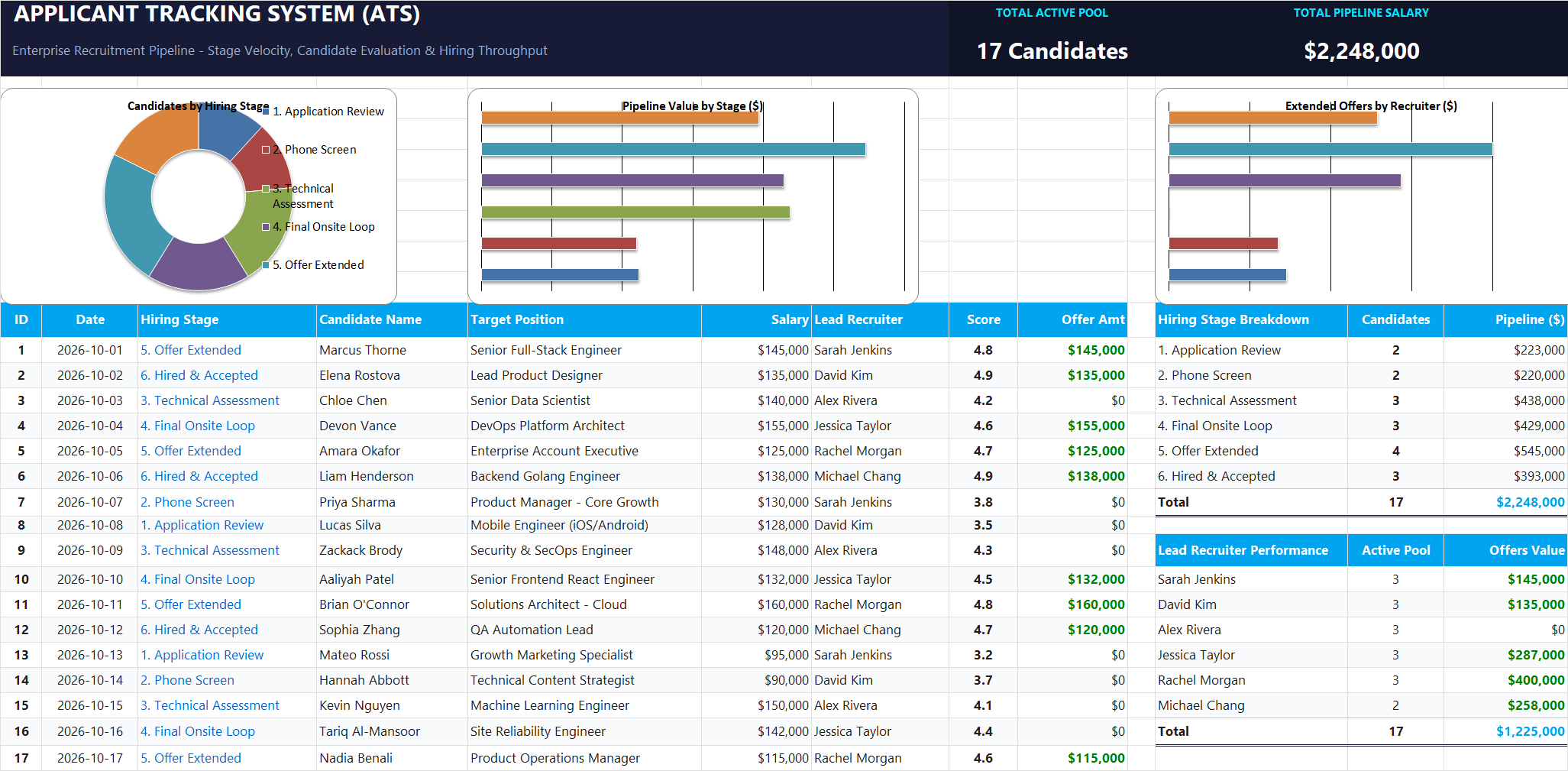
Ready to apply LEN & REPT Text Length Formulas in a real workbook?
Clean and format applicant names, email strings, and internal tracking codes with text formulas.
Open Applicant Tracking System (ATS)Share This Lesson
Spread the word with your peers and challenge your friends