XLOOKUP Modern Lookup Formula
Learn how to use XLOOKUP in Excel to look up left, return multiple columns, handle missing data natively, and eliminate column index errors forever.

For decades, spreadsheet users relied on VLOOKUP despite its well-known limitations: it cannot look to the left, breaks whenever new columns are inserted, and requires memorizing arbitrary column index numbers.
XLOOKUP replaces both VLOOKUP and HLOOKUP with a faster, simpler, and more resilient lookup engine.
Quick Comparison: VLOOKUP vs XLOOKUP
| Feature | VLOOKUP | XLOOKUP |
|---|---|---|
| Lookup Direction | Right only (Key must be column 1) | Any direction (Left, Right, Up, Down) |
| Default Match Mode | Approximate match (risky) | Exact match (safe) |
| Inserting Columns | Breaks formula results | Formula adjusts automatically |
| Missing Value Handling | Requires IFERROR or IFNA wrapper |
Built-in 4th argument ([if_not_found]) |
Core Formula Syntax
=XLOOKUP(lookup_value, lookup_array, return_array, [if_not_found], [match_mode], [search_mode])The first three arguments are all you need for 90% of business tasks:
lookup_value: What you are looking for (e.g. employee ID inE2).lookup_array: Where to find it (e.g. ID column$A$2:$A$6).return_array: What column to pull data from (e.g. names in$B$2:$B$6).
Advanced Capabilities
1. Looking Left
Because lookup and return ranges are passed independently, you can look up values located in column D and return results from column A without reordering your dataset.
2. Built-in Fallback for Missing Values
Instead of wrapping your formula in IFNA, pass fallback text directly into the fourth argument:
=XLOOKUP(E2, $A$2:$A$6, $B$2:$B$6, "Not Found")Hands-on Practice Playground
Use the employee roster below to practice looking up values and handling missing records using XLOOKUP. Follow each objective to complete the exercise.
In cell F2, look up the employee name for search ID E2.
In cell F2, retrieve the full employee name for search ID E2 by searching the employee code range $A$2:$A$6 and returning from the name range $B$2:$B$6 using the XLOOKUP formula.
In cell G2, retrieve the performance score for the same employee.
In cell G2, retrieve the performance score from range $D$2:$D$6 for the employee ID in E2 using XLOOKUP.
In cell F3, look up employee EMP-999 and provide a native fallback of "Not Found".
In cell F3, look up employee EMP-999 from E3 in $A$2:$A$6 returning from $B$2:$B$6, providing the native fallback text "Not Found" in the 4th argument of XLOOKUP.
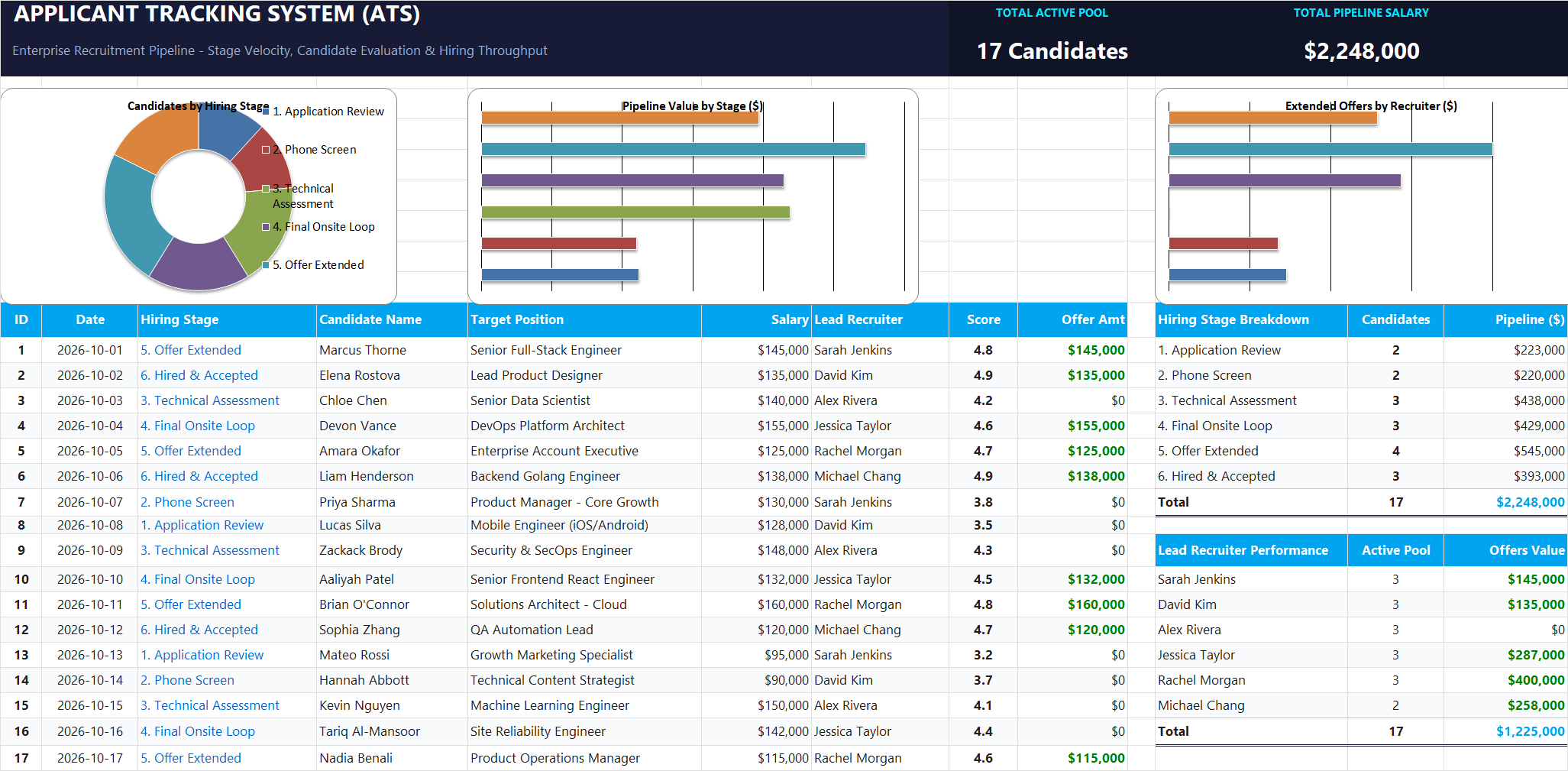
Ready to apply XLOOKUP Modern Lookup Formula in a real workbook?
Leverage bidirectional lookups to pull candidate profiles, interview scores, and hiring status.
Open Applicant Tracking System (ATS)Share This Lesson
Spread the word with your peers and challenge your friends