CHOOSE Index Selection Formula
Learn how to use CHOOSE in Excel to model financial scenarios, map fiscal quarters, and build dynamic formula switchers without lookup tables.

Financial planners building multi-year budget forecasts often prepare three alternative scenarios for executive leadership: a Base Case (5% growth), an Optimistic Case (15% growth), and a Conservative Case (-5% contraction). Executives want to toggle between these models with a single click or dropdown selection.
Instead of building complex IF statements or separate lookup tables, Excel provides CHOOSE. It acts as an instant multi-pole switch, selecting an item from a list based on an index number (1, 2, 3, etc.).
Syntax and Argument Structure
=CHOOSE(index_num, value1, [value2], [value3], ...)- index_num: A whole number starting from 1 that dictates which item to return. If index is 1, Excel returns
value1; if index is 2, it returnsvalue2. - value1, value2, ...: Up to 254 numbers, text strings, formulas, or cell references to choose between.
Core Mechanics and Financial Applications
1. Dynamic Financial Scenario Modeling
By connecting CHOOSE to a single control cell (like cell E2 containing the active scenario number), your entire financial model recalculates instantly when you change that single number:
=CHOOSE(E2, BaseGrowth, OptimisticGrowth, ConservativeGrowth)2. Dynamic Fiscal Quarter Mapping
If your company's fiscal year starts in April instead of January, standard calendar quarters do not match your reporting cycle. You can map all 12 calendar months to your custom fiscal quarters in a single formula:
=CHOOSE(MONTH(A2), "Q4", "Q4", "Q4", "Q1", "Q1", "Q1", "Q2", "Q2", "Q2", "Q3", "Q3", "Q3")3. The Out-of-Bounds Error (#VALUE!)
If index_num is less than 1 (such as 0) or greater than the number of items provided, Excel immediately returns a #VALUE! error. Always ensure your scenario selector numbers match your list count.
Hands-on Practice Playground
Use the financial scenario model below to select growth projections and calculate revenue forecasts. Follow each objective to complete the exercise.
In cell F2, select the active growth rate using the CHOOSE formula based on scenario switch E2.
In cell F2, select the active growth rate based on switch number E2 using the CHOOSE formula referencing the three scenario growth cells: C2, C3, and C4.
In cell G2, calculate projected revenue by multiplying baseline revenue C6 by (1 + growth rate F2).
In cell G2, calculate the projected revenue by multiplying baseline revenue C6 by (1 + active growth rate F2).
In cell F3, use CHOOSE with switch E3 to select between the scenario growth rates.
In cell F3, use CHOOSE with index switch E3 to pick between scenarios C2, C3, and C4.
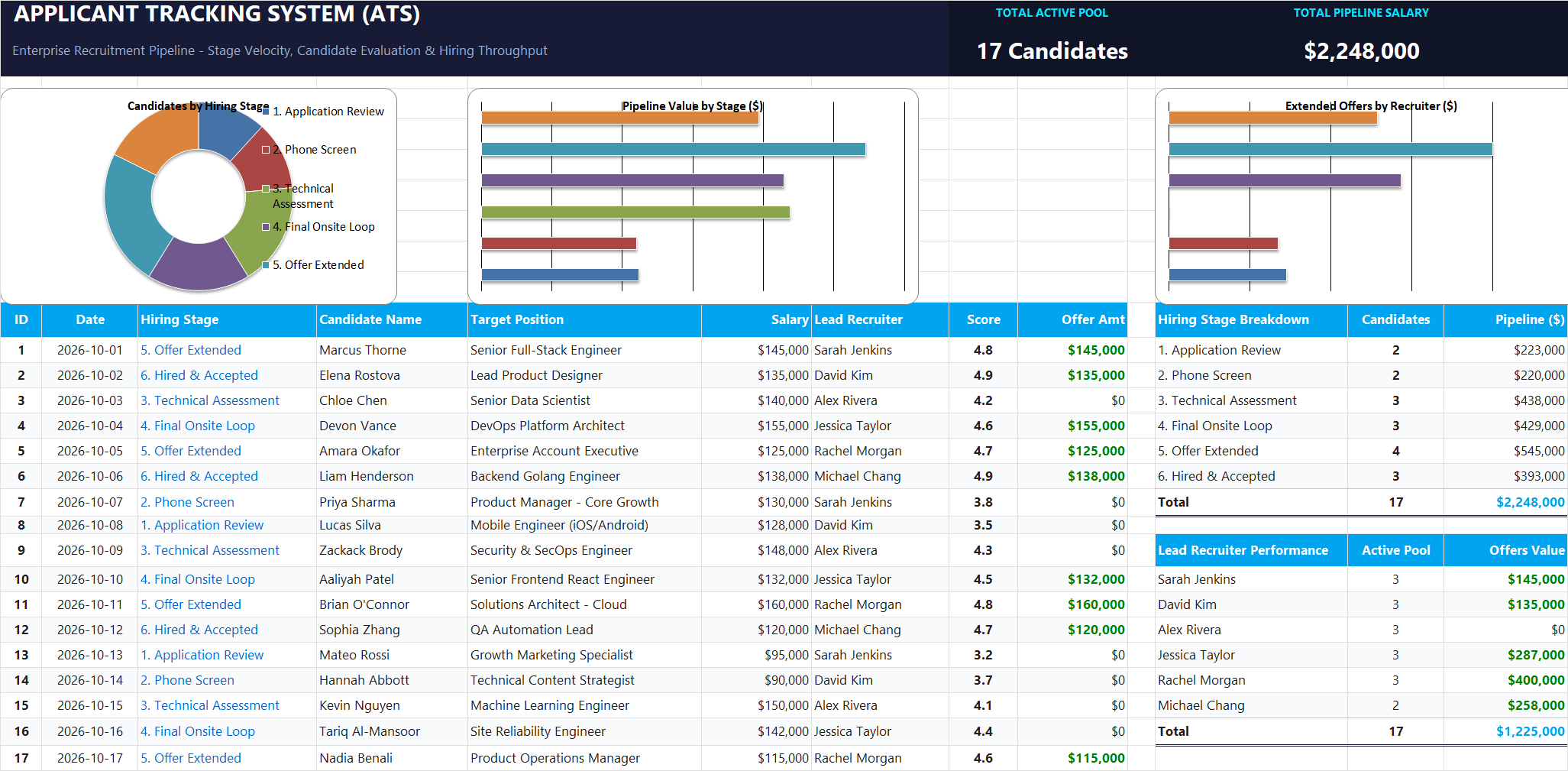
Ready to apply CHOOSE Index Selection Formula in a real workbook?
Apply lookup and reference formulas to search and organize structured candidate pipelines.
Open Applicant Tracking System (ATS)Share This Lesson
Spread the word with your peers and challenge your friends