VLOOKUP Vertical Lookup Formula
Learn how to use VLOOKUP in Excel to search catalog tables, pull product pricing, and understand exact vs approximate match without column index errors.

Order fulfillment teams receive lists of item codes on purchase orders every day. To create invoices, staff must find each product description and unit price from a central product catalog.
Instead of manually searching with Ctrl + F and copying values one by one, Excel provides VLOOKUP (Vertical Lookup). It searches down the leftmost column of a table and retrieves data from any column to the right.
Syntax and Four Core Arguments
=VLOOKUP(lookup_value, table_array, col_index_num, [range_lookup])- lookup_value: The unique key you are searching for (e.g. product code
B2). - table_array: The reference table where data lives. Always lock this range with dollar signs (e.g.
$A$10:$D$14). - col_index_num: The column number in your reference table to return (1 for the first column, 2 for the second, etc.).
- range_lookup: Set to
FALSE(or0) for an exact match.
Critical Rules Every Analyst Must Know
1. The First Column Rule
The lookup value must always be located in the first (leftmost) column of the table array. VLOOKUP cannot look to the left. If your product code is in column C and product name is in column B, standard VLOOKUP fails. In that situation, use XLOOKUP or INDEX/MATCH.
2. The Exact Match Default Trap
If you omit the fourth argument, Excel defaults to TRUE (Approximate Match). In business settings, this causes Excel to return incorrect products unless your catalog is sorted alphabetically. Always type FALSE or 0 at the end of your VLOOKUP.
3. Absolute Cell References
When dragging a VLOOKUP formula down multiple rows, always lock the table coordinates with dollar signs ($A$10:$D$14). Without dollar signs, the search range shifts downward, causing later rows to return #N/A.
Hands-on Practice Playground
Use the order ledger and catalog table below to look up product names and prices. Follow each objective to complete the exercise.
In cell C2, look up the product description for product code B2 from catalog range $A$10:$D$14 (column 2) using exact match.
In cell C2, retrieve the product description for product code B2 from catalog table $A$10:$D$14 (column index 2) using exact match (FALSE).
In cell D2, look up the base unit price (column 4) for the same product code.
In cell D2, retrieve the base price for product B2 from catalog table $A$10:$D$14 (column index 4) using exact match (FALSE).
In cell C3, look up the description for order ORD-102 (product code B3).
In cell C3, look up the description for order ORD-102 (product code B3) from catalog range $A$10:$D$14 (column 2) using exact match (FALSE).
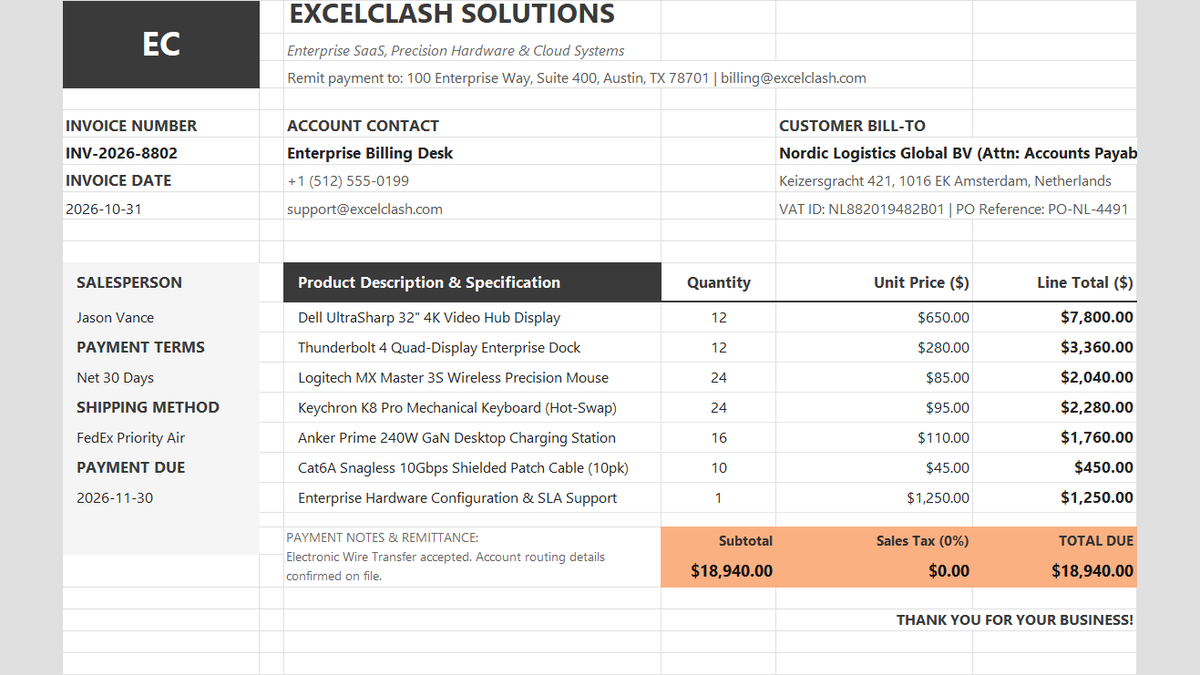
Ready to apply VLOOKUP Vertical Lookup Formula in a real workbook?
Use lookup logic to auto-populate unit prices, customer tax IDs, and item descriptions dynamically.
Open Automated Commercial Sales InvoiceShare This Lesson
Spread the word with your peers and challenge your friends