ADDRESS Coordinate Cell Reference Formula
Learn how to construct cell addresses and evaluate dynamic text references in Excel using ADDRESS and INDIRECT. Build dynamic sheet pickers and flexible models.

In complex corporate financial models, analysts often consolidate numbers across multiple regional worksheets (such as tabs named "North", "South", "East", "West"). When executives select a region name from a dropdown menu, the model must pull numbers from that specific sheet dynamically.
Typing static links like =North!D10 forces manual formula maintenance every time a new sheet is analyzed. Excel solves this using two formulas that handle dynamic references: ADDRESS and INDIRECT.
How the Two Formulas Cooperate
- ADDRESS: Takes row and column numbers and builds a text string representing a cell location (e.g. Row 6 and Column 4 becomes
"$D$6"). - INDIRECT: Takes that text string and turns it back into an active, living cell reference so Excel can pull its value.
Reference Mode Types in ADDRESS
The third argument of ADDRESS(row, col, [abs_num]) dictates dollar sign locking:
| abs_num Code | Reference Type | Example Output for Row 6, Col 4 |
|---|---|---|
1 (or omitted) |
Absolute row and column | $D$6 |
2 |
Absolute row, relative column | D$6 |
3 |
Relative row, absolute column | $D6 |
4 |
Fully relative | D6 |
Performance Warning for Financial Models
INDIRECT is a volatile function. It recalculates whenever any cell in the workbook changes. Use it for high-level dashboard dropdown controls, but avoid applying it across tens of thousands of detail rows.
Hands-on Practice Playground
Construct dynamic cell coordinates and retrieve live values using the parameter control table below. Follow each objective to complete the exercise.
In cell C2, generate the absolute address for row B2 and column B3 using ADDRESS.
In cell C2, generate an absolute text address for row number B2 (row 6) and column number B3 (column 4) using the ADDRESS formula.
In cell D2, pull the live data value from that generated address using INDIRECT.
In cell D2, retrieve the live value from the cell address string generated in C2 using the INDIRECT formula.
In cell C3, generate a fully relative cell address (mode 4) for the same coordinates.
In cell C3, generate a fully relative cell address (mode 4) for row B2 and column B3 using ADDRESS.
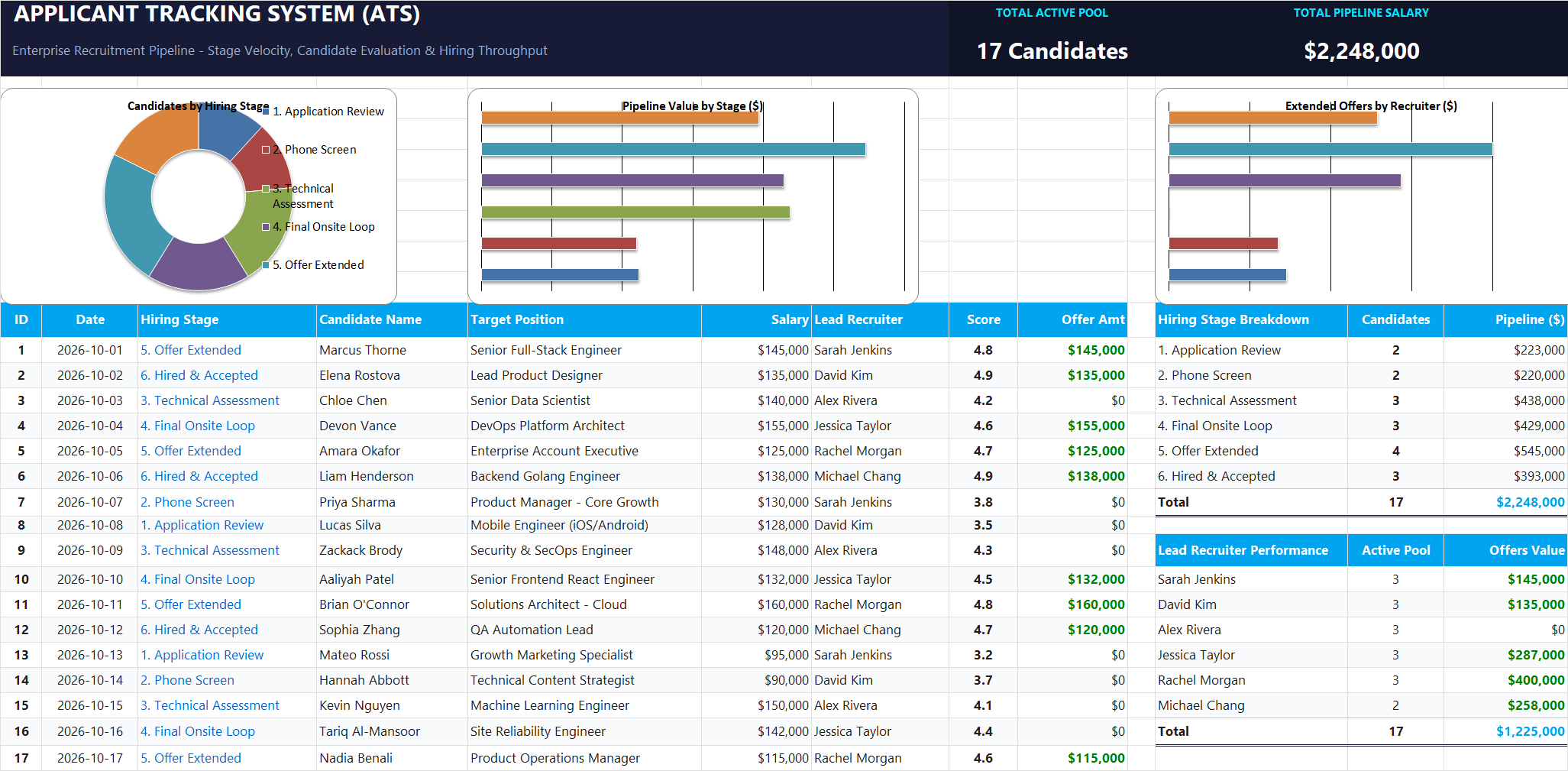
Ready to apply ADDRESS Coordinate Cell Reference Formula in a real workbook?
Apply lookup and reference formulas to search and organize structured candidate pipelines.
Open Applicant Tracking System (ATS)Share This Lesson
Spread the word with your peers and challenge your friends