
INDEX & MATCH Two-Way Matrix Lookup
Learn how to combine INDEX and MATCH in Excel for flexible lookups. Perform left lookups, two-way matrix grid intersections, and dynamic row-column searches.

In logistics, finance, and engineering, pricing structures often exist in two dimensions. For example, freight shipping rates depend on two variables: the destination zone (row) and the service speed (column). Standard VLOOKUP cannot dynamically evaluate both row and column headers at the same time.
The combination of INDEX and MATCH provides a powerful two-way matrix lookup engine that works across all versions of Excel.
How the Duo Works Together
Think of INDEX and MATCH as a team:
- MATCH acts as a GPS locator. It searches a list and returns the numeric position (e.g. "Row 3" or "Column 2").
- INDEX acts as the retriever. It navigates to that exact grid coordinate inside a data range and pulls the value.
Core Syntax for Two-Way Matrix Lookups
=INDEX(matrix_range, MATCH(row_val, row_header_range, 0), MATCH(col_val, col_header_range, 0))Notice the three key components:
matrix_range: The grid containing the numbers you want to retrieve (e.g.$B$2:$D$6).MATCH(E2, $A$2:$A$6, 0): Scans the vertical zone list to find the matching row number.MATCH(F2, $B$1:$D$1, 0): Scans the horizontal header row to find the matching column number.
Why Experienced Analysts Love INDEX/MATCH
- Immune to Column Changes: Inserting or deleting columns in your sheet will never break your formulas.
- Memory Efficiency: On spreadsheets with 200,000+ rows,
INDEX/MATCHcalculates noticeably faster thanVLOOKUPbecause it processes individual vectors instead of an entire data table. - Look Left, Up, Down, Anywhere: There is no "leftmost column" restriction.
Hands-on Practice Playground
Use the shipping freight matrix below to look up rates based on destination zone and delivery service speed. Follow each objective to complete the exercise.
In cell G2, find the shipping rate for Zone 2 - Regional with EXPRESS service using two-way INDEX and MATCH.
In cell G2, find the shipping rate at the intersection of target zone E2 and target service F2. Use INDEX on data matrix $B$2:$D$6, with a MATCH on zone names $A$2:$A$6 for the row and a MATCH on header services $B$1:$D$1 for the column (both exact match 0).
In cell G3, retrieve the shipping rate for Zone 3 - National with STANDARD service.
In cell G3, retrieve the shipping rate for target zone E3 and service F3 using the two-way INDEX and MATCH formula across matrix $B$2:$D$6.
In cell G4, calculate the rate for Zone 1 - Local with FREIGHT service.
In cell G4, calculate the freight rate for target zone E4 and service F4 using INDEX and MATCH over the rate matrix.
Ready to apply INDEX & MATCH Two-Way Matrix Lookup in a real workbook?
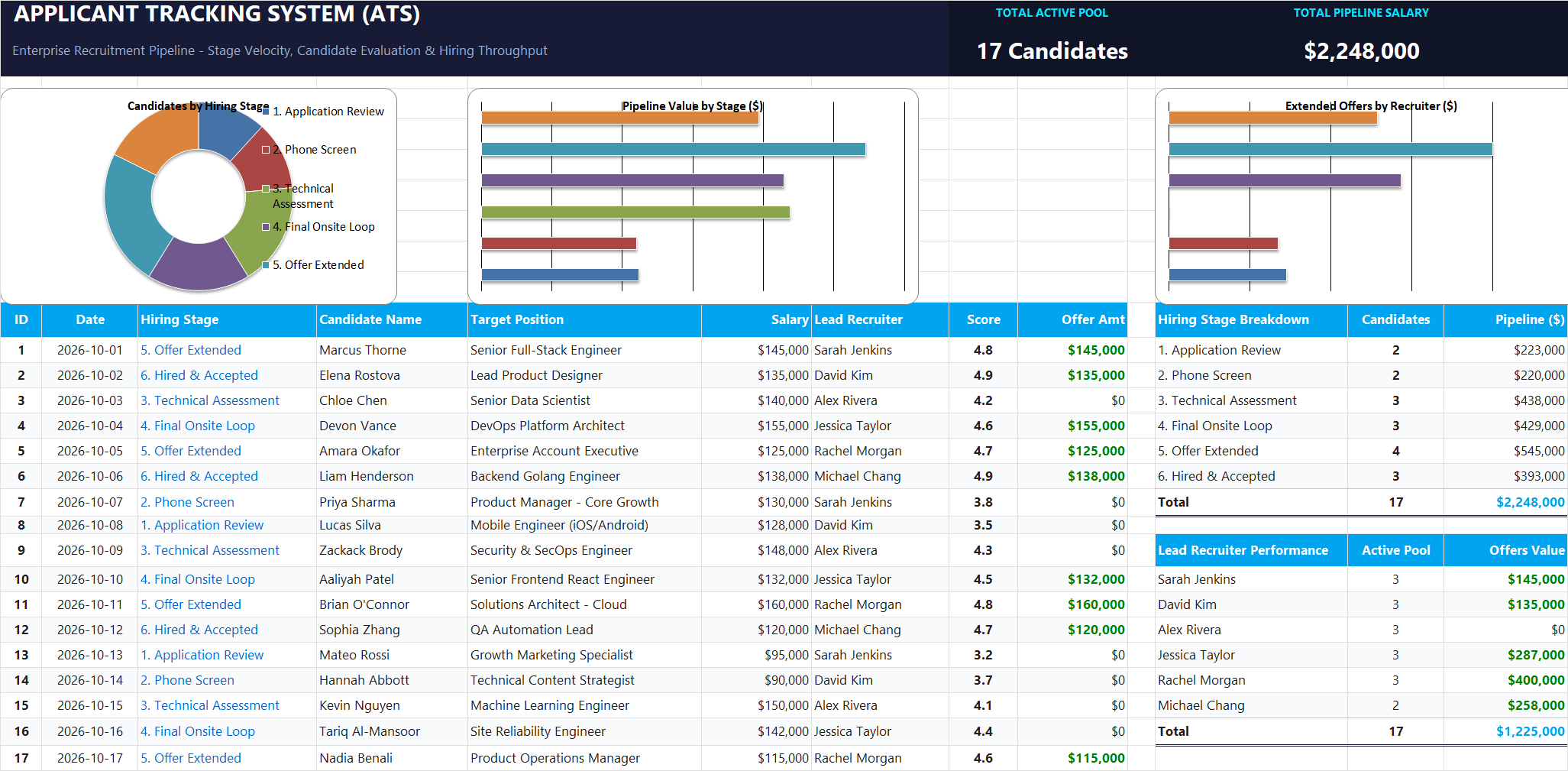
Apply lookup and reference formulas to search and organize structured candidate pipelines.
Open Applicant Tracking System (ATS)Share This Lesson
Spread the word with your peers and challenge your friends