HYPERLINK Clickable Link Formula
Learn how to create clickable links in Excel using the HYPERLINK formula. Navigate internal sheets, open intranet files, and launch pre-filled emails cleanly.

Project managers, operations teams, and customer support leads build Learn trackers with hundreds of external web links, shared network folders, and internal tab shortcuts. Adding links by hand using the Ctrl + K dialog box is tedious when dealing with large lists.
The HYPERLINK formula creates clickable links programmatically. It allows you to build dynamic URLs and email shortcuts using formula text concatenation.
Syntax and the Two Core Arguments
=HYPERLINK(link_location, [friendly_name])- link_location: The destination path. Can be a web URL (
https://...), an email address (mailto:...), or an internal worksheet location. - friendly_name: The clean text displayed in the cell instead of an ugly raw URL string (e.g. "Open Ticket" or "Send Email").
The Golden Rule for Internal Worksheet Links
A common error when linking between sheets inside the same workbook is writing =HYPERLINK("Summary!A1", "Go to Summary"). This link will fail to open.
The Pound Sign Rule: Internal worksheet links must always start with a hashtag (#):
=HYPERLINK("#Summary!A1", "Go to Summary")
=HYPERLINK("#'Q1 Budget'!A1", "Open Budget") // Wrap sheets with spaces in single quotes
Creating Automated Email Links
You can generate one-click email drafts that open in Outlook or Gmail with pre-filled subjects:
=HYPERLINK("mailto:billing@company.com?subject=Invoice " & InvNum, "Email Billing")Hands-on Practice Playground
Use the bug tracking board below to build clean clickable ticket links and email shortcuts. Follow each objective to complete the exercise.
In cell E2, build a clickable link to URL D2 displaying friendly text "Open Ticket".
In cell E2, create a clickable tracker link using the HYPERLINK formula pointing to destination URL D2 with the friendly display text "Open Ticket".
In cell F2, create an email link to "support@company.com" with display text "Email Support".
In cell F2, create an email link using HYPERLINK that sends an email to "support@company.com" with the friendly display name "Email Support".
In cell E3, build a clickable link for ticket BUG-402.
In cell E3, create a clickable link pointing to ticket URL D3 with friendly text "Open Ticket".
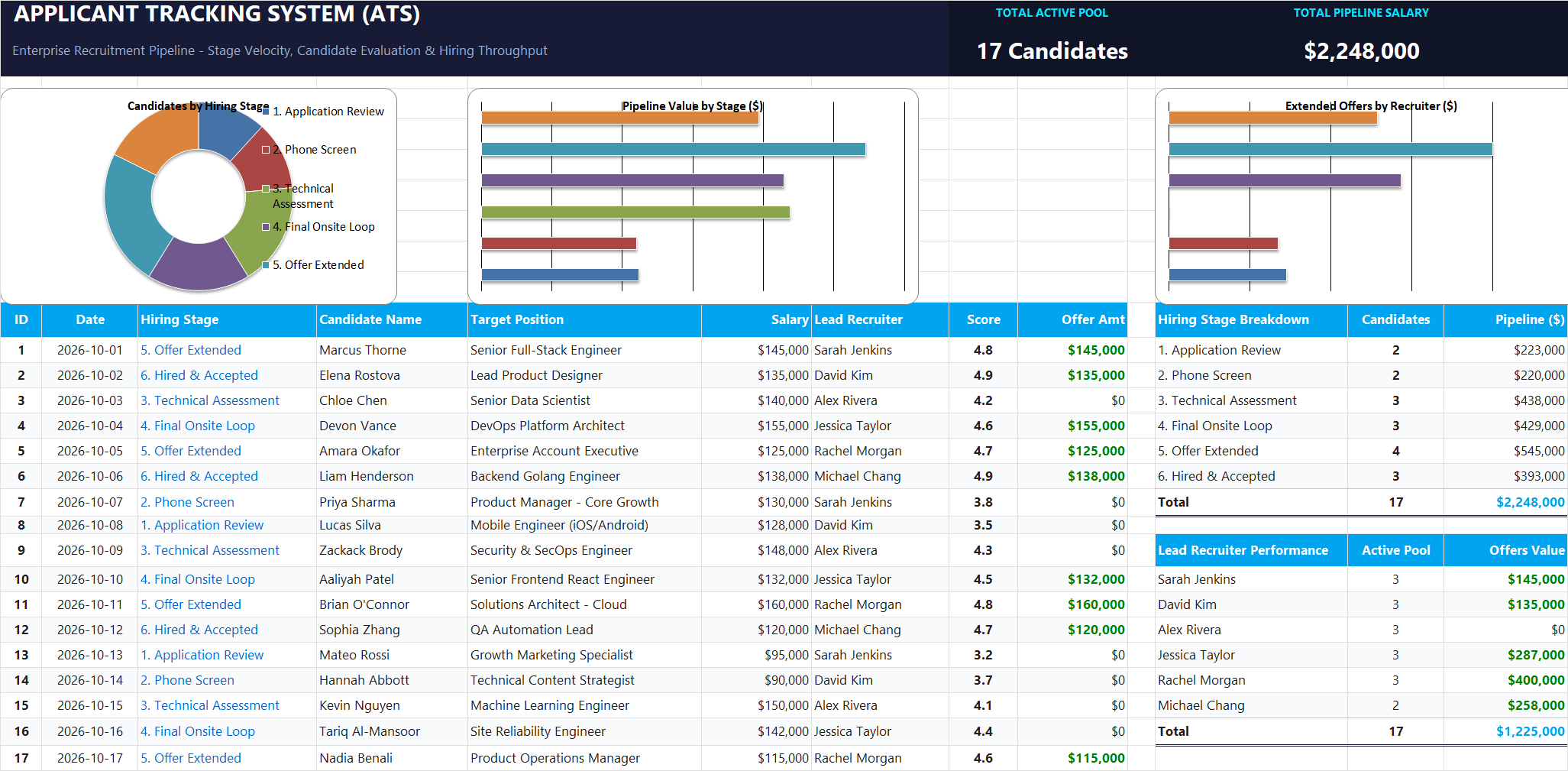
Ready to apply HYPERLINK Clickable Link Formula in a real workbook?
Apply lookup and reference formulas to search and organize structured candidate pipelines.
Open Applicant Tracking System (ATS)Share This Lesson
Spread the word with your peers and challenge your friends