ROW & COLUMN Coordinate Formulas
Learn how to generate dynamic row numbers, inspect column positions, and count table dimensions in Excel with ROW, COLUMN, ROWS, and COLUMNS.

Typing item numbers (1, 2, 3...) manually or dragging autofill down a table creates brittle spreadsheets. The moment an employee deletes a cancelled transaction row, the numbering sequence breaks, leaving visible gaps (e.g. jumping from 3 straight to 5).
Excel provides four dynamic coordinate formulas that adjust automatically whenever rows or columns are added or deleted: ROW, COLUMN, ROWS, and COLUMNS.
Quick Comparison: Singular vs Plural Coordinate Formulas
| Formula | What It Measures | Example | Result |
|---|---|---|---|
ROW([ref]) |
The physical row number of a cell | =ROW(C5) |
5 |
COLUMN([ref]) |
The physical column number (A=1, B=2, C=3) | =COLUMN(D1) |
4 |
ROWS(array) |
The total count of rows across a range | =ROWS(A1:D10) |
10 |
COLUMNS(array) |
The total count of columns across a range | =COLUMNS(A1:D10) |
4 |
Creating Unbreakable Auto-Numbering
To create a numbered column that automatically re-indexes whenever rows are deleted or inserted, subtract the header row reference from the current row:
=ROW() - ROW($A$1)When placed in row 2, ROW() is 2 and ROW($A$1) is 1, producing 1. If you insert three new rows at the top of your sheet, the formula automatically recalibrates so your table always starts numbering from 1.
Hands-on Practice Playground
Use the transaction journal below to practice dynamic row numbering and coordinate inspection. Follow each objective to complete the exercise.
In cell A2, generate an unbreakable sequence number starting at 1 using ROW() and ROW($A$1).
In cell A2, generate an auto-updating sequence number that starts at 1 by subtracting the header row coordinate ROW($A$1) from the current row coordinate ROW().
In cell E2, extract the physical row number of transaction cell B2.
In cell E2, extract the physical spreadsheet row number of transaction cell B2 using the ROW formula.
In cell F2, find the numeric column coordinate of amount cell D2.
In cell F2, determine the numeric column position of amount cell D2 using the COLUMN formula.
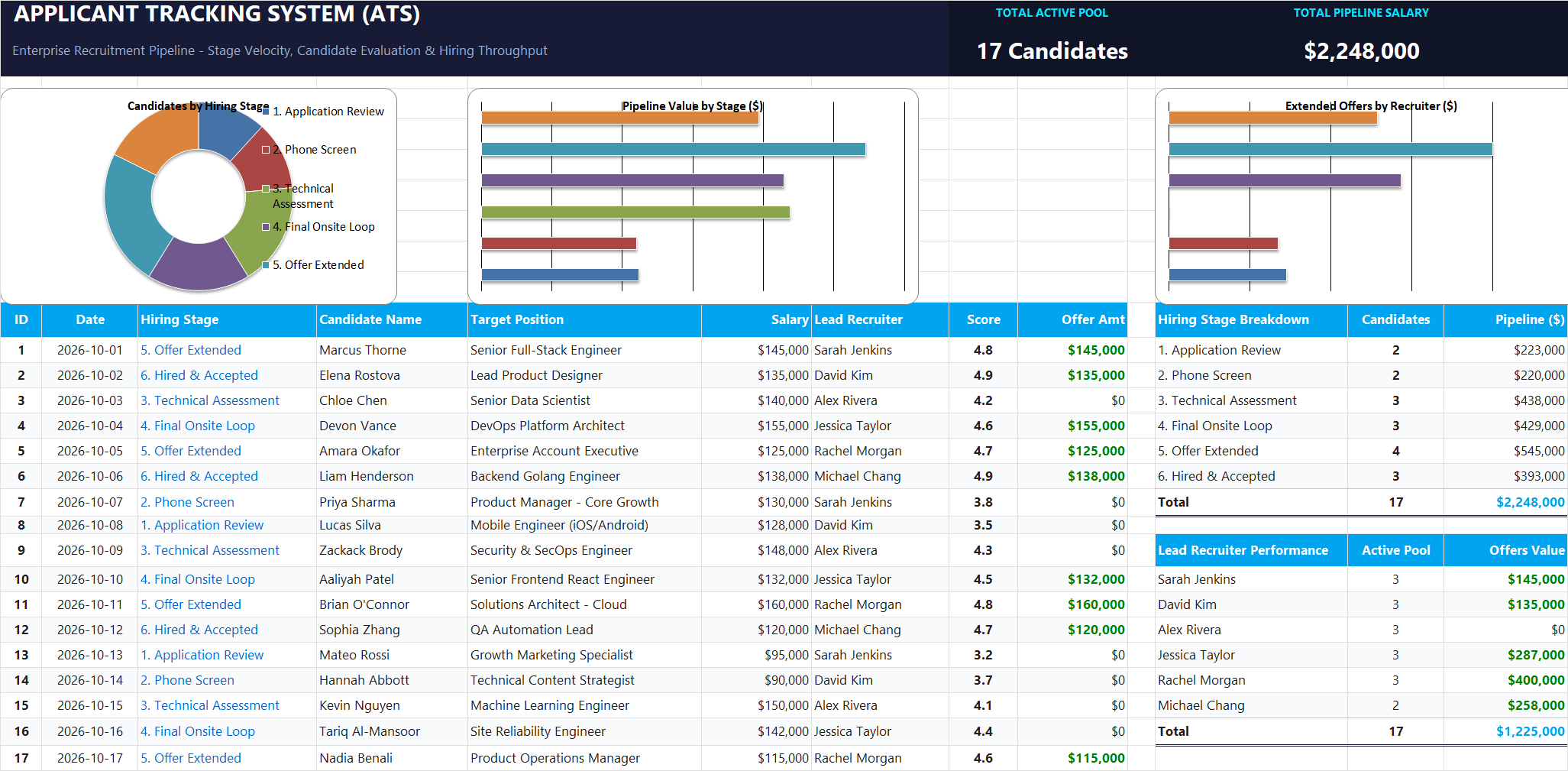
Ready to apply ROW & COLUMN Coordinate Formulas in a real workbook?
Apply lookup and reference formulas to search and organize structured candidate pipelines.
Open Applicant Tracking System (ATS)Share This Lesson
Spread the word with your peers and challenge your friends