MATCH Relative Coordinate Lookup Formula
Learn how to locate items and find relative row or column positions in Excel using MATCH. Learn exact, greater-than, and less-than match types cleanly.

In automated inventory systems, warehouse pickers need to know where an item sits in an aisle sequence. While formulas like VLOOKUP return the content of a cell, they do not tell you the position where that item was found.
Excel provides MATCH to act as a coordinate locator. Instead of pulling data values, it returns the numeric rank position (1, 2, 3...) of an item inside a single row or column range.
Syntax and Argument Structure
=MATCH(lookup_value, lookup_array, [match_type])- lookup_value: The text, number, or cell reference you are searching for (e.g.
E2). - lookup_array: A single 1-dimensional row or column (e.g.
$B$2:$B$6). - match_type: Set to
0for an exact match.
Understanding Relative Position
A vital detail: MATCH returns the position relative to the range you specified, not the row number of your worksheet. If your range is B10:B20 and your item is found in cell B12, MATCH returns 3 (the 3rd cell in that range), not 12.
Match Type Options
| Match Type | Behavior | Data Sorting Requirement |
|---|---|---|
0 |
Exact match (returns position of first identical match) | None (data can be in any order) |
1 (Default) |
Finds largest value less than or equal to lookup value | Must be sorted in ascending order (A to Z, 1 to 9) |
-1 |
Finds smallest value greater than or equal to lookup value | Must be sorted in descending order (Z to A, 9 to 1) |
Hands-on Practice Playground
Use the warehouse storage table below to locate item index positions using MATCH. Follow each objective to complete the exercise.
In cell F2, locate the position of SKU-703 inside range $B$2:$B$6 using exact match (0).
In cell F2, locate the relative position of target SKU E2 within range $B$2:$B$6 using the MATCH formula with exact match (0).
In cell F3, determine the position of SKU-701.
In cell F3, determine the position of SKU-701 (cell E3) within catalog range $B$2:$B$6 using MATCH with exact match.
In cell F4, find the position of SKU-705.
In cell F4, locate the relative index of target SKU E4 within $B$2:$B$6 using MATCH with exact match.
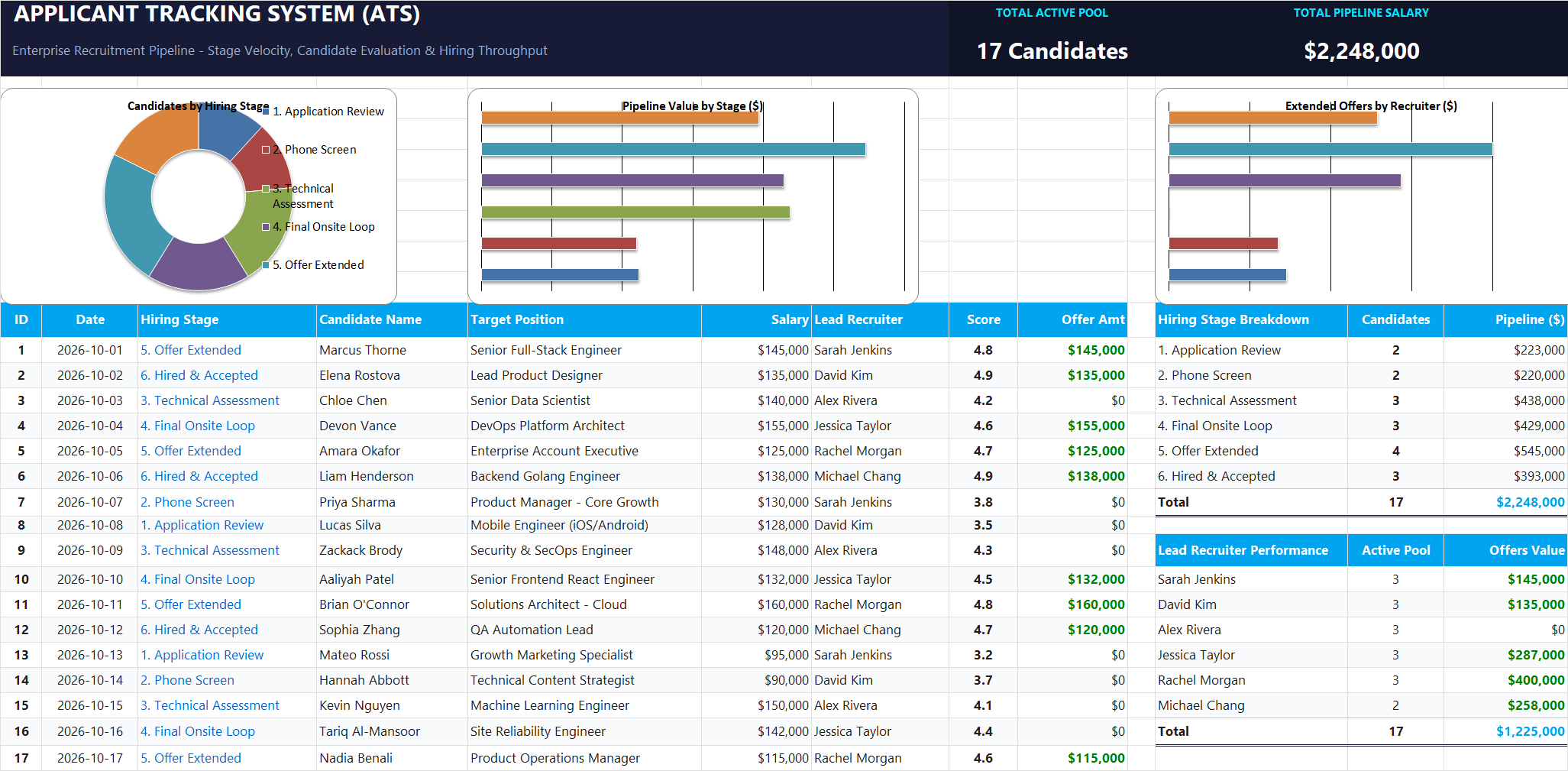
Ready to apply MATCH Relative Coordinate Lookup Formula in a real workbook?
Locate header column positions and record ranks dynamically inside tabular candidate lists.
Open Applicant Tracking System (ATS)Share This Lesson
Spread the word with your peers and challenge your friends