
YEAR, MONTH & DAY Extraction Formulas
Learn how to extract the year, month, and day from dates in Excel. Group sales into cohorts, prepare tax reports, and avoid text slicing errors.

When analyzing sales records, financial reports, or inventory logs, dates often arrive combined into a single value like "2026-03-14". However, quarterly tax filings, cohort retention models, and payroll cutoffs require grouping data by separate years, calendar months, or cutoff days.
Many beginners attempt to extract these components using text functions like LEFT or MID. This causes severe calculation bugs. Excel stores dates as internal serial numbers, meaning text slicing reads the underlying serial number instead of the visible calendar date. To extract dates reliably, Excel provides three dedicated formulas: YEAR, MONTH, and DAY.
Quick Comparison: Date Extraction Trio
Each formula extracts a specific integer component from any valid Excel date serial number.
| Formula | What It Extracts | Return Range | Output Type | Primary Business Application |
|---|---|---|---|---|
YEAR(date) |
4-digit calendar year | 1900 to 9999 | Integer | Annual fiscal tax reports and depreciation schedules. |
MONTH(date) |
Month of the year | 1 to 12 | Integer | Monthly sales rollups and seasonality cohort analysis. |
DAY(date) |
Day of the month | 1 to 31 | Integer | Billing cycle cutoffs and payroll cutoff days. |
Because the outputs are clean integers, you can feed them directly into arithmetic calculations or pivot table groups without extra type conversion.
Deep Technical Mechanics
1. Why Text Slicing (LEFT/MID) Fails on Dates
In Excel, the date March 14, 2026 is stored internally as the serial number 46095. If you write =LEFT(C2, 4), Excel extracts the first four characters of 46095, returning "4609" instead of the year 2026!
The YEAR, MONTH, and DAY formulas evaluate the internal calendar calendar structure, making them completely immune to display formatting or regional date variations.
2. The Blank Cell Trap
If you run =YEAR(cell) on an empty blank cell, Excel treats empty cells as serial value 0 (which corresponds to January 0, 1900). Consequently:
YEAR(blank)returns1900MONTH(blank)returns1DAY(blank)returns0
To prevent unwanted 1900 entries in your summary sheets, wrap your extraction with a quick check: =IF(C2="", "", YEAR(C2)).
3. Rebuilding Dates with DATE
You can combine these extraction formulas with the DATE function to roll dates forward or set standardized cutoff points:
// First day of the current month
=DATE(YEAR(C2), MONTH(C2), 1)

// Exactly one year in the future
=DATE(YEAR(C2) + 1, MONTH(C2), DAY(C2))
Hands-on Practice Playground
Use the customer order table below to extract individual date parts for the sales operations audit. Follow each objective to complete the exercise.
In cell D2, extract the 4-digit year from order date C2.
For annual tax reporting, extract the 4-digit year from the order date in C2 into cell D2 using the YEAR formula.
In cell E2, extract the month number (1 to 12) from order date C2.
In cell E2, isolate the month number (1 to 12) from the order date in C2 using the MONTH formula.
In cell F2, extract the day of the month (1 to 31) from order date C2.
Extract the day of the month (1 to 31) from order date C2 into cell F2 using the DAY formula.
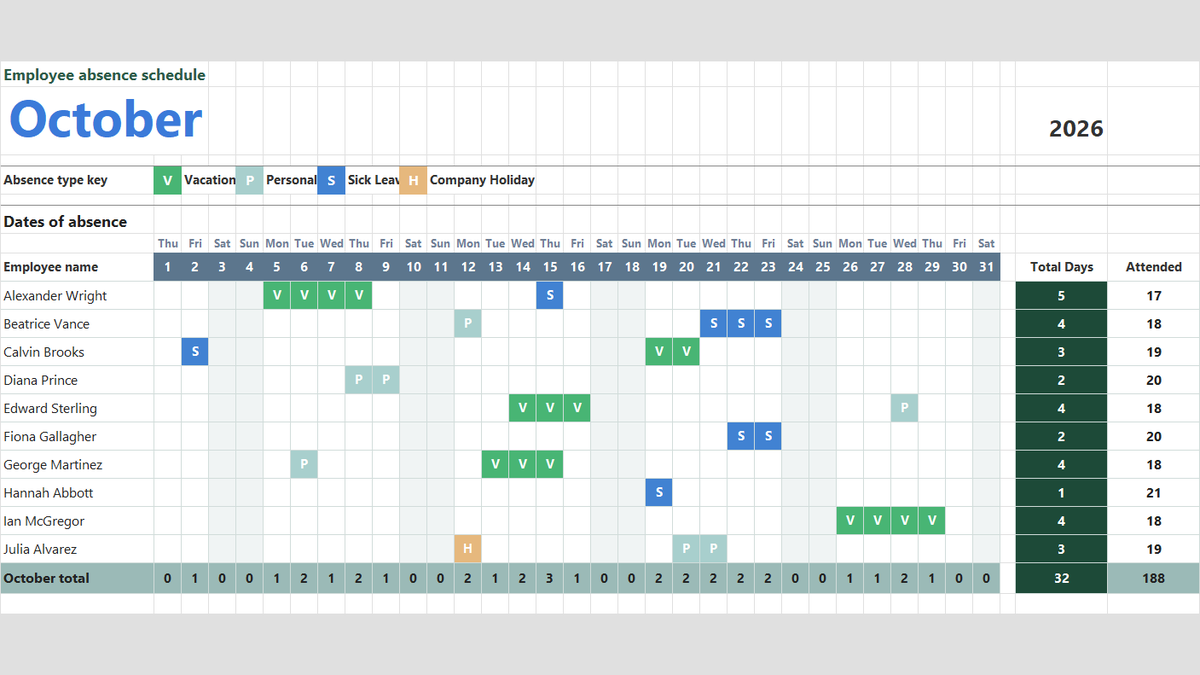
Ready to apply YEAR, MONTH & DAY Extraction Formulas in a real workbook?
Handle shift hours, holiday adjustments, and scheduled work periods using date and time formulas.
Open Employee Attendance TrackerShare This Lesson
Spread the word with your peers and challenge your friends