TODAY & NOW Dynamic Date Formulas
Learn how to use TODAY and NOW in Excel to build self-updating spreadsheets, track overdue invoices, and record precise audit timestamps.

Tracking overdue customer payments, equipment warranties, and project deadlines manually is exhausting. If your team types today's date by hand every morning, the file goes out of date the very next day. Important aging schedules become inaccurate whenever managers review them later in the week.
Excel solves this problem with two built-in live clock formulas: TODAY and NOW. Both read your computer system clock and update automatically whenever your workbook recalculates.
Quick Comparison: TODAY vs NOW
Choosing between these two formulas comes down to whether you only need the calendar day or also need hours and minutes.
| Formula | What It Returns | Serial Number Structure | Best Fit in Real Work |
|---|---|---|---|
=TODAY() |
Current date only | Pure whole integer (e.g. 46332, representing 00:00:00 midnight) |
Accounts receivable aging, contract renewal warnings, and employee service years. |
=NOW() |
Current date and exact time | Decimal number (e.g. 46332.6125, representing date + 14:42:00) |
Warehouse shift sign-ins, audit logs, and tracking SLA response times in hours. |
How Excel Handles Live Clocks
Both formulas take no arguments inside their parentheses. You simply open and close the brackets:
=TODAY()
=NOW()
Even though they look simple, understanding how they work behind the scenes prevents subtle bugs in your models.
1. Understanding Volatile Functions
Both TODAY() and NOW() are classified as volatile formulas in Excel. Normal formulas recalculate only when their input cells change. In contrast, volatile formulas recalculate every time any cell in the entire workbook is changed, or whenever you press F9.
Performance Tip: In massive workbooks with tens of thousands of rows, placing =TODAY() in every single row can slow Excel down. Instead, place =TODAY() once in a central header cell (such as $Z$1) and reference that cell across your sheet.
2. The Decimal Trap When Calculating Day Differences
Because NOW() contains the time as a decimal fraction, subtracting a date from NOW() yields a decimal number instead of a clean whole day count. For example, if an invoice was due yesterday morning and you run =NOW() - DueDate at 3:00 PM, you will get 1.625 days.
If your logic checks IF(days > 1, ...), that decimal fraction can trigger automated collection alerts earlier than intended. For pure calendar day differences, always subtract with TODAY():
=TODAY() - DueDate // Clean whole days overdue3. Dynamic Formulas vs Permanent Static Timestamps
A common beginner mistake is using =TODAY() to record when an order arrived or when an invoice was paid. Because the formula updates every day, tomorrow that order date will roll forward by one day, destroying your historical records.
When you need a permanent record that never changes, use keyboard shortcuts instead of dynamic formulas:
- Ctrl + ; (Semicolon): Stamps the current static date.
- Ctrl + Shift + ;: Stamps the current static time.
Practical Workplace Examples
Example 1: Dynamic Aging Bucket
You can categorize customer invoices into aging buckets automatically by combining TODAY() with an IF statement:
=IF(TODAY() - DueDate > 30, "Overdue > 30 Days", "Current")Example 2: Hours Elapsed on an Open Work Order
To measure the number of hours a support ticket has been open, subtract the dispatch timestamp from NOW() and multiply by 24 (since 1 day equals 24 hours):
=(NOW() - DispatchTime) * 24Hands-on Practice Playground
Use the accounts receivable table below to practice dynamic date aging and compliance audit timestamps. Follow each objective to complete the exercise.
Generate the live calendar date in cell D2 using the dynamic date formula.
The accounts receivable schedule needs to update automatically each day. In cell D2, generate the live current calendar date using the TODAY formula.
In cell E2, calculate how many days have passed by subtracting the due date from today's date.
In cell E2, find how many days have elapsed between the due date in C2 and today’s date in D2 by subtracting the due date from today’s date.
In cell F2, generate the live date and timestamp for the compliance audit log.
Compliance rules require logging both the date and time of review. In cell F2, capture the live date and time using the NOW formula.
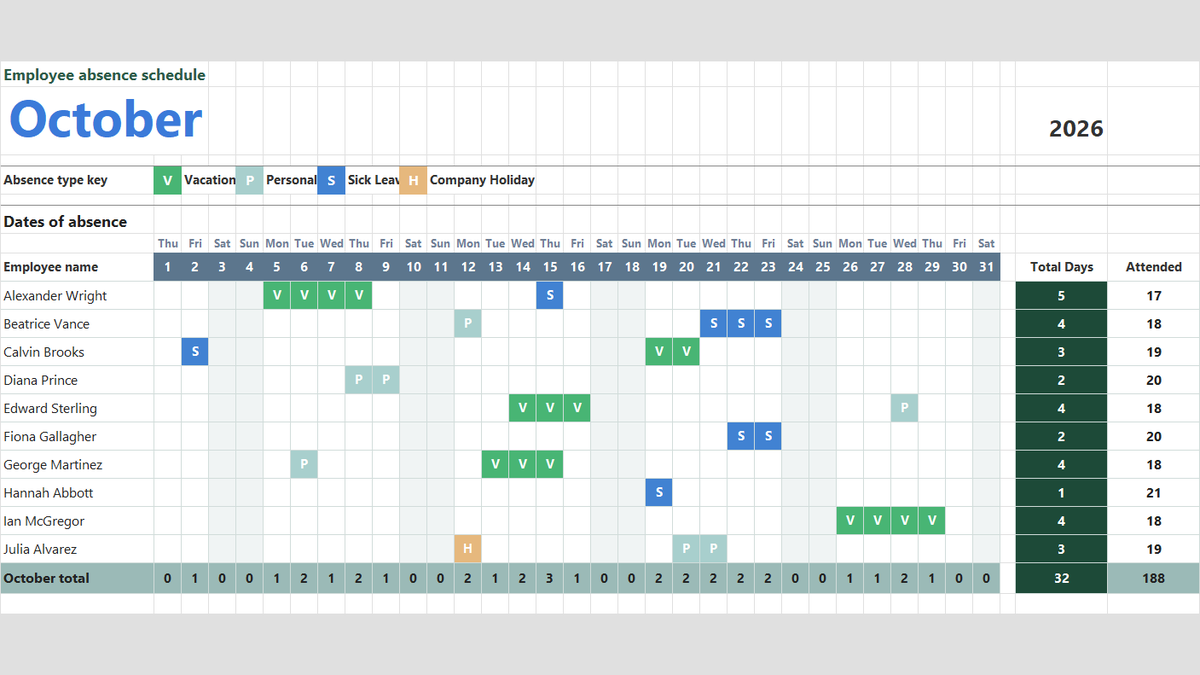
Ready to apply TODAY & NOW Dynamic Date Formulas in a real workbook?
Handle shift hours, holiday adjustments, and scheduled work periods using date and time formulas.
Open Employee Attendance TrackerShare This Lesson
Spread the word with your peers and challenge your friends