DATE & DATEVALUE Formulas
Learn how to use DATE and DATEVALUE in Excel to combine year, month, and day numbers, fix stubborn date text, and prevent regional date mix-ups.

Working with dates from international clients or different warehouse software can easily cause confusion. For example, a date written as "05/06/2026" means May 6th in the United States, but June 5th in the United Kingdom, Europe, and Asia. When your team opens downloaded files on computers with different regional settings, Excel can silently flip months and days or leave them as plain text words that you cannot sort or filter properly.
To avoid this headache, Excel provides two reliable formulas:
- DATE: Builds a clean, bulletproof date from three separate numbers (year, month, day). It guarantees that Excel always knows which number is the year and which is the month, no matter what country your computer is set to.
- DATEVALUE: Takes a date stored as text words (like an export from a website or CSV file) and converts it into a true Excel date number.
Quick Comparison: DATE vs DATEVALUE
The right choice depends on how your dates arrive in your spreadsheet. If your numbers are split across columns, build them with DATE. If your dates are stuck inside text strings with quotation marks, convert them with DATEVALUE.
| Formula | What You Put In | What Excel Returns | Best Fit in Real Work |
|---|---|---|---|
DATE(year, month, day) |
Three separate numbers | Real Excel date | Building clean shipping schedules and locking international dates so they never flip. |
DATEVALUE(date_text) |
One text string (like "2026-11-04") | Real Excel date number | Fixing downloaded order exports and customs logs saved as text words. |
Behind the scenes, Excel stores every date as a simple whole number counting up from January 1, 1900 (which is number 1). Once you turn your dates into real Excel dates, you can format them any way you like and sort them from oldest to newest without any errors.
How Each Formula Works
1. The DATE Formula: Assembling Clean Dates
The DATE formula always follows this exact order: year first, then month, then day:
=DATE(year, month, day)For example, if you have 2026 in cell C2, 8 in D2, and 17 in E2, you write:
=DATE(C2, D2, E2)Because you give Excel the year, month, and day in clear separate arguments, it is impossible for Excel to mix up the day and month.
If you enter a month number larger than 12, Excel simply rolls forward to the next year. For instance, =DATE(2026, 14, 1) automatically becomes February 1, 2027. This makes it very convenient when projecting quarterly milestones.
2. The DATEVALUE Formula: Fixing Text Dates
When you download reports from online portals, dates often arrive as text that Excel cannot calculate. The DATEVALUE formula fixes this:
=DATEVALUE(text_cell)If cell G2 contains the text "2026-11-04", writing =DATEVALUE(G2) turns it into the true Excel serial number (46330). You can then apply standard date formatting to display it however your team prefers.
Try It Yourself: Shipping Schedule Audit
Practice using both formulas in the interactive spreadsheet arena below:
Objective 1: Build Safe Date with DATE
In cell F2, build the official shipping date for invoice INV-101 using the year in C2, month in D2, and day in E2 with the DATE formula.
The shipping year, month, and day for invoice INV-101 are split across columns C, D, and E. In cell F2, combine them into an official Excel date using the DATE formula.
Objective 2: Fix Text Date with DATEVALUE
The customs log in cell G2 is currently saved as text. In cell H2, convert it into a real Excel date using the DATEVALUE formula.
The port customs system saved the clearance date in cell G2 as plain text. In cell H2, turn it into a real Excel date using the DATEVALUE formula.
Objective 3: Build Safe Date for Tokyo Hub
In cell F4, create the official shipping date for the Tokyo hub (invoice INV-103) using Year C4, Month D4, and Day E4 with the DATE formula.
In cell F4, create the official shipping date for the Tokyo hub (invoice INV-103) using Year C4, Month D4, and Day E4 with the DATE formula.
Quick Summary
Keeping dates clean in Excel is easy once you use the right tool for the job. Use DATE whenever you have separate numbers for year, month, and day to protect your workbooks from international format confusion. Use DATEVALUE whenever you import data from web software that saves dates as plain text.
Once converted, your dates become standard numbers that you can safely sort, subtract to find delivery days, or format to match your company standards.
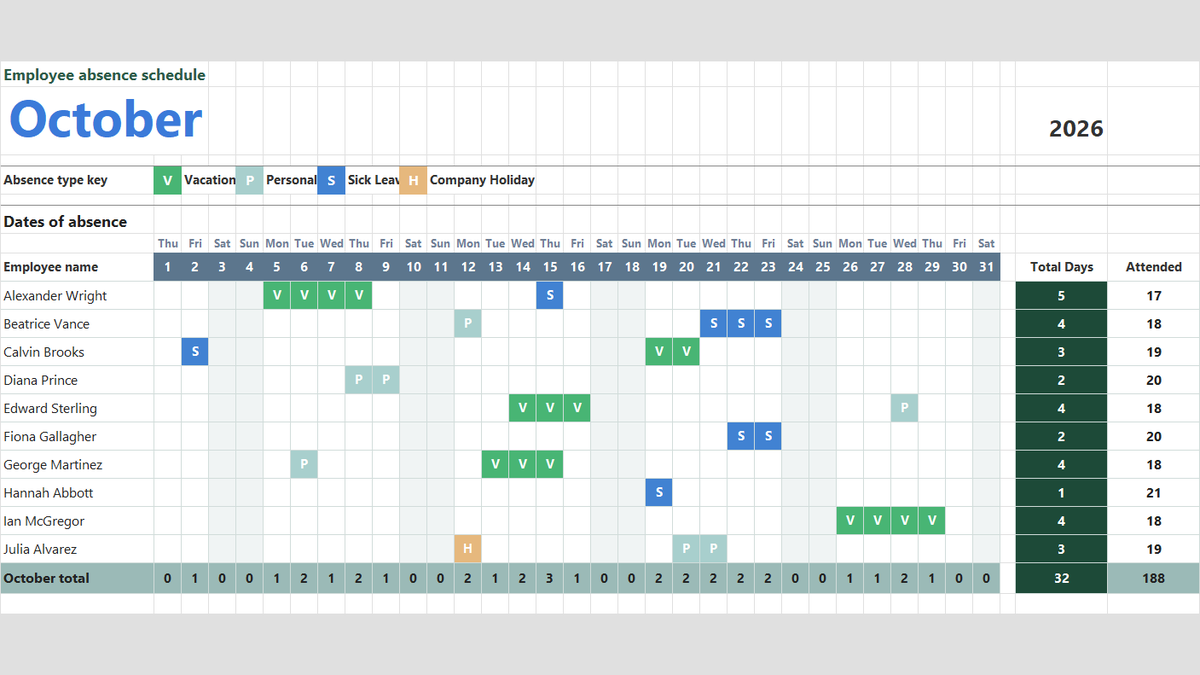
Ready to apply DATE & DATEVALUE Formulas in a real workbook?
Handle shift hours, holiday adjustments, and scheduled work periods using date and time formulas.
Open Employee Attendance TrackerShare This Lesson
Spread the word with your peers and challenge your friends