HOUR, MINUTE & SECOND Formulas
Learn how to extract hours, minutes, and seconds from timestamps in Excel. Audit call response times, track shift cutoffs, and group data by hour.

In customer support desks, logistics hubs, and IT incident operations, incoming activity is logged with full timestamps like "08:45:30". To staff shifts properly, managers must know which hours experience peak call volumes and whether response times meet service level agreements (SLAs).
Trying to pull hours or minutes out of timestamps using text formulas breaks easily when files toggle between 12-hour AM/PM formats and 24-hour military formats. Excel provides three dedicated extraction formulas that read time values accurately: HOUR, MINUTE, and SECOND.
Quick Comparison: Extracting Time Units
Each formula isolates one specific unit from an Excel time value.
| Formula | What It Extracts | Return Range | Typical Business Use |
|---|---|---|---|
HOUR(time) |
Hour of the day | 0 to 23 | Staff scheduling, shift allocations, and hourly call volume analysis. |
MINUTE(time) |
Minute of the hour | 0 to 59 | Response SLA tracking and turnaround time breakdowns. |
SECOND(time) |
Seconds | 0 to 59 | High-frequency transaction auditing and telephony logs. |
Because the outputs are pure numeric integers, you can immediately use them in comparison formulas such as =IF(HOUR(C2) >= 17, "Night Shift", "Day Shift").
Deep Technical Mechanics
1. How Excel Stores Time Internally
Excel represents time as a decimal fraction of a 24-hour day. For example:
- 1 hour =
1 / 24(approximately0.04167) - 1 minute =
1 / 1440(approximately0.000694) - 1 second =
1 / 86400
The HOUR, MINUTE, and SECOND functions convert these decimal fractions into standard whole numbers.
2. The 24-Hour Evaluation Rule
The HOUR formula always evaluates on a 24-hour clock from 0 to 23. A time of 8:45 AM returns 8, while 8:45 PM returns 20. This guarantees consistent comparisons across shifts without needing to parse text tags like "AM" or "PM".
3. Ignoring the Date Component
If a cell contains both a calendar date and a time (such as 2026-11-04 14:20:45), these formulas automatically ignore the date portion and extract only the relevant time component.
4. Pitfall: Direct Minute Subtraction Across Hour Boundaries
Subtracting minutes directly (=MINUTE(End) - MINUTE(Start)) can produce negative results if an event starts at 08:55 and finishes at 09:10 (10 - 55 = -45). To find the true total elapsed minutes between two times, calculate the total difference and multiply by 1440:
=(EndTime - StartTime) * 1440 // Total elapsed minutesHands-on Practice Playground
Use the call center dispatch log below to extract time components for the daily shift report. Follow each objective to complete the exercise.
In cell D2, extract the hour (0 to 23) from the incoming call time in cell C2.
The helpdesk manager needs to group incoming tickets by hour. In cell D2, extract the 24-hour component (0 to 23) from the call time in C2 using the HOUR formula.
In cell E2, extract the minute (0 to 59) from the call time in cell C2.
In cell E2, isolate the minute value (0 to 59) from the call time in C2 using the MINUTE formula.
In cell F2, extract the seconds from the call time in cell C2.
For precise call duration auditing, extract the second component (0 to 59) from call time C2 into cell F2 using the SECOND formula.
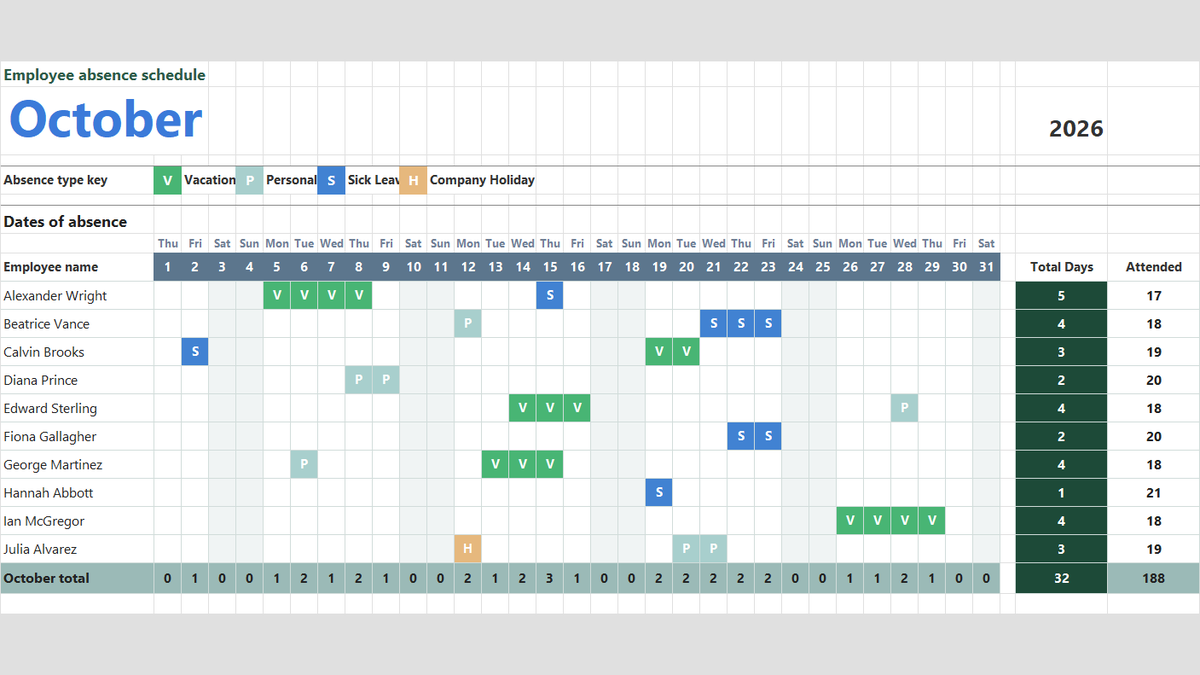
Ready to apply HOUR, MINUTE & SECOND Formulas in a real workbook?
Handle shift hours, holiday adjustments, and scheduled work periods using date and time formulas.
Open Employee Attendance TrackerShare This Lesson
Spread the word with your peers and challenge your friends