EDATE & EOMONTH Month Shift Formulas
Learn how to use EDATE and EOMONTH in Excel to project contract renewals, calculate month-end accounting close dates, and avoid calendar drift errors.

When tracking client contracts, loan payments, or subscription renewals, adding dates by months is an everyday task. A very common mistake is simply adding 30 or 90 days (like =A2 + 90). Because some months have 28, 30, or 31 days, your renewal dates slowly drift off schedule over the year.
For example, if a customer signs a one-month contract on January 31st and you add 30 days, Excel lands on March 2nd instead of the end of February. That can lead to billing disputes and messy accounting reports.
To keep monthly dates exact and reliable, Excel gives you two dedicated tools:
- EDATE: Moves a date forward or backward by an exact number of months, keeping the exact same day of the month.
- EOMONTH: Stands for End Of Month. It moves forward or backward by months and automatically snaps to the very last day of that target month.
Quick Comparison: EDATE vs EOMONTH
Before writing your formula, ask one simple question: do you need the same day of the month, or do you need the month-end closing day?
| Formula | What It Calculates | Example (Start: Jan 15, +6 Mo) | Common Workplace Use |
|---|---|---|---|
EDATE(start_date, months) |
The exact same day, several months away | July 15 | Customer contract renewals, employee probation end dates, warranty expirations. |
EOMONTH(start_date, months) |
The final day of the target month | July 31 | Monthly accounting close, billing cycle deadlines, quarterly revenue cutoffs. |
Both formulas also accept negative numbers. If you type -3 for the months argument, Excel cleanly counts backward by three months.
How to Use Each Formula
1. The EDATE Formula: Keeping the Same Day
The EDATE formula requires two arguments: the start date and the number of months to add or subtract:
=EDATE(start_date, months)If Acme Media starts on 2026-01-15 in cell B2 and their plan length is 6 months in C2, writing =EDATE(B2, C2) returns 2026-07-15. The day (15th) stays perfectly locked in place.
If the start date is on the 31st and the target month only has 30 days (such as April), EDATE smartly adjusts to the 30th without overflowing into the next month.
2. The EOMONTH Formula: Snapping to Month-End
The EOMONTH formula uses the exact same two arguments, but always returns the final day of that month:
=EOMONTH(start_date, months)Writing =EOMONTH(B2, C2) for the same January 15th start date returns 2026-07-31. This saves you from having to look up whether a month has 30 or 31 days, and handles leap years in February automatically.
A handy trick: if you pass 0 as the month argument (like =EOMONTH(A2, 0)), Excel returns the last day of the current month. Finance teams frequently use this to set monthly closing deadlines.
Try It Yourself: Subscription Renewal Schedule
Practice calculating contract renewals and billing deadlines in the interactive sheet below:
Objective 1: Find 6-Month Renewal with EDATE
In cell D2, calculate the exact renewal date for Acme Media using start date B2 and plan term C2 with the EDATE formula.
Acme Media signed a contract on start date B2 with a 6-month term in C2. In cell D2, calculate the exact renewal date using the EDATE formula.
Objective 2: Find Month-End Close with EOMONTH
In cell E2, find the final day of the renewal month using start date B2 and term C2 with the EOMONTH formula.
The finance team closes invoices on the final day of the renewal month. In cell E2, find the month-end closing date using start date B2 and term C2 with the EOMONTH formula.
Objective 3: Handle February Renewal Date
In cell D3, calculate the 12-month renewal date for Nova Logistics (starting on February 28 in B3) using the EDATE formula with term C3.
Nova Logistics signed on February 28 in cell B3 for 12 months in C3. In cell D3, calculate the renewal date using the EDATE formula.
Quick Summary
Projecting dates across months is simple when you avoid the trap of adding 30 or 90 days. Use EDATE when you want to preserve the exact day of the month for contract renewals and subscription cycles. Use EOMONTH whenever you need the final day of a month for financial statements and payment deadlines.
Remember that you can use a negative number to look back at previous months, or use 0 in EOMONTH to quickly find the end of the current month.
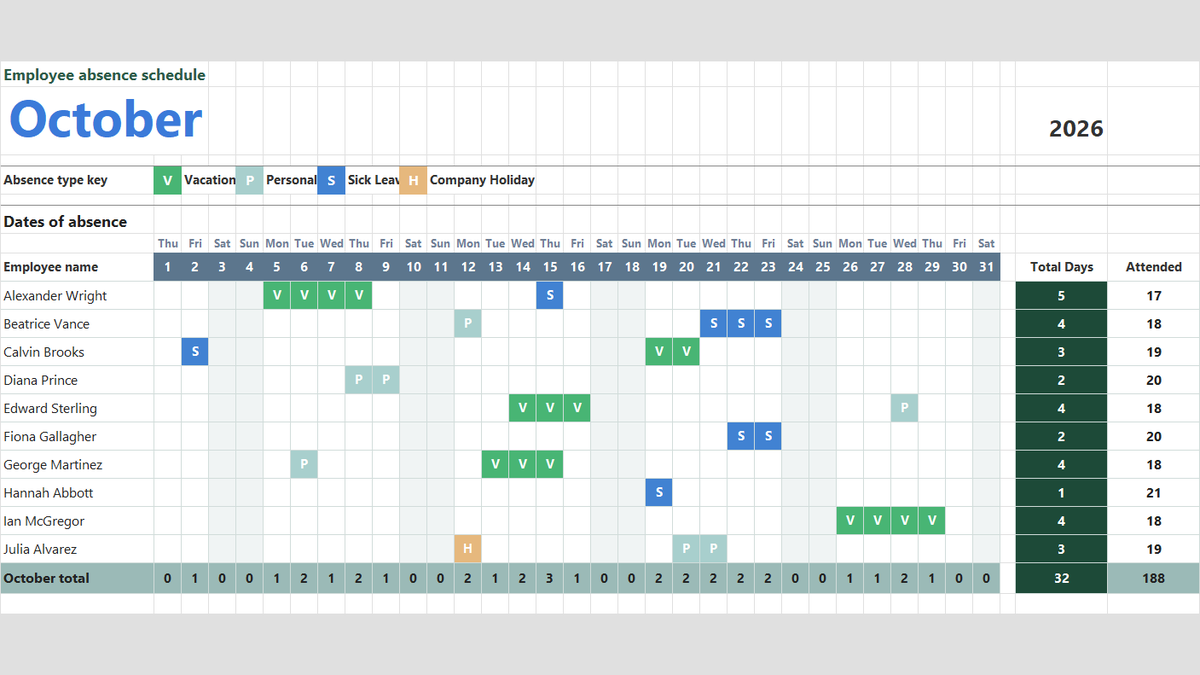
Ready to apply EDATE & EOMONTH Month Shift Formulas in a real workbook?
Handle shift hours, holiday adjustments, and scheduled work periods using date and time formulas.
Open Employee Attendance TrackerShare This Lesson
Spread the word with your peers and challenge your friends