TIME & TIMEVALUE Formulas
Learn how to use TIME and TIMEVALUE formulas in Excel to combine hours, fix text time entries, and calculate work hours without errors.

Working with times in Excel can sometimes be tricky. A common problem happens when time clocks or attendance systems export times as plain text (like "08:15:00" or "04:45 PM"). If you try to subtract a text time from another time, Excel does not understand it and gives you a #VALUE! error.
To fix this, it helps to know how Excel sees time. In Excel, one full day (24 hours) equals the number 1. That means every time of day is just a decimal number between 0 and 1:
- 6:00 AM is
0.25(one-fourth of a day) - 12:00 PM (Noon) is
0.50(half of a day) - 6:00 PM is
0.75(three-fourths of a day)
Excel has two simple formulas to help you work with times:
- TIME: Use this when you have hours, minutes, and seconds in separate cells and want to combine them into one time.
- TIMEVALUE: Use this when you have time stored as text words, and want to turn it into a real number that Excel can calculate.
Quick Comparison: TIME vs TIMEVALUE
Before writing formulas, look at how your time values are stored. If your sheet already separates hours and minutes into their own numbers, you need TIME. If your sheet has timestamps wrapped inside text from a CSV file, you need TIMEVALUE to turn them back into real numbers.
| Formula | What You Put In | What Excel Returns | When to Use It |
|---|---|---|---|
TIME(hour, minute, second) |
Three numbers | Real Excel time | When hours and minutes are in different columns. |
TIMEVALUE(time_text) |
One text string (like "8:30 AM") | Real Excel time number | When your data comes from a download or text export. |
Once you convert or combine your times, Excel treats them as standard numbers. You can format them as 12-hour AM/PM or 24-hour military time using standard cell formatting, and use them directly in payroll math.
How to Use Each Formula
1. The TIME Formula
The TIME formula takes three numbers (hour, minute, second) and joins them together:
=TIME(hour, minute, second)For example, if you have 8 in cell B2, 30 in C2, and 0 in D2, you write:
=TIME(B2, C2, D2)Excel shows this as 8:30 AM. If you pass more than 59 minutes (like 75 minutes), Excel adds the extra 15 minutes to the next hour automatically.
2. The TIMEVALUE Formula
The TIMEVALUE formula changes text time into an Excel number:
=TIMEVALUE(text_cell)It works with 24-hour time ("16:30:00") and 12-hour time ("4:30 PM"). Both give the exact same number (0.6875), so you can subtract or add them without errors.
Real-Life Examples
How to Find Total Work Hours
To find out how many hours someone worked, subtract the start time from the end time, then multiply by 24:
=(ClockOut - ClockIn) * 24Why multiply by 24? Because Excel measures time in days. Multiplying by 24 changes days into hours. For example, if someone works from 8:00 AM to 4:30 PM, the result is 8.5 hours.
Night Shift Tip: Crossing Midnight
What if someone starts work at 10:00 PM and finishes at 6:00 AM the next day? If you just do 06:00 - 22:00, Excel gets a negative number and shows #####.
To fix this easily, use the MOD formula:
=MOD(ClockOut - ClockIn, 1) * 24The MOD(..., 1) part handles the day change smoothly and gives you the correct 8 hours.
Try It Yourself: Spreadsheet Practice
Practice using both formulas in the interactive sheet below:
Objective 1: Make Start Time with TIME
In cell E2, combine the hour in B2, minute in C2, and second in D2 using the TIME formula.
The shift start time is split into three cells: Hour in B2, Minute in C2, and Second in D2. In cell E2, combine them into an Excel time using the TIME formula.
Objective 2: Fix Text Time with TIMEVALUE
Marcus's punch time in cell F2 is text. In cell G2, convert it into a real Excel time using TIMEVALUE.
The time clock saved Marcus's punch time as plain text in cell F2. In cell G2, convert this text time into a real Excel number using the TIMEVALUE formula.
Objective 3: Make Afternoon Start Time
In cell E3, combine the afternoon shift time using Hour B3, Minute C3, and Second D3 with TIME.
In cell E3, make the afternoon shift start time using Hour B3, Minute C3, and Second D3 with the TIME formula.
Quick Summary
Working with times in Excel comes down to knowing what kind of data you start with. Use TIME when your hours, minutes, and seconds live in separate columns and you need to combine them into one standard shift time. Use TIMEVALUE when your time data arrives as plain text from an export and you need to convert it into a real number Excel can calculate.
Whenever you need to calculate total work hours from a time difference, subtract the clock-in time from the clock-out time and multiply by 24. For overnight shifts that cross midnight, wrap the subtraction inside MOD(..., 1) to avoid negative time errors.
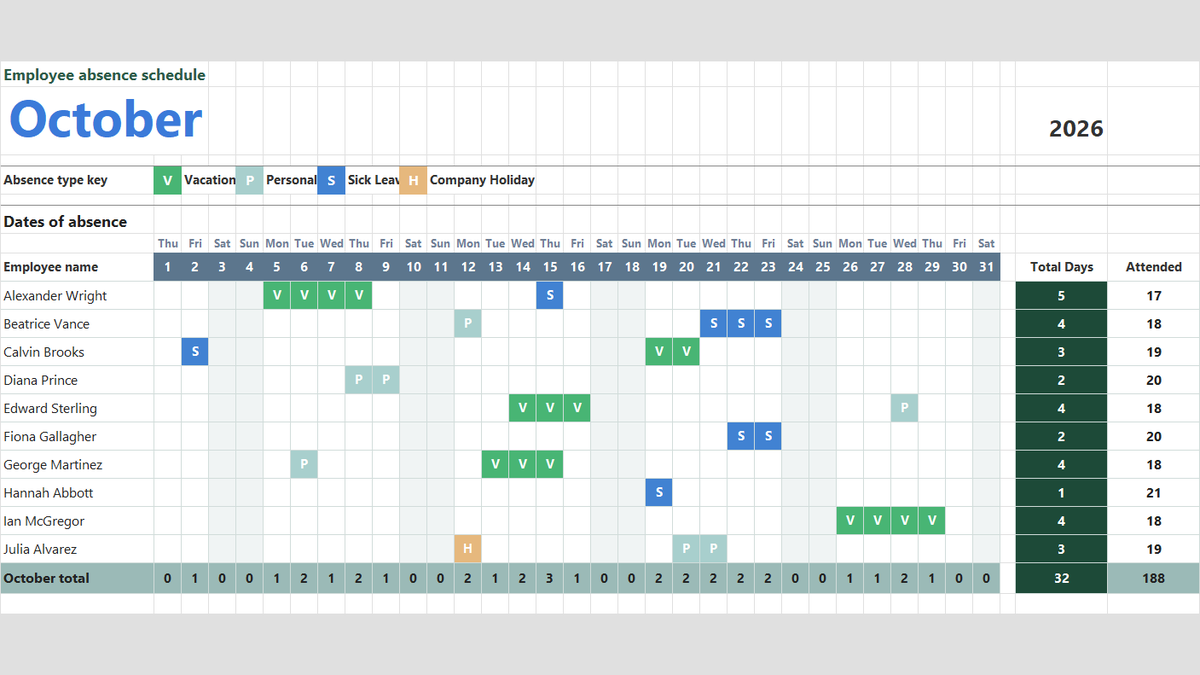
Ready to apply TIME & TIMEVALUE Formulas in a real workbook?
Handle shift hours, holiday adjustments, and scheduled work periods using date and time formulas.
Open Employee Attendance TrackerShare This Lesson
Spread the word with your peers and challenge your friends