Why Clean Timesheets Keep Teams Running Smoothly
Managing team availability can quickly become chaotic when vacation requests, sick days, and personal time are scattered across chat messages and emails. When payroll arrives at the end of the month, HR managers often spend days chasing managers to confirm whether an employee was on approved leave or absent without notice.
A dedicated monthly attendance tracker brings immediate clarity to your whole department. By placing every team member on a single visual calendar grid, anyone can see at a glance who is available today, who is on vacation next week, and whether the company holiday calendar has been accounted for.
In this exercise, you will build an October attendance tracker in Excel. You will learn how to restrict entries to standard absence keys, use conditional formatting to create an intuitive color-coded heatmap, and use simple formulas to calculate total days attended so payroll runs without a hitch.
Absence Key Taxonomy & Grid Architecture
The attendance sheet is structured as a two-dimensional matrix. Row 8 houses the calendar day numbers (1 through 31 across columns C through AG), while rows 9 through 18 represent individual employees. Columns AI and AJ compute the total monthly absence and attended days. The data dictionary below outlines the exact fields and formulas.
| Column / Range | Field Name | Data Type | Default Format | Description & Modeling Rule |
|---|---|---|---|---|
| B9:B18 | Employee Name | Text | Left Align (Bold) | Full name of active team members across the department. |
| C7:AG7 | Day of Week | Text Abbreviation | Center Align | Abbreviated day name (Mon, Tue, Wed...) aligned with the calendar dates. |
| C8:AG8 | Calendar Date (1-31) | Numeric Integer | Center Align (Dark Header) | The 31 days of October. |
| C9:AG18 | Daily Absence Entry | Single-Letter Code | Color-Coded Badge | Cell contains V (Vacation), P (Personal), S (Sick Leave), or H (Holiday). Blank cells mean attended. |
| AI9:AI18 | Total Days (Absent) | Formula Output | Integer (Dark Green) | =COUNTA(C9:AG9). Counts non-blank cells across the row to find total days absent. |
| AJ9:AJ18 | Attended Days | Formula Output | Integer (Center Align) | =22-AI9. Total working days in October (22 days) minus days absent. |
| C19:AG19 | October Daily Total | Formula Output | Integer (Gray Rollup) | =COUNTA(C9:C18). Shows total employees absent on each specific calendar day. |
Building Your Monthly Attendance Sheet Step by Step
Follow these four practical steps to set up your team attendance sheet. We will establish input validation, set up color rules, add row formulas, and review the final team heatmap.
3.1Step 1: Adding Absence Code Validation
To keep your attendance sheet clean and reliable, you want to prevent team members from typing random notes like "doctor appointment" or "taking afternoon off" directly into the day cells. Long text stretches the columns and breaks counting formulas.
Instead, we standardize all leave into four standard keys: V for Vacation, P for Personal, S for Sick Leave, and H for Company Holiday.
Highlight the entire 31-day attendance grid (cells C9 through AG18). On the ribbon, click the Data tab, then select Data Validation.
In the dialog box under Allow, select List. In the Source box, type: V, P, S, H. Click OK to confirm.
Now, each cell in your calendar only accepts these four approved codes, keeping your entire matrix uniform.
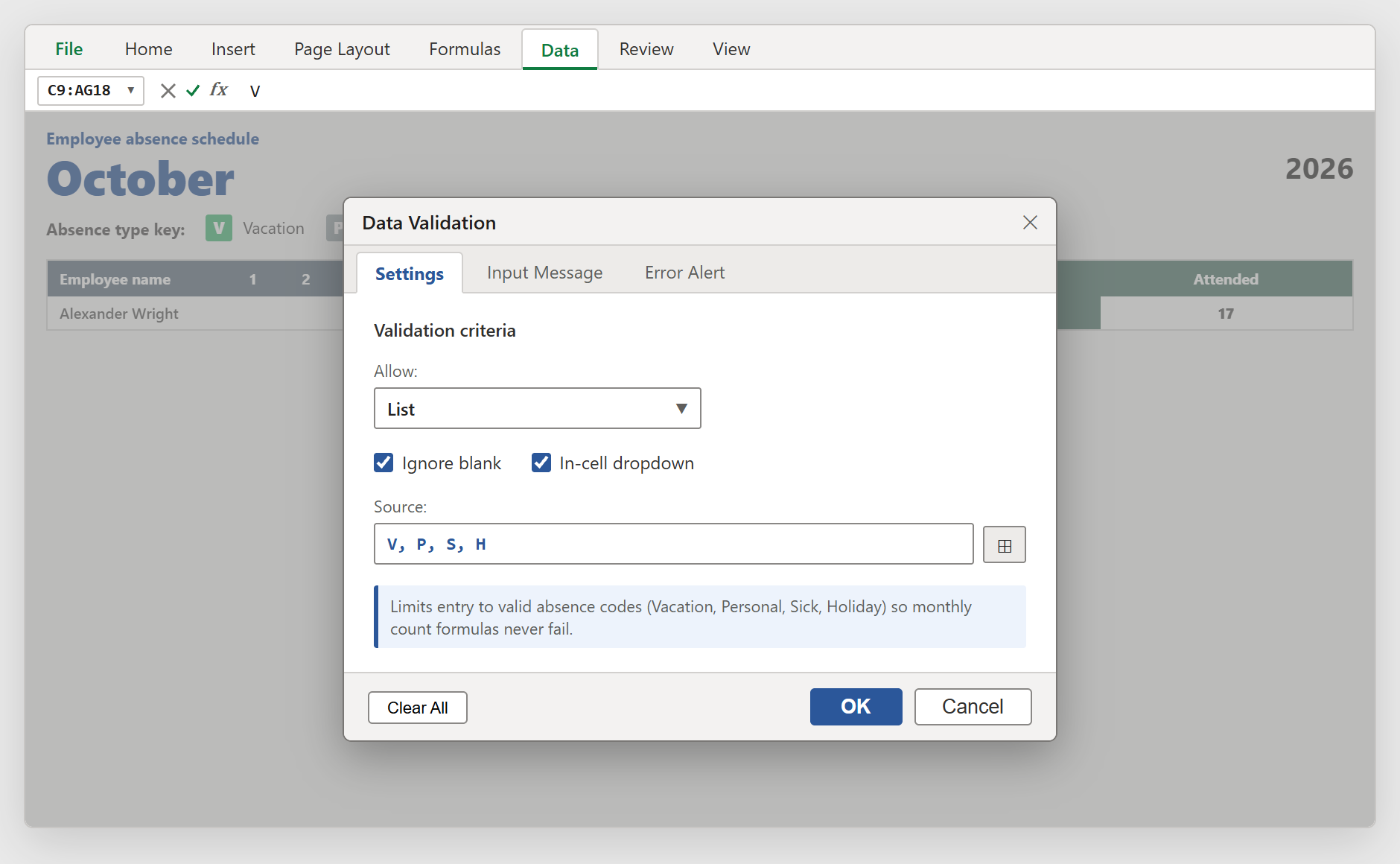
Figure 1: Restricting the daily attendance grid to standard leave codes (V, P, S, H) using Excel Data Validation.
3.2Step 2: Coloring Leave Badges with Rules Manager
A wall of plain letters is hard to read quickly. By giving each absence code a distinct color badge, anyone glancing at the sheet can spot vacation blocks and sick days in seconds.
With cells C9:AG18 highlighted, go to the Home tab, click Conditional Formatting, and select Manage Rules.
In the Rules Manager dialog, create four separate "Format only cells that contain" rules:
1. Cell Value equal to "V" -> Green fill (#27AE60) with bold white text (Vacation).
2. Cell Value equal to "P" -> Slate gray fill (#95A5A6) with bold white text (Personal).
3. Cell Value equal to "S" -> Blue fill (#2980B9) with bold white text (Sick Leave).
4. Cell Value equal to "H" -> Warm orange fill (#E67E22) with bold white text (Company Holiday).
Click Apply, then OK. As soon as you type "V" or "S", the cell transforms into a clean, modern color pill.
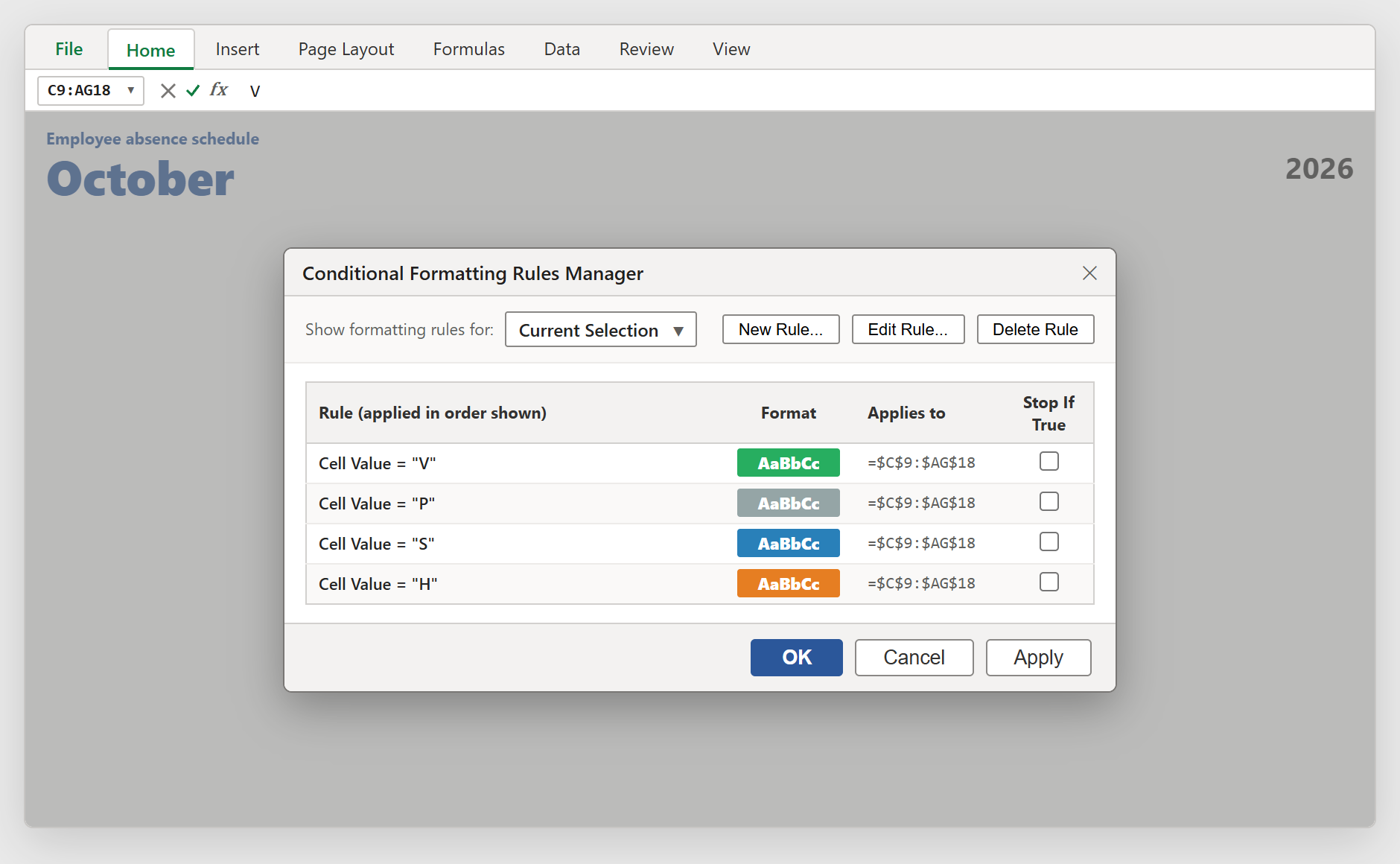
Figure 2: Configuring the four distinct absence color rules in Excel Conditional Formatting Rules Manager.
3.3Step 3: Calculating Days Absent & Days Attended
Next, we add two calculation columns at the right end of each row to summarize the employee month.
In cell AI9 (under Total Days), we count every day that has an absence code entered. Since blank cells represent regular workdays, we can simply count non-empty cells across the 31 days using =COUNTA().
Click cell AI9 and enter: =COUNTA(C9:AG9). For Alexander Wright, Excel counts 5 total absence days (4 vacation days plus 1 sick day).
In cell AJ9 (under Attended), we calculate how many days the employee actually worked. October 2026 has 22 standard working days (excluding weekends). We subtract the absences from 22:
Click cell AJ9 and enter: =22-AI9. Excel calculates 17 attended days.
Copy both formulas down through row 18 for all employees.
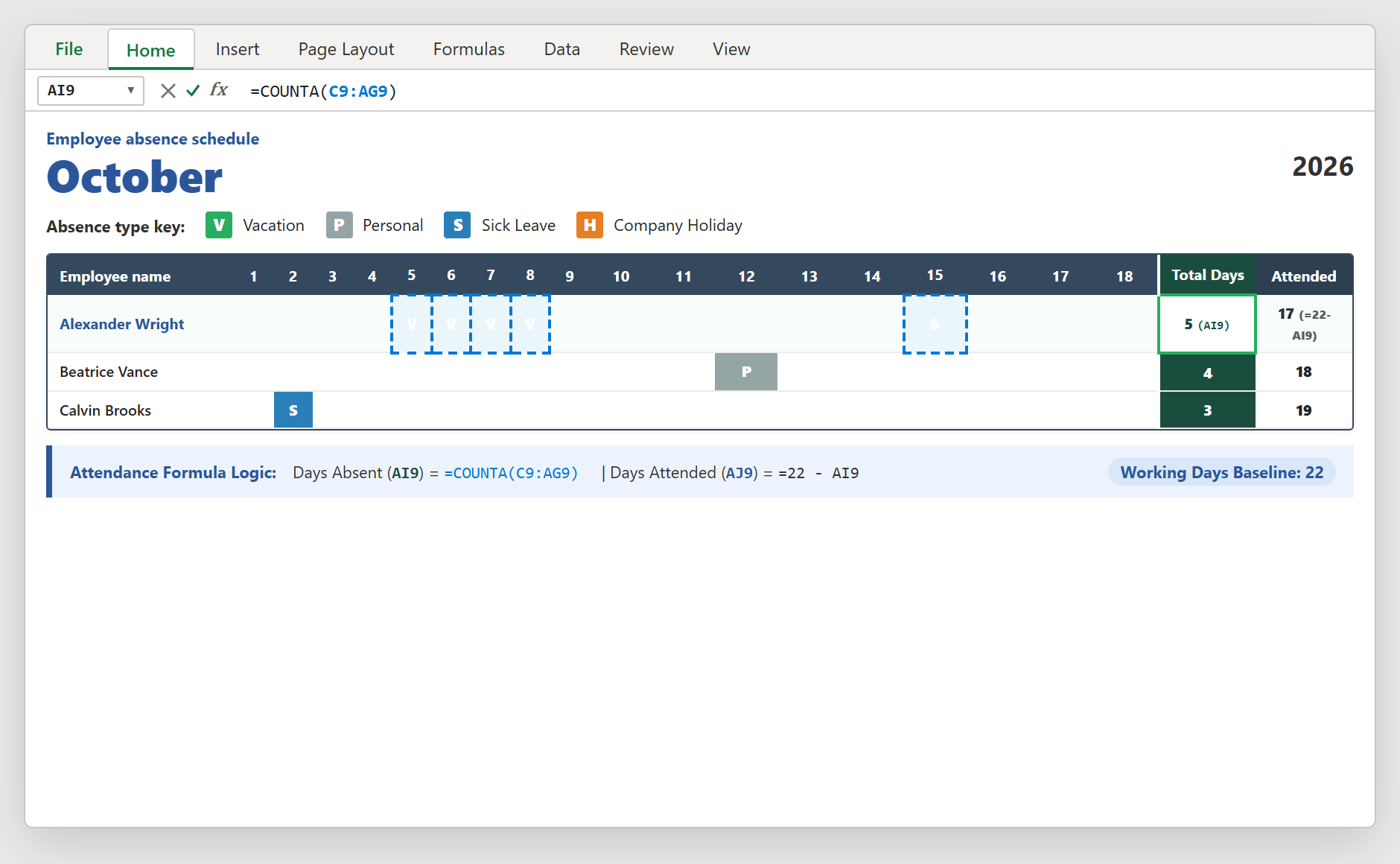
Figure 3: Formulating days absent with =COUNTA() and net attended days based on 22 standard working days.
3.4Step 4: Reviewing the Full Department Heatmap
Finally, look at row 19 (October total). Beneath each day column, the formula =COUNTA(C9:C18) counts how many team members are absent on that specific date.
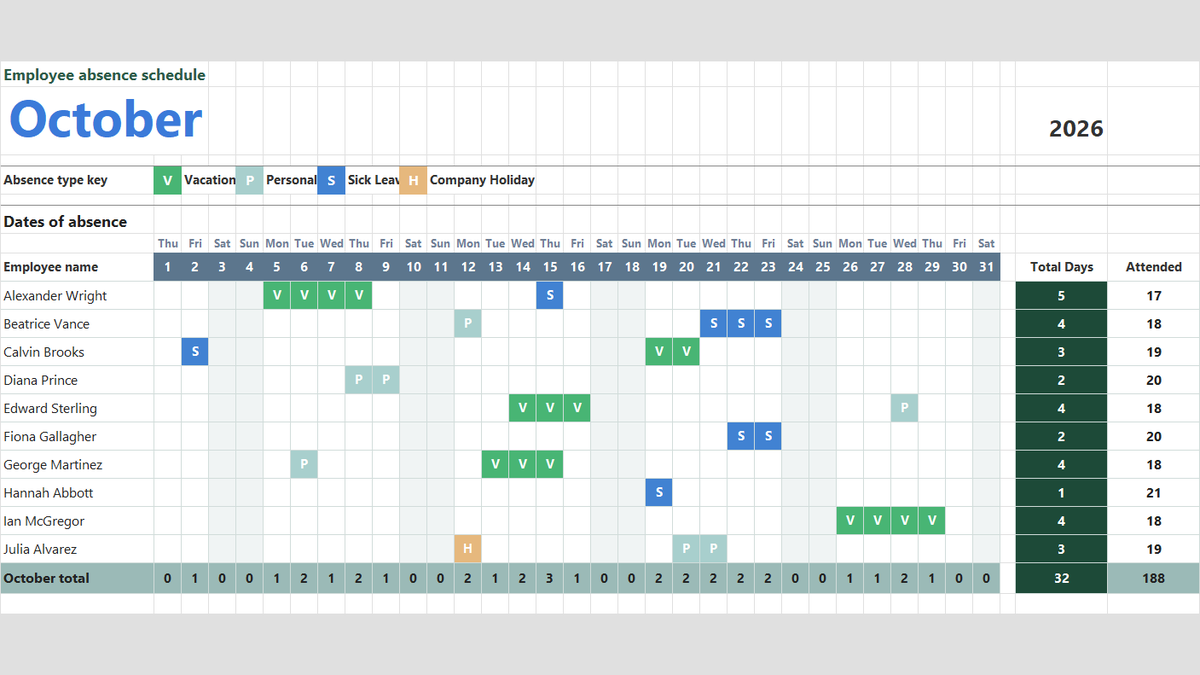
Reviewing this bottom row gives managers immediate operational insight: on October 15, three employees are out at the same time, alerting team leads to postpone non-critical deliverables or arrange shift backup.
Across the full department, your team logged 32 total absence days and 188 attended days, achieving a solid 85.45% monthly attendance rate.
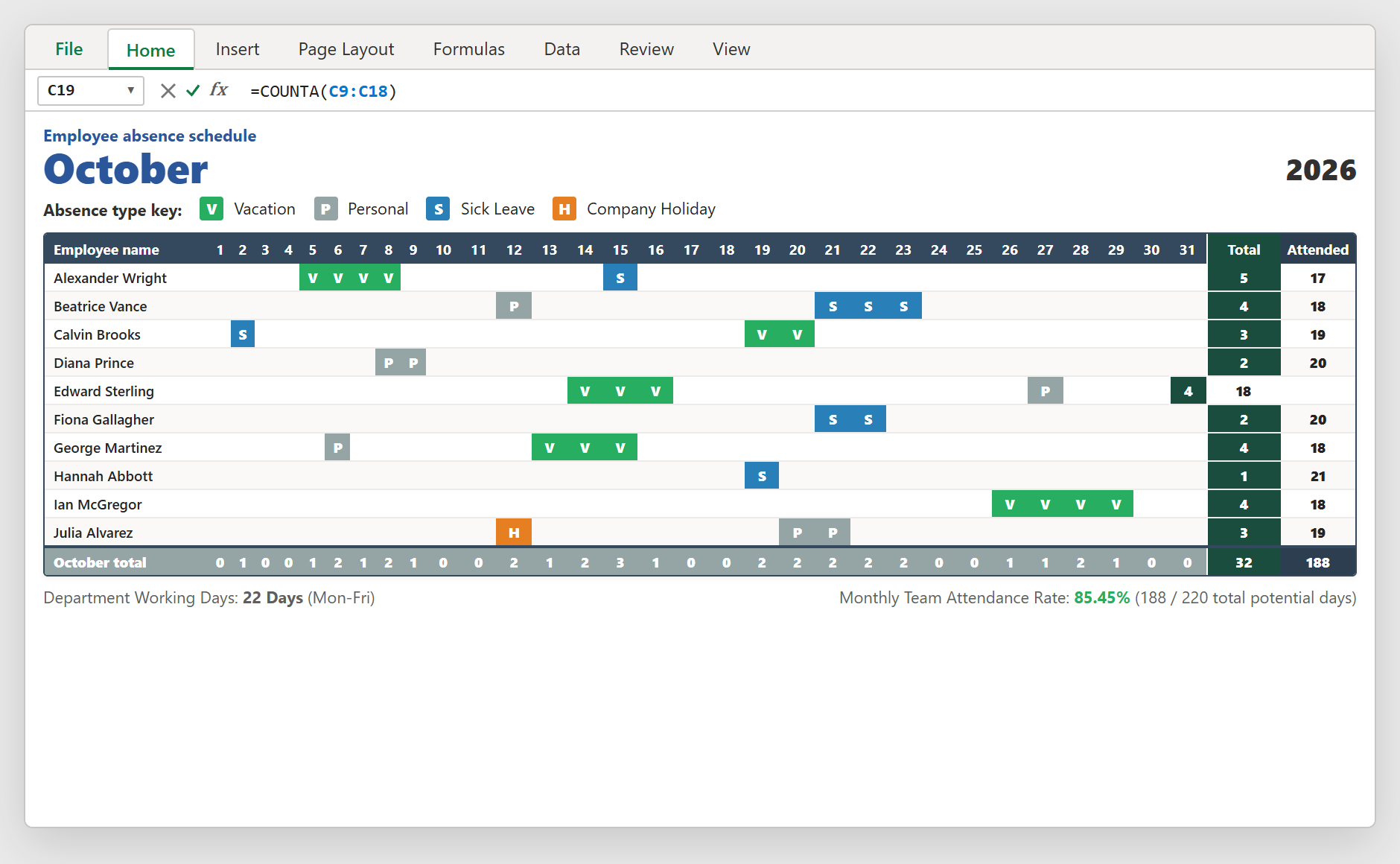
Figure 4: Complete monthly department attendance schedule showing colored absence badges and daily absence rollups.
Practical Leave Management Tips for Team Leads
To keep your team attendance system fair and effective throughout the year, keep these practical guidelines in mind:
1. Vacation Notice Windows: Encourage team members to submit vacation requests at least two weeks ahead. Entering their "V" codes early prevents scheduling conflicts where too many people take off on the same Friday.
2. Updating Weekend and Holiday Headers: Every month starts on a different weekday. When rolling over to November, update row 7 so weekends line up accurately before copying the sheet.
3. Exporting for Payroll: At month end, filter or copy the summary columns (B, AI, AJ) directly into your payroll spreadsheet to verify paid time off balances in seconds.

Spreadsheet educator and web developer passionate about hands-on interactive spreadsheet practice.
Related Practical Exercises
Explore more hands-on spreadsheet models with downloadable practice workbooks.
 Human Resources
Employee Payroll Calculator Excel Template
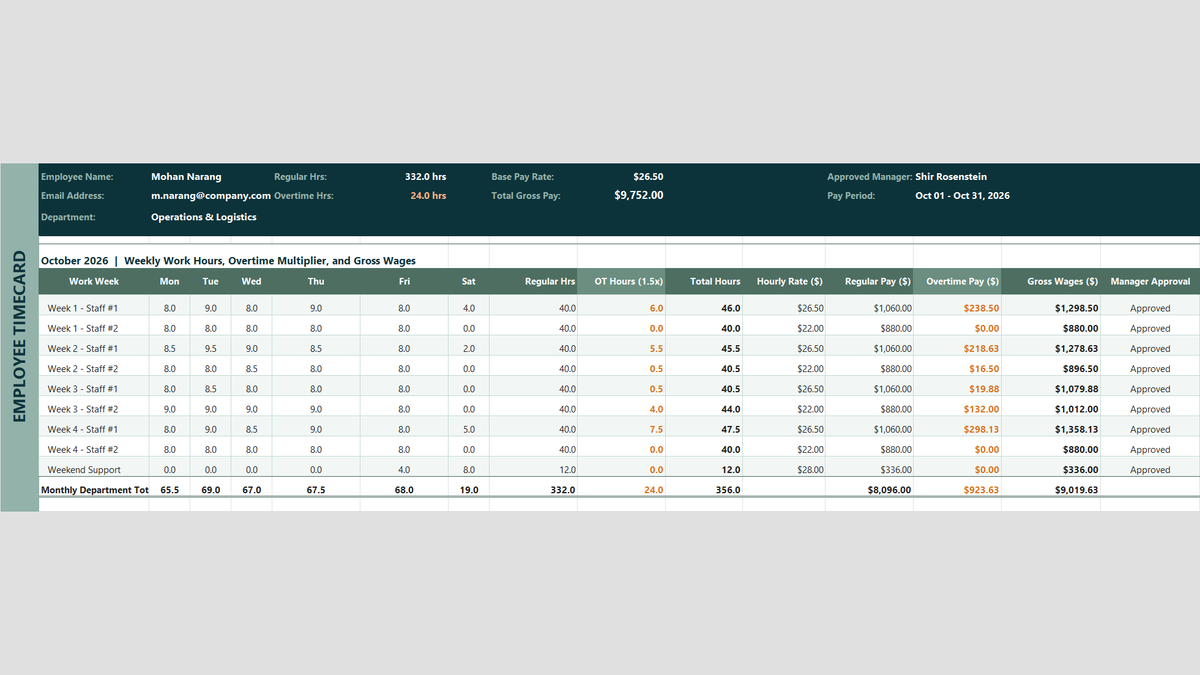
Payroll Friday should not be stressful. Learn how to build an employee payroll calculator in Microsoft Excel that automatically tallies timecards, caps regular hours at 40 with MIN, computes 1.5x overtime with MAX, and locks penny-perfect wages with ROUND.
 Human Resources
Weekly Employee Shift Schedule and Roster Excel Template
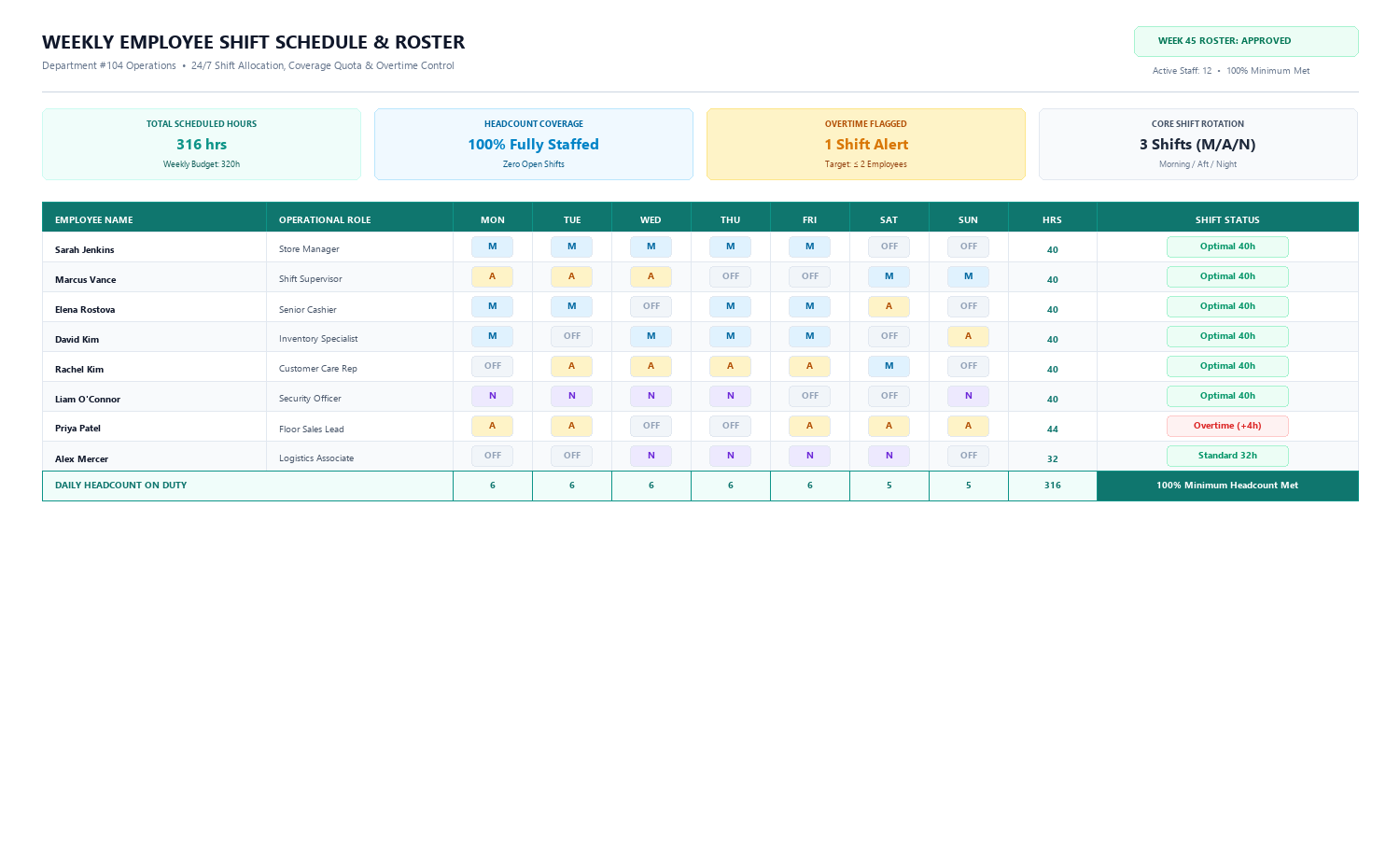
Learn how to build an operational Weekly Employee Shift Schedule & Roster in Microsoft Excel featuring standard shift codes, automated hours calculation with COUNTIF, overtime detection, and daily coverage summaries.
 Productivity
Emergency Fund Planner Excel Template
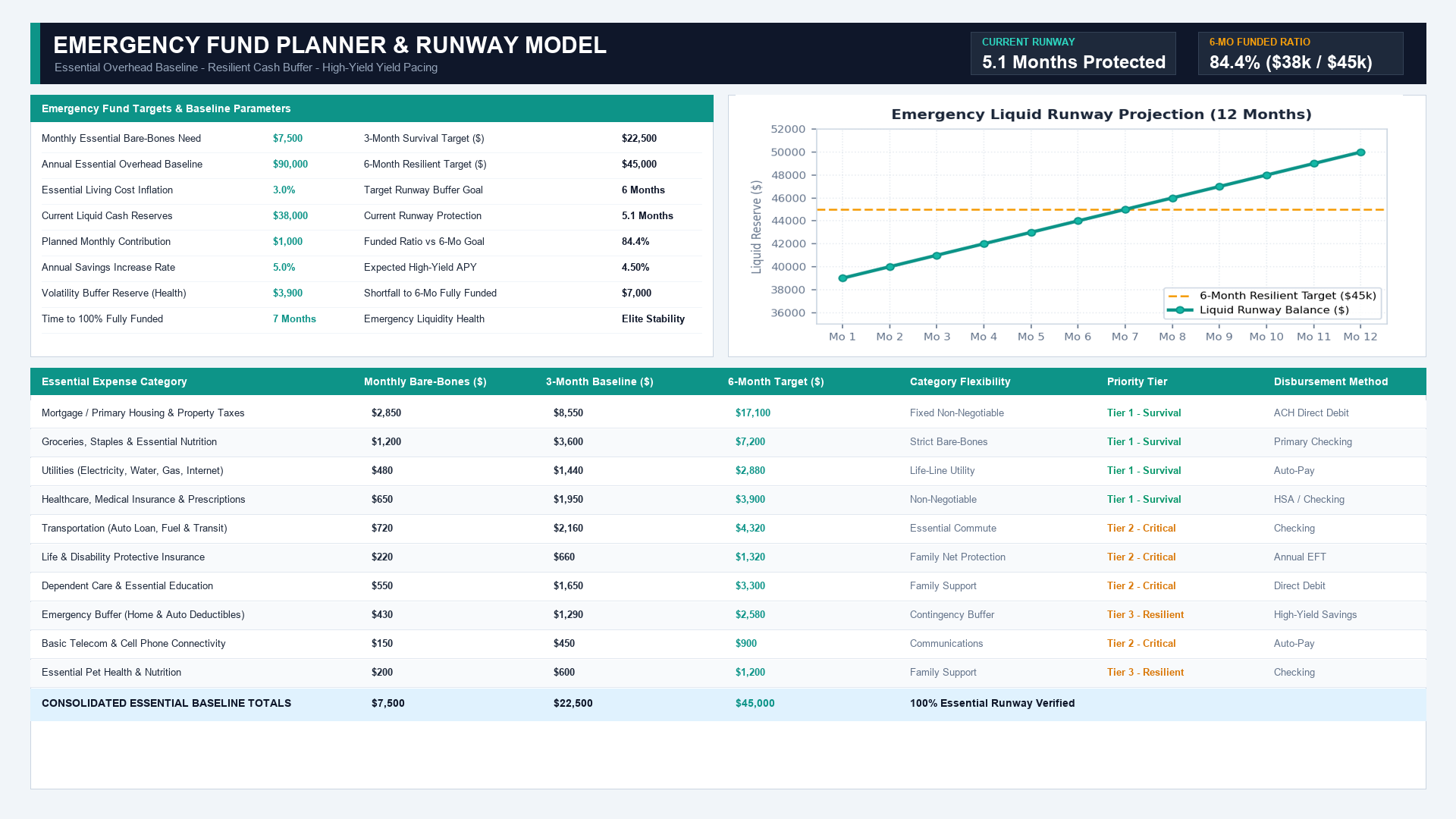
Learn how to build a resilient Emergency Fund Planner in Microsoft Excel featuring bare-bones baseline calculations, 3-month and 6-month runway multipliers, funded ratio tracking, and savings pacing.
 Finance
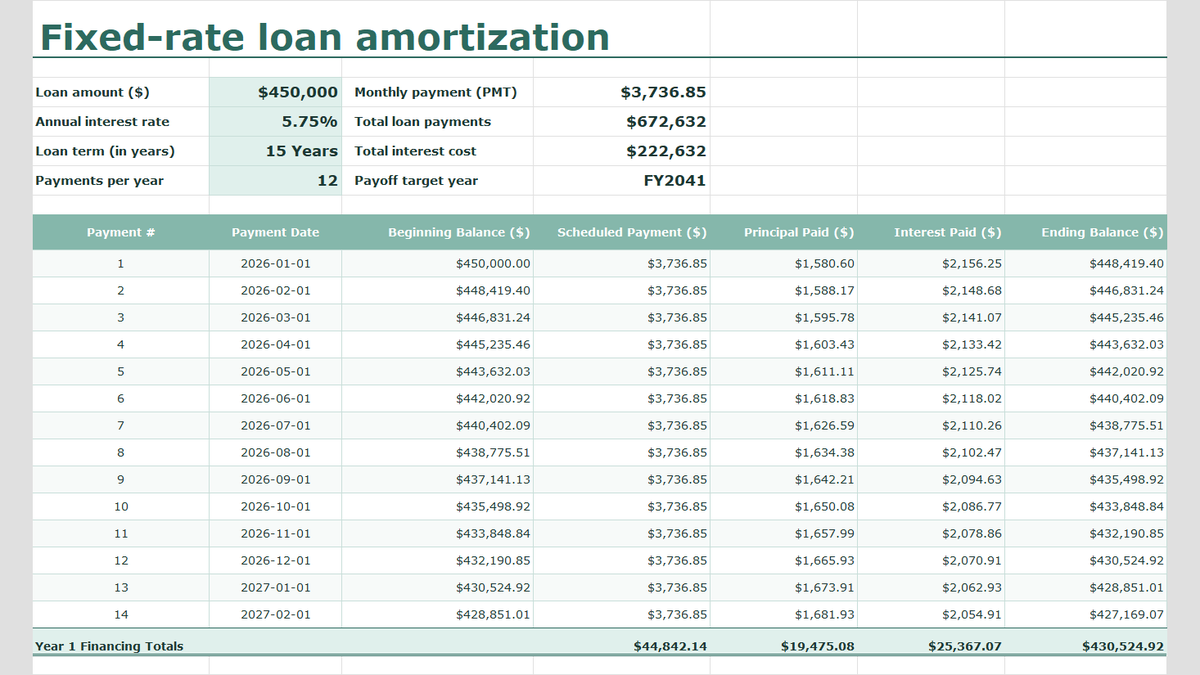
Fixed-Rate Loan Amortization Schedule Excel Template
Learn fixed-rate commercial debt structuring in Microsoft Excel. Build a rigorous amortization schedule featuring level debt service calculations with =PMT(), interest and principal bifurcation, dynamic balance rollforwards, accounting ledger formatting, and annual debt covenant rollups.
 Productivity
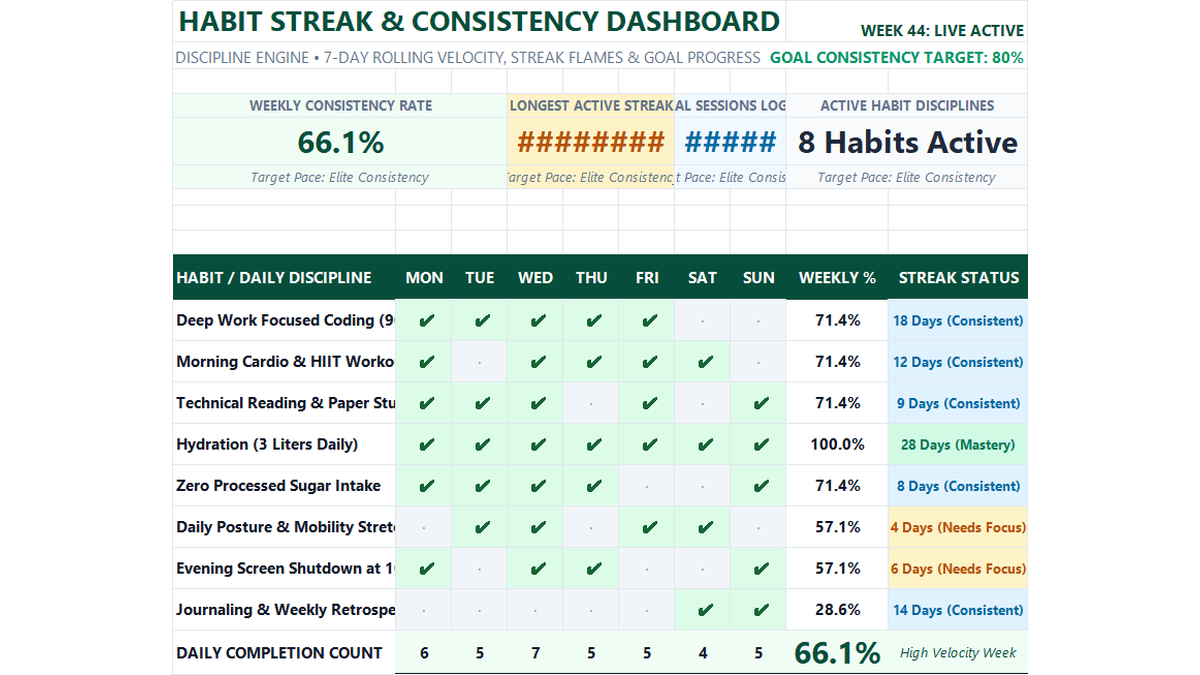
Daily Habit Tracker Excel Template
Build a practical daily habit tracker in Microsoft Excel to track 7-day consistency rates, checkmark styling, streak milestones, and overall productivity scorecards.
Discussion
Ask questions, share formula tips, or discuss alternative approaches with fellow spreadsheet builders.
Loading discussion...