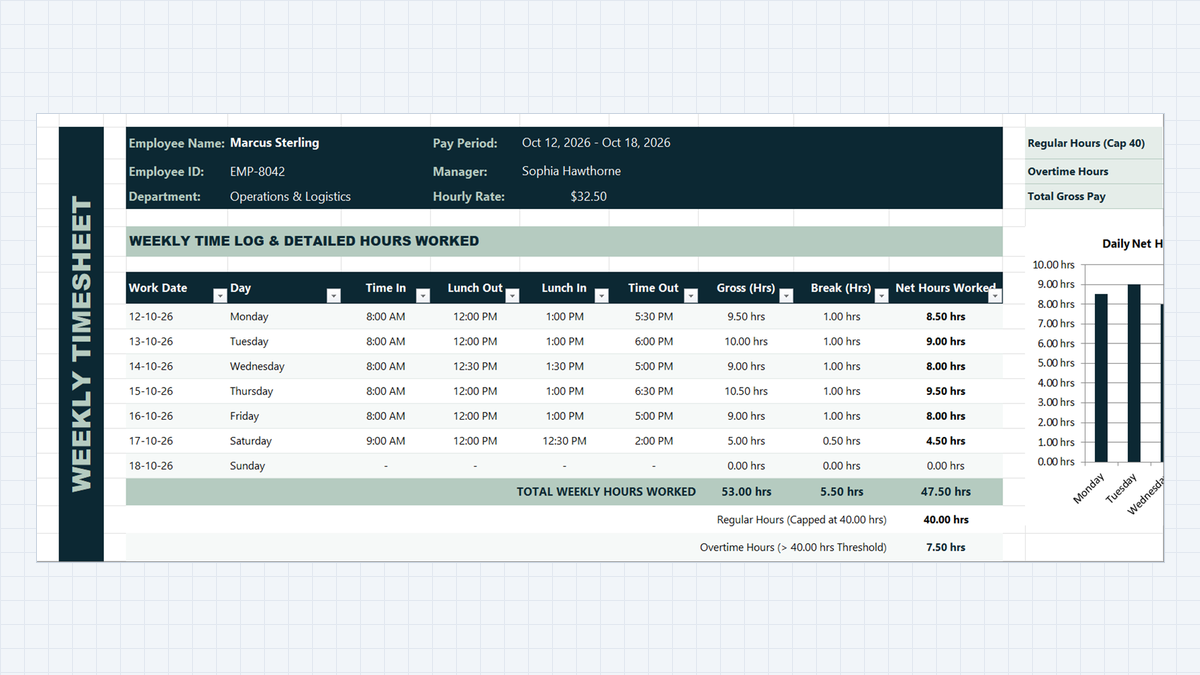
Payroll day is stressful when the hours do not add up. One forgotten lunch break or one overtime hour counted at the wrong rate, and someone gets paid the wrong amount.
In this exercise you will build a weekly Employee Timesheet Calculator in Microsoft Excel. It turns clock times into decimal hours, removes unpaid lunch, splits regular time from overtime, and shows gross pay in one summary card.
Why Hand-Counted Hours Cause Payroll Gaps
What Your Timesheet Template Needs
- Employee header: name, ID, department, manager, pay period, and the hourly rate that drives pay.
- Daily time log: Time In, Lunch Out, Lunch In, and Time Out for each day of the week.
- Net hours in decimals: gross hours minus break hours, ready for multiplication.
- Regular and overtime split: hours up to 40 at the normal rate, anything above at 1.5 times.
| Block | Cells | Question It Answers |
|---|---|---|
| Employee header | D2:H4 | Who is this for, and what is the rate? |
| Daily time log | D8:I15 | When did the person start, break, and finish? |
| Hours columns | J9:L15 | How many gross, break, and net hours per day? |
| Weekly totals | J16:L18 | How many hours in total, regular, and overtime? |
| Payroll summary card | N2:O4 | What is the gross pay for the week? |
Build the Timesheet in 5 Steps
Timesheet Calculator. Employee details go at the top, the weekly log sits in the middle, and the payroll card is on the right. Follow the steps in order, because each result feeds the next.1Step 1: Lay Out the Schedule and Format Times
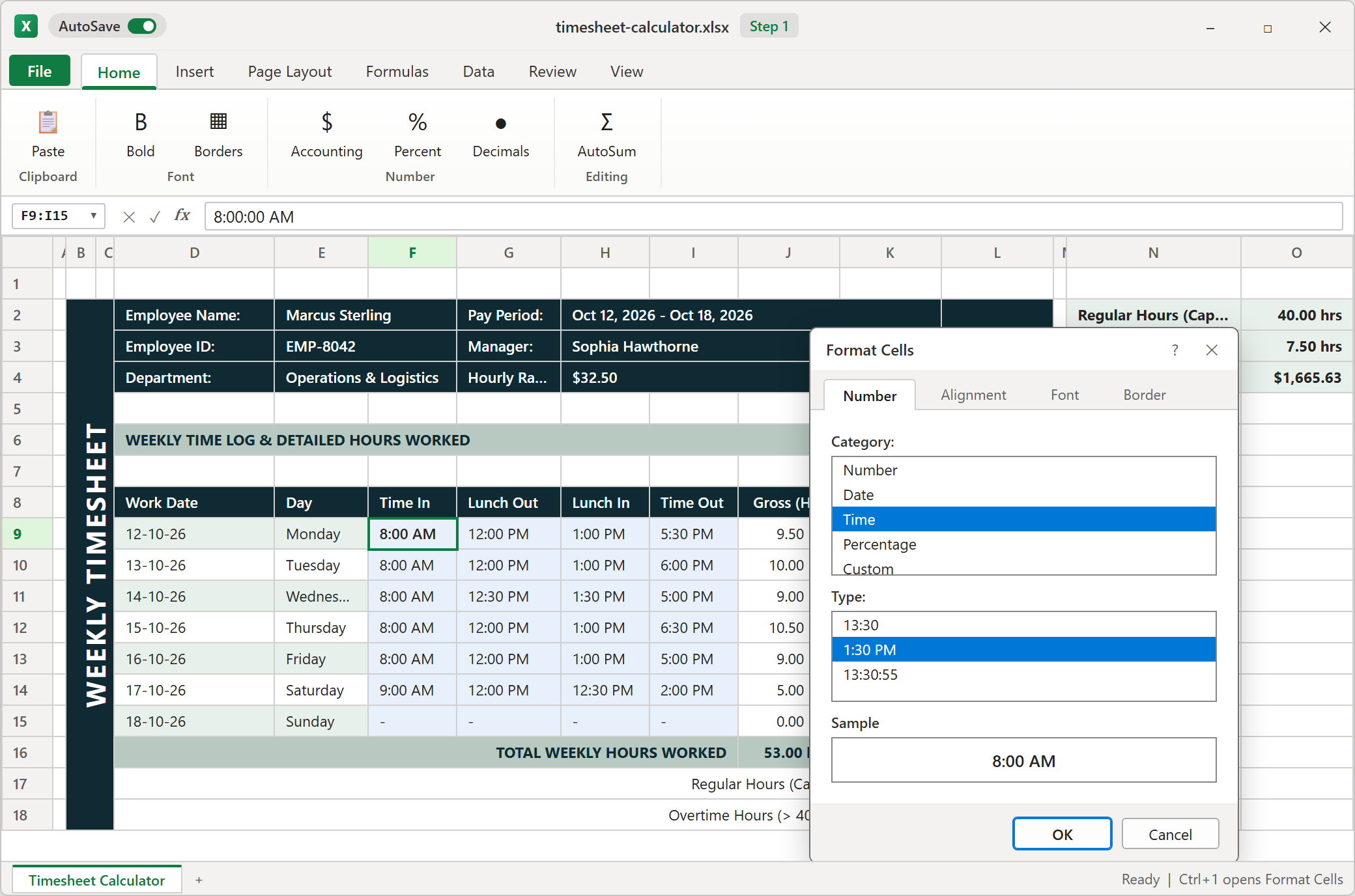
Enter the seven days from Monday to Sunday, then type the Time In, Lunch Out, Lunch In, and Time Out for each day. Mark a day off with a dash so the row stays readable.
Select all four time columns and press Ctrl+1 to open Format Cells. On the Number tab, pick Time and choose a style such as 1:30 PM, or the 24-hour style if your team prefers it. This matters because Excel stores a time as a fraction of a day, and the display format is only a label on top of that number.
2Step 2: Calculate Shift Duration with MOD
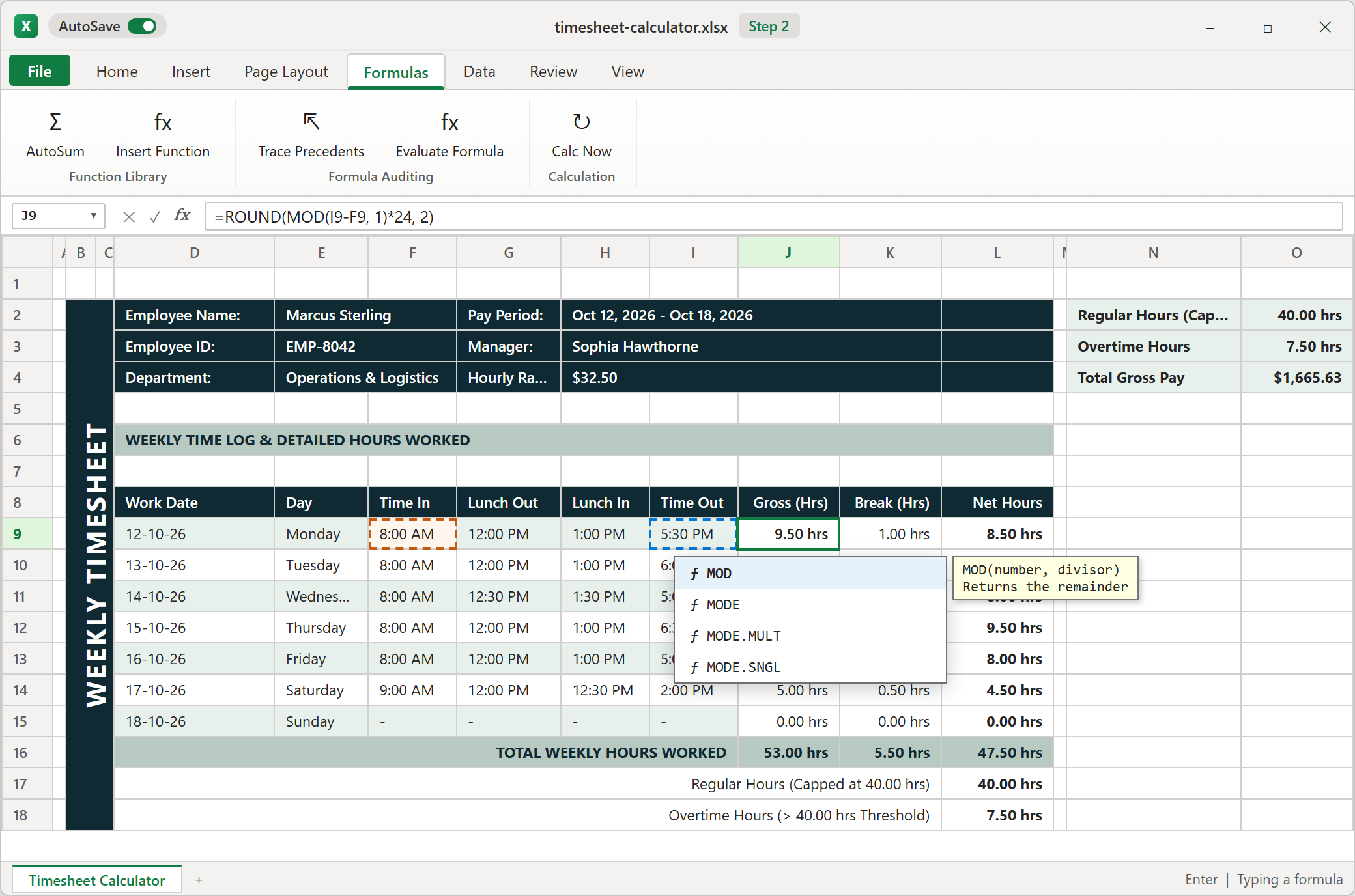
Gross hours are the time between clock-in and clock-out. Subtract Time In from Time Out, then wrap that difference in MOD with a divisor of 1. If the shift crosses midnight, the raw difference is negative, and MOD turns it back into the correct fraction of a day.
Excel counts a day as 1, so multiply by 24 to get hours, then round to two decimals. As you type, the AutoComplete list shows MOD, MODE and similar names, so press Tab on the right one instead of typing the whole name. Marcus's Monday comes out at 9.50 hours.
3Step 3: Deduct Lunch and Get Net Hours
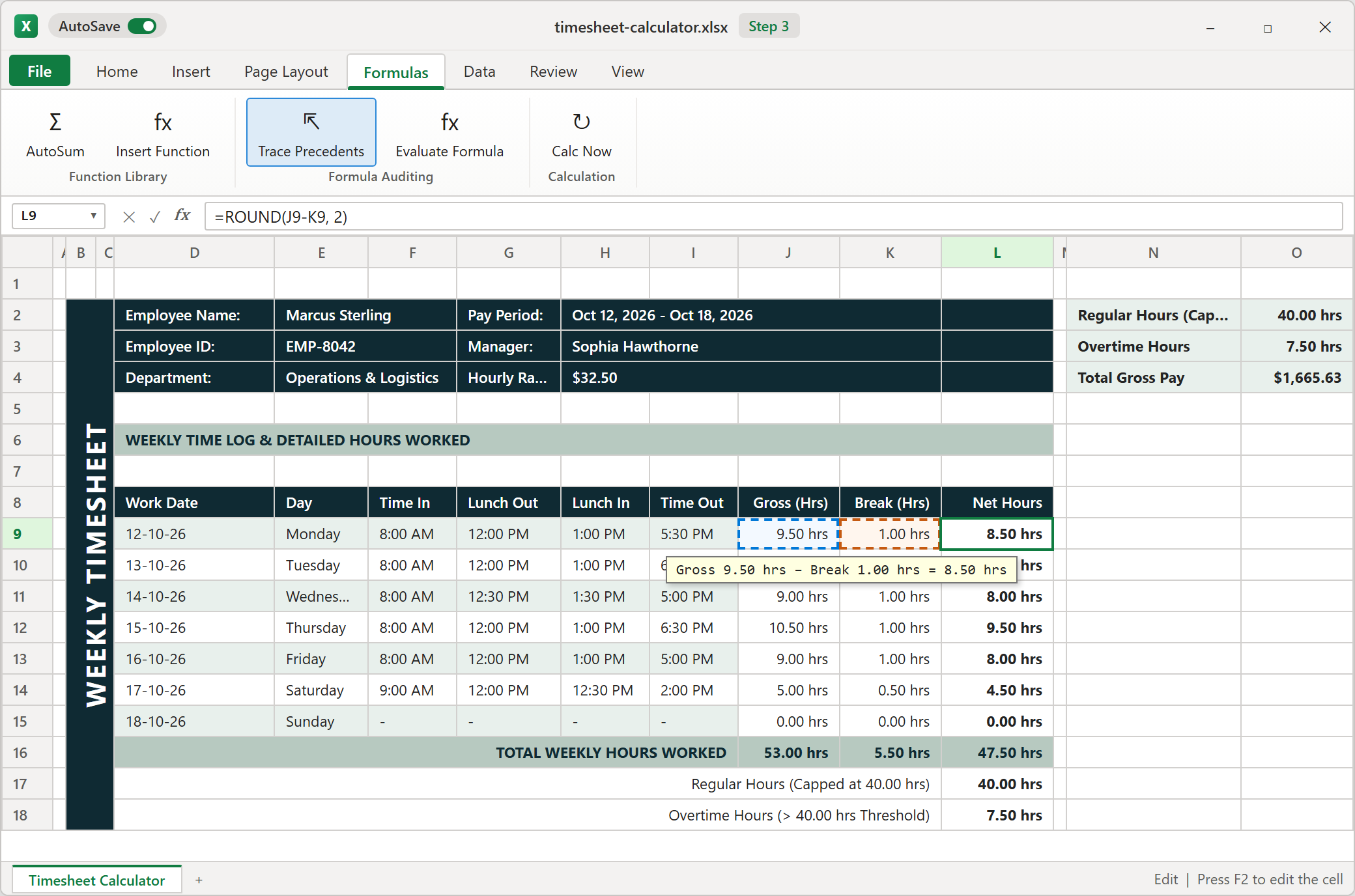
The break column uses the same logic, applied to Lunch Out and Lunch In. Then net hours are simply gross minus break, rounded to two decimals. Monday becomes 9.50 minus 1.00, which gives 8.50.
Click the net cell and press F2. Excel outlines every cell the formula uses in a different color, so you can check at a glance that it points at the gross and break cells of the same row. Copy the formulas down through Saturday. The Sunday row holds zeros because Marcus did not work, so add formulas there if someone does.
4Step 4: Split Regular Hours and Overtime
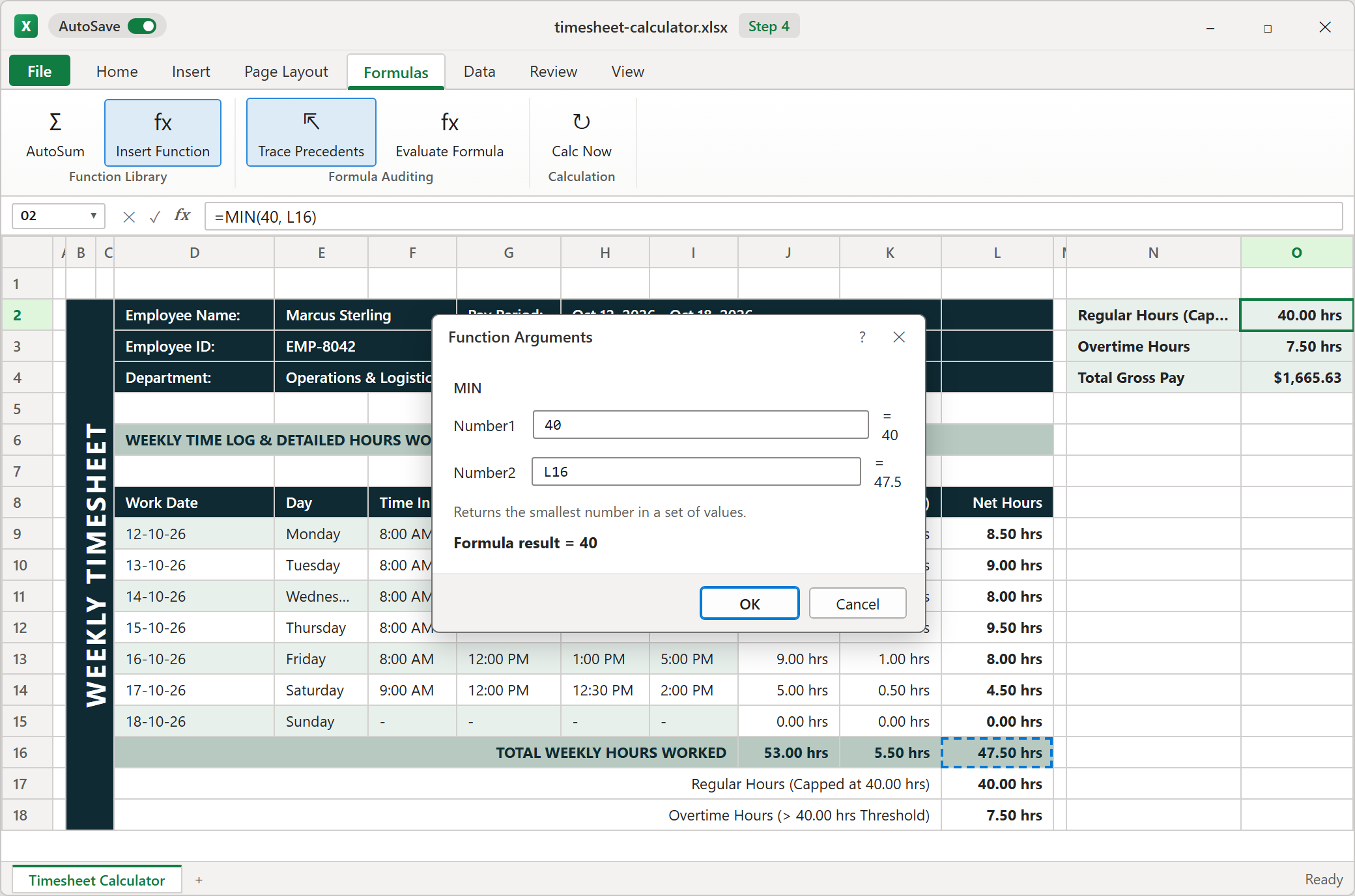
First, total the net hours for the week. Marcus has 47.50. Regular hours are the smaller of 40 and that total, which is where MIN helps. Overtime is the larger of zero and the total minus 40, which is where MAX helps. The zero floor stops overtime from going negative in a short week.
Use Insert Function to open the Function Arguments box for each one. It shows what every argument evaluates to before you confirm, which makes mistakes easy to spot. The table under the log reaches the same answer with an IF test, so the two should always match.
5Step 5: Calculate Gross Pay with Currency Format
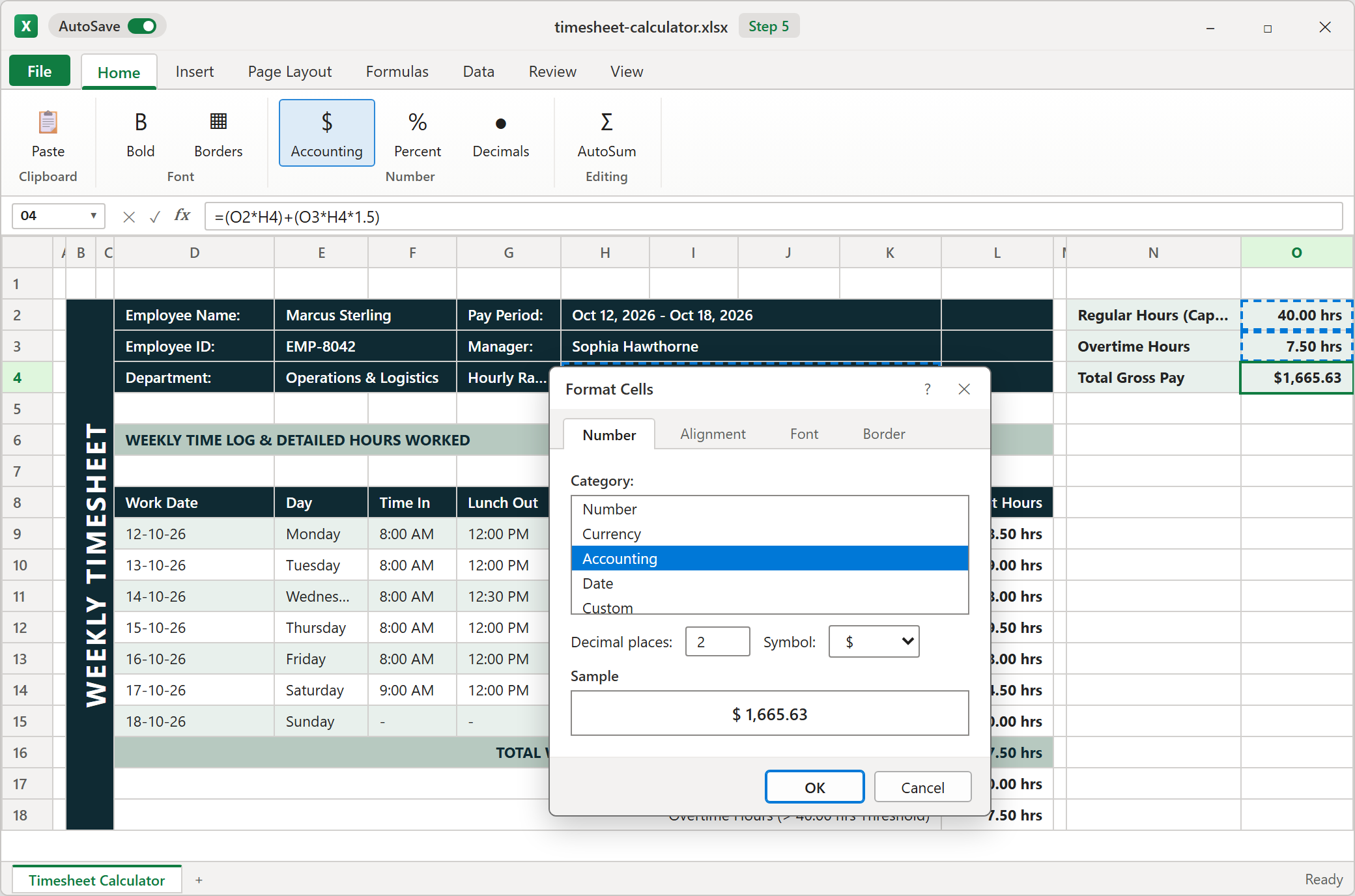
Gross pay has two parts. Regular hours get multiplied by the hourly rate, and overtime hours get multiplied by the rate and then by 1.5. Add the two parts together. For Marcus, 40 hours at $32.50 is $1,300.00 and 7.50 overtime hours add $365.63, so the total is $1,665.63.
Open Format Cells again, choose Accounting, and keep two decimals. Be aware that Excel shows rounded cents but stores the full value, here 1,665.625. If your payroll needs exact cents, wrap the pay calculation in ROUND so the stored value matches what you see.
FLSA Compliance & Overtime Rules: Why Capping Regular Hours at 40 Protects Both Employers and Employees
- Employees get paid correctly for long weeks, with no hours quietly absorbed into the normal rate.
- Employers keep a clear record that shows how each pay amount was reached, which helps if payroll is ever questioned.
Download the Template

Spreadsheet educator and web developer passionate about hands-on interactive spreadsheet practice.
Related Practical Exercises
Explore more hands-on spreadsheet models with downloadable practice workbooks.
 Operations
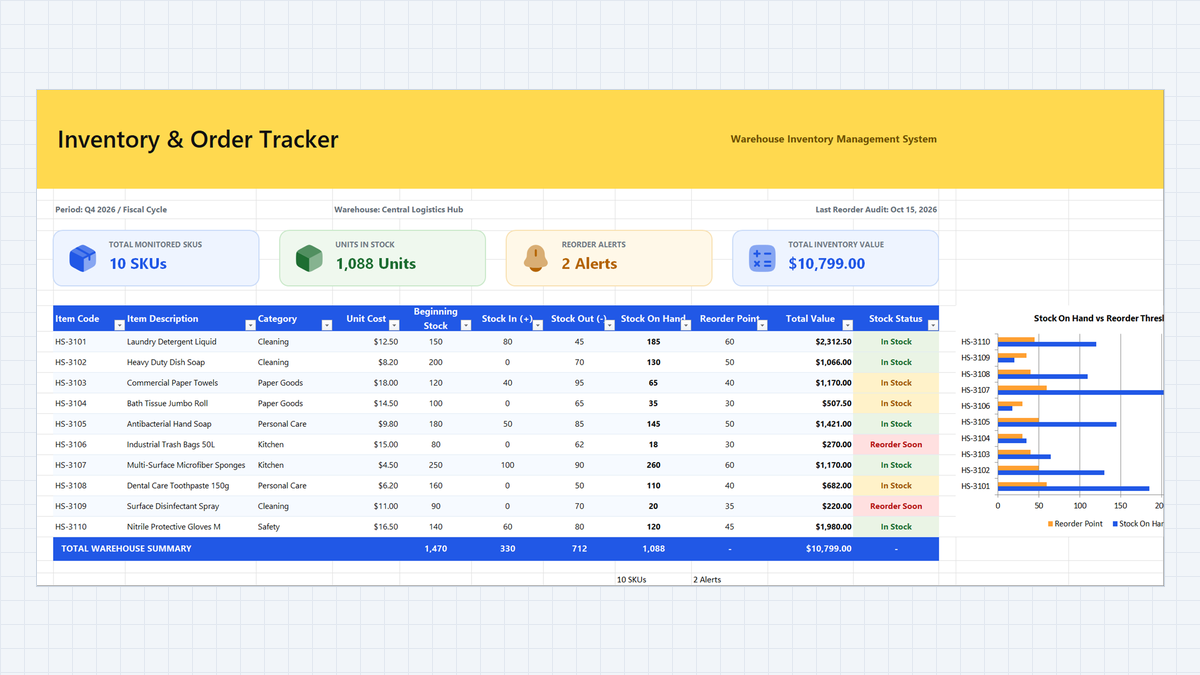
Inventory Tracking System Excel Template
Stop stockouts and mismatched stock counts. Build an Inventory Tracking System Excel Template with a strict IN/OUT movement log, automatic stock totals with SUMIFS, a smart reorder status with nested IF, and color alerts your warehouse team can read at a glance.
 Finance
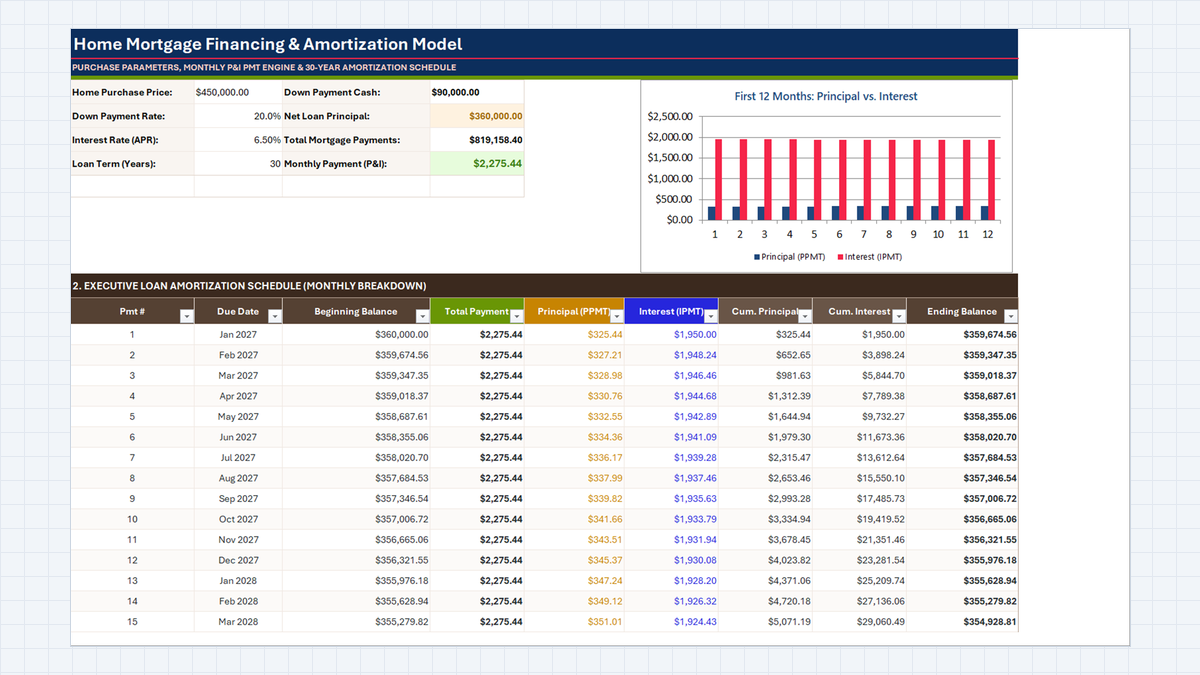
Mortgage Calculator Excel Template
See where every mortgage dollar goes. Build a Mortgage Calculator Excel Template that finds the monthly payment with PMT, splits each month into principal and interest with PPMT and IPMT, and tracks equity and ending balance in a clear amortization schedule.
 Productivity
Personal Expense Tracker Excel Template
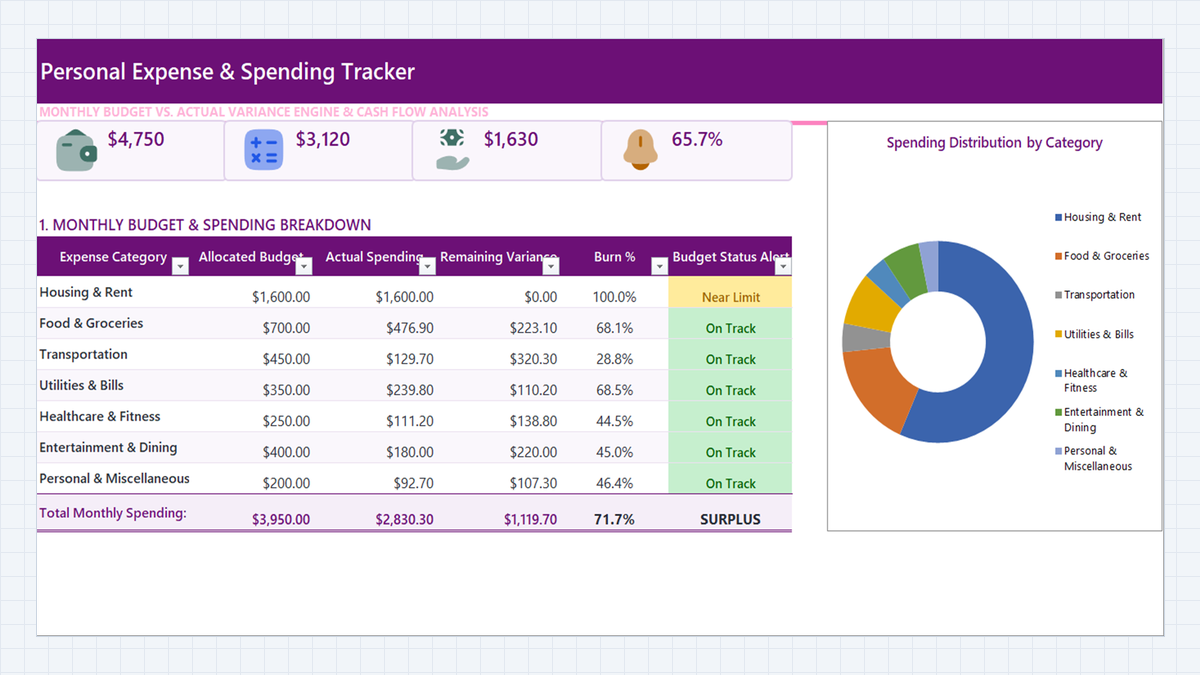
Turn a daily list of purchases into a clear monthly budget dashboard. Build a personal expense tracker in Microsoft Excel with a category dropdown, SUMIFS roll-ups, burn percentages, and three-level budget alerts.
 Human Resources
Employee Time Off Tracker Excel Template
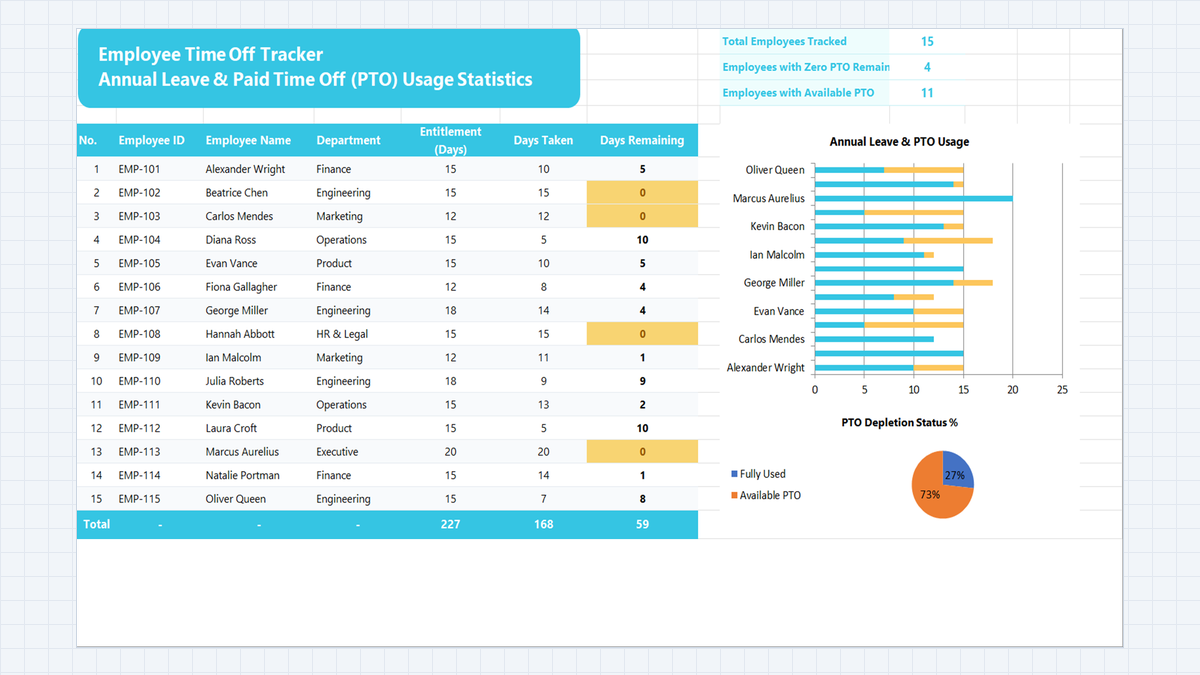
Keep track of every employee's annual leave in one sheet. Build a time off tracker in Microsoft Excel with department dropdowns, automatic remaining-days balances, KPI cards built with COUNTA and COUNTIF, and an alert for staff who have used all their PTO.
 Finance
Discounted Cash Flow (DCF) Model Excel Template
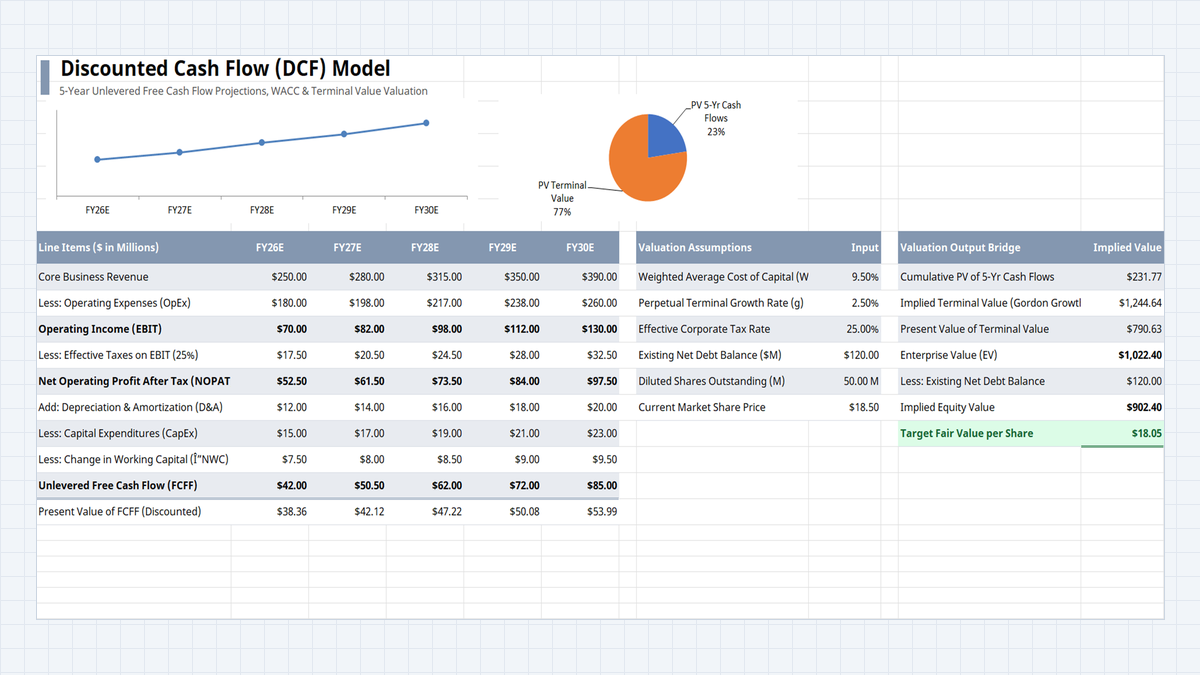
Find out what a company is worth from the cash it will generate, not from a guess. Build a one-sheet DCF in Excel: five years of free cash flow, a WACC discount, a terminal value, and a fair value per share you can compare with the market price.
Discussion
Ask questions, share formula tips, or discuss alternative approaches with fellow spreadsheet builders.
Loading discussion...