Leave balances live in many places: email threads, chat messages, and someone's memory. When an employee asks how many days they have left, nobody can answer quickly.
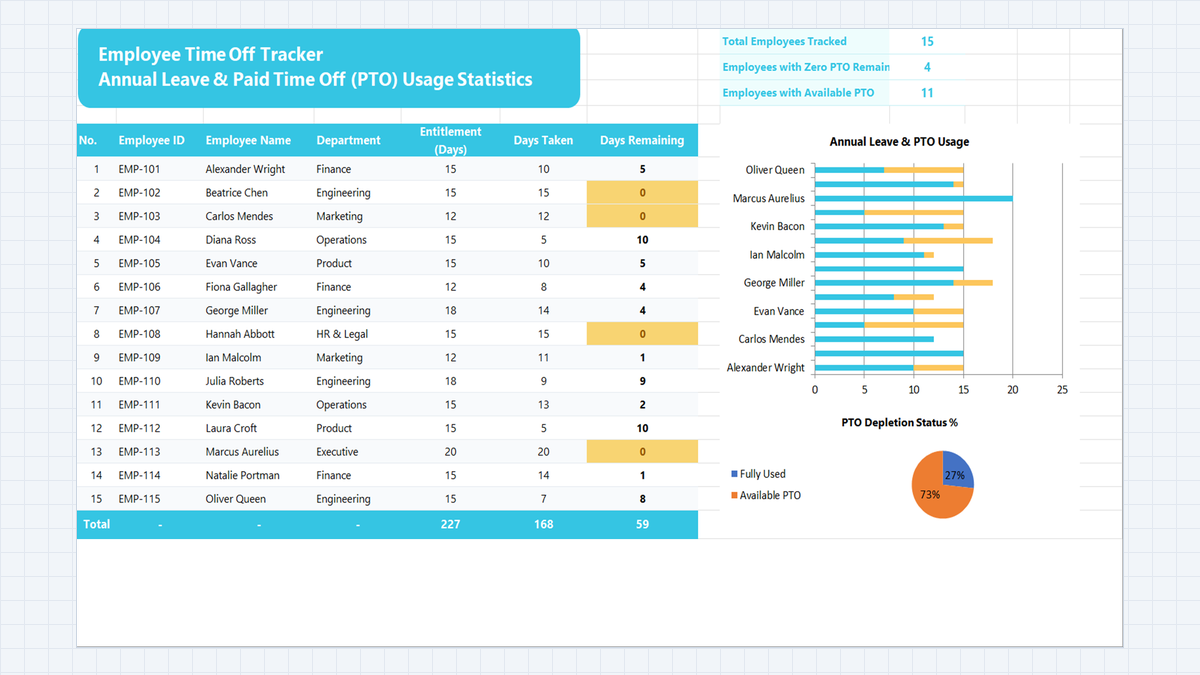
In this exercise you will build an Employee Time Off Tracker in Microsoft Excel. It holds a roster, calculates every balance automatically, summarizes the team in KPI cards, and highlights anyone who has used all their leave.
Why Leave Tracking Falls Apart
What Your Time Off Tracker Needs
- Roster: employee number, ID, name, and department.
- Entitlement: the yearly leave allowance, which differs by person (12, 15, 18, or 20 days here).
- Days Taken: leave already used.
- Days Remaining: entitlement minus taken, calculated automatically.
- KPI cards: total staff, people with zero days left, and people with days available.
- Total row: company-wide totals for the three number columns.
| Part | Cells | What It Shows |
|---|---|---|
| Roster | B6:E21 | Fifteen employees with ID and department |
| Entitlement and Days Taken | F7:G21 | Allowance and leave used, entered by HR |
| Days Remaining | H7:H21 | The live balance for each person |
| KPI cards | J2:K4 | Total staff (15), zero balance (4), available (11) |
| Total row | B22:H22 | Totals of 227, 168, and 59 days |
| Chart helper cells | Z1:AA2 | Feeds the pie chart on PTO depletion |
Build the Tracker in 5 Steps
Time Off Tracker and leave a few rows at the top for the title and KPI cards. The roster header goes in row 6, so the data starts in row 7. Work through the steps in order.1Step 1: Set Up the Roster and Department Dropdown
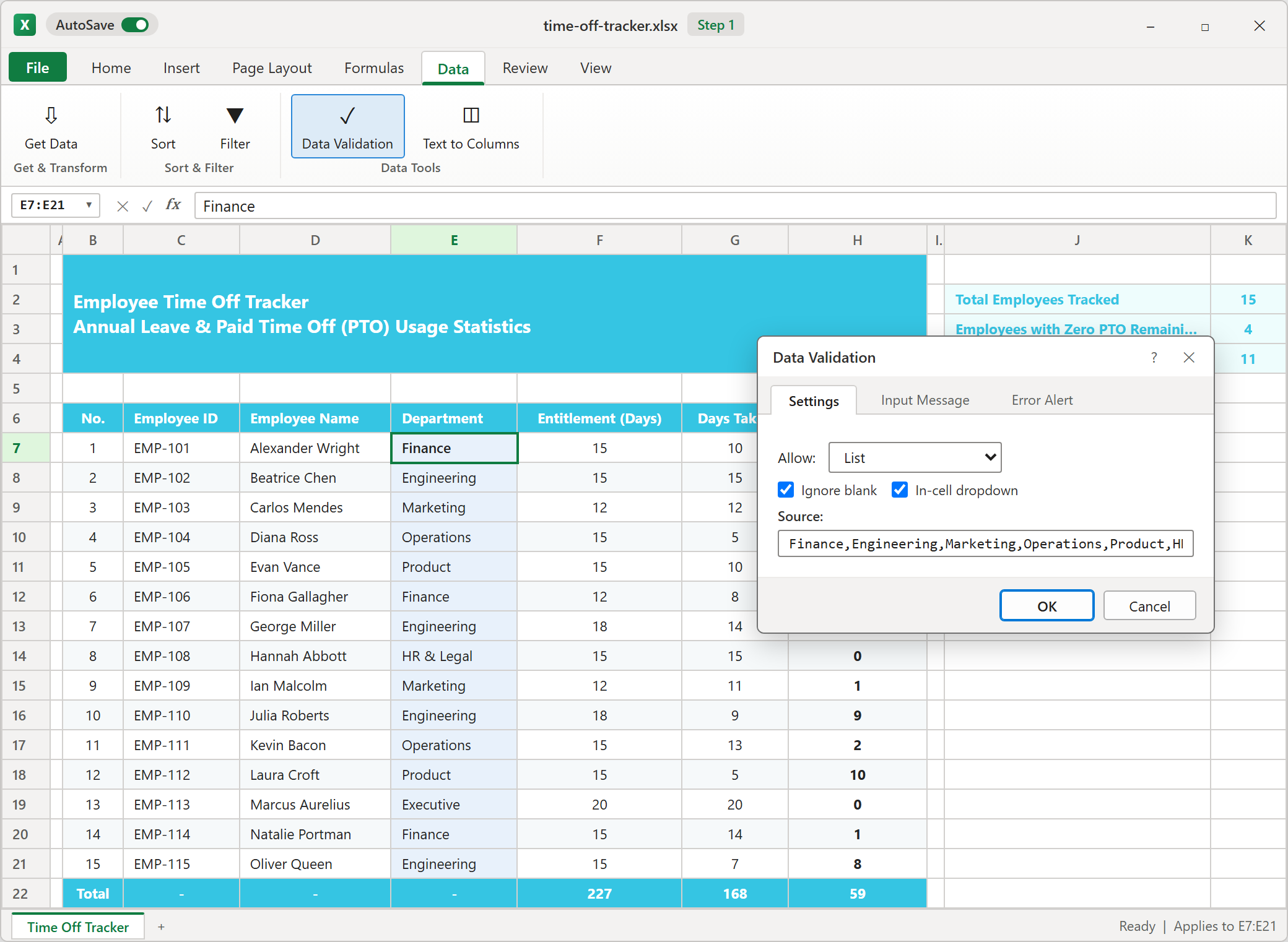
Type the column headers, then enter the 15 employees with their ID, name, entitlement, and days taken. For the Department column, do not rely on typing. One person writes "Engineering" and another writes "Engineering " with a trailing space, and any later count by department quietly breaks.
Select the department cells and open Data > Data Validation. Allow a List and type the departments separated by commas. Include Executive, because one employee works there and a list without it would reject that row. Keep the in-cell dropdown ticked, so staff pick a value instead of typing one.
2Step 2: Automate Days Remaining
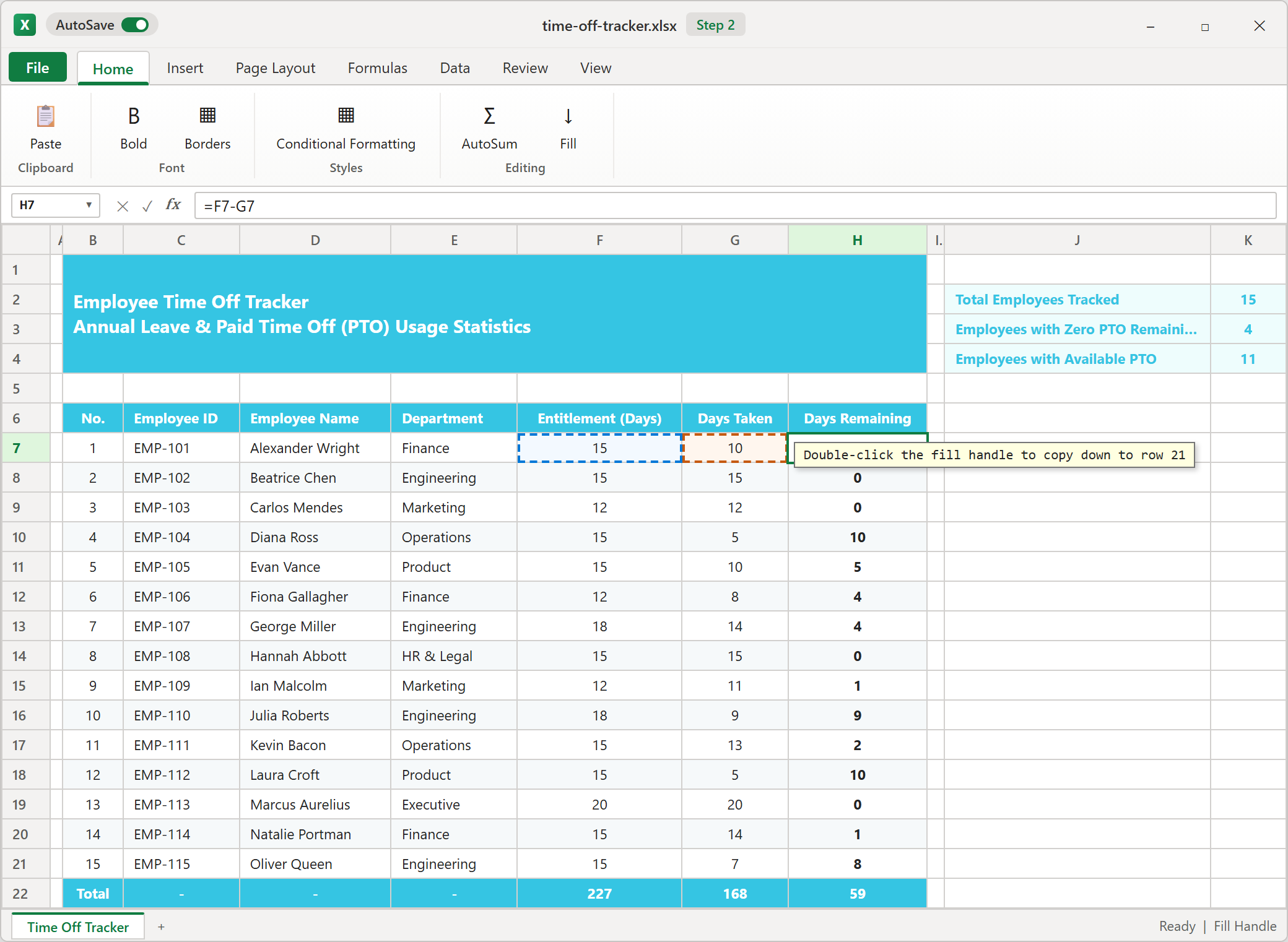
Days Remaining is entitlement minus days taken. Click the first cell in the column and write a simple subtraction that points at the two cells to its left in the same row. Press F2 to check it: Excel outlines the two source cells in different colors.
Next, hover over the small square at the bottom-right corner of the cell, called the fill handle, and double-click it. Excel copies the formula down as far as the neighboring column has data, which here means through row 21. When someone logs a new leave day, the balance updates by itself.
3Step 3: Build the KPI Cards
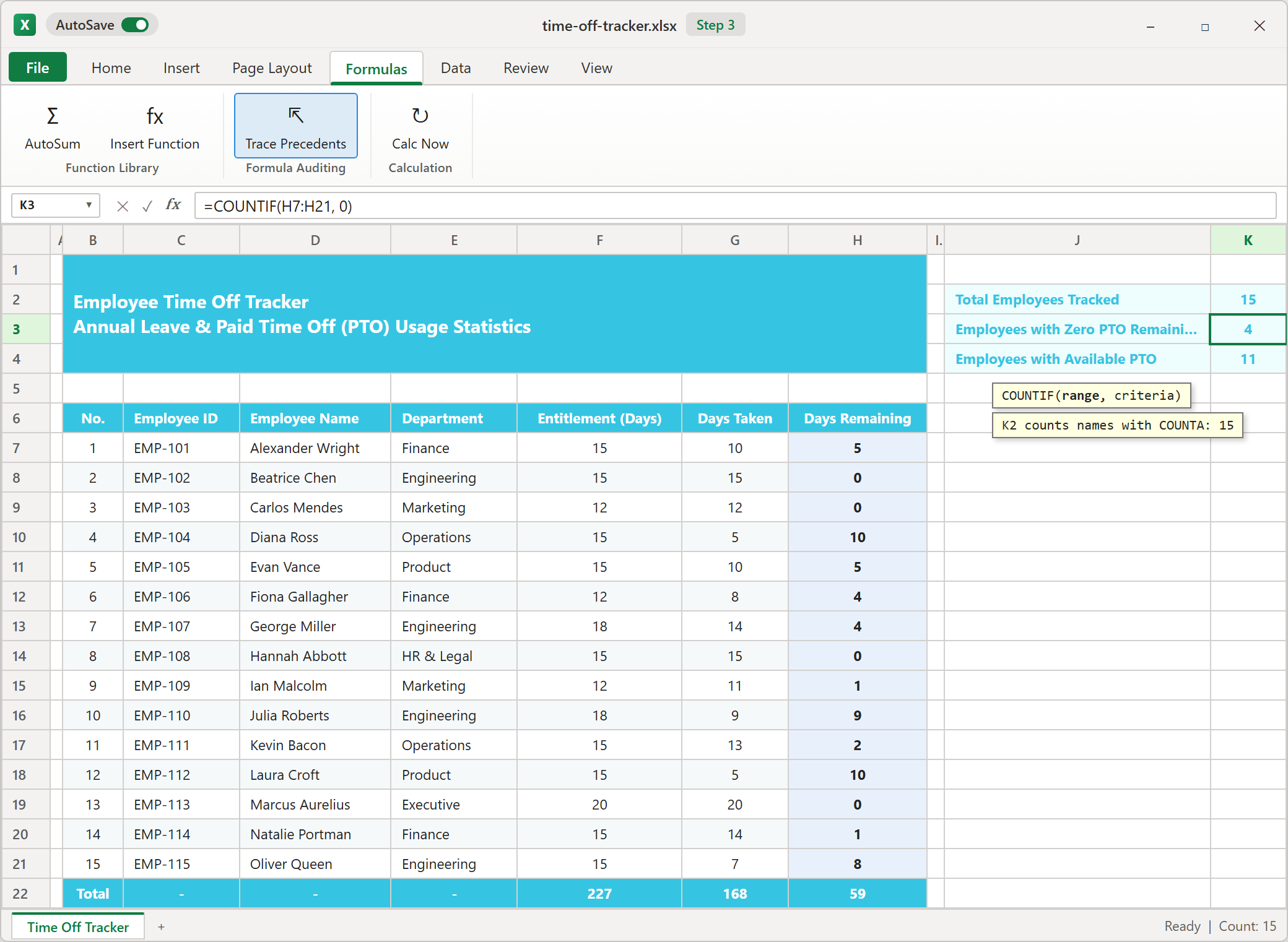
Three cards turn the table into a quick status check. The first counts how many names are filled in, so use COUNTA on the name column. It counts any non-empty cell, which makes it a good headcount.
The other two use COUNTIF on the Days Remaining column. One counts cells equal to zero, which gives 4. The other counts cells greater than zero, and that condition goes inside quotation marks, which gives 11. Together they add up to 15.
Here is a useful catch: a negative balance matches neither card. If someone overdraws, the two cards will no longer add up to the headcount. That mismatch is your warning.
4Step 4: Highlight Zero Balances
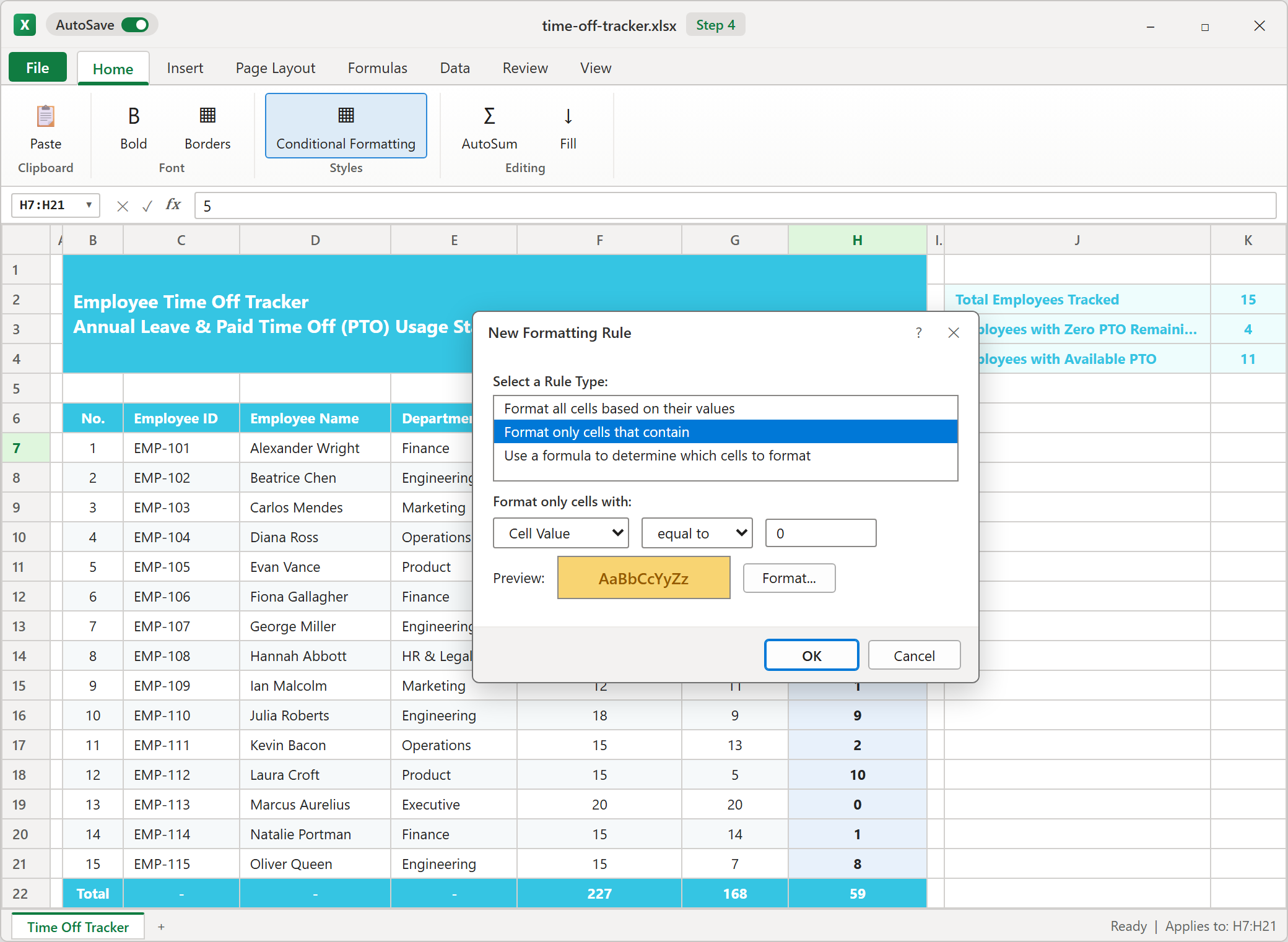
Numbers are easy to skim past, so add a visual alert. Select the Days Remaining cells and open Home > Conditional Formatting > New Rule. Choose "Format only cells that contain", set Cell Value equal to 0, and click Format to pick a fill. The sample sheet uses an amber fill with dark brown text.
Why use a rule instead of coloring cells by hand? A hand-painted cell stays colored after the balance changes. A rule updates itself, so the highlight appears and disappears as the numbers move.
5Step 5: Add the Total Row and Border
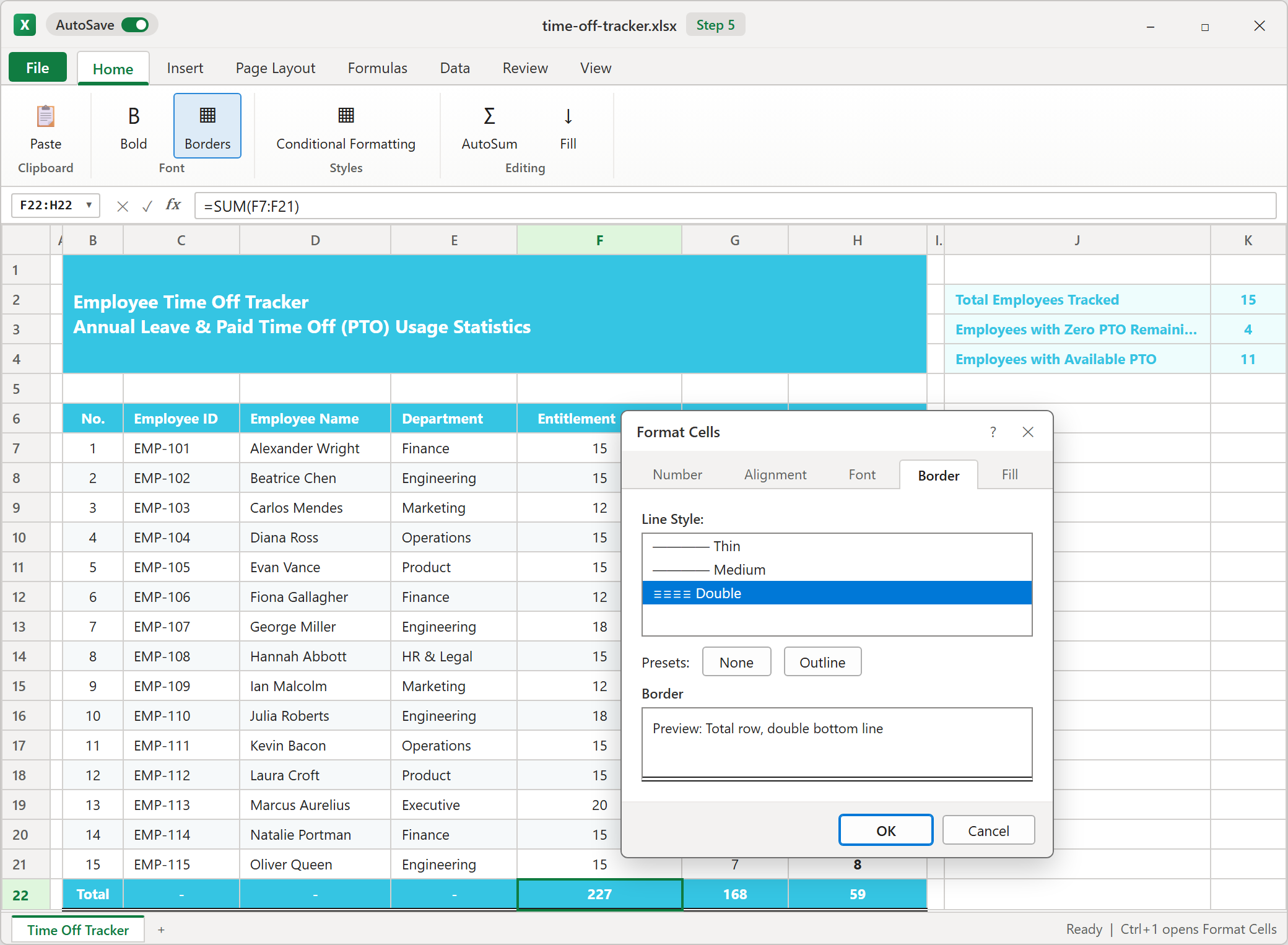
In row 22, add totals for Entitlement, Days Taken, and Days Remaining with SUM over rows 7 to 21. You should see 227, 168, and 59. A quick check: 227 minus 168 equals 59, so the three totals agree with each other.
Auditors like a clear closing line under a total. Select the row, press Ctrl+1, open the Border tab, pick the Double line style, and apply it to the bottom edge. The sheet now reads like a finished report.
Leave Policy Best Practices: Preventing Year-End Leave Rush & Department Bottlenecks
- Review balances every quarter. Filter the Days Remaining column and message anyone with a large unused balance early.
- Set a request deadline. For example, all year-end requests are due by the end of October.
- Limit overlap per department. Decide how many people from one team can be away at the same time.
- Plan carry-over clearly. Whether unused days roll over or expire, announce it in advance. Check local labor rules first, because some places restrict forfeiting leave.
Download the Template

Spreadsheet educator and web developer passionate about hands-on interactive spreadsheet practice.
Related Practical Exercises
Explore more hands-on spreadsheet models with downloadable practice workbooks.
 Finance
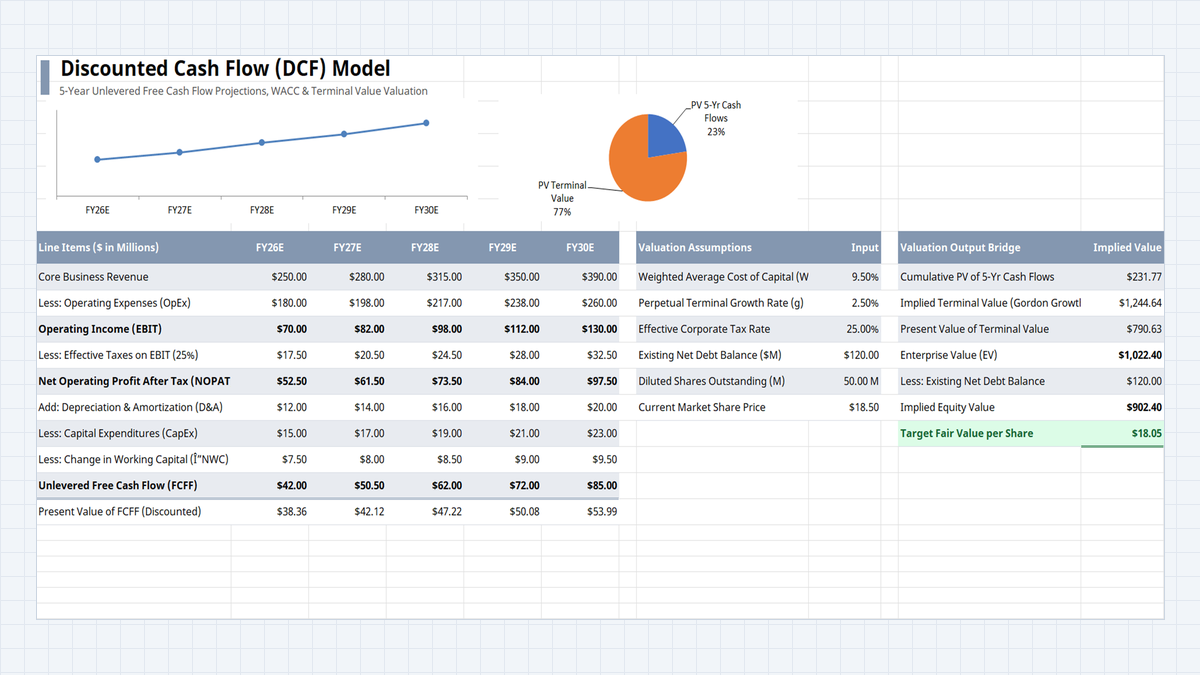
Discounted Cash Flow (DCF) Model Excel Template
Find out what a company is worth from the cash it will generate, not from a guess. Build a one-sheet DCF in Excel: five years of free cash flow, a WACC discount, a terminal value, and a fair value per share you can compare with the market price.
 Finance
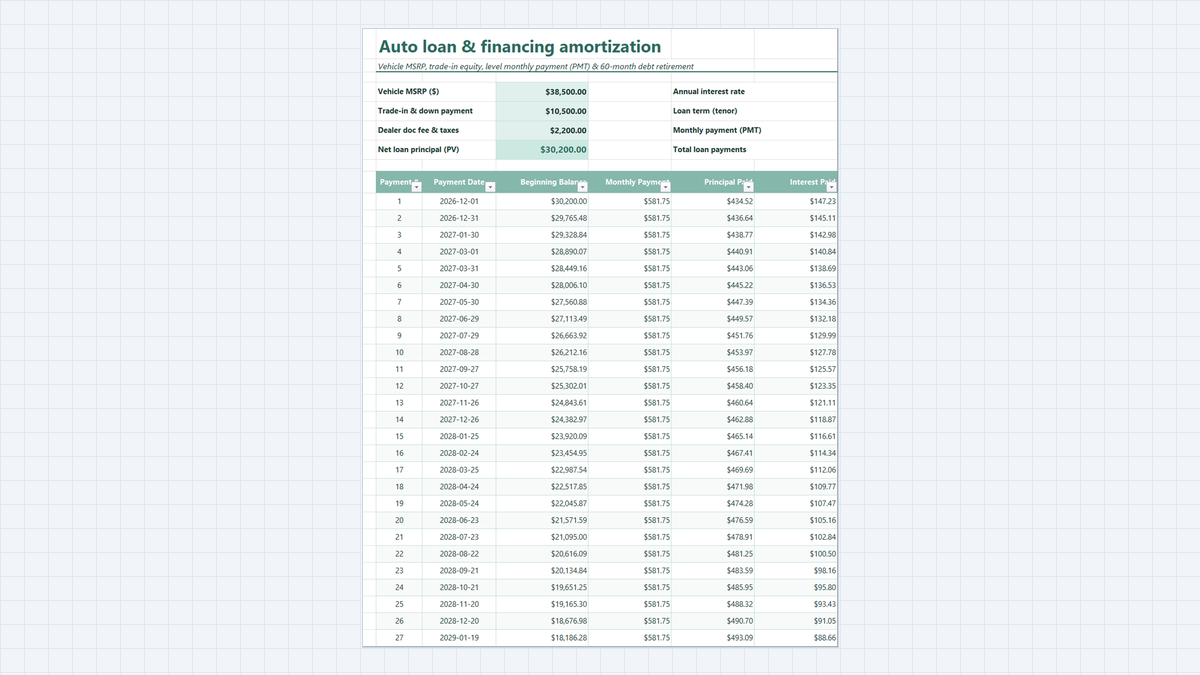
Auto Loan Calculator Excel Template
Know your exact monthly car payment and total loan interest before you visit the dealership. Learn how this auto loan calculator works, explore its workbook structure, and follow a clear step-by-step guide to build it in Excel with PMT and amortization formulas.
 Productivity
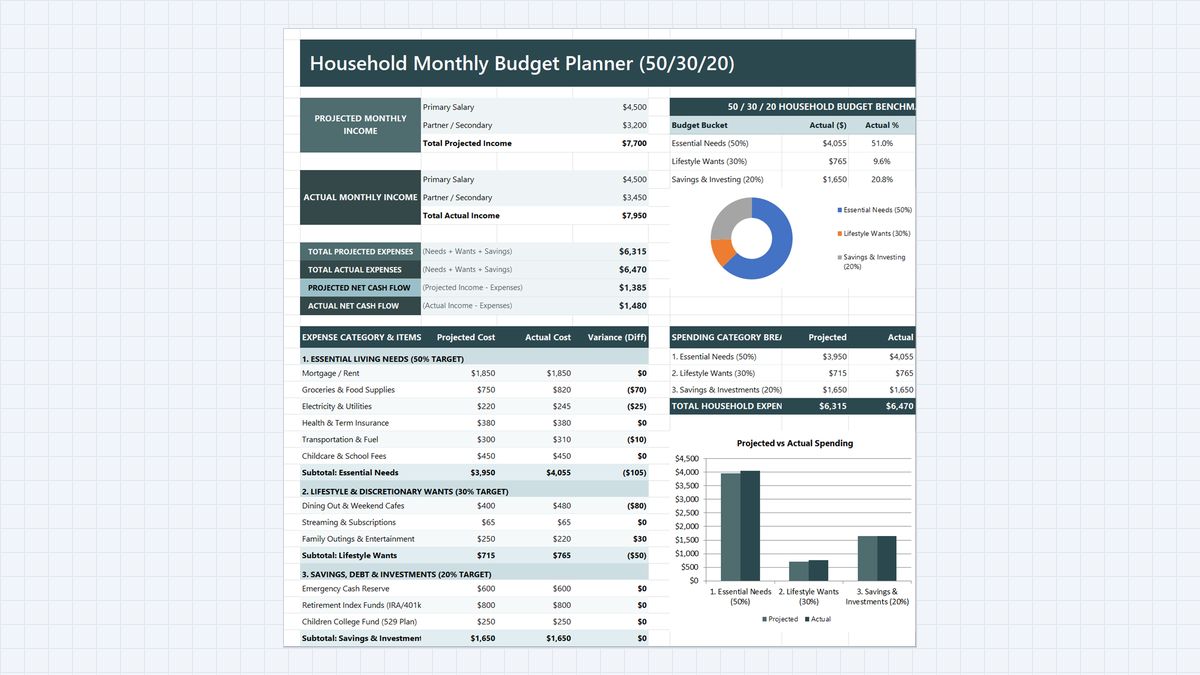
Household Budget Planner Excel Template
Find out where a two-income family's money really goes. Build a household budget planner in Microsoft Excel with 50/30/20 buckets, projected vs actual variance, a net cash flow card, and automatic over-budget alerts.
 Project Management
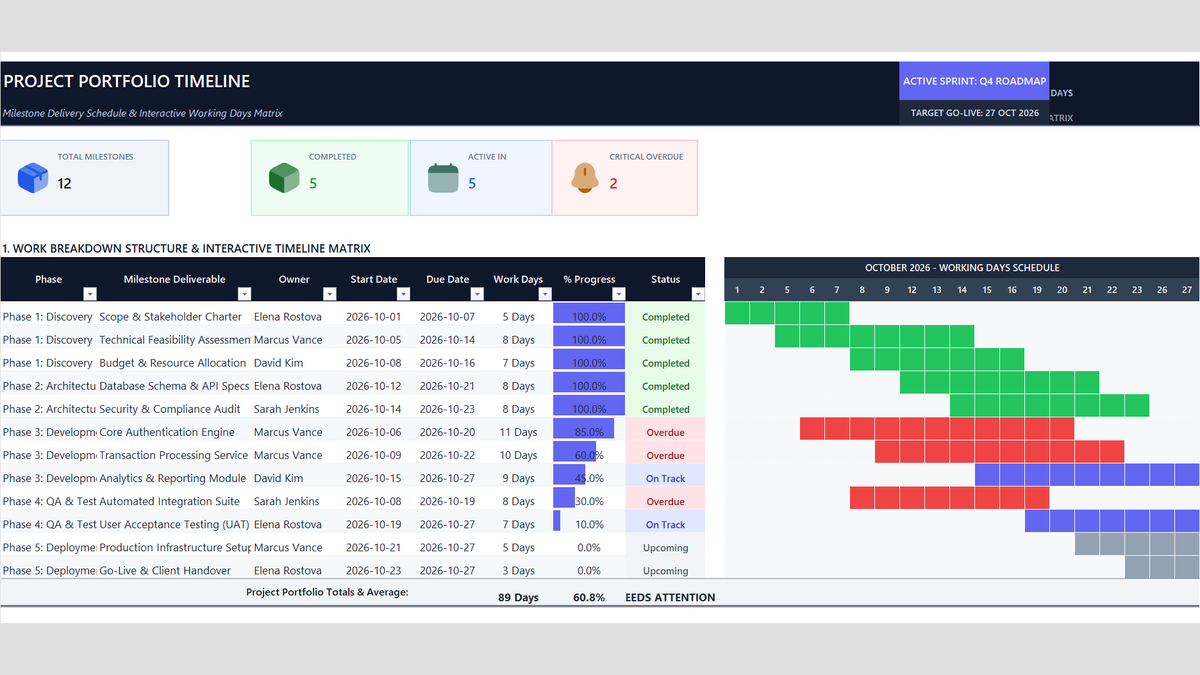
Project Timeline Tracker Excel Template
Keep sprint deadlines and client milestones on track without messy calendar math. Build a Project Timeline Tracker Excel Template with automatic working days using NETWORKDAYS, single-owner dropdowns, progress bars, and portfolio health alerts.
 Finance
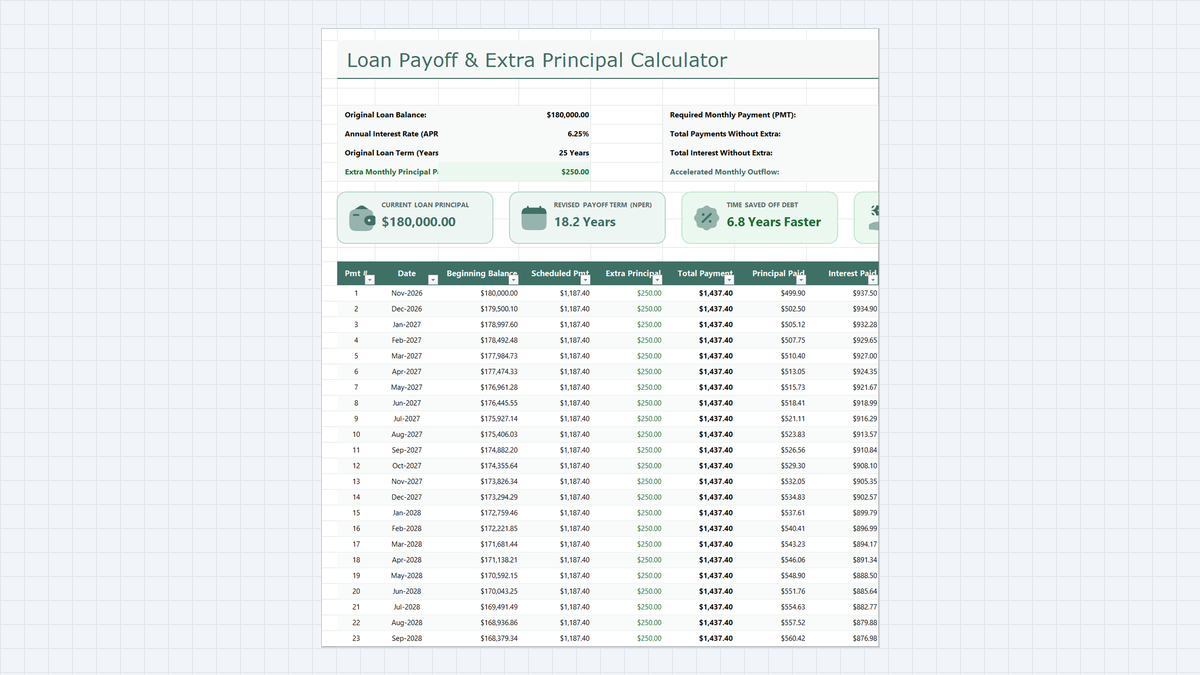
Loan Payoff Calculator Excel Template
See how extra principal payments shorten a loan. Build a loan payoff calculator in Microsoft Excel with a PMT-based payment, a monthly amortization schedule, and the interest-versus-principal split behind every payment.
Discussion
Ask questions, share formula tips, or discuss alternative approaches with fellow spreadsheet builders.
Loading discussion...