Picture a warehouse lead on a busy Monday. A hotel orders 65 rolls of jumbo bath tissue, the books say stock is fine, but the shelf says otherwise. Purchase receipts sit in one notebook, deliveries in another file, and nobody has compared them for weeks.
This guide shows you how to build an Inventory Tracking System Excel Template that ends the guessing. You will set up a clean item catalog, a strict movement log, automatic stock totals, and color alerts that tell you what to reorder before the shelf runs empty.
The Real Problem: Books That Don't Match the Shelves
- Stockout: an order arrives and the item is gone. You lose the sale, and sometimes the customer.
- Deadstock: you over-order to feel safe, and cash sits on shelves for months.
What a Good Inventory Tracker Excel Template Must Include
Inventory Status and Stock Movement Log. Here is the data dictionary:| Sheet | Columns | What it holds | How it is filled |
|---|---|---|---|
| Inventory Status | B:D | Item Code, Description, Category | Typed once per item |
| Inventory Status | E:F, J | Unit Cost, Beginning Stock, Reorder Point | Typed by you |
| Inventory Status | G:H | Stock In (+), Stock Out (-) | Calculated from the log |
| Inventory Status | I, K | Stock On Hand, Total Value | Calculated |
| Inventory Status | L | Stock Status | In Stock, Reorder Soon, or Critical |
| Inventory Status | Row 21, I23:J23 | Warehouse totals, SKU count, alert count | Calculated |
| Stock Movement Log | B:D | Date, Item Code, Type (IN or OUT) | Typed, Type from a dropdown |
| Stock Movement Log | E:G | Quantity, PO or SO number, vendor or customer | Typed |
Build the Foundation of Your Inventory Tracking System Excel Template in 5 Steps
1Step 1: Set Up the Item Catalog and a Category Dropdown
Every good Excel Inventory Management Template starts with clean item data. On Inventory Status, build the header in row 10, type the ten items in B11:F20, and add the reorder points in J11:J20. Leave calculated columns empty for now.
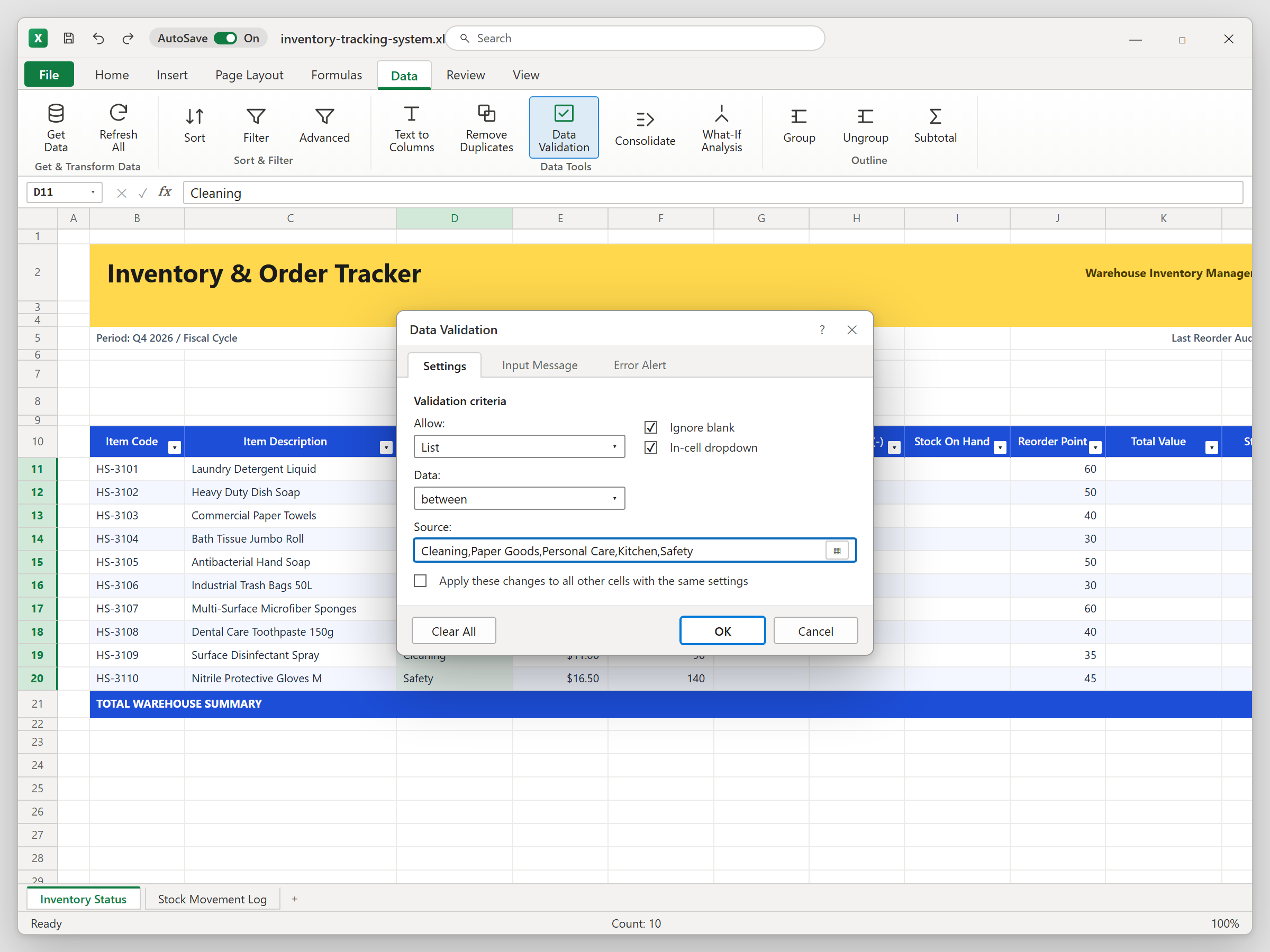
Next, lock down the category. Select D11:D20, open Data > Data Validation, choose List, and type the five categories: Cleaning, Paper Goods, Personal Care, Kitchen, Safety. Spelling stays consistent, so filters stay clean.
2Step 2: Build the Movement Log with Strict IN and OUT Rules
Switch to Stock Movement Log. Row 4 holds six headers: Date, Item Code, Type, Quantity, Ref / Doc #, and Notes. Every receipt and delivery gets one row, starting at row 5.
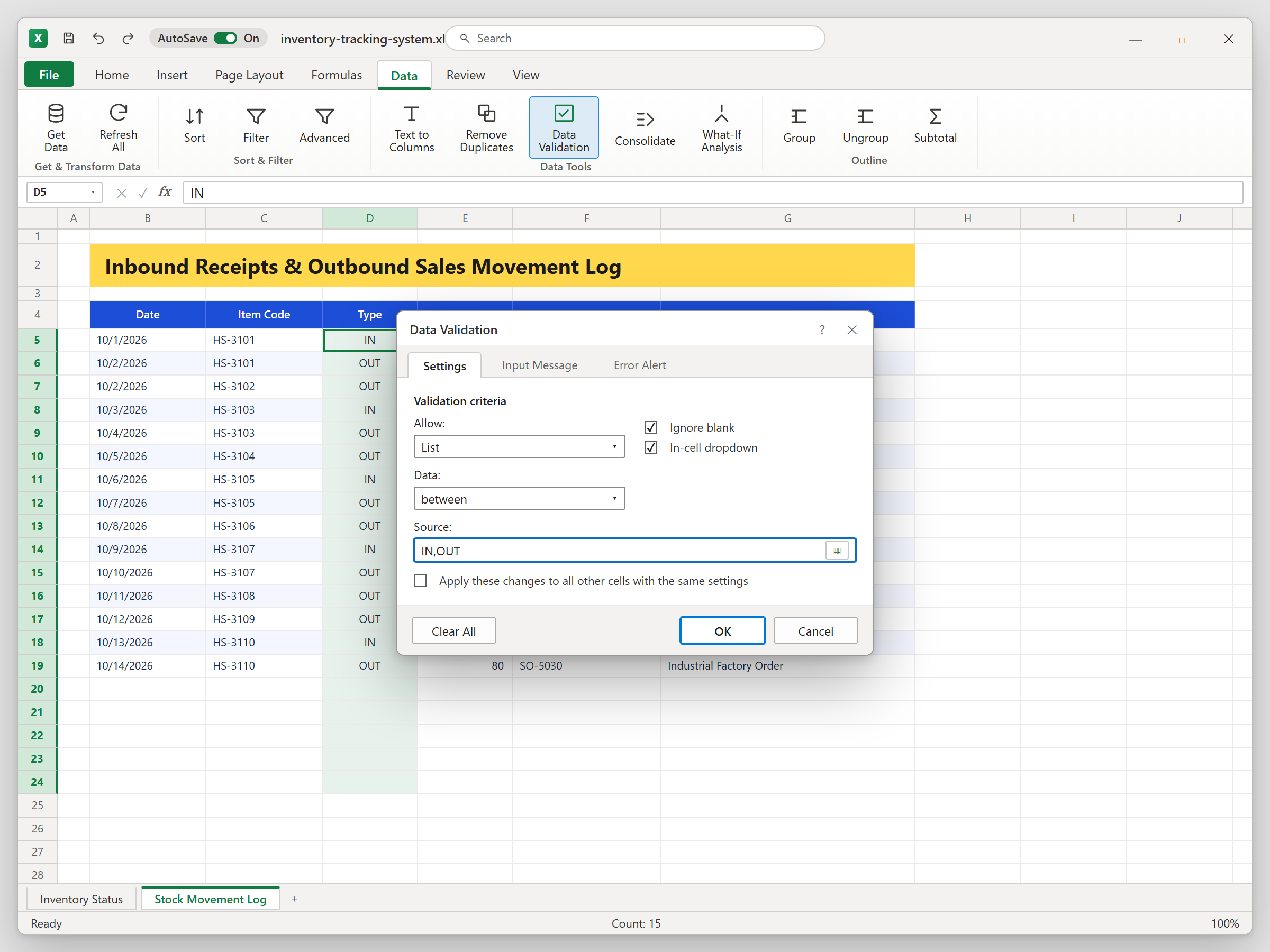
Type is the most important column. Select D5:D30, open Data > Data Validation > List, and enter IN,OUT. Why so strict? The totals in the next step look for the exact words IN and OUT, so a stray space or a typo like OUTT would quietly drop a delivery from your count.
3Step 3: Pull Stock In and Stock Out with SUMIFS
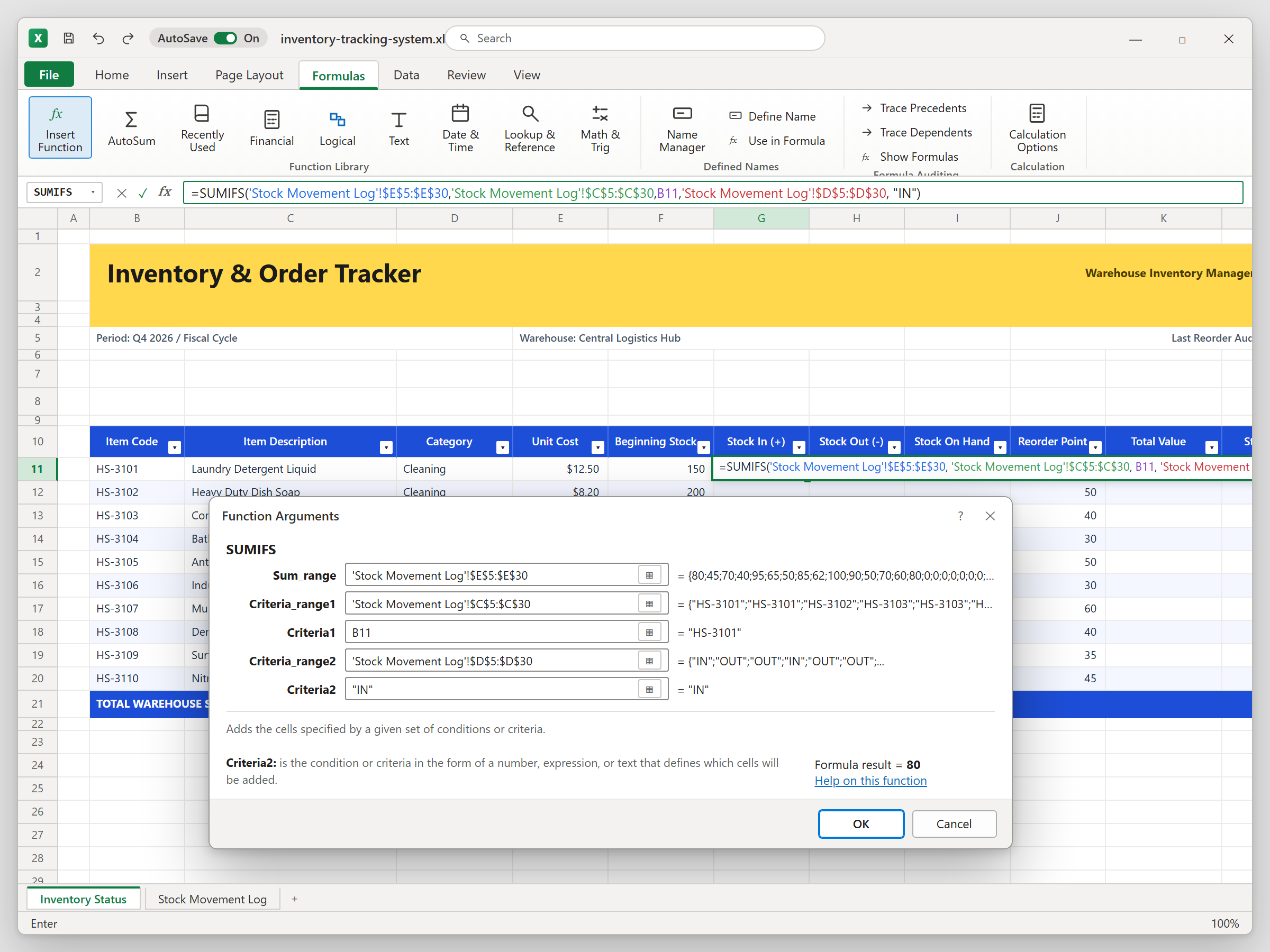
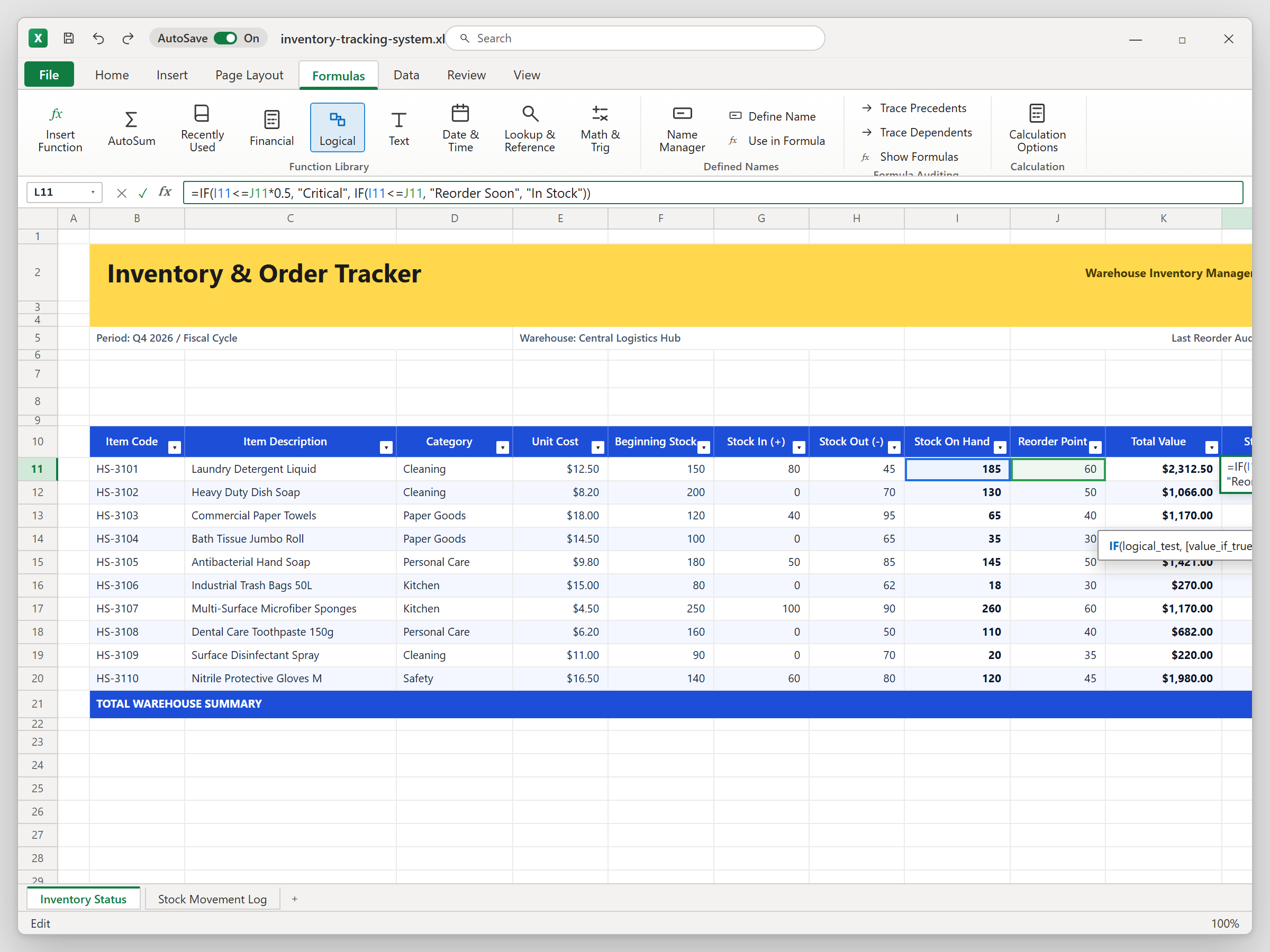
Back on Inventory Status, click G11 and open Formulas > Insert Function to start SUMIFS. This is the engine of any Inventory Tracking System Excel file.
The logic has three parts. Add up Quantity (E5:E30) on the log, but only where Item Code (C5:C30) matches the code in B11 and Type (D5:D30) says IN. Lock the log ranges with $ signs so they stay put when you copy down. Repeat in H11 and change only the type to OUT. For HS-3101 you should see 80 in and 45 out.
4Step 4: Calculate Stock on Hand and a Smart Status with Nested IF
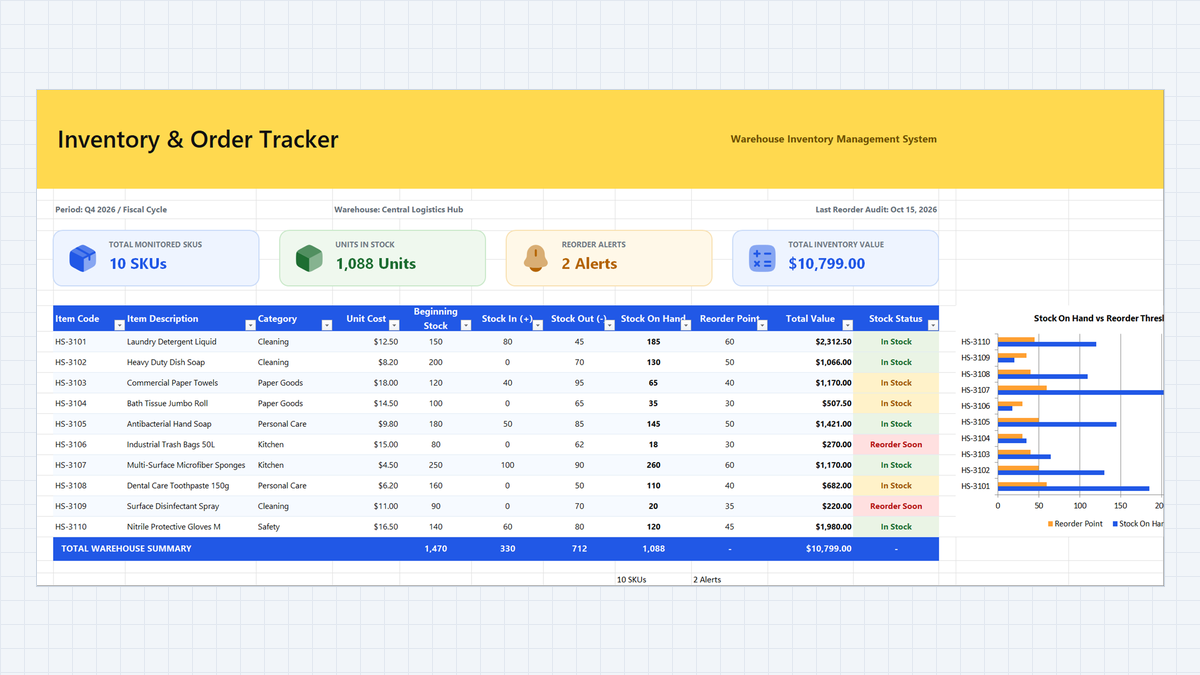
Stock on hand in I11 is simple: beginning stock plus Stock In minus Stock Out. For HS-3101 that is 150 + 80 - 45 = 185. Total Value in K11 is stock on hand times unit cost.
Now press F2 in L11 to write the status. Excel reads the tests in order. If stock on hand is at or below half the reorder point in J11, show Critical. If it is at or below the full reorder point, show Reorder Soon. Otherwise, show In Stock. Order matters, because the strictest test must come first. Copy it down to row 20.
5Step 5: Add Color Alerts with Conditional Formatting
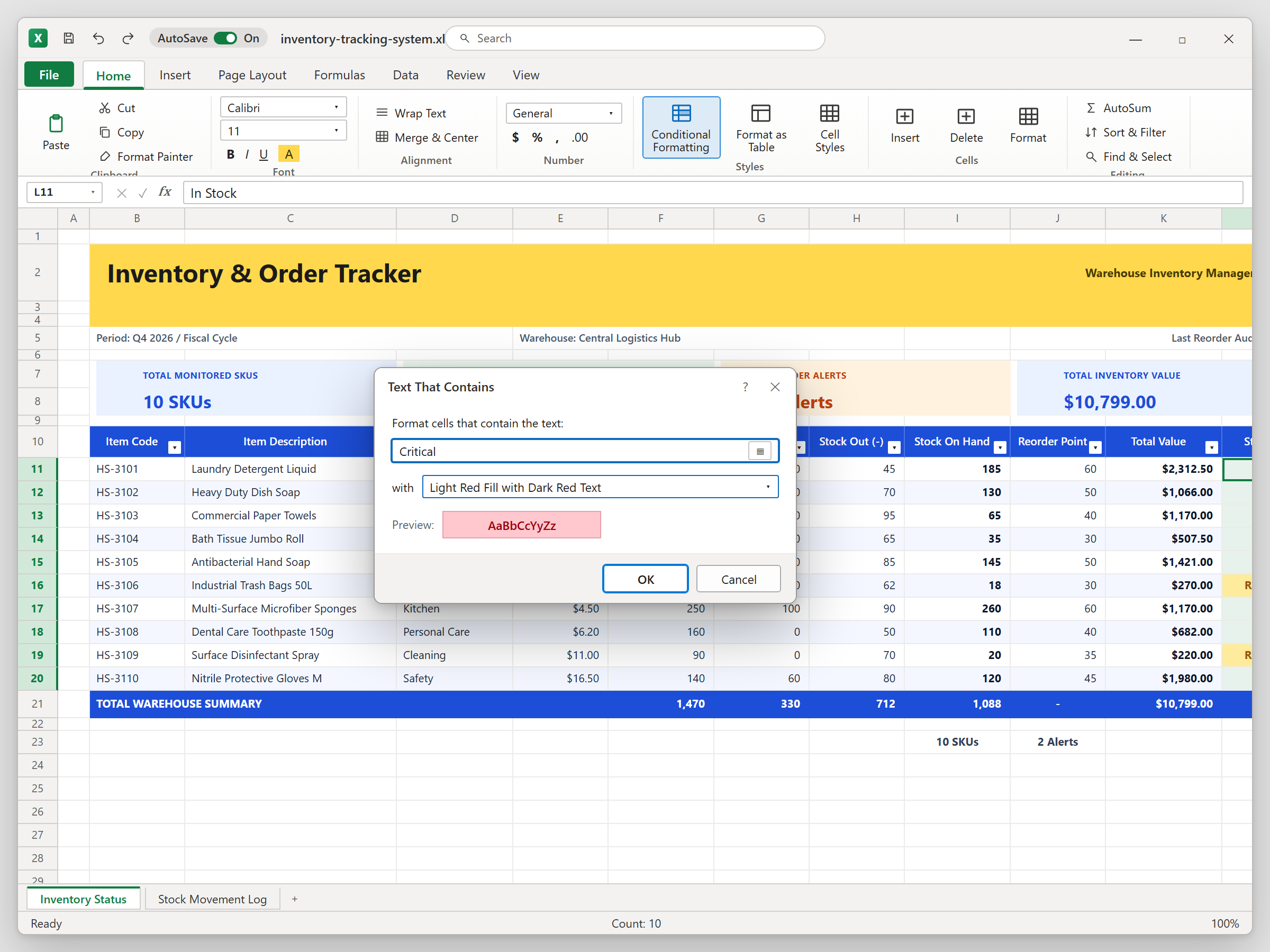
Select L11:L20 and go to Home > Conditional Formatting > Highlight Cells Rules > Text that Contains. Type Reorder Soon and pick Yellow Fill with Dark Yellow Text. Run the command again for Critical and choose Light Red Fill with Dark Red Text.
Finish with the totals in row 21 and the two badges in I23 and J23, which count SKUs and alerts. Your Warehouse Stock Tracker now reads like a traffic light: HS-3106 (18 on hand, reorder point 30) and HS-3109 (20 on hand, reorder point 35) turn yellow, and the badge says 2 Alerts.
Safety Stock Formula & Lead Time Buffer: Avoiding Emergency Restock Costs
- Daily usage: total OUT quantity for an item in the log, divided by the number of days it covers.
- Lead time: days from sending a PO to the goods reaching your shelf.
- Safety stock: extra units for demand spikes or late trucks.
Conclusion & Next Steps

Spreadsheet educator and web developer passionate about hands-on interactive spreadsheet practice.
Related Practical Exercises
Explore more hands-on spreadsheet models with downloadable practice workbooks.
 Finance
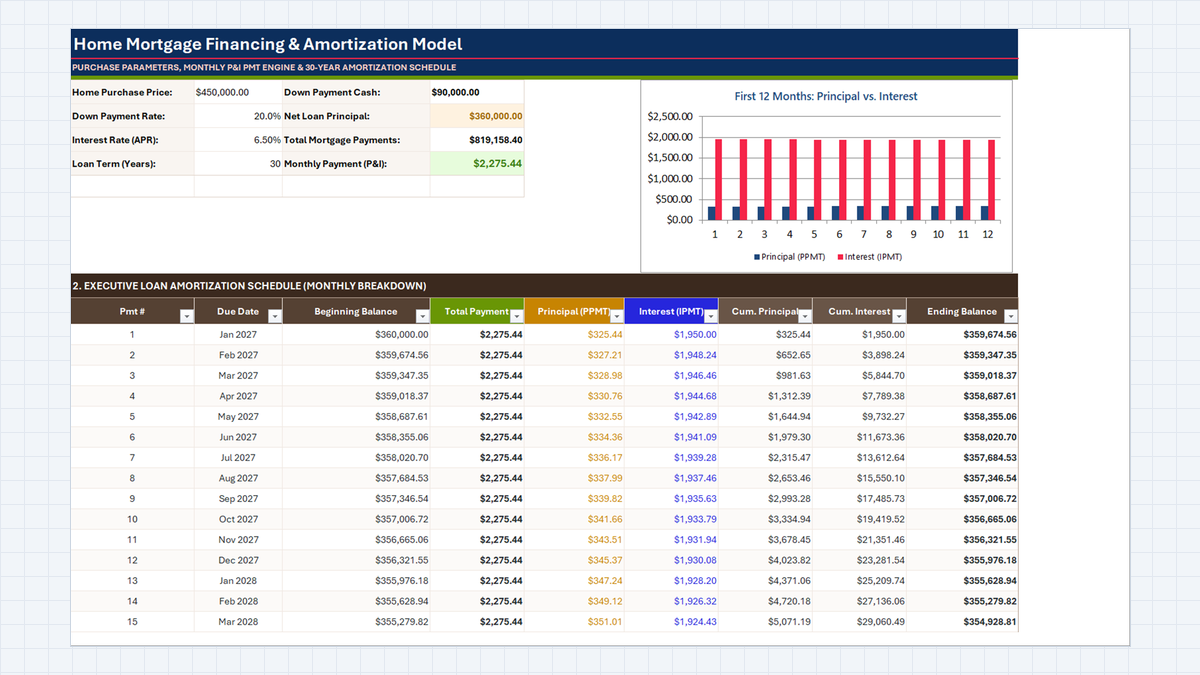
Mortgage Calculator Excel Template
See where every mortgage dollar goes. Build a Mortgage Calculator Excel Template that finds the monthly payment with PMT, splits each month into principal and interest with PPMT and IPMT, and tracks equity and ending balance in a clear amortization schedule.
 Productivity
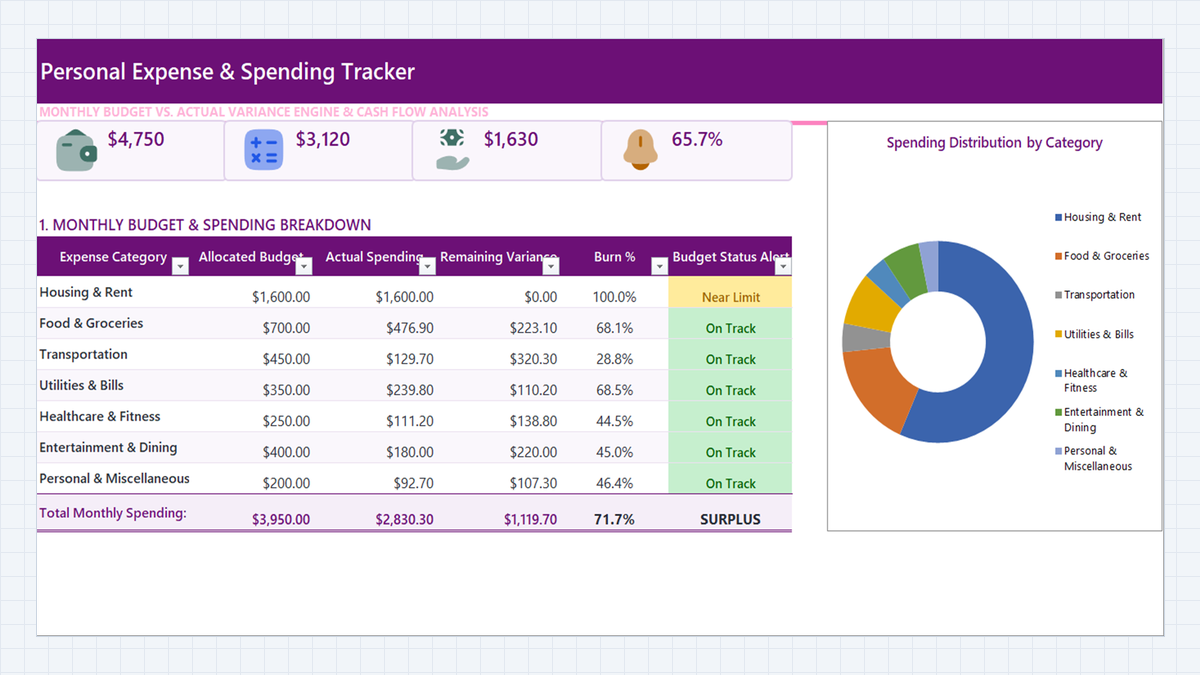
Personal Expense Tracker Excel Template
Turn a daily list of purchases into a clear monthly budget dashboard. Build a personal expense tracker in Microsoft Excel with a category dropdown, SUMIFS roll-ups, burn percentages, and three-level budget alerts.
 Human Resources
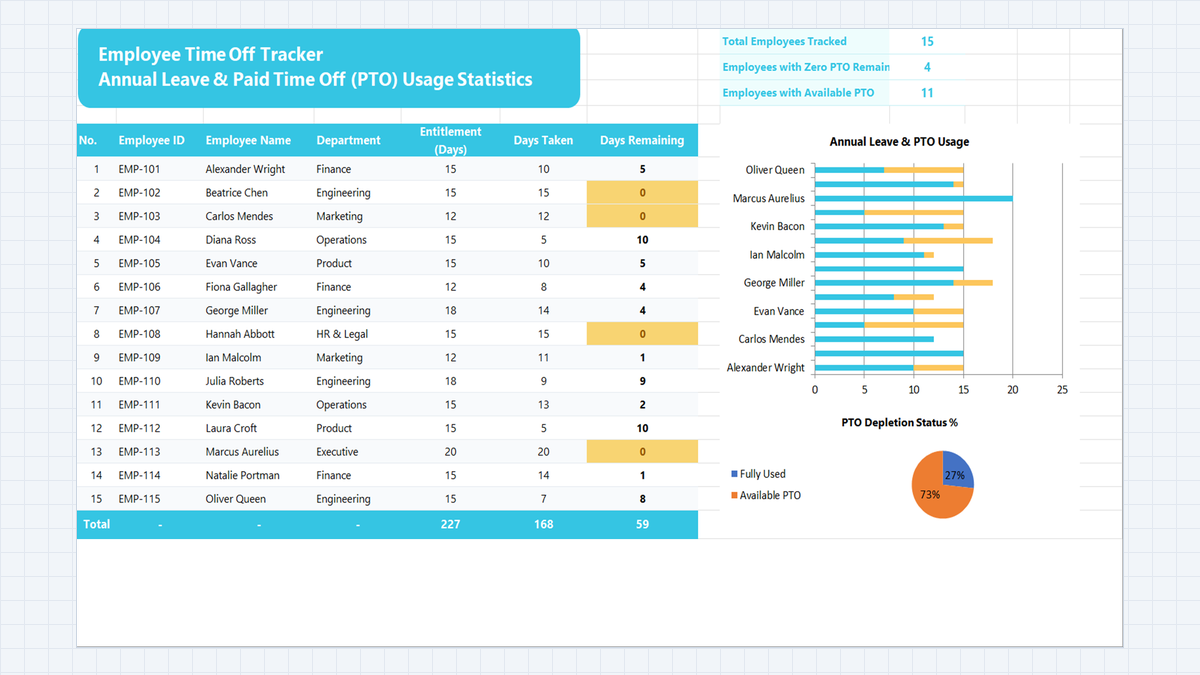
Employee Time Off Tracker Excel Template
Keep track of every employee's annual leave in one sheet. Build a time off tracker in Microsoft Excel with department dropdowns, automatic remaining-days balances, KPI cards built with COUNTA and COUNTIF, and an alert for staff who have used all their PTO.
 Finance
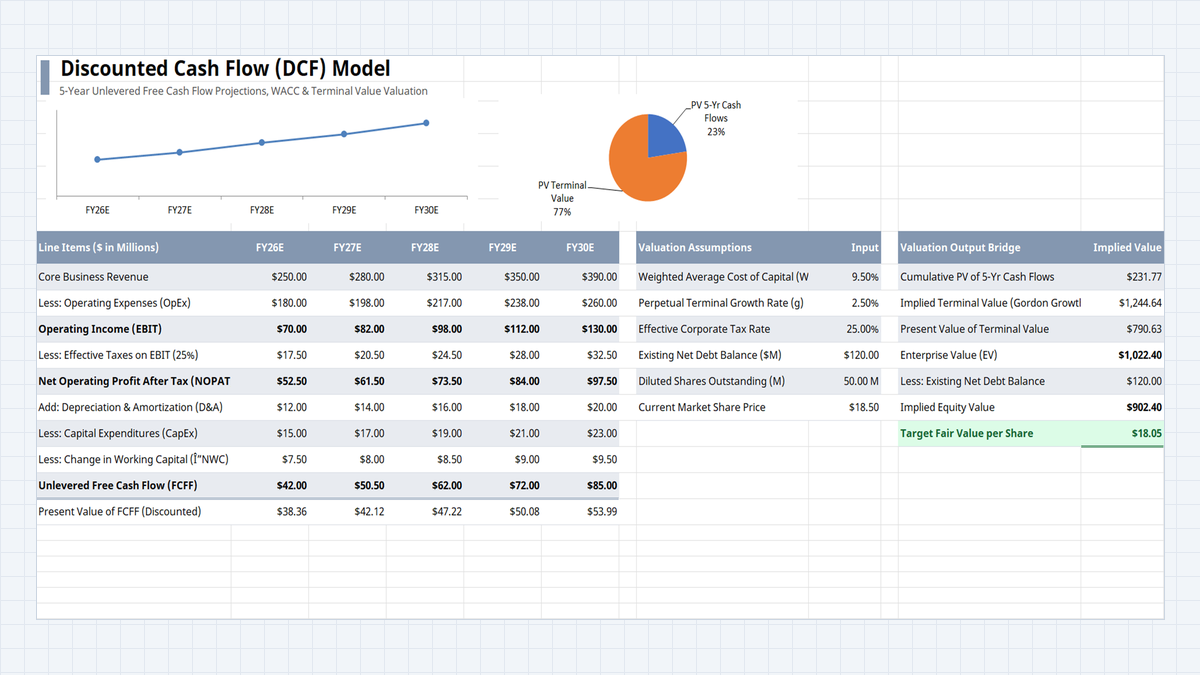
Discounted Cash Flow (DCF) Model Excel Template
Find out what a company is worth from the cash it will generate, not from a guess. Build a one-sheet DCF in Excel: five years of free cash flow, a WACC discount, a terminal value, and a fair value per share you can compare with the market price.
 Finance
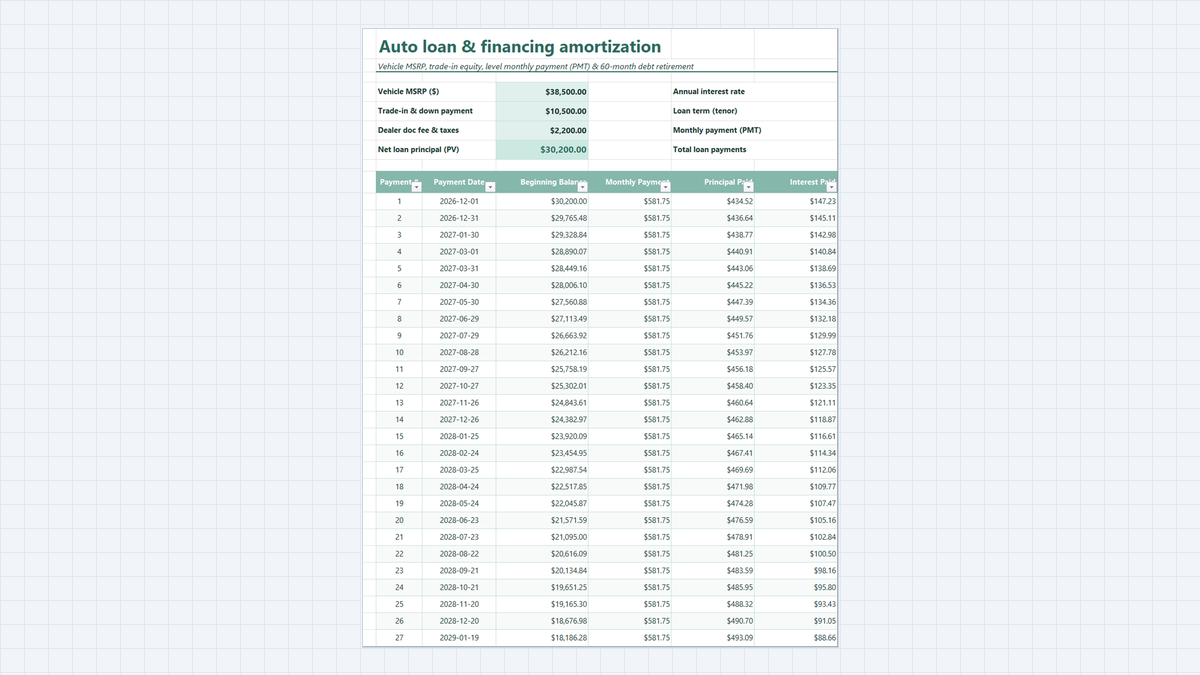
Auto Loan Calculator Excel Template
Know your exact monthly car payment and total loan interest before you visit the dealership. Learn how this auto loan calculator works, explore its workbook structure, and follow a clear step-by-step guide to build it in Excel with PMT and amortization formulas.
Discussion
Ask questions, share formula tips, or discuss alternative approaches with fellow spreadsheet builders.
Loading discussion...