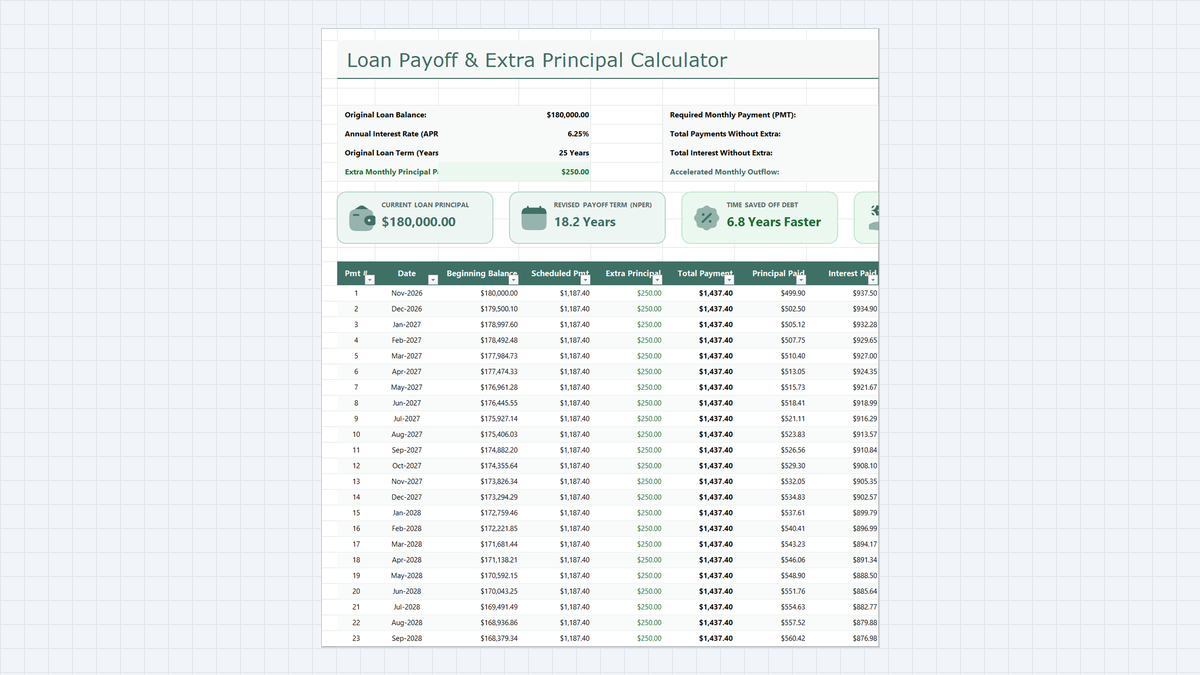
Most people sign a long loan and only look at the monthly payment. This Loan Payoff Calculator Excel Template shows you what that payment really does, month by month, and what changes when you add a little extra.
In this exercise you will build a calculator for a $180,000 loan at 6.25% over 25 years. It finds the required payment, lays out the full schedule, and splits every payment into interest and principal.
Why Early Loan Payments Are Mostly Interest
What a Loan Payoff Calculator Excel Template Must Contain
- Loan inputs card: balance, APR, term in years, and the extra monthly principal.
- Payment engine: the standard monthly payment from
PMT. - Monthly amortization table: dates that step forward each month, with interest and principal shown separately.
- Zero floor: a safeguard so the balance never goes negative.
- Savings metrics: total interest with and without extra payments.
| Part | Cells | What It Does |
|---|---|---|
| Loan inputs | D5:D8 | Holds $180,000.00, 6.25%, 25 years, and $250.00 extra |
| Baseline summary | I5:I8 | Payment $1,187.40, total interest $176,220.00 without extra |
| Amortization table | B13:J49 | One row for each of the first 36 payments |
| Zero floor | J14:J49 | Keeps the ending balance at zero or above |
| Preview totals | H50:I50 | 3-year principal $19,737.84 and interest $32,008.56 |
Build the Calculator in 5 Steps
Loan Payoff Calculator. Put the inputs at the top, the summary beside them, and the schedule below. Work through the steps in order.1Step 1: Set Up the Loan Inputs and Percentage Format
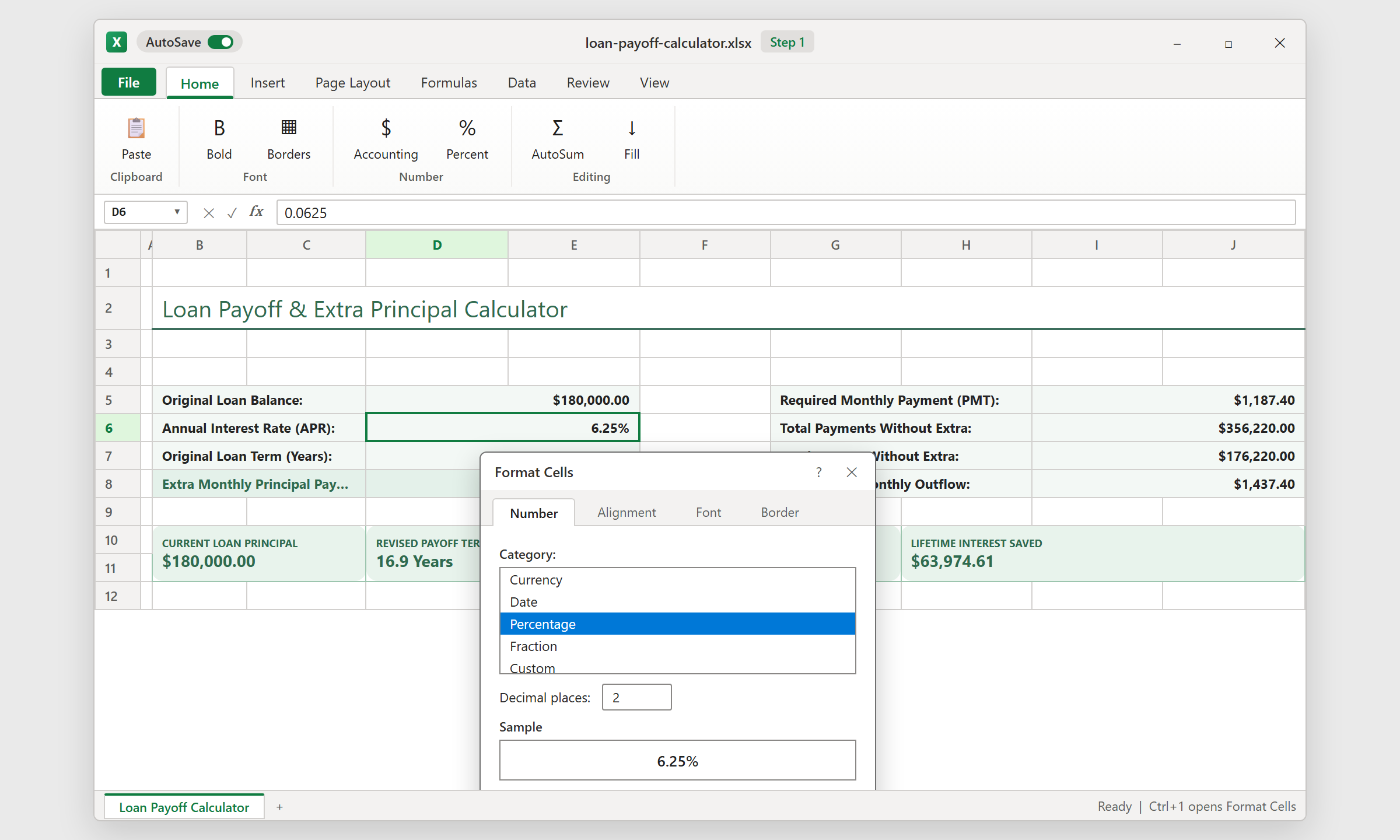
Enter the four inputs: balance, APR, term in years, and extra monthly principal. Keep them together so anyone can change a number and watch the whole sheet update.
Select the APR cell and press Ctrl+1. Choose Percentage with two decimals. Do this before you type the rate, so entering 6.25 becomes 6.25%. In a General cell, the same keystrokes would mean 625%. The format changes how the number looks, while the stored value stays 0.0625.
2Step 2: Calculate the Monthly Payment with PMT
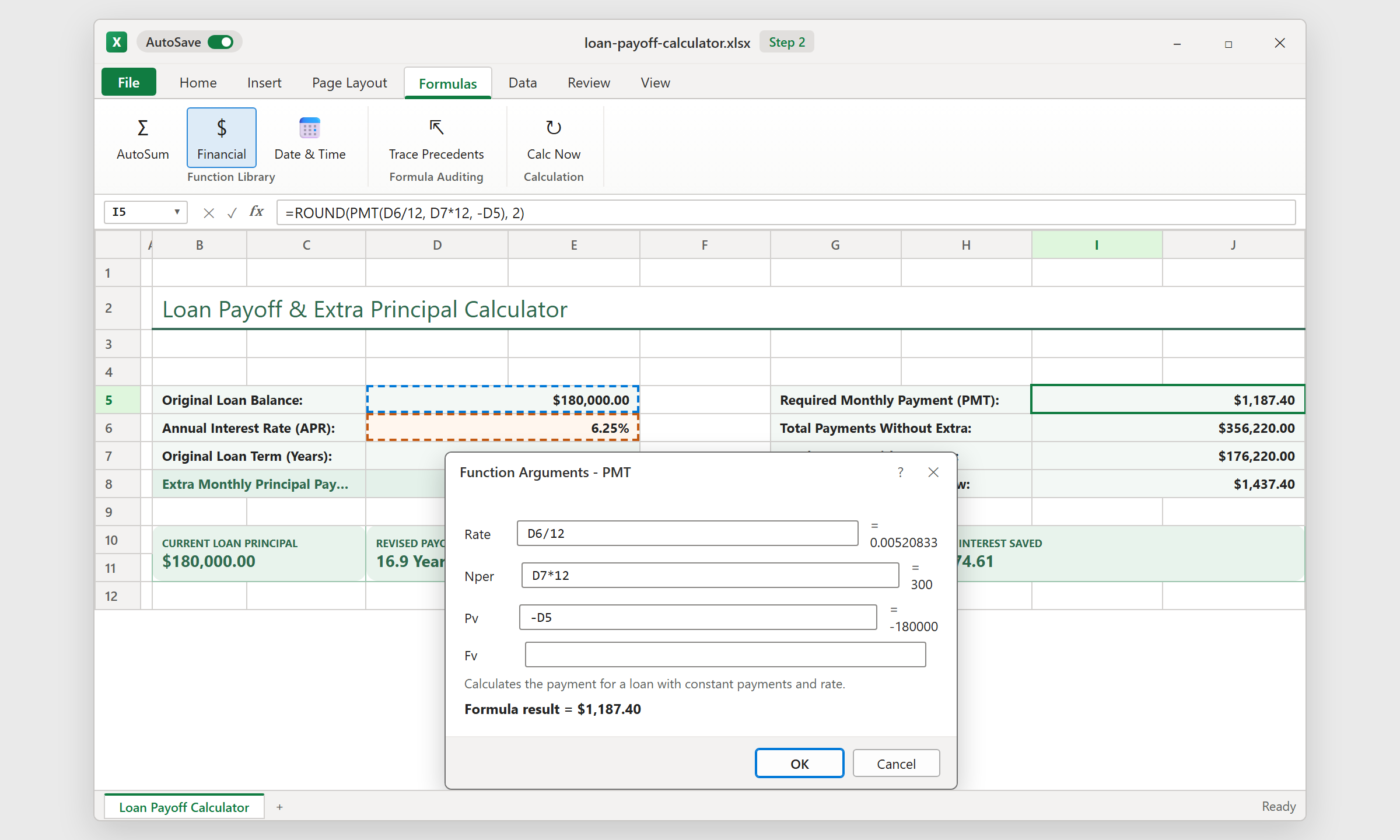
Go to Formulas > Financial > PMT to open the Function Arguments box. PMT needs three things: the monthly rate, the number of monthly payments, and the loan amount.
Convert the yearly inputs first. The rate is the APR divided by 12, and the payments are the years times 12, which is 300. Enter the loan amount as a negative number, so PMT returns a positive payment. Wrap the result in ROUND to two decimals and you get $1,187.40. Multiply it by 300 payments and subtract the loan to see $176,220.00 of baseline interest.
3Step 3: Roll Payment Dates Forward with EDATE
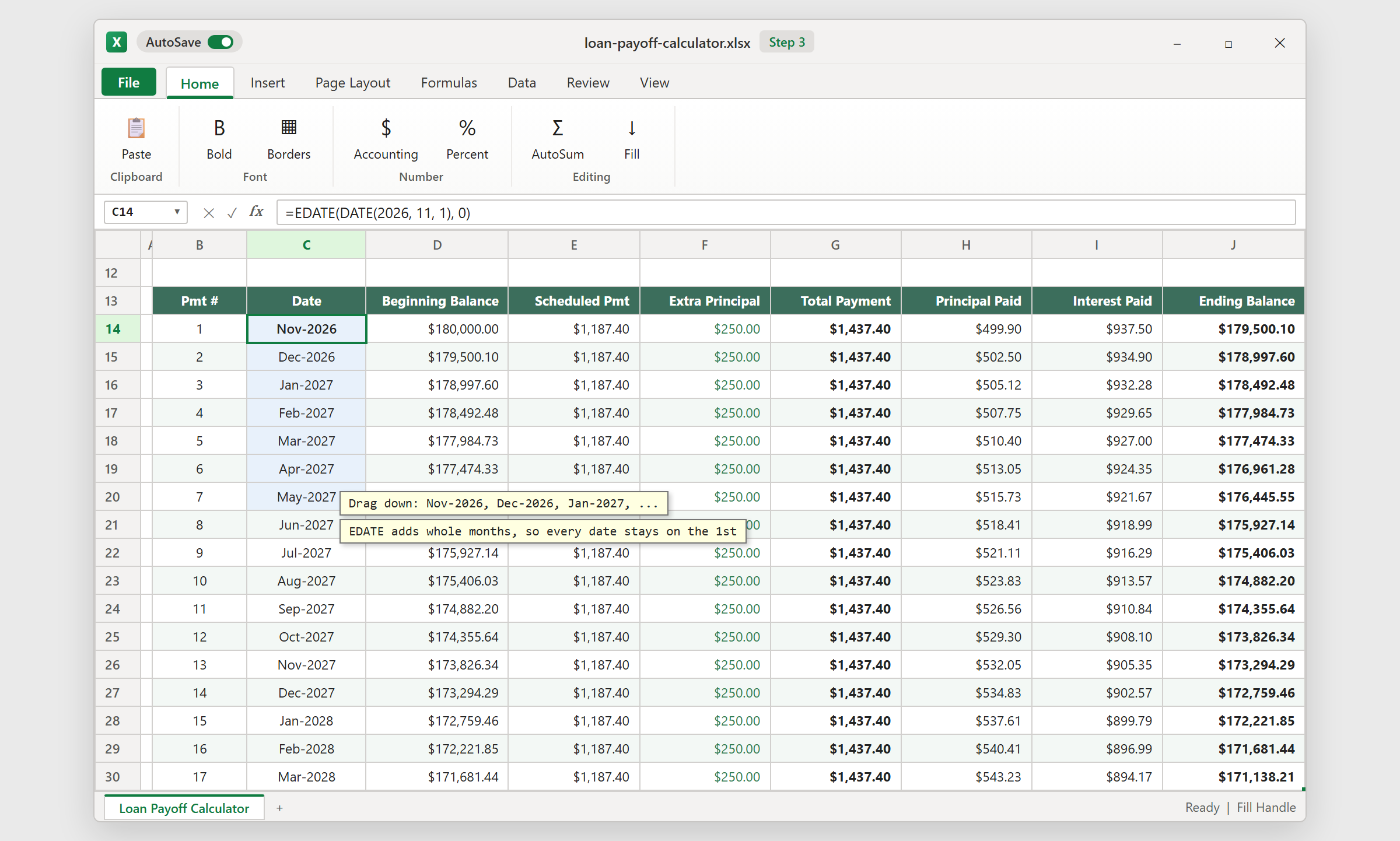
Add a starting date of November 1, 2026 and use EDATE to move it forward by whole months. EDATE ignores how many days each month has, so every payment lands cleanly on the 1st: Nov-2026, Dec-2026, Jan-2027, and so on.
Instead of typing a different offset on each row, point the offset at the payment number in column B, minus one. Then drag the fill handle down and the dates stay in step with the schedule.
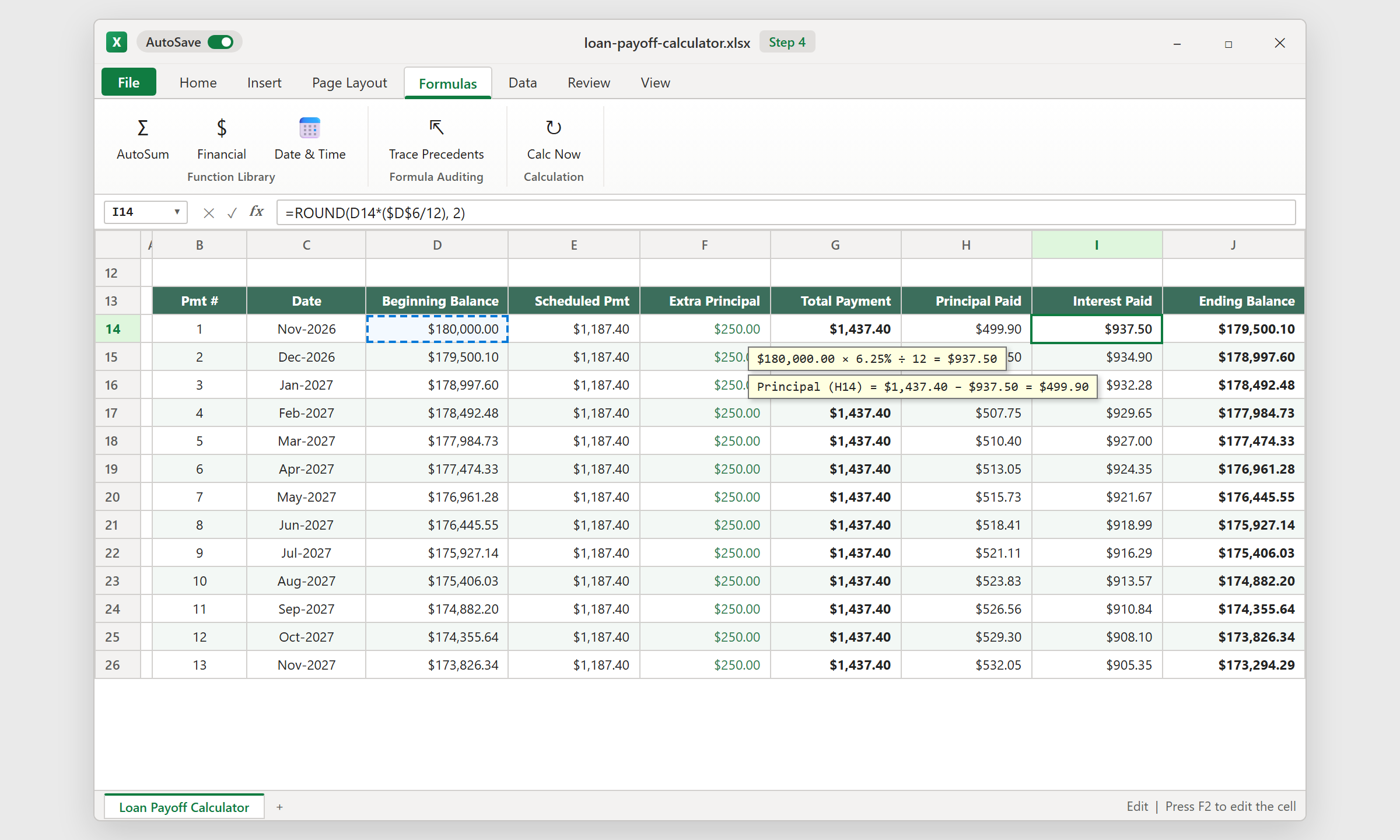
4Step 4: Split Interest and Principal
Each month the bank charges interest on the beginning balance. Multiply that balance by the APR divided by 12, and round to cents. The first row gives $937.50.
Principal paid is the total payment minus that interest. The total payment is the scheduled payment plus your extra amount, which is $1,437.40, so principal is $499.90 in month 1. Press F2 in the interest cell to see which cells feed it. The beginning balance of each row then equals the previous row's ending balance.
5Step 5: Protect the Ending Balance and Close the Table
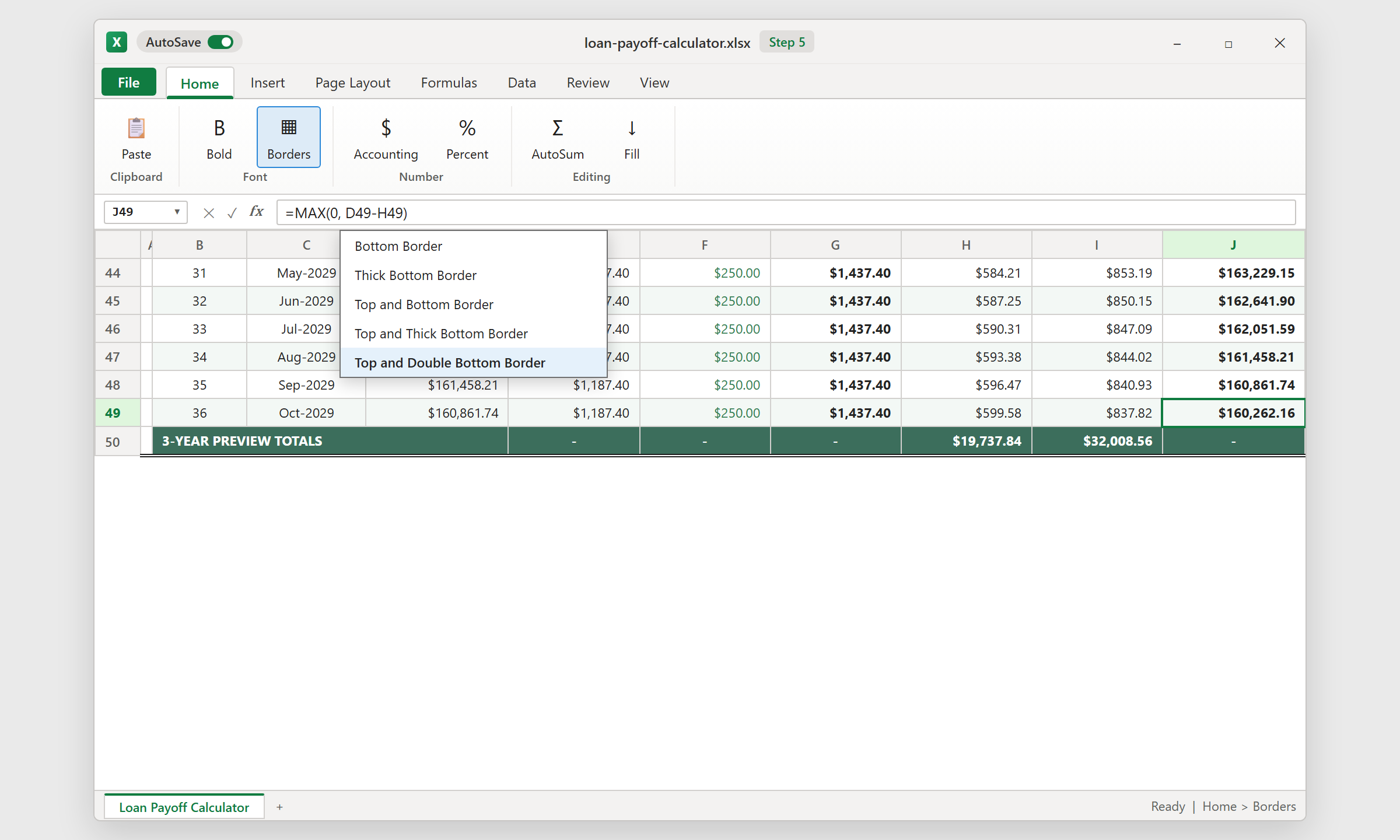
Ending balance is beginning balance minus principal paid, wrapped in MAX with zero. That stops the number from turning negative if the last payment is larger than what remains.
Next, add the totals row. Select it, open Home > Borders, and pick Top and Double Bottom Border, the classic accounting finish. After 36 payments the balance is $160,262.16, with $19,737.84 paid in principal and $32,008.56 in interest.
The sample table stops at 36 rows. To follow the loan all the way to zero, copy the last row further down. In the final month, also cap the payment at the remaining balance, because MAX only keeps the balance from going below zero.
The Power of Principal Prepayment: How Extra Payments Attack Loan Compounding
- No extra: 25 years and $176,220.00 of interest.
- $100 extra: about 20.9 years, saving roughly $33,000 in interest.
- $250 extra: about 17 years (204 payments), saving roughly $64,000.
NPER function. Use this idea with any extra principal payment calculator in Excel: the earlier you start, the more interest you cut.Download the Template

Spreadsheet educator and web developer passionate about hands-on interactive spreadsheet practice.
Related Practical Exercises
Explore more hands-on spreadsheet models with downloadable practice workbooks.
 Finance
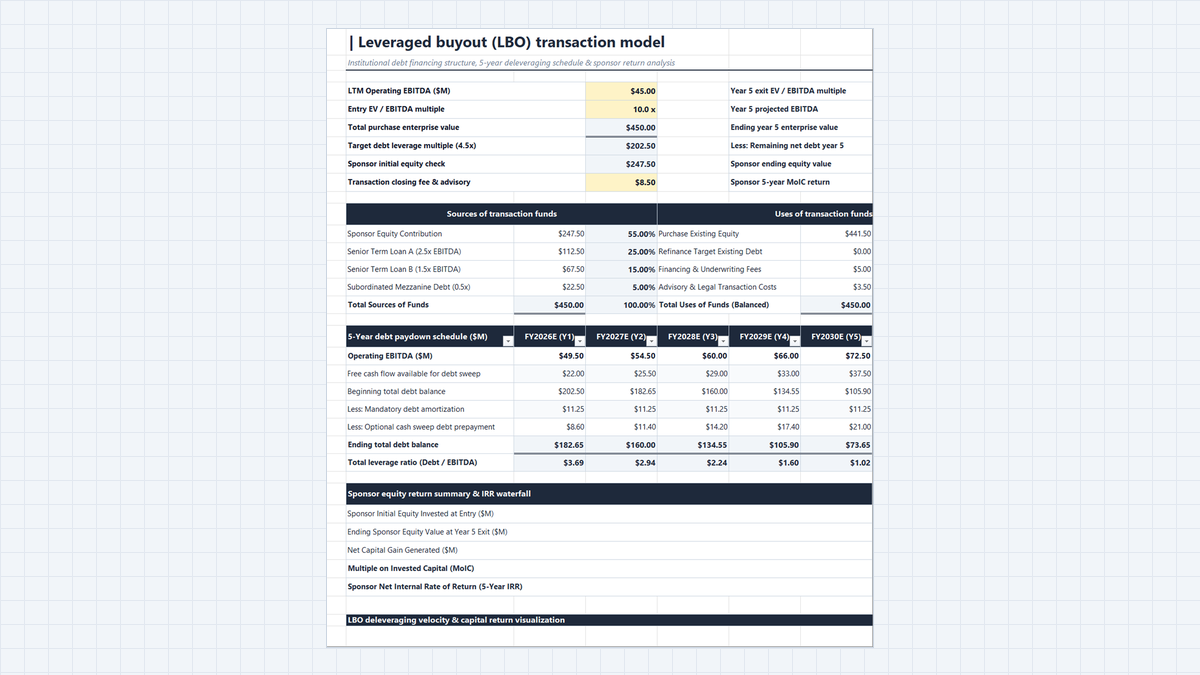
Leveraged Buyout (LBO) Model Excel Template
Build a 5-year leveraged buyout (LBO) model in Microsoft Excel. Set entry valuation, balance a sources and uses table, run a debt paydown schedule with an 80% cash sweep, and calculate sponsor MoIC and IRR.
 Sales
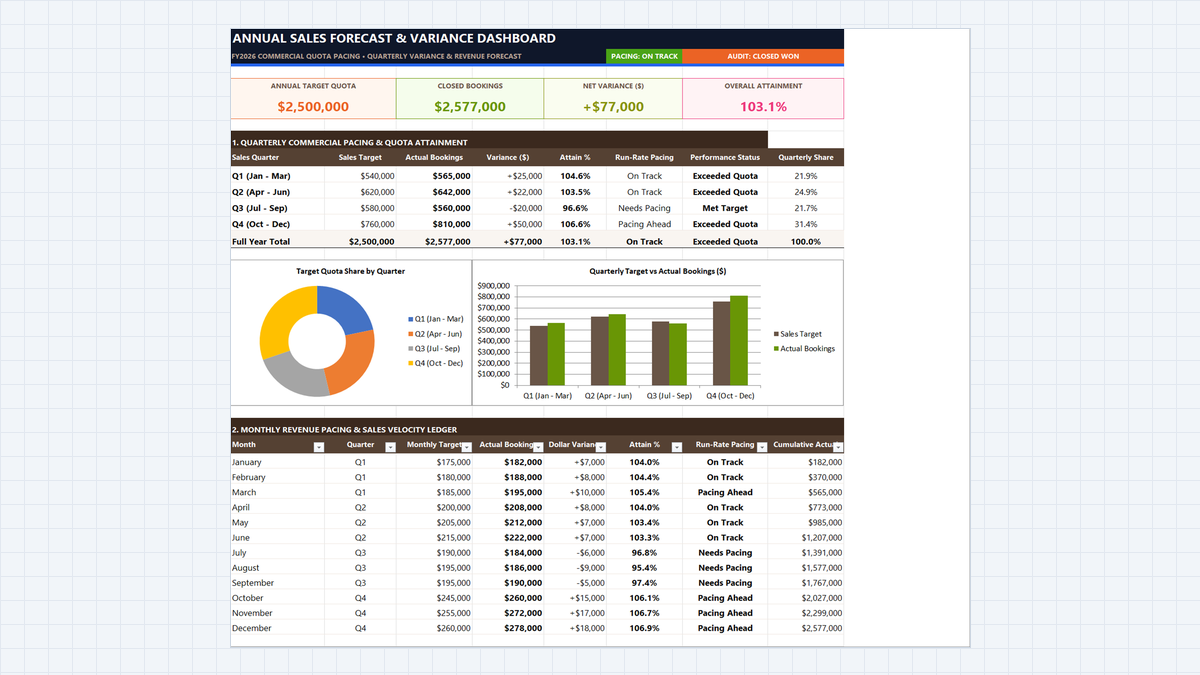
Sales Forecast Template Excel (Annual Model)
Learn commercial revenue forecasting in Microsoft Excel. Build an annual sales forecasting dashboard featuring quarterly variance calculations, dynamic quota attainment metrics, clustered column comparison charts, and executive pacing scorecards.
 Finance
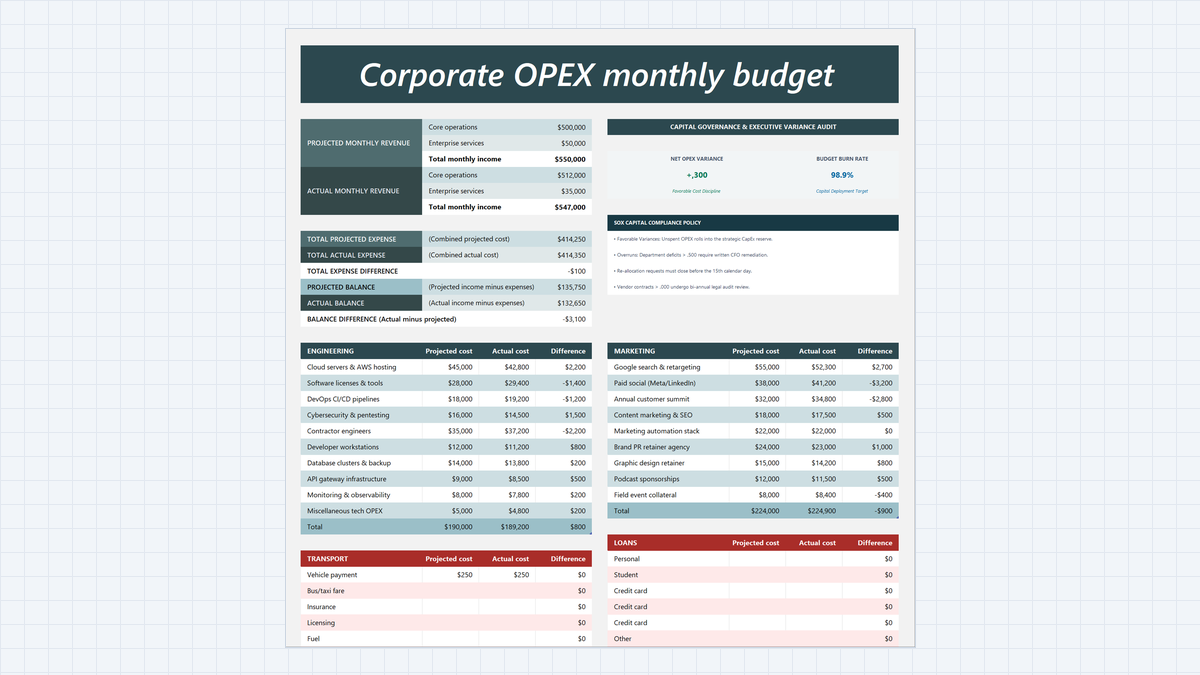
Budget vs Actual Variance Analysis Excel Template
Build a Budget vs Actual Variance Analysis Excel Template with Engineering and Marketing cost centers, structured variance formulas, filter-proof SUBTOTAL totals, overrun highlights, and an executive SOX compliance card.
 Finance
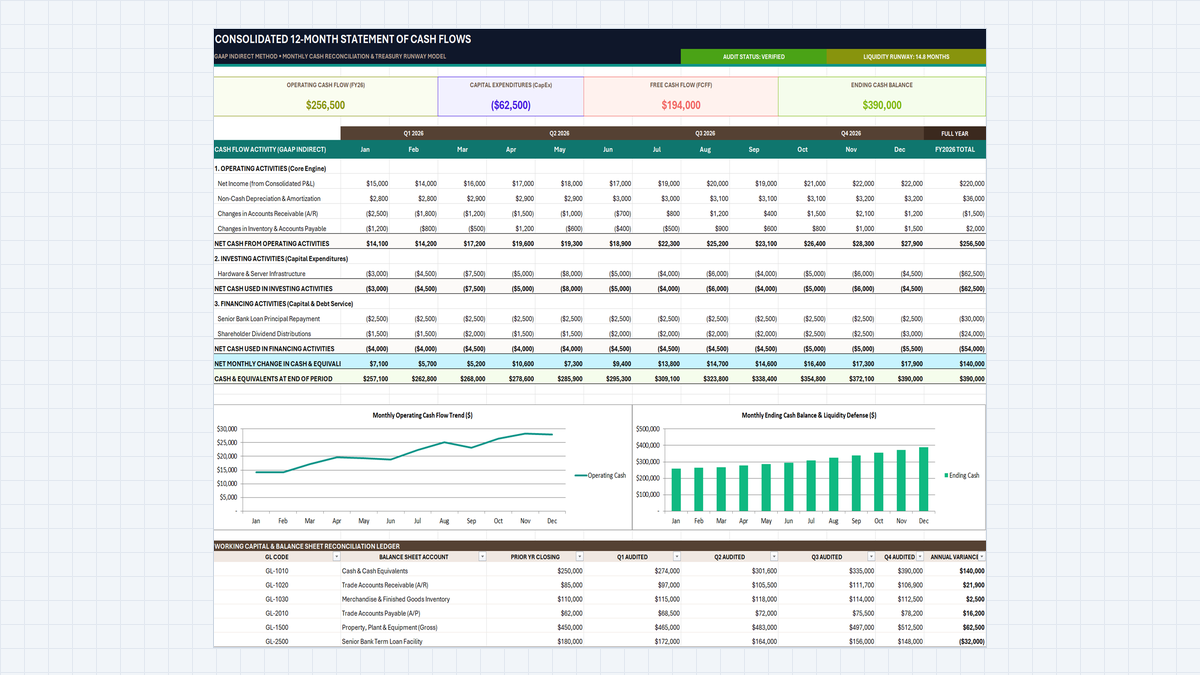
12-Month Cash Flow Statement Excel Template
Build a 12-month cash flow statement in Excel with the indirect method: operating, investing and financing sections, a rolling cash balance, a Free Cash Flow to Firm (FCFF) card and a simple low-cash alert.
 Human Resources
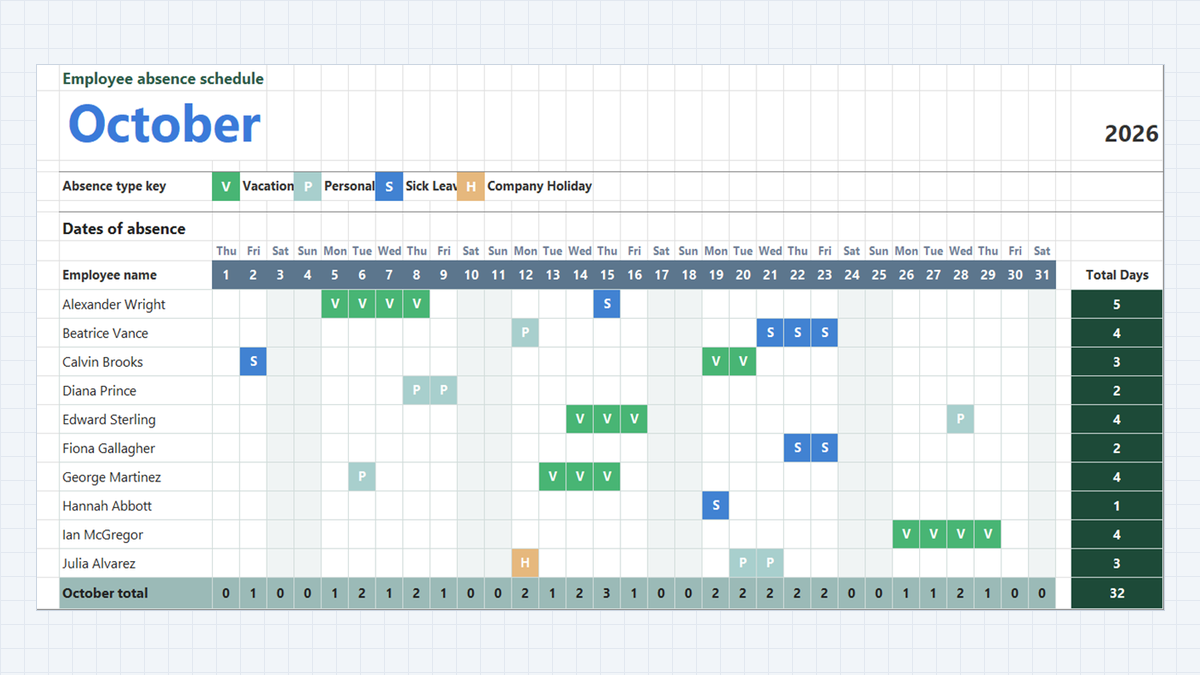
Employee Attendance Tracker Excel Template
Manage team attendance, vacation days, and sick leave in Microsoft Excel. Build a clean monthly absence schedule featuring dropdown absence keys with Data Validation, automatic color-coded badges via Conditional Formatting, and dynamic attendance totals with COUNTA.
Discussion
Ask questions, share formula tips, or discuss alternative approaches with fellow spreadsheet builders.
Loading discussion...