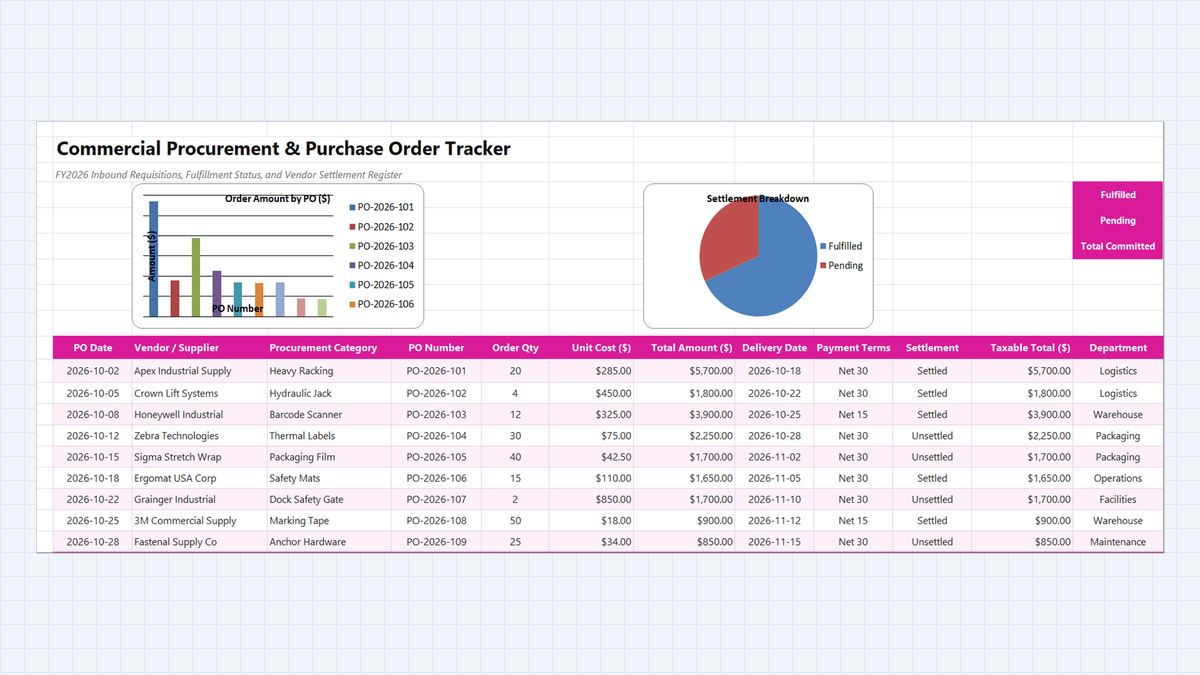
In corporate expenditure control, accounts payable disputes rarely originate in the finance department—they start on the warehouse loading dock when goods arrive without an authorized purchase order. By the time an unexpected $5,700 freight invoice lands on the controller’s desk with Net 30 payment terms, the organization has already lost pricing leverage, budget visibility, and audit compliance.
Procurement officers, warehouse managers, and supply chain controllers require a single source of truth connecting initial departmental purchase requisitions with physical dock receipts and vendor settlement ledgers. When every inbound order carries an authorized PO number, designated cost center, and real-time delivery status, rogue company spending is eradicated before money leaves the bank.
In this comprehensive tutorial, we build a production-grade Commercial Procurement & Purchase Order Tracker in Microsoft Excel. From dynamic line item commitment formulas and cost center data validation dropdowns to vendor fulfillment monitors and accounts payable settlement alerts, this model enforces institutional spending discipline.
Commercial Procurement Control: Eliminating Rogue Spend Before Invoices Arrive
Ledger Architecture: Designing the 3-Way Requisition Blueprint
| Col | Field Name | Type | Format | Operational Role |
|---|---|---|---|---|
| B | PO Date | Date | YYYY-MM-DD | Date the formal purchase order was authorized and dispatched. |
| C | Vendor / Supplier | Text | General | Contracted commercial vendor (Apex Industrial, Crown Lift, Zebra Tech). |
| D | Category | Text | General | Procurement commodity classification (Heavy Racking, Safety, Packaging). |
| E | PO Number | Code | Centered Tag | Unique accounting requisition code (PO-2026-101 through PO-2026-109). |
| F | Order Qty | Integer | #,##0 | Total units or physical items requested on the requisition. |
| G | Unit Cost ($) | Currency | $#,##0.00 | Contractually negotiated price per individual item. |
| H | Total Amount ($) | Formula (Currency) | $#,##0.00 | Committed financial liability: Order Qty multiplied by Unit Cost. |
| I | Delivery Date | Date | YYYY-MM-DD | Scheduled physical delivery date at the receiving warehouse. |
| J | Payment Terms | Text | General | Commercial invoice terms negotiated with vendor (Net 15, Net 30). |
| K | Settlement | Categorical | Badge Format | Accounts payable payment status: Settled or Unsettled. |
| M | Department | List / Dropdown | General | Budget cost center: Logistics, Warehouse, Packaging, Operations, Facilities. |
| N | Fulfillment Status | Categorical | Badge Format | Physical dock delivery stage: Fulfilled or Pending. |
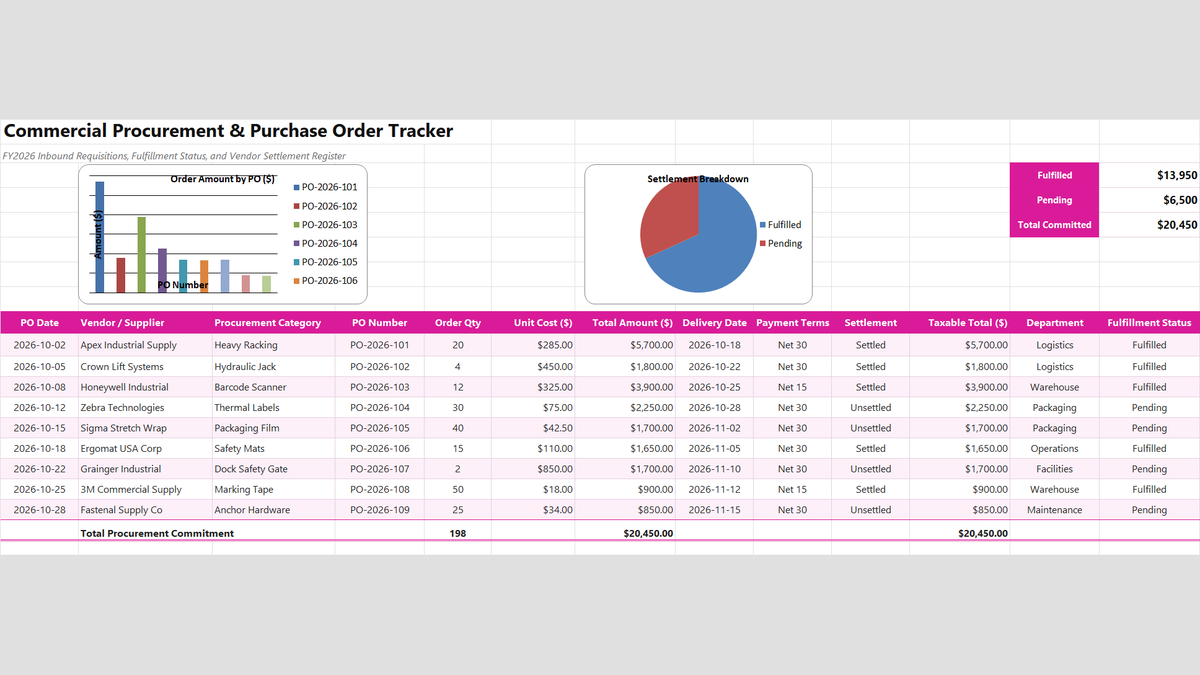
Workbook Blueprint: The Purchase Order Tracker layout displaying fulfillment scorecards, vendor requisition ledgers, and accounts payable settlement records.
With our procurement schema established, let us build the core calculation formulas and department validation controls.
Step-by-Step Implementation: Engineering the Purchase Order Tracker
1Step 1: Calculating Line Item Financial Commitment
Our first operational priority is calculating the exact committed financial obligation for every authorized purchase order.
Select cell H11 and multiply order quantity by unit cost: =F11*G11.
For Apex Industrial Supply (PO-2026-101), with 20 heavy racking units at $285.00 each, cell H11 evaluates to a committed expenditure of $5,700.00.
Copy this formula down through row 19 to establish accurate line item commitments across all active vendor orders.
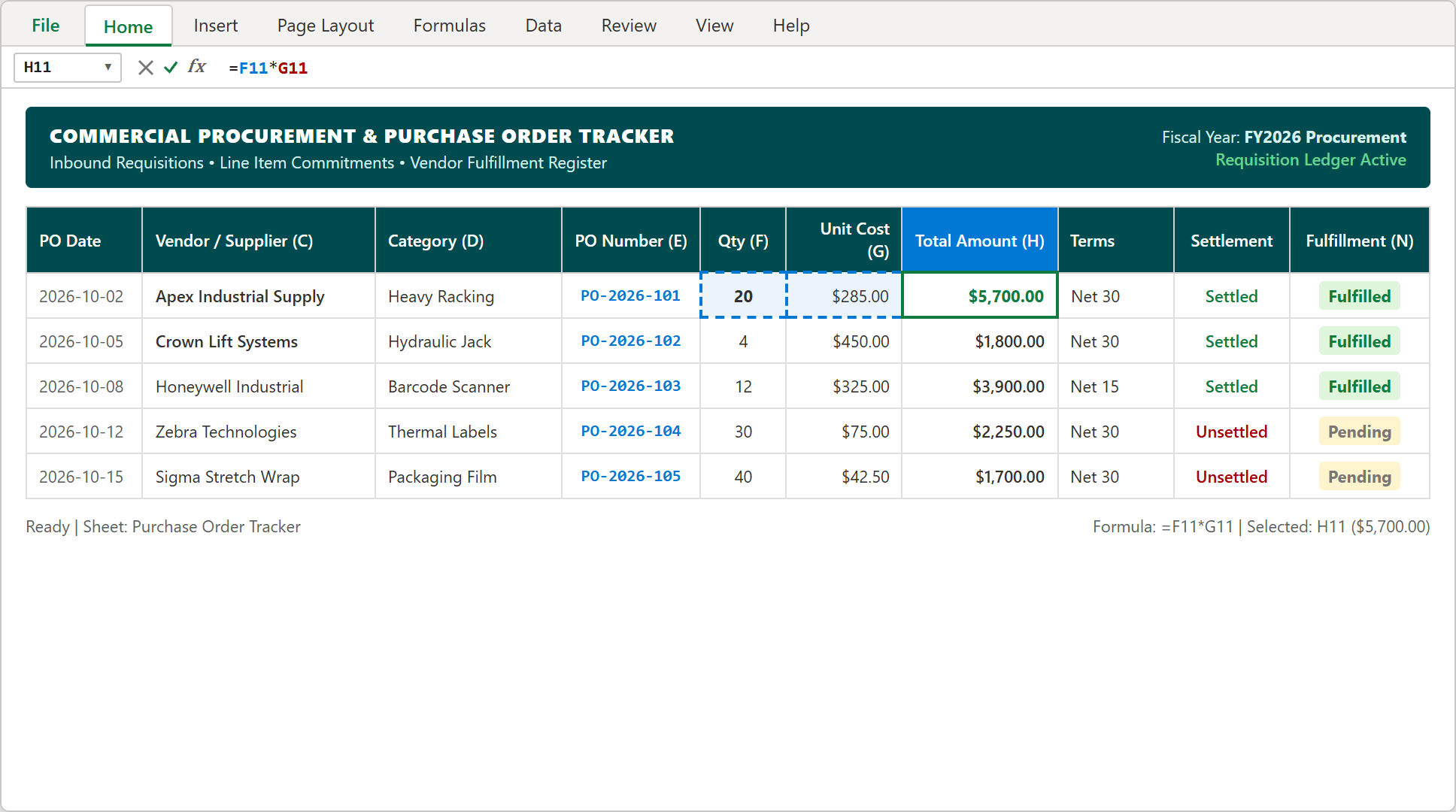
Step 1: Formula bar displaying =F11*G11 in cell H11 computing a $5,700.00 commitment on industrial warehouse racking.
2Step 2: Tracking Vendor Fulfillment with COUNTIF
How many active requisitions have successfully completed dock receiving versus those still in transit from suppliers?
In executive scorecard cell N4, count all completed deliveries: =COUNTIF(N11:N19, "Fulfilled"), which evaluates to 5 POs Delivered.
Directly below in cell N5, count active outstanding shipments: =COUNTIF(N11:N19, "Pending"), identifying 4 POs In Transit.
These dynamic counters provide receiving supervisors and purchasing agents with immediate visibility over pending shipments before dock appointments begin.
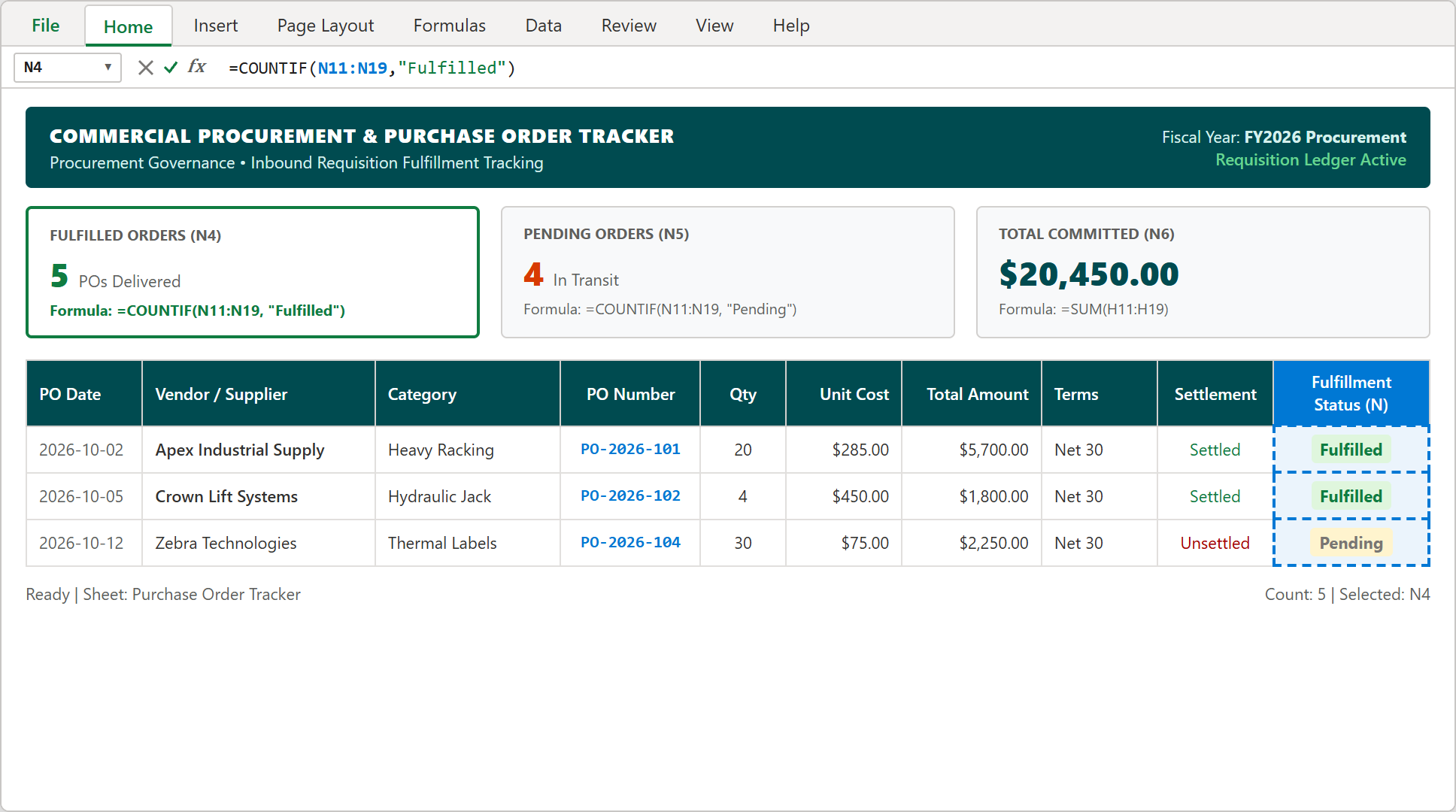
Step 2: Top scorecard cell N4 formula bar active with =COUNTIF(N11:N19, "Fulfilled") verifying 5 completed PO receipts.
3Step 3: Restricting Cost Centers via In-Cell Data Validation
To prevent rogue accounting classifications and ensure that every PO maps cleanly to an approved operational budget, we restrict department entries using in-cell dropdown validation.
Select cells M11:M19, navigate to the Data ribbon tab, and click Data Validation. Set Allow to List, ensure In-cell dropdown is checked, and input the authorized cost centers into the Source box: Logistics, Warehouse, Packaging, Operations, Facilities, Maintenance.
Click OK. Warehouse clerks and requisition officers can now assign cost centers in a single click, eliminating spelling discrepancies across procurement reports.
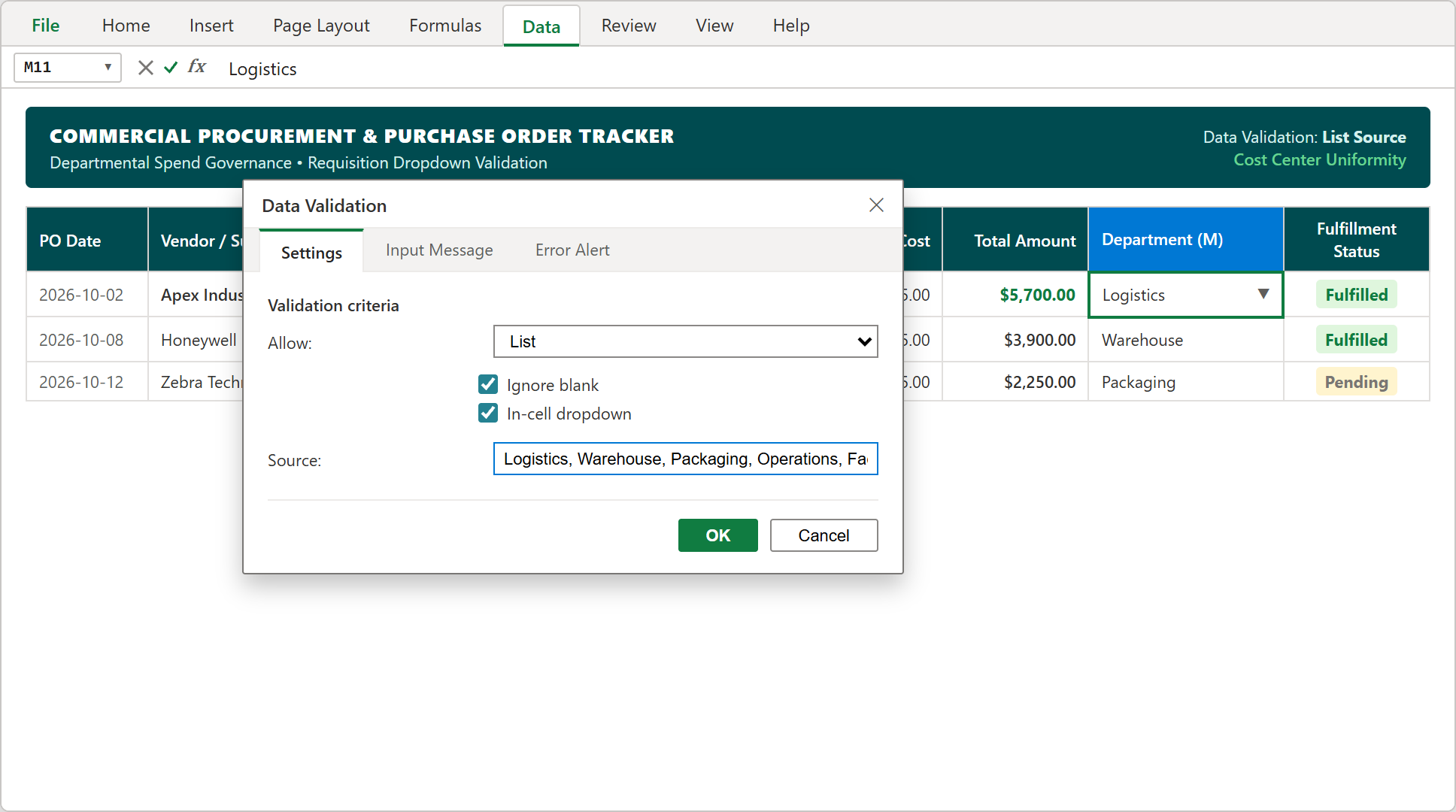
Step 3: The Data Validation settings dialog configuring in-cell department list selections for cells M11:M19.
4Step 4: Highlighting Unsettled Invoices with Conditional Formatting
Accounts payable teams need immediate visual alerts to differentiate settled vendor invoices from pending liabilities approaching their Net 30 deadlines.
Highlight the settlement range $K$11:$K$19, navigate to Home > Conditional Formatting > Highlight Cells Rules > Equal To, and configure two clear status formats:
• Unsettled: Soft rose fill (#FDE7E9) with dark crimson text (#A80000) and solid borders flagging pending cash liabilities requiring voucher approval.
• Settled: Soft emerald fill (#DFF6DD) with dark green text (#107C41) confirming completed electronic funds transfer (EFT) or check disbursements.
This visual split allows finance teams to prioritize pending invoice releases and prevent vendor credit holds.
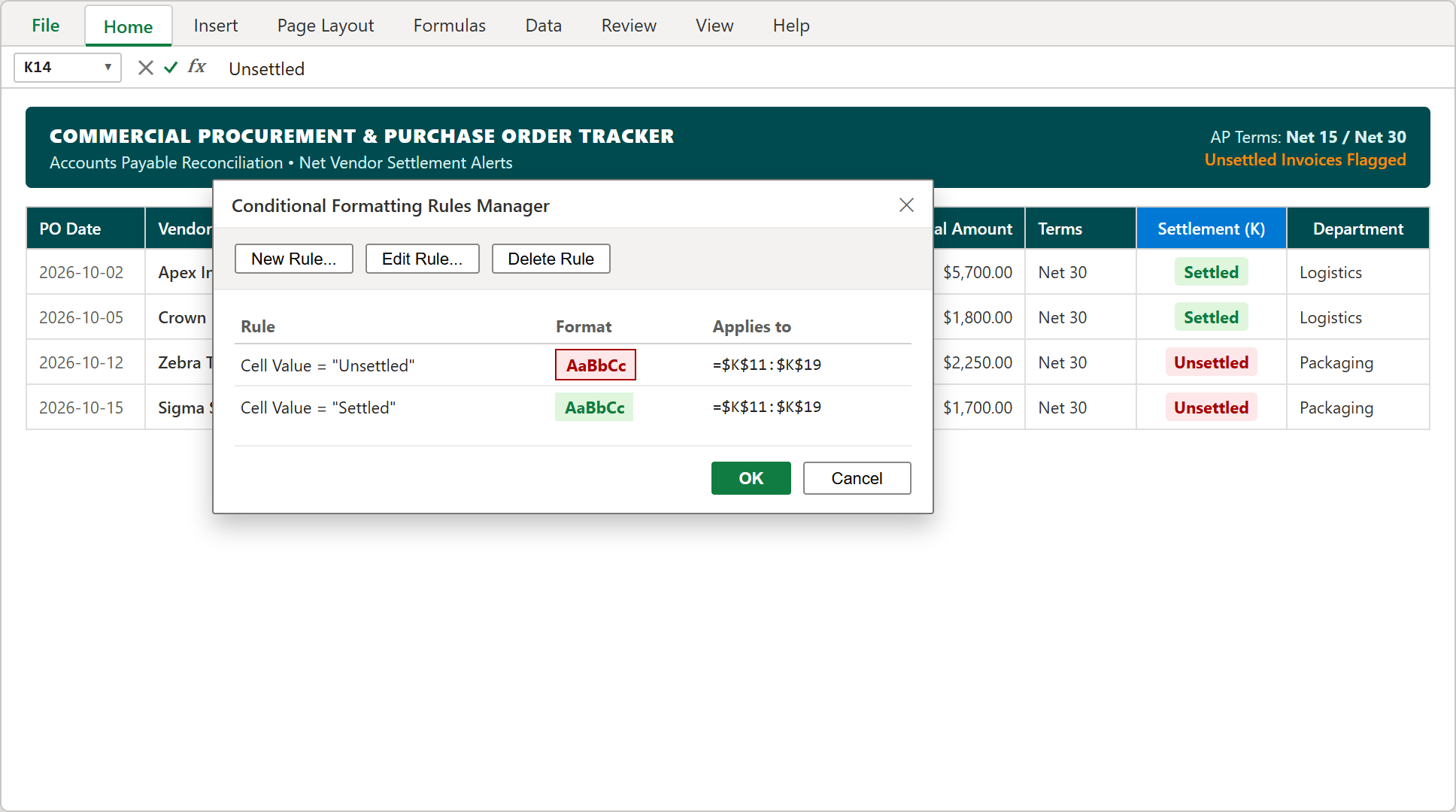
Step 4: The Conditional Formatting Rules Manager configuring automated red alerts for unsettled invoices in column K.
5Step 5: Consolidating Department Committed Spend Totals
In our final implementation step, we aggregate total procurement commitments to reconcile total fiscal period obligations.
Select row 20 total cell H20 and sum all requisition lines: =SUM(H11:H19). Across all 9 purchase orders, total procurement commitments evaluate to $20,450.00 across 198 total ordered units.
Format cell H20 with double bottom accounting borders to seal the register. Pairing this ledger subtotal with top-line cards (N6) provides controllers with an airtight snapshot of committed capital.
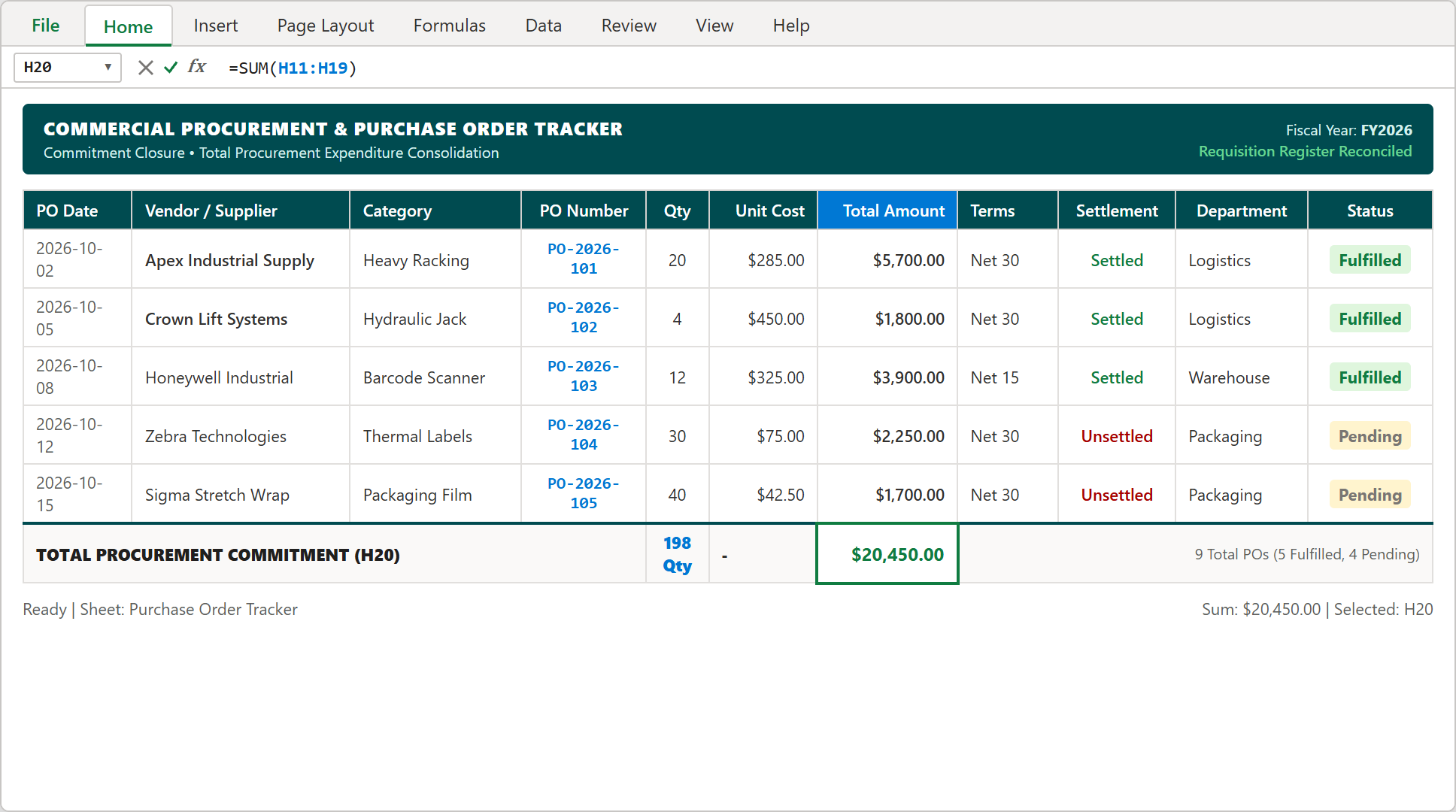
Step 5: Completed procurement register displaying $20,450.00 total committed expenditure and batch reconciliation.
Procurement Audit Playbook: 3-Way Matching & Vendor Settlement Compliance

Spreadsheet educator and web developer passionate about hands-on interactive spreadsheet practice.
Related Practical Exercises
Explore more hands-on spreadsheet models with downloadable practice workbooks.
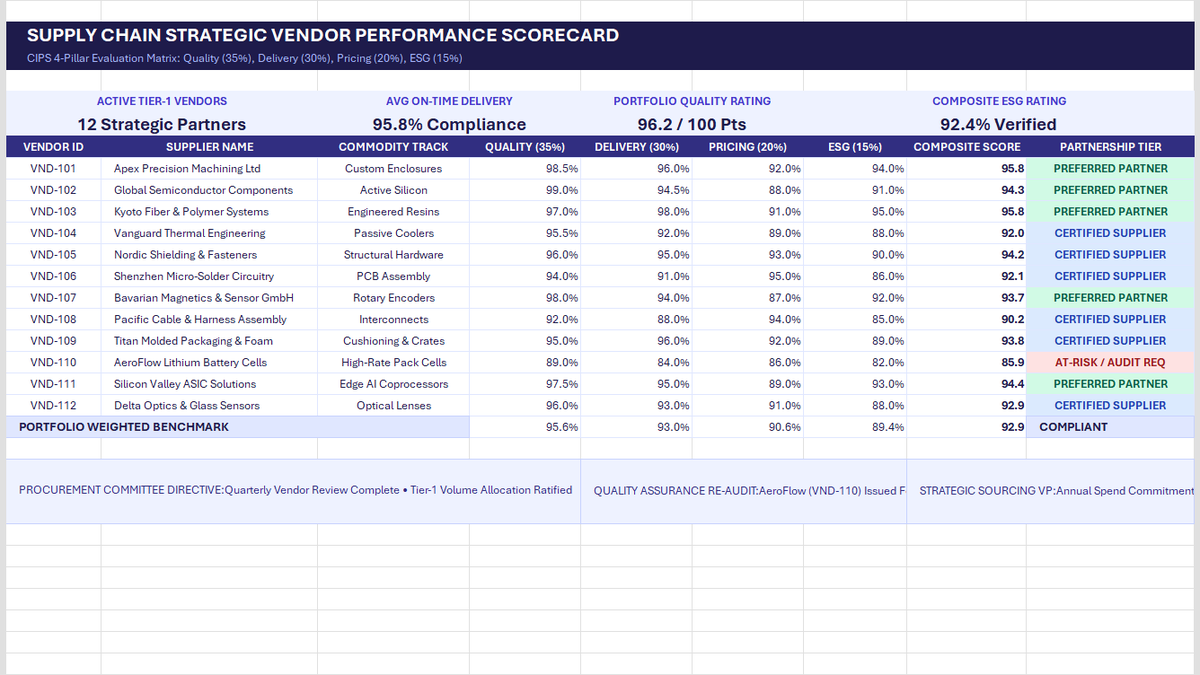 Operations
Vendor Performance Scorecard Excel Template
Learn strategic vendor evaluation in Microsoft Excel. Build a CIPS-compliant 4-pillar scorecard weighting Quality (35%), Delivery (30%), Pricing (20%), and ESG (15%). Automate weighted composite scores with SUMPRODUCT, calculate portfolio OTIF delivery, and establish tier-based purchase order allocations.
 Human Resources
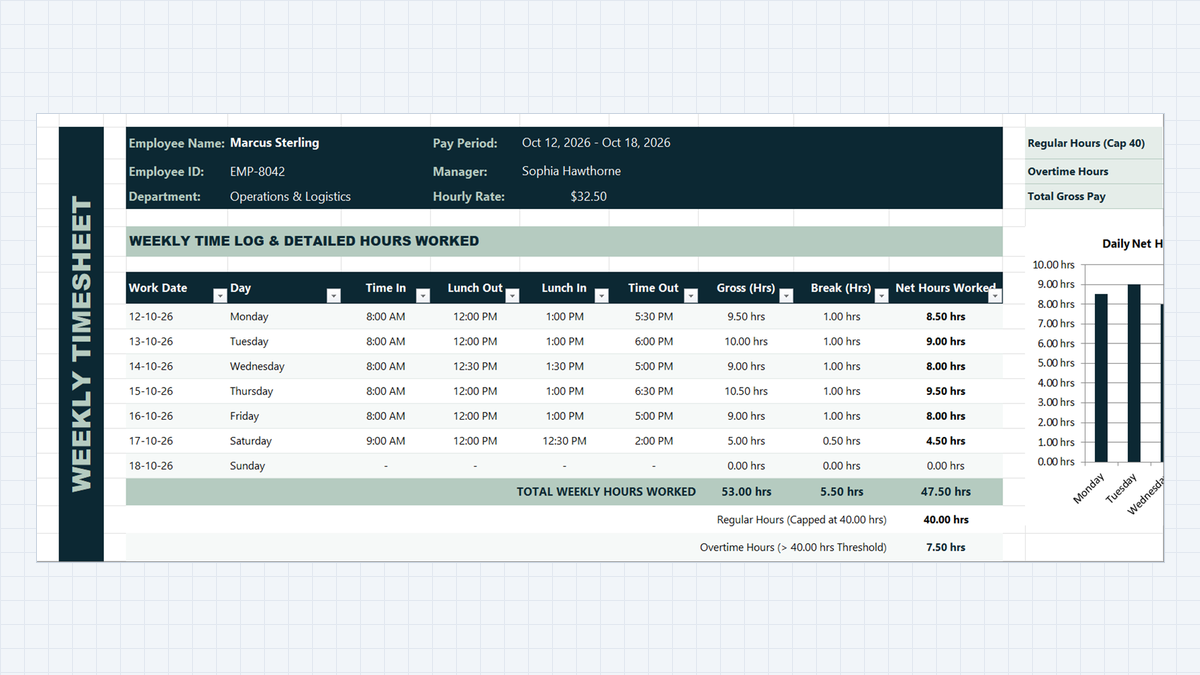
Employee Timesheet Calculator Excel Template
Track weekly employee work hours, lunch breaks, and overtime without mathematical headaches. Build a clean timesheet calculator in Microsoft Excel using simple time formulas, night-shift handling with MOD, and automatic overtime flags.
 Operations
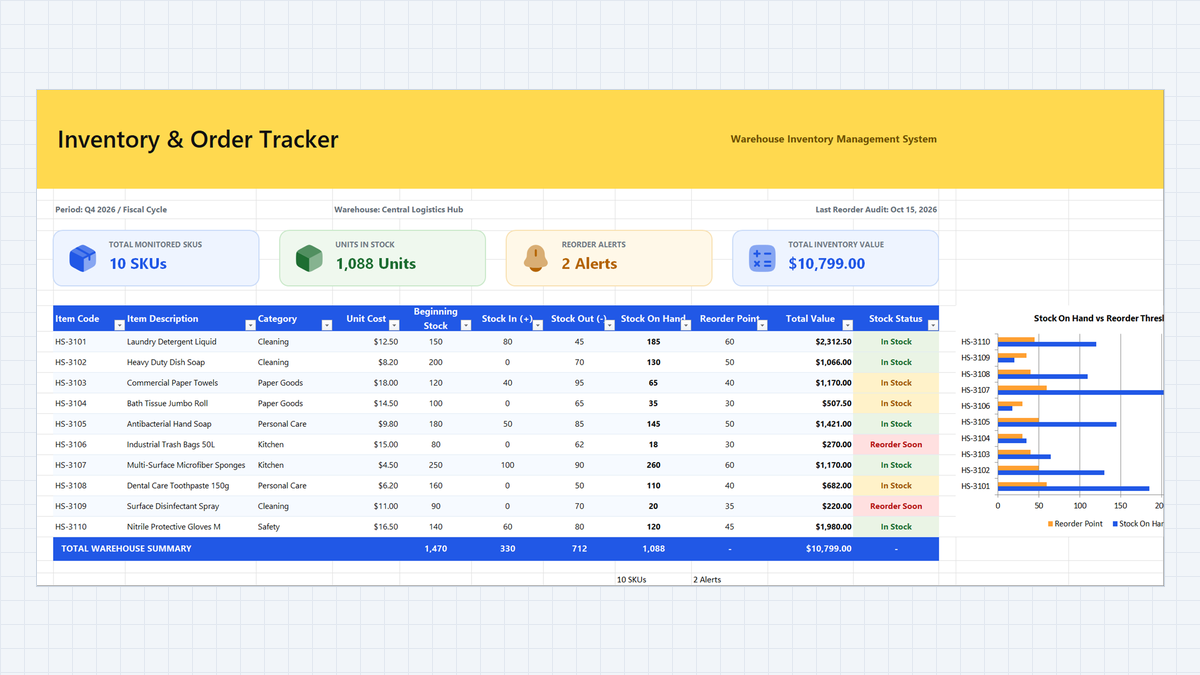
Inventory Tracking System Excel Template
Stop stockouts and mismatched stock counts. Build an Inventory Tracking System Excel Template with a strict IN/OUT movement log, automatic stock totals with SUMIFS, a smart reorder status with nested IF, and color alerts your warehouse team can read at a glance.
 Finance
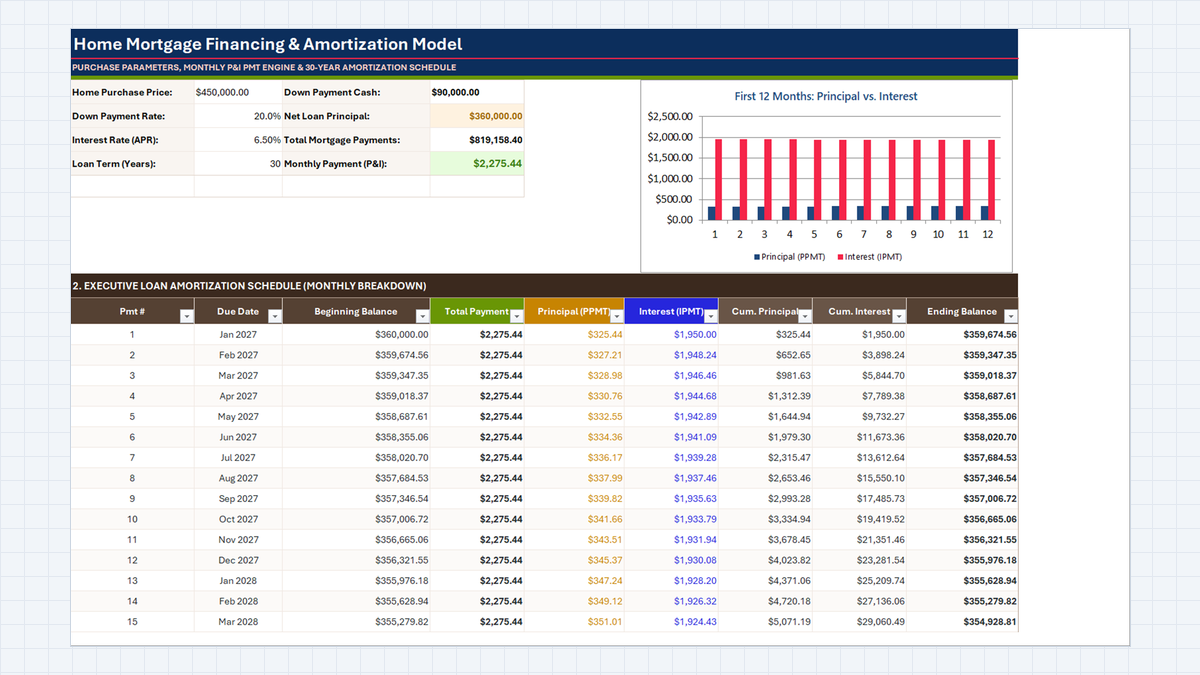
Mortgage Calculator Excel Template
See where every mortgage dollar goes. Build a Mortgage Calculator Excel Template that finds the monthly payment with PMT, splits each month into principal and interest with PPMT and IPMT, and tracks equity and ending balance in a clear amortization schedule.
 Productivity
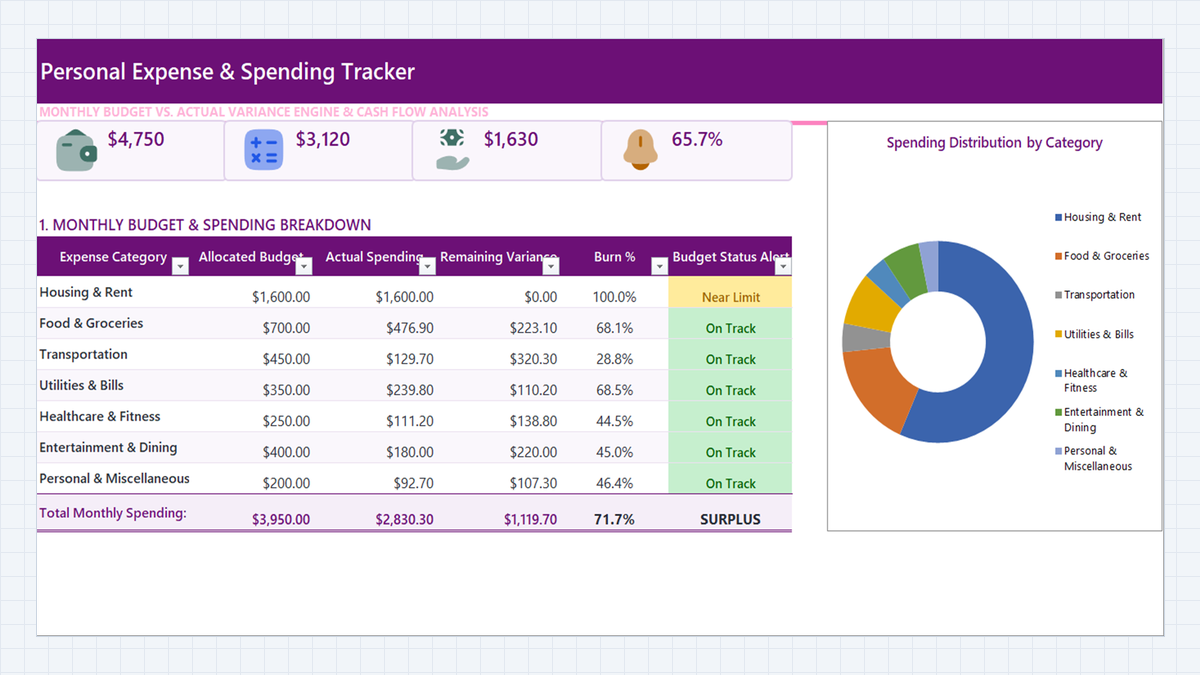
Personal Expense Tracker Excel Template
Turn a daily list of purchases into a clear monthly budget dashboard. Build a personal expense tracker in Microsoft Excel with a category dropdown, SUMIFS roll-ups, burn percentages, and three-level budget alerts.
Discussion
Ask questions, share formula tips, or discuss alternative approaches with fellow spreadsheet builders.
Loading discussion...