Most people do not quit a habit on purpose. They miss a Tuesday, then a Thursday, and by the next week nobody remembers what they planned. A simple weekly grid fixes that, because it shows the pattern while you can still change it.
In this guide you will build a Daily Habit Tracker in Excel. It follows 8 daily routines across Week 44, turns checkmarks into completion rates, and ends with a four-card scorecard. It works for a developer protecting deep-work time, a founder building a morning routine, or a student keeping a study plan.
Designing a 7-Day Consistency Grid with Symbols
C to Sunday in I. In each cell, type ✔ if you did the habit and · (a small dot) if you did not.Scenario It is Sunday night. You open the sheet and see Hydration with seven checkmarks in a row, and Journaling with five dots before the weekend. You do not need a report. The shape of the grid already tells you where the week went wrong.
| Col | Field Name | Type | Format | Example From the Workbook |
|---|---|---|---|---|
| B | HABIT / DAILY DISCIPLINE | Text | General | <code>Deep Work Focused Coding (90m)</code>, one habit per row. |
| C-I | MON to SUN | Symbol | General | <code>✔</code> for done, <code>·</code> for not done. Deep Work shows five checkmarks, Monday to Friday. |
| J | WEEKLY % | Formula (Percentage) | 0.0% | Checkmarks divided by 7. Hydration shows <strong>100.0%</strong>. |
| K | STREAK STATUS | Text | General | A label such as <code>12 Days (Consistent)</code> or <code>4 Days (Needs Focus)</code>. |
| L | STREAK DAYS | Integer | 0 | Typed streak length. Hydration holds the top value, <strong>28</strong>. |
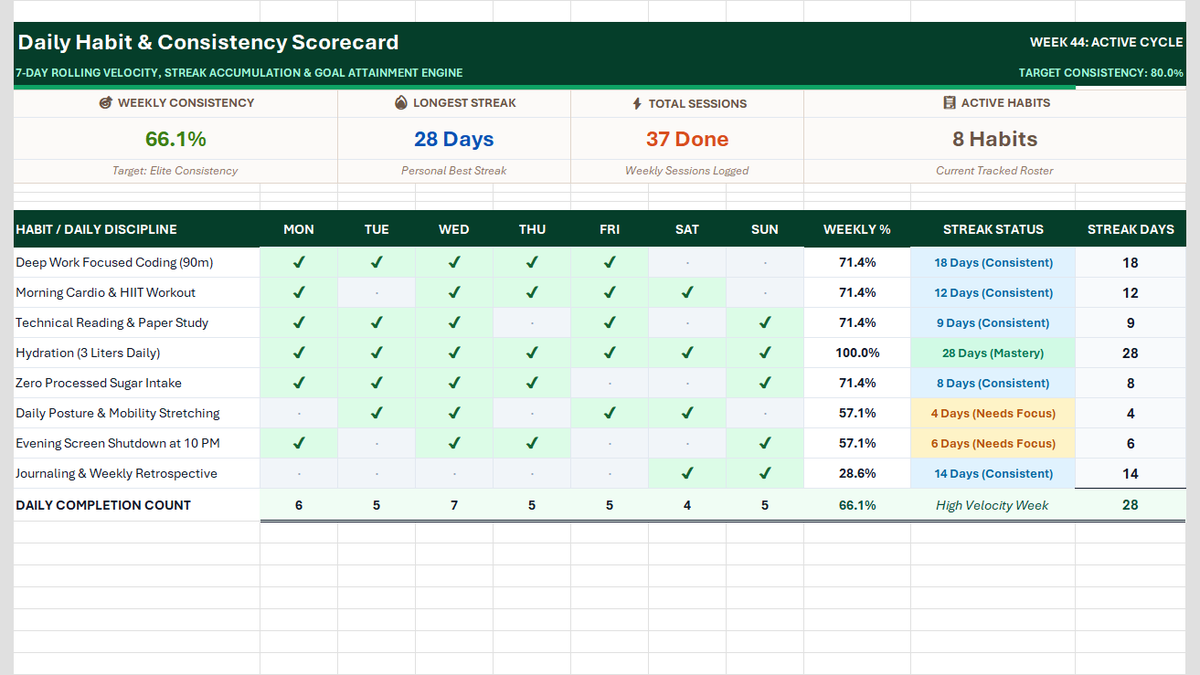
The finished tracker: four KPI cards on top, then the 8-habit grid for Week 44.
Columns J to L are the results. Everything in C to I is data you enter yourself, once a day.
Calculating Habit Completion Rates with COUNTIF
J12 is =COUNTIF(C12:I12, "✔")/7. It finds five checkmarks, and 5 / 7 is 71.4%.✔ everywhere and the counts stay correct.| Habit | Checkmarks | Weekly % | Status |
|---|---|---|---|
| Hydration (3 Liters Daily) | 7 / 7 | 100.0% | Strong |
| Deep Work Focused Coding (90m) | 5 / 7 | 71.4% | Steady |
| Morning Cardio & HIIT Workout | 5 / 7 | 71.4% | Steady |
| Technical Reading & Paper Study | 5 / 7 | 71.4% | Steady |
| Zero Processed Sugar Intake | 5 / 7 | 71.4% | Steady |
| Daily Posture & Mobility Stretching | 4 / 7 | 57.1% | Needs focus |
| Evening Screen Shutdown at 10 PM | 4 / 7 | 57.1% | Needs focus |
| Journaling & Weekly Retrospective | 2 / 7 | 28.6% | Needs focus |
✔ green, so the grid reads like a heat map.Tracking Momentum with Streaks and Daily Volume
C20 the formula is =COUNTIF(C12:C19, "✔"), and you copy it across to I20. Out of 8 habits, the week looks like this:| Day | Mon | Tue | Wed | Thu | Fri | Sat | Sun |
|---|---|---|---|---|---|---|---|
| Completed | 6 / 8 | 5 / 8 | 7 / 8 | 5 / 8 | 5 / 8 | 4 / 8 | 5 / 8 |
Insight Wednesday is the peak, with 7 of 8 habits done. Saturday is the low point, with 4 of 8. This is a common pattern: structure from work days carries the routine, and weekends drop it. If you see the same dip every week, plan weekend versions of your habits.
Check your data In this workbook, L is typed by hand. It is not calculated from the grid. Journaling shows a 14-day streak, but only 2 checkmarks this week, so a strict streak would have reset. Update the streak number each week, and reset it to 0 when a dot appears.
Executive Habit Scorecards and Weekly Reviews
| Card | Cell | Formula | Week 44 Result |
|---|---|---|---|
| Weekly Consistency | B6 | =AVERAGE(J12:J19) | 66.1% |
| Longest Streak | D6 | =MAX(L12:L19) | 28 Days (Hydration) |
| Total Sessions | G6 | =COUNTIF(C12:I19, "✔") | 37 Sessions |
| Active Habits | J6 | =COUNTA(B12:B19) | 8 Habits |
Weekly review Use the scorecard once a week, on the same day. Look at the lowest row first (Journaling at 28.6%), pick one habit to improve, and leave the rest alone. Adding more targets is how people burn out.

Spreadsheet educator and web developer passionate about hands-on interactive spreadsheet practice.
Related Practical Exercises
Explore more hands-on spreadsheet models with downloadable practice workbooks.
 Productivity
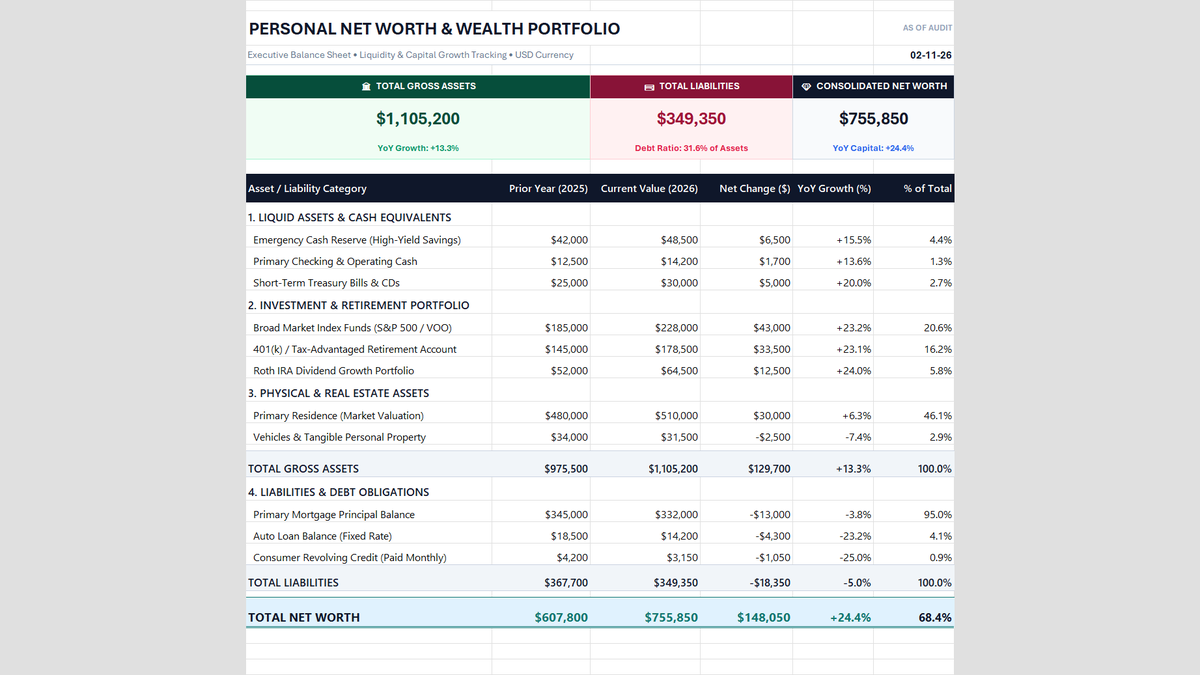
Personal Net Worth Tracker Excel Template
Build a personal net worth tracker in Excel that compares two years of liquid cash, investments, home equity and debt, then calculates net worth, year-over-year growth and allocation health with simple formulas.
 Finance
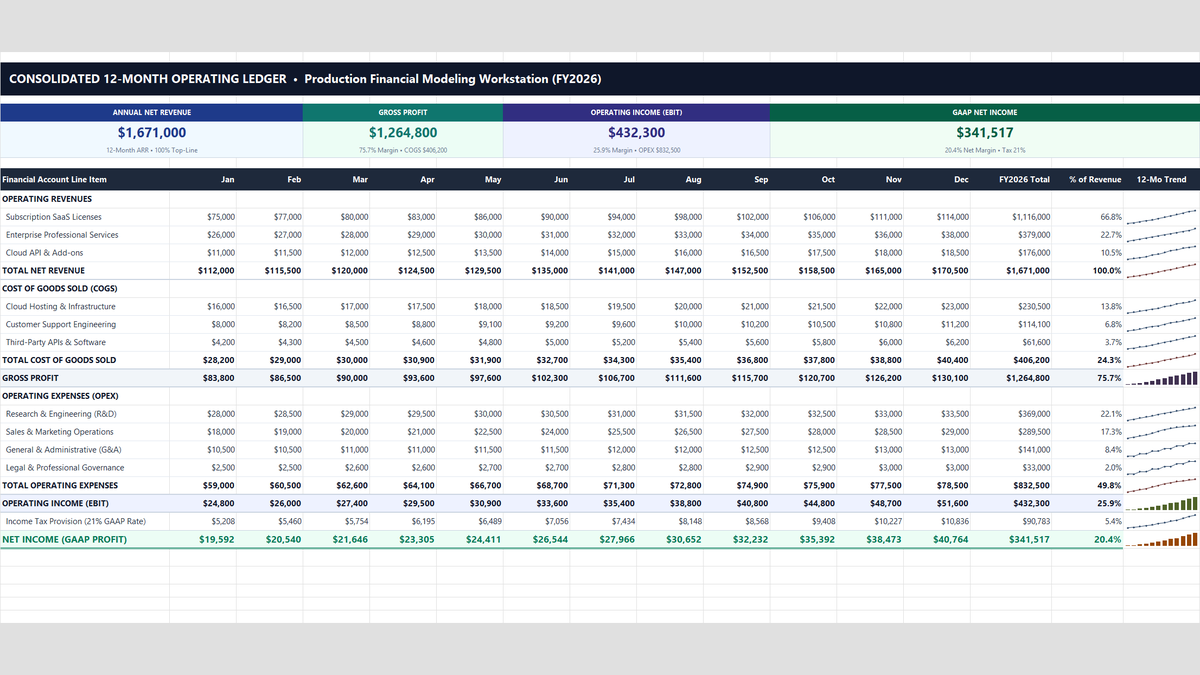
Profit and Loss Statement Template
A 12-month Profit and Loss statement in Excel that shows where every revenue dollar goes. Type your monthly numbers once, and gross profit, operating income, tax, net income and margin percentages update on their own.
 Project Management
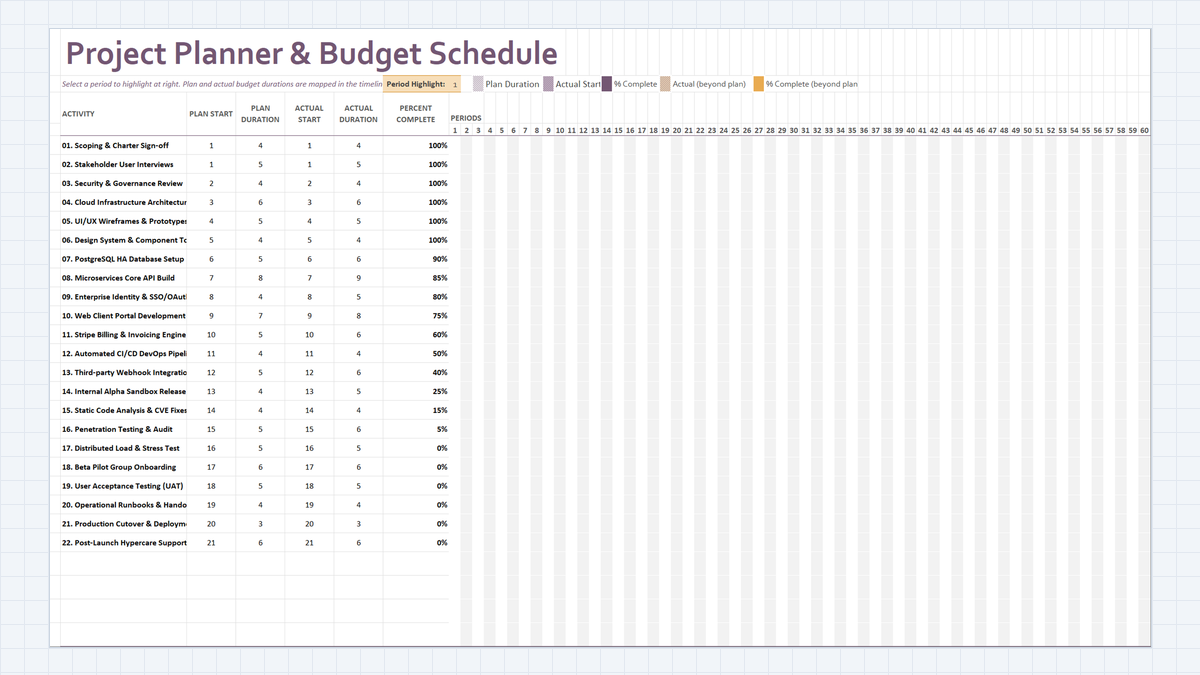
Project Budget Estimator Excel Template
Build a Project Planner & Budget Schedule in Excel: 22 delivery workstreams, plan vs actual duration math, a dynamic in-cell Gantt chart, and percent-complete tracking that shows where schedule slippage starts.
 Project Management
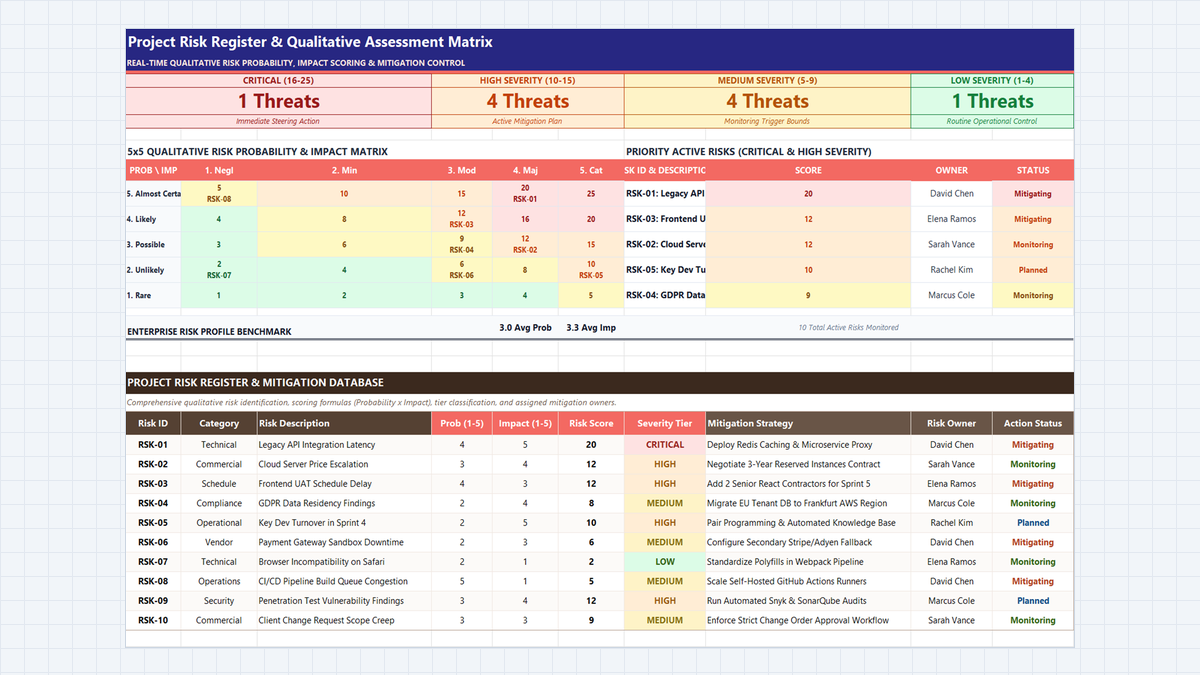
Project Risk Register Excel Template
Learn enterprise risk governance in Microsoft Excel. Build an ISO 31000 and PMBOK-compliant 5x5 qualitative risk heatmap, automate probability and impact scoring, engineer multi-tier severity formulas, and enforce accountability with data validation.
 Operations
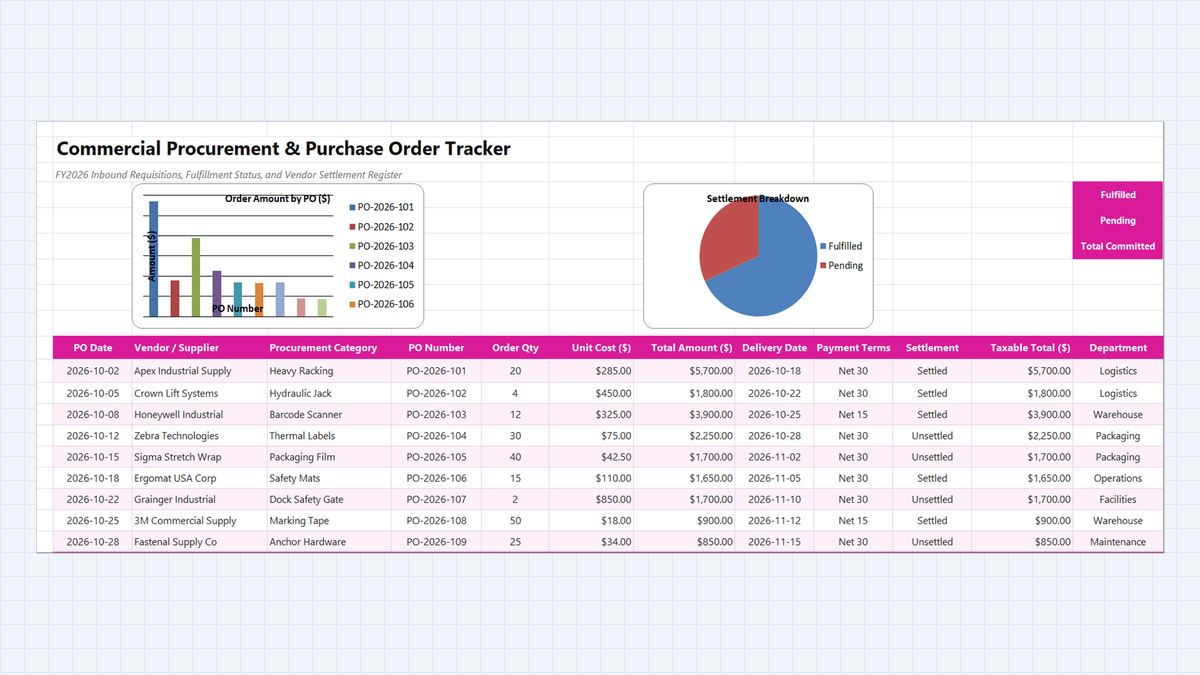
Purchase Order Tracker Excel Template
Learn how to engineer a commercial procurement and purchase order tracker in Microsoft Excel featuring line item commitment multiplication, vendor fulfillment status monitoring, and accounts payable settlement reconciliations.
Discussion
Ask questions, share formula tips, or discuss alternative approaches with fellow spreadsheet builders.
Loading discussion...