IFS & SWITCH Multi-Condition Formulas
Learn how to replace nested IF formulas in Excel with IFS and SWITCH. Simplify tier ratings, discount brackets, and category mapping cleanly.

When evaluating multi-tier bonus structures, commission rates, or status codes, spreadsheets quickly run into multiple conditions. Traditionally, this required stacking several IF formulas inside each other (nested IFs). These formulas become hard to read, difficult to edit, and prone to bracket mismatch errors.
Excel provides two modern formulas to eliminate nested IFs: IFS and SWITCH.
Quick Comparison: IFS vs SWITCH
Both formulas evaluate multiple choices in a clean, linear structure. The choice depends on whether you are comparing numeric ranges or matching exact text codes.
| Formula | Evaluation Style | Catch-All Default Rule | Best Fit in Real Work |
|---|---|---|---|
IFS |
Evaluates independent comparison conditions (>, <, >=) |
Add TRUE, "Default" as final pair |
Grading scales, tiered bonus structures, and bracket evaluations. |
SWITCH |
Matches a single cell against a list of exact values | Last argument acts as the default | Translating abbreviations, region codes, and status tags into full descriptions. |
How Each Formula Works
1. Writing Clean Range Tests with IFS
The IFS formula takes condition-value pairs in order:
=IFS(test1, value1, test2, value2, ..., TRUE, fallback_value)Evaluation Order Rule: IFS stops evaluating as soon as it encounters the first condition that returns TRUE. For numeric thresholds, order your conditions carefully (e.g. from highest to lowest):
=IFS(C2>=1.2, "Tier A", C2>=1.0, "Tier B", C2>=0.8, "Tier C", TRUE, "Tier D")2. Simplifying Exact Matches with SWITCH
When mapping specific codes, repeating the cell name inside IFS is repetitive. SWITCH evaluates the target cell once, followed by matching pairs and an optional fallback:
=SWITCH(B2, "NA", "North America", "EU", "Europe", "APAC", "Asia Pacific", "Global")Hands-on Practice Playground
Use the sales performance table below to assign achievement tiers and map region codes. Follow each objective to complete the exercise.
In cell D2, assign the sales tier for Sarah Jenkins using the IFS formula.
In cell D2, assign the sales tier for Sarah Jenkins using the IFS formula: return "Tier A" if attainment C2 is >= 1.20, "Tier B" if >= 1.00, "Tier C" if >= 0.80, and "Tier D" for anything below using TRUE as the fallback.
In cell E2, translate the region code in B2 into its full name using SWITCH.
Translate the region code in B2 into its full name in cell E2 using SWITCH: map "NA" to "North America", "EU" to "Europe", "APAC" to "Asia Pacific", and fallback to "Global".
In cell D3, assign the sales tier for Carlos Mendoza using IFS.
In cell D3, calculate the performance tier for Carlos Mendoza from attainment C3 using the same IFS tiered logic.
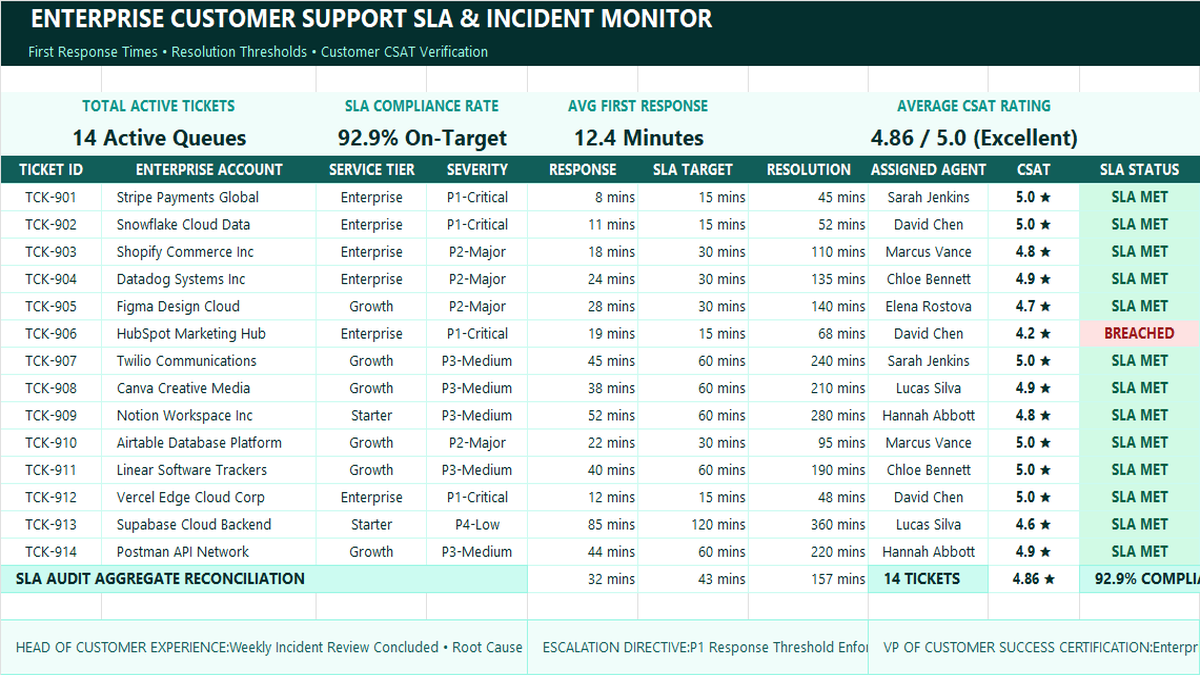
Ready to apply IFS & SWITCH Multi-Condition Formulas in a real workbook?
Implement automated business rules and visual alert thresholds using logical conditions.
Open Customer Support SLA TrackerShare This Lesson
Spread the word with your peers and challenge your friends