IF Conditional Decision Formula
Learn how to use the IF formula in Excel to build automated business rules, assign commission bonuses, and audit compliance benchmarks cleanly.

In manufacturing, quality assurance, and financial auditing, spreadsheets make decisions by testing conditions. For example, a pharmaceutical lab might require that every production batch pass a purity threshold of 98%. Batches meeting this standard move to shipping, while failing batches trigger safety re-testing.
Typing these status labels manually across thousands of production lots is slow and leads to errors. The IF formula allows Excel to test conditions and return different values or calculations based on whether the condition is true or false.
Syntax and Core Arguments
The IF formula consists of three parts:
=IF(logical_test, [value_if_true], [value_if_false])- logical_test: The condition you want to evaluate (e.g.
C2 >= 0.98). This always evaluates to eitherTRUEorFALSE. - value_if_true: What Excel displays or calculates if your condition is met.
- value_if_false: What Excel displays or calculates if your condition is not met.
Comparison Operators in Excel
To write effective tests, you need Excel comparison operators:
| Operator | Meaning | Example Expression | Result if C2 is 0.95 |
|---|---|---|---|
= |
Equal to | C2 = 0.95 |
TRUE |
<> |
Not equal to | C2 <> 0.98 |
TRUE |
> |
Greater than | C2 > 0.90 |
TRUE |
>= |
Greater than or equal to | C2 >= 0.98 |
FALSE |
< |
Less than | C2 < 0.98 |
TRUE |
<= |
Less than or equal to | C2 <= 0.95 |
TRUE |
Common Mistakes to Avoid
1. Omitting the Third Argument
If you write =IF(C2 >= 0.98, "PASS") without providing a value for false, Excel will literally display the word FALSE in your cell whenever the test fails. Always specify the third argument—even if it is simply an empty string "" to keep the cell blank.
2. Returning Dynamic Calculations Instead of Static Words
The IF formula is not limited to text labels like "PASS" or "FAIL". You can perform arithmetic directly inside the formula:
=IF(C2 >= 0.98, Revenue * 0.10, 0) // Grants 10% bonus or zeroHands-on Practice Playground
Use the pharmaceutical quality inspection table below to practice writing IF formulas and assigning dynamic bonuses. Follow each objective to complete the exercise.
In cell D2, evaluate the purity rate in C2 to return "PASS" if at least 0.98 or "RETEST" otherwise.
In cell D2, evaluate the purity rate in C2 using the IF formula: if purity is greater than or equal to 0.98 (98%), return "PASS", otherwise return "RETEST".
In cell E2, assign a 0.10 quality bonus multiplier if purity is at least 0.98, or 0 if below.
Batches meeting QA standards receive a 0.10 (10%) quality bonus, while failing batches receive 0. In cell E2, calculate this using the IF formula based on whether C2 is at least 0.98.
In cell D3, evaluate the purity rate for batch BCH-902 in C3.
In cell D3, evaluate the purity rate for batch BCH-902 in C3 using the IF formula to return "PASS" if >= 0.98 or "RETEST" otherwise.
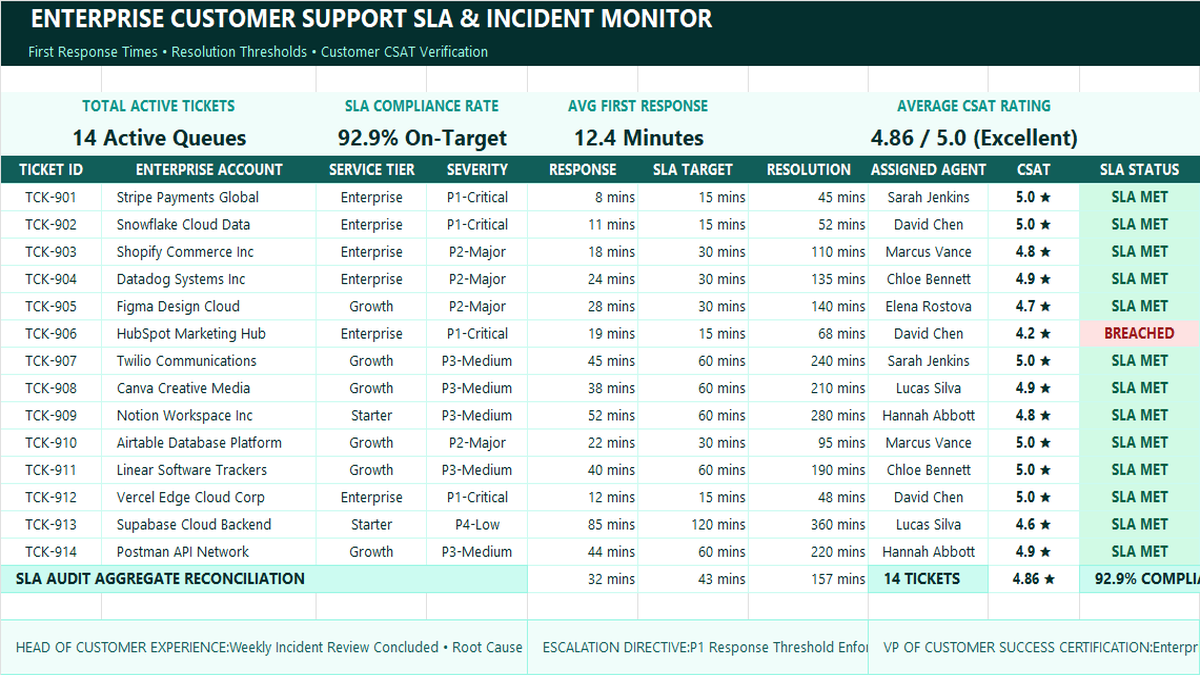
Ready to apply IF Conditional Decision Formula in a real workbook?
Build automatic status flags that alert agents when ticket response times breach client SLA limits.
Open Customer Support SLA TrackerShare This Lesson
Spread the word with your peers and challenge your friends