IFERROR & IFNA Error Shield Formulas
Learn how to handle errors cleanly in Excel with IFERROR and IFNA. Replace #N/A, #DIV/0!, and #VALUE! with friendly defaults without masking critical bugs.

Spreadsheet errors like #N/A, #DIV/0!, or #VALUE! look messy and disrupt management reports. Even worse, if a single cell contains an error, summary formulas like SUM or AVERAGE will fail with that same error.
To handle errors gracefully, Excel provides two protective wrapper formulas: IFERROR and IFNA. While both replace errors with friendly fallbacks, choosing the right one prevents hidden mistakes from corrupting your calculations.
Quick Comparison: IFERROR vs IFNA
The difference between these formulas is the scope of errors they catch.
| Formula | Errors Caught | Risk of Masking Bugs | Best Fit in Real Work |
|---|---|---|---|
IFERROR(value, val_if_err) |
All errors (#N/A, #DIV/0!, #VALUE!, #REF!, #NAME?) |
High (can hide formula typos and broken ranges) | Division calculations that might divide by zero, or mathematical square roots. |
IFNA(value, val_if_na) |
Only #N/A (value not found) |
Low (other formula errors still appear so you can fix them) | Lookup formulas like VLOOKUP, XLOOKUP, and MATCH. |
The Dangerous "Masking" Trap of IFERROR
Because IFERROR catches every single error code, it can easily hide serious formula mistakes:
=IFERROR(VLOOKP(A2, Catalog, 2, FALSE), 0) // Notice the typo in VLOOKUPBecause VLOOKP is misspelled, Excel triggers a #NAME? error. However, IFERROR catches it and quietly returns 0. Your spreadsheet silently outputs wrong numbers without any warning! For lookup formulas, always prefer IFNA so that legitimate formula typos remain visible.
Choosing the Right Fallback Value
- Numeric Columns: Use number
0so that nextSUMformulas continue working properly:=IFERROR(D2/C2, 0). - Text Columns: Use descriptive labels like
"Not Listed","Pending Review", or an empty string"".
Hands-on Practice Playground
Practice error handling using the product inventory table below. Complete each objective to verify your understanding.
In cell E2, calculate the unit price by dividing revenue D2 by units sold C2, protected with IFERROR returning 0.
In cell E2, calculate the unit price by dividing revenue D2 by units sold C2, wrapping the calculation with IFERROR to return 0 if a division by zero error occurs.
In cell F2, look up the catalog price for SKU-101 using VLOOKUP, protected with IFNA returning "Not Listed".
In cell F2, retrieve the catalog price for SKU-101 from catalog range $A$2:$D$6 (column 4) using VLOOKUP with exact match (FALSE), wrapping the formula in IFNA to return "Not Listed" if the SKU is not found.
In cell E3, divide revenue by units sold protected with IFERROR to handle zero sales safely.
In cell E3, divide revenue D3 by units sold C3 protected with IFERROR returning 0 to safely handle the zero units sold without triggering a #DIV/0! error.
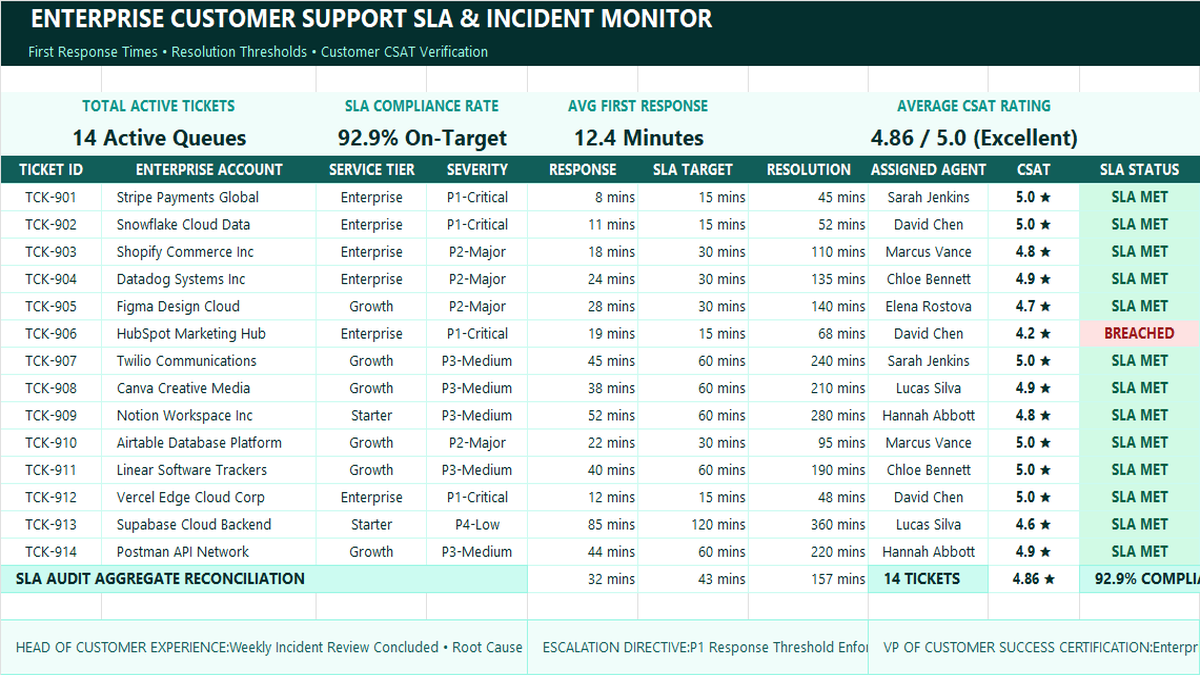
Ready to apply IFERROR & IFNA Error Shield Formulas in a real workbook?
Implement automated business rules and visual alert thresholds using logical conditions.
Open Customer Support SLA TrackerShare This Lesson
Spread the word with your peers and challenge your friends