What You Will Learn
Five registration rows. Each has a password in column A and a confirmation in column B. Some are obvious mismatches ("Alpha!237" vs "alpha!237"), some have hidden spaces ("BlueDog" vs "BlueDog "), and some are identical. You need TRUE or FALSE in column C for each pair.
The key insight: EXACT is stricter than the normal equals sign (=). The equals operator ignores case differences — it treats "A" and "a" as the same. EXACT checks every character including capitalization, so it is the right tool for passwords.
=EXACT(A2, B2)
Looking at the data:
- Row 2: "Alpha!237" vs "alpha!237" — different case, FALSE.
- Row 3: "BlueDog" vs "BlueDog " — trailing space, FALSE. The space is invisible but EXACT catches it.
- Row 4: "Security1" vs "Security1" — identical, TRUE.
- Row 5: "QwertY" vs "Qwerty" — last letter case differs, FALSE.
- Row 6: "P@ssword" vs "P@ssword" — identical, TRUE.
Two out of five match. A regular equals check would call row 3 a match too (it ignores the trailing space), which is wrong for password data.
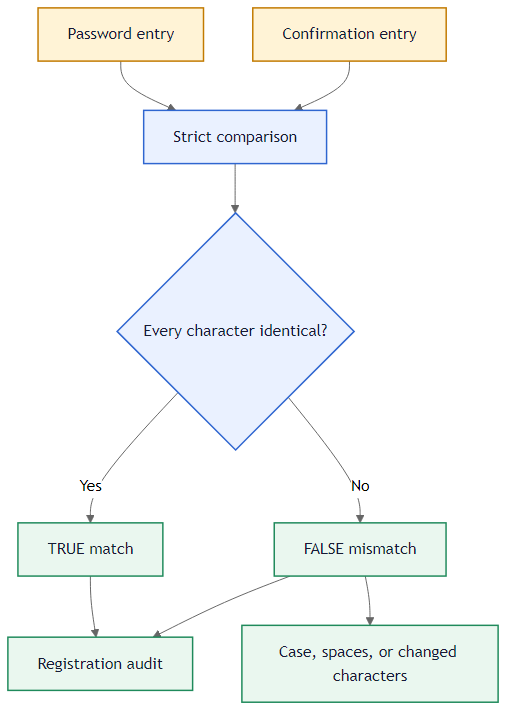 EXACT checks every character including case and spaces.
The audit formulas:
- B9:
=COUNTA(A2:A6) — counts total registration records.
- B10:
=COUNTIF(C2:C6,TRUE()) — counts how many rows returned TRUE (matched).
Alternative: TRIM Before Comparing
If the issue is accidental spaces rather than password security, you can clean both sides before comparing:
=TRIM(A2)=TRIM(B2)
This treats "BlueDog " and "BlueDog" as a match — useful for forms where keyboard mistakes add trailing spaces, but not strict enough for passwords.
The difference between EXACT and = matters most when the data has mixed capitalization. With =A2=B2, "Password" and "password" would be treated as a match. With EXACT, they are not — which is exactly what you want for password confirmation but would be frustrating for case-insensitive data like email addresses.
The choice between EXACT and = comes down to whether case matters. For passwords, codes, and IDs — use EXACT. For names, labels, and categories — the regular equals sign is fine.
Use =EXACT(A2,B2) in C2:C6 for case-sensitive matching. Then COUNTA in B9 for total records and COUNTIF in B10 for matching count.