Home
Challenges
Standardize Yes/No Responses
Cleanup
Easy

Standardize Yes/No Responses

An Excel response sheet has mixed yes and no entries, and you need to standardize them into one clear format.

AuthorExcelClash Team
PublishedApr 02, 2026
Standardize Yes/No Responses

The Problem

Survey responses often mean the same thing while still being typed in different ways. One person enters y, another enters Yes, and another types YES. If the list stays that way, the summary becomes harder than it should be.

This challenge normalizes those variations into a single official output. Once every row is converted to YES or NO, counting the final result becomes simple.

How We Solve It

The most direct shortcut is to look only at the first letter of the response. If that first letter is a Y after converting it to uppercase, the result should be YES. Otherwise it becomes NO.

Method 1: IF with UPPER and LEFT

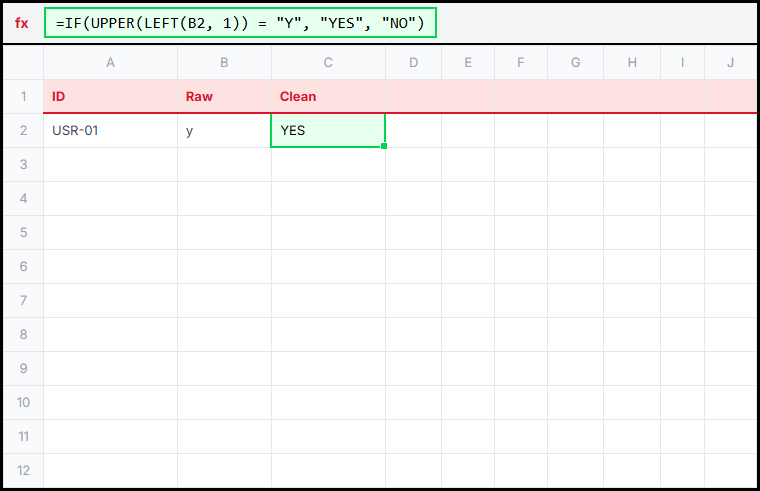
IF LEFT Illustration
Method 1: Normalize the response by checking only the first letter.

This is the method the solution uses. LEFT takes the first character, UPPER removes casing differences, and IF turns the result into the standard label.

This solves the challenge because the worksheet only needs to distinguish yes-type answers from no-type answers. By reducing each response to its first letter, the formula can normalize several messy variations into one clean YES or NO result.

=IF(UPPER(LEFT(B2, 1)) = "Y", "YES", "NO")

Method 2: SWITCH for explicit mapping

Switch Survey Illustration
Method 2: Map known variants explicitly when the response list is small.

SWITCH works well when you want to list known variants one by one. It is not the required validator pattern here, but it is a useful option when the accepted inputs are limited and clearly defined.

This solves the same normalization problem in a more explicit way. Instead of relying on the first letter, it matches each known response variation to the official output you want the sheet to use.

=SWITCH(UPPER(B2), "Y", "YES", "YES", "YES", "N", "NO", "NO", "NO")

Method 3: Use a lookup table

VLOOKUP Survey Illustration
Method 3: Use a mapping table when the raw response list may expand.

If future data could include more variants, a lookup table makes the system easier to extend. The normalization logic stays outside the main formula, which can be helpful when a workbook has many accepted inputs.

This solves the long-term maintenance problem. When new raw response styles appear, the team can update the mapping table instead of rewriting the main formula in every row.

=VLOOKUP(UPPER(B2), $F$2:$G$10, 2, FALSE)

Function Explanation

1. UPPER

UPPER converts text to uppercase. That removes case differences so values like y and Y can be treated the same way.

Learn more this functionUPPER

2. LEFT

LEFT returns characters from the start of a string. In this worksheet it lets us focus on the first letter, which is enough for the simple yes/no rule.

Learn more this functionLEFT

3. COUNTIF

COUNTIF counts how many rows ended up with the label YES. That makes the summary quick once the normalization is done.

Learn more this functionCOUNTIF

This shortcut assumes the first letter is enough to separate yes from no. If a dataset contains blanks or more complicated answers, the logic usually needs an extra check.

Try Yourself

Normalize every survey response to YES or NO, then finish the summary so the worksheet shows the total response count and how many official YES responses are in the list.

1
Objective #1
Cell: C2-C6

In Column C, normalize the user response in Column B into a clean "YES" or "NO" string.

2
Objective #2
Cell: B9

In cell B9, count the total number of survey responses in your list.

3
Objective #3
Cell: B10

In cell B10, identify the total count of official "YES" responses in your database roster.

Tactical Arena
Objectives Met: 0 / 0
Share this challenge

Let others know about this challenge!

Related Challenges
Cleanup
#28
Detect Invalid Phone Numbers

An Excel contact list has mixed phone formats, and you need to find which numbers are incomplete or contain invalid characters.

Easy
Cleanup
#29
Find Missing Membership IDs

An Excel audit compares two ID lists, and you need to find which records are missing from the active registry.

Intermediate
Analysis
#30
Highlight Low Stock Items

An Excel inventory sheet needs reorder alerts, and you need to flag items whose stock has dropped too low.

Easy
Lookup
#31
Check if Date is a Holiday

An Excel schedule includes service dates, and you need to flag which ones fall on holidays before payroll or planning is reviewed.

Easy
Discussion
0 Feedbacks
ExcelClash

ExcelClash is an interactive platform designed to level up your Excel skills through real-world exercises and challenges. Sharpen your logic, solve real spreadsheet problems, and learn faster—without boring lessons. Just hands-on practice that actually sticks.

Navigation
Back to Challenges
Go to Dashboard
Platform Home
Discover
SUM FunctionsLookup FunctionsConditional FunctionsLogical Functions
Support
About UsContact UsPrivacy PolicyTerms of Service
© 2026 ExcelClash, Inc. All rights reserved.
Objectives Met: 0 / 0