What You Will Learn
Five entries in A2:A6 — some are fully uppercase ("SUMMER20"), some are mixed ("FlashSale"), some are lowercase ("discount50"). You need to label each one as "ALL CAPS" or "MIXED" in column B.
The trick: convert the text to uppercase with UPPER, then compare it to the original with EXACT. If they match, every letter was already uppercase:
=IF(EXACT(A2, UPPER(A2)), "ALL CAPS", "MIXED")
UPPER("SUMMER20") returns "SUMMER20" — same as the original, so EXACT returns TRUE and the label is "ALL CAPS". UPPER("FlashSale") returns "FLASHSALE" — different from the original, so EXACT returns FALSE and the label is "MIXED".
Numbers do not affect the result because UPPER only changes letters. "SUMMER20" and "OFFER100" both qualify as all caps because their letter portions are uppercase.
In this dataset: SUMMER20, OFFER100, and WINTER75 are all caps (3). discount50 and FlashSale are mixed (2).
The UPPER function converts only letters. Numbers and symbols pass through unchanged — "SUMMER20" becomes "SUMMER20" because the 2 and 0 are not letters. That means codes with numbers are still correctly classified based on their letter portion alone.
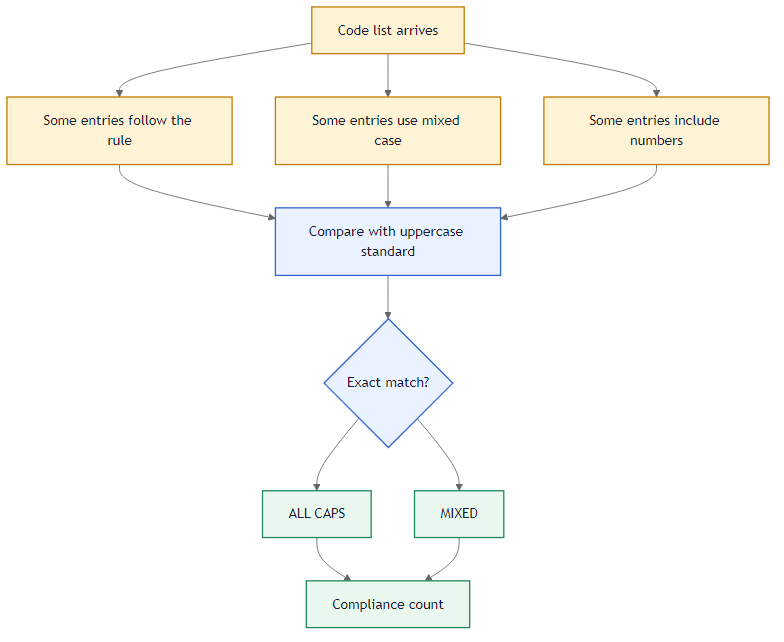 EXACT compares the original against its uppercase version.
The audit formulas:
- B9:
=COUNTA(A2:A6) — total entries processed.
- B10:
=COUNTIF(B2:B6,"ALL CAPS") — how many entries are fully uppercase.
Going Further: Avoiding False Positives
If an entry contains no letters at all (e.g., "12345"), UPPER matches the original and it gets labeled "ALL CAPS" incorrectly. To exclude numeric-only entries, add a second check:
=IF(AND(EXACT(A2,UPPER(A2)),NOT(EXACT(A2,LOWER(A2)))),"ALL CAPS","MIXED")
This also confirms the text is NOT all lowercase, filtering out entries with no uppercase letters.
Another edge case: text that is already lowercase will also fail the EXACT check because UPPER("discount50") = "DISCOUNT50", which does not match "discount50". That is correct behavior — only entries where every letter is already uppercase pass the test. The formula does not care about numbers at all, only the letter casing.
Empty cells will falsely match as all caps because UPPER("") is "". If your data has blanks, add ISBLANK to the formula: =IF(OR(ISBLANK(A2),NOT(EXACT(A2,UPPER(A2)))),"MIXED","ALL CAPS").
Use =IF(EXACT(A2,UPPER(A2)),"ALL CAPS","MIXED") in B2:B6. Then COUNTA in B9 for total and COUNTIF in B10 for all-caps count.