Home
Challenges
Identify Duplicate Transactions
Cleanup
Easy

Identify Duplicate Transactions

An Excel transaction log may contain repeated IDs, and you need to flag possible duplicates before review.

AuthorExcelClash Team
PublishedApr 02, 2026
Identify Duplicate Transactions

The Problem

Duplicate transaction IDs are easy to miss when a list gets long. The values may be separated by several rows, and if no one checks carefully, the same transaction can appear twice in the audit trail.

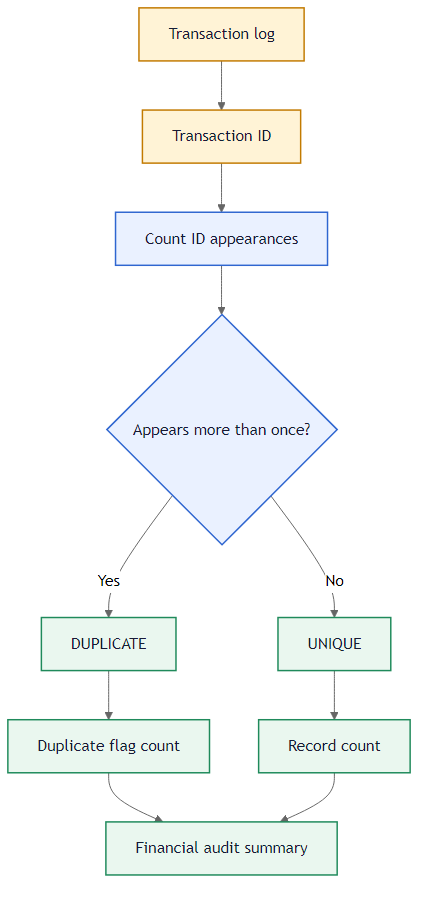
This challenge turns that into a repeatable check. We label each transaction as duplicate or unique, then summarize the total number of records and the total number of duplicate flags.

How We Solve It

The main idea is simple. If a transaction ID appears more than once in the full range, it should be marked as DUPLICATE. COUNTIF gives us that count, and IF turns it into the label we want.

Method 1: COUNTIF across the full list

CountIf Duplicate Illustration
Method 1: Count how many times the same ID appears in the full list.

This is the method used in the solution. Each row asks how many times its ID appears in $A$2:$A$7. If the answer is greater than 1, the record is marked DUPLICATE. Otherwise it is UNIQUE.

This solves the challenge directly because the worksheet only needs to know whether each transaction ID repeats anywhere in the full list. By checking the whole range every time, the formula can flag duplicates even when the matching row is far away.

=IF(COUNTIF($A$2:$A$7, A2) > 1, "DUPLICATE", "UNIQUE")

Method 2: Expanding occurrence counts

Flag Repeated Illustration
Method 2: Count each occurrence as the list grows so repeats are easier to trace.

If you want to know whether an ID is appearing for the first time or the second time, an expanding range is useful. The first appearance returns 1, the next one returns 2, and so on. That does not replace the main validator formula here, but it is helpful when you need more detail.

This solves a more detailed audit problem by showing when a repeated ID starts to happen. It is useful when the team wants to trace the first entry and later repeats separately instead of only seeing a final duplicate label.

=COUNTIF($A$2:A2, A2)

Method 3: Return only non-repeating IDs

Filter Duplicates Illustration
Method 3: Return only values that appear once when you want a clean no-duplicate list.

Modern Excel can also return only values that appear once by using UNIQUE with the exactly_once behavior. That is a good follow-up step after the row flags are built.

This solves the cleanup step that often comes after the audit. Once you know duplicates exist, the formula can help produce a cleaner list of one-time transaction IDs for review or export.

=UNIQUE(A2:A7, , TRUE)

Function Explanation

1. COUNTIF

COUNTIF counts how many cells in a range match a condition. In this challenge, the condition is simply the current transaction ID.

Learn more this functionCOUNTIF

2. IF

IF turns the count result into a readable category. That keeps the audit column easy to scan and easy to summarize.

Learn more this functionIF

3. COUNTA

COUNTA gives the total record count in the summary. Once the data rows are in place, it is a quick way to measure how many transactions are being reviewed.

Learn more this functionCOUNTA

The important detail in duplicate checks is the reference style. The audit range needs to stay fixed, which is why the main COUNTIF pattern uses absolute references.

Try Yourself

Label each transaction as duplicate or unique, then finish the summary so the sheet shows both the total number of records and how many duplicate entries were found.

1
Objective #1
Cell: C2-C7

In Column C, identify if the Transaction ID in Column A is a "DUPLICATE" within the range $A$2:$A$7. Label it "DUPLICATE" if the count is greater than 1, otherwise "UNIQUE".

2
Objective #2
Cell: B10

In cell B10, identify the total processing count of your current roster.

3
Objective #3
Cell: B11

In cell B11, identify the total count of "DUPLICATE" flags in your database audit.

Tactical Arena
Objectives Met: 0 / 0
Share this challenge

Let others know about this challenge!

Related Challenges
Analysis
#39
Calculate Running Totals

An Excel transaction list needs a running balance, and you need to keep a cumulative total that updates row by row.

Intermediate
Analysis
#40
Flag High-Value Customers

An Excel sales sheet tracks customer orders, and you need to total each customer spend before labeling high-value accounts.

Intermediate
Cleanup
#1
Remove Duplicate Names

An Excel name list has duplicate entries, and you need to separate first appearances from repeated names before reviewing the data.

Easy
Scenario Simulation
#2
Assign Random Values From a List

An Excel team assignment sheet needs a fair random result, and each person must be matched to one option from the approved list.

Easy
Discussion
0 Feedbacks
ExcelClash

ExcelClash is an interactive platform designed to level up your Excel skills through real-world exercises and challenges. Sharpen your logic, solve real spreadsheet problems, and learn faster—without boring lessons. Just hands-on practice that actually sticks.

Navigation
Back to Challenges
Go to Dashboard
Platform Home
Discover
SUM FunctionsLookup FunctionsConditional FunctionsLogical Functions
Support
About UsContact UsPrivacy PolicyTerms of Service
© 2026 ExcelClash, Inc. All rights reserved.
Objectives Met: 0 / 0