The Problem
A lot of people run into this kind of problem when they need to spread something around fairly. It might be training groups, volunteer shifts, support rotations, review assignments, or any other situation where the same list has to be used again and again without turning into a guessing game.
Doing that by hand usually feels easy at first. You pick one item, then another, and everything looks fine until the pattern starts to feel a little too regular. Someone ends up with two turns in a row, someone else gets skipped, and the process turns into something people want to question instead of trust.
That is usually where a sheet can help. Instead of making people choose by hand every time, the workbook can do the repetitive part for you while still keeping the results tied to a fixed source list. In practice, that means the result feels random, but the setup stays controlled and easy to review later.
That is easier to understand when you look at it as a flow, so the next image breaks the problem into the parts people usually run into.
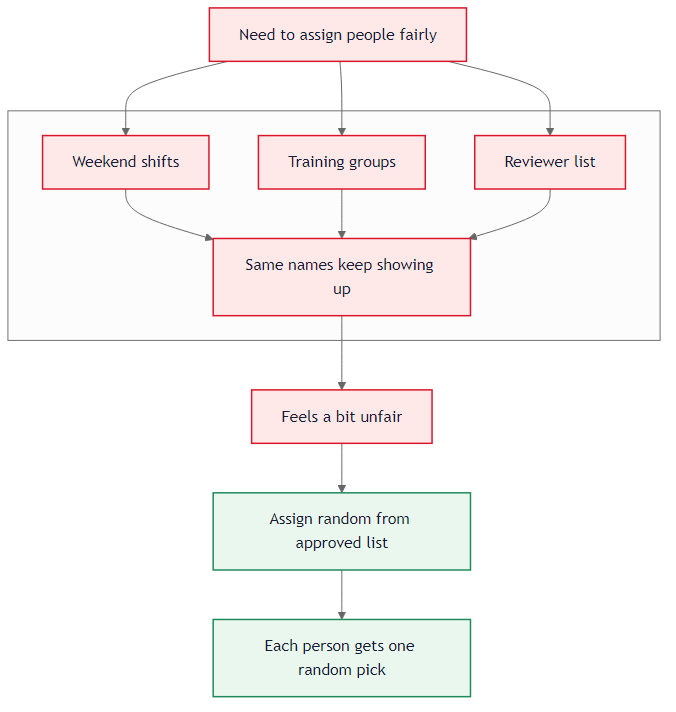 The Problem: Fair Random Assignment Manual picking starts to feel uneven and harder to trust once the pattern begins to repeat.
That is the situation behind this workbook. A fixed list already exists, but the assignment still has to feel random enough to avoid bias and structured enough that the result can be checked later. The challenge is to keep the source controlled while letting the sheet handle the repetitive part.
- The team source list lives in
A2:A5.
- Each staff member needs one random assignment in column
D.
- The audit section must count how many people landed on the North team.
- The audit section must also count how many staff members were processed overall.
To keep those parts easy to scan, the table below connects each sheet area to its job. That makes the layout easier to read as one flow instead of a pile of separate notes.
| Sheet Area |
Purpose |
A2:A5 |
Approved team list used as the random source. |
D2:D8 |
Random team assignment results for each staff row. |
B11 |
Count how many assigned results equal North. |
C11 |
Count the total number of staff records in the assignment list. |
A lot of people run into the same small headaches here. They either type random choices by hand and lose trust in the result, or they build something too rigid and have to redo it every time the list changes. A good formula sits in the middle: random enough to feel fair, controlled enough to review later, and simple enough that someone else can understand it without a long explanation.
The important part is that every random choice still comes from the approved list. The assignment should feel random, but the workbook should stay controlled and auditable. If someone opens the file later, they should be able to see where the choices came from and how the summary was counted.
Source list: A2:A5
Assignments: D2:D8
Audit cells: B11 and C11
How We Solve It
The main idea is simple. First, generate a random position. Then use that position to pull a team name from the list in A2:A5. That way, the result always comes from the allowed team list and never from manual typing.
The challenge solution uses RANDBETWEEN to choose a random row number, ROWS to keep the range flexible, and INDEX to return the matching team name.
Method 1: INDEX with RANDBETWEEN
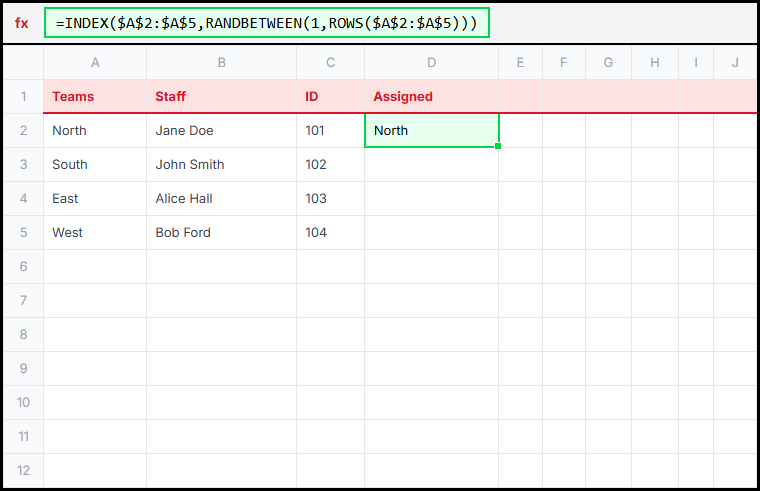 Method 1: Link a source list to a random position so each result comes from the approved team list.
This is the most practical method for the challenge because it keeps the source list separate from the formula. If the available teams change later, you can edit the list in column A without rebuilding the logic in every assigned cell.
RANDBETWEEN picks a random number from 1 to the size of the list. INDEX then uses that number to return one team name from the allowed options.
=INDEX($A$2:$A$5,RANDBETWEEN(1,ROWS($A$2:$A$5)))
Method 2: CHOOSE for a Small Fixed List
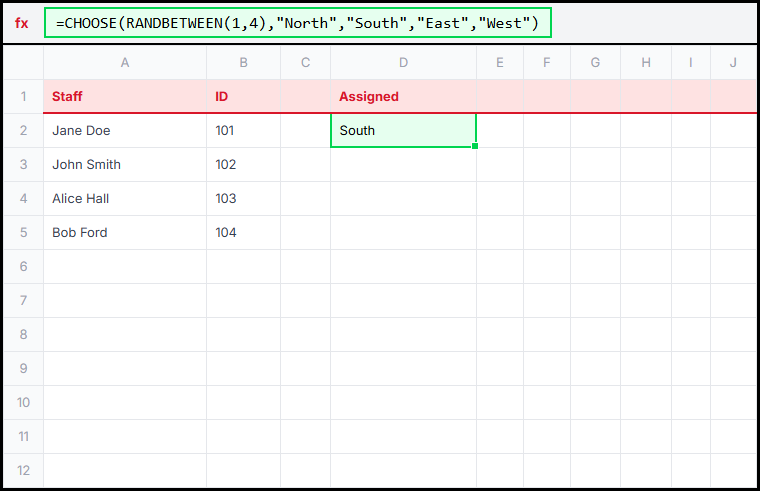 Method 2: Keep the choices inside the formula when the list is short and fixed.
If the list is tiny and unlikely to change, CHOOSE can work too. You feed it a random number and hard-code the possible text results directly inside the formula.
This is quicker for one-off tasks, but it is less flexible than using a proper source range. If the team names change later, you have to edit every formula that contains those names.
=CHOOSE(RANDBETWEEN(1,4),"North","South","East","West")
Method 3: Helper Random Values
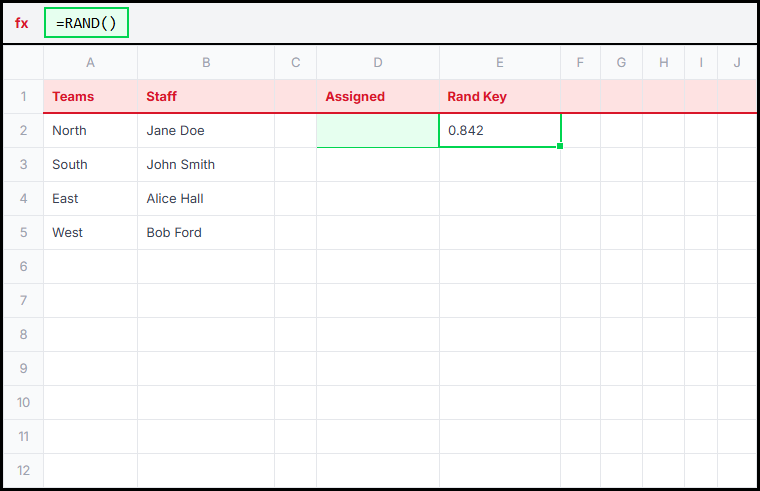 Method 3: Use helper random values when you want a random process you can inspect or freeze later.
A helper-column approach is useful when you want to see the random numbers themselves or keep a record of how the assignment was generated. You can create random values first, then use them in a second step.
That approach is not required for this challenge, but it is worth knowing when you need something more transparent than a single direct formula.
=RAND()
Function Explanation
1. INDEX
INDEX returns a value from a chosen position inside a range. Here, that means returning one team name from the list in A2:A5.
This matters because the result stays controlled. Even though the choice is random, the output still comes from the exact list you provided.
Learn more this functionINDEX
2. RANDBETWEEN
RANDBETWEEN returns a random whole number between two limits. In this challenge, it chooses which team position should be returned.
That is why it is the random part of the setup. Every recalculation can produce a different valid row number inside the allowed range.
3. ROWS
ROWS counts how many rows are in a range. It helps keep the random range tied to the real size of the team list.
That means the formula is easier to maintain. If the team list grows, the row count updates automatically.
Learn more this functionROWS
4. COUNTIF and COUNTA
COUNTIF counts matching results, and COUNTA counts filled cells. Together, they turn the random assignments into a simple audit.
That is why the summary section matters. It lets you check both the team distribution and the total number of assigned staff.
One thing to remember is that random formulas recalculate. If you need to keep one final set of assignments, you would usually copy the results and paste them back as values.
Assign each staff member to a random team from the approved team list in column A. Use a formula so every assignment comes from the same source list, then finish the audit section to count how many people were assigned to North and how many staff records were processed overall.