The Problem
Project timing gets messy when lead times are measured in workdays instead of calendar days. A deadline that looks simple on paper can land on a weekend if you just add numbers to dates without thinking about the schedule behind them.
That is the main reason this kind of sheet needs a formula instead of a manual count. We want Excel to move the date forward while automatically skipping Saturday and Sunday, then give us a clean summary of the latest delivery in the list.
How We Solve It
Each row has a start date and a lead time. The right tool here is WORKDAY, because it adds business days rather than straight calendar days. Once those delivery dates are filled, the summary is easy to complete.
Method 1: Simple date addition
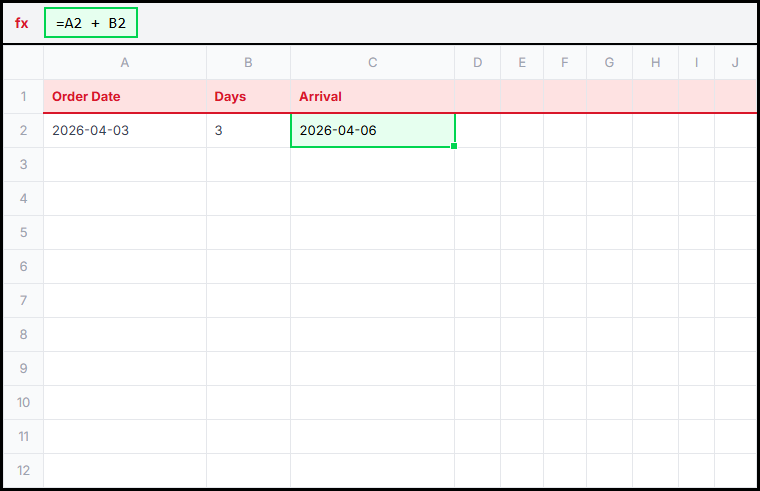 Method 1: Add plain calendar days when weekends do not matter.
Adding a number directly to a date works because Excel stores dates as serial values. That method is fine for situations where every day counts, but it is not enough for this challenge because weekends must be skipped.
This solves a simpler version of the timing problem, where the deadline only depends on total days. It helps show why a plain date formula is not enough here, because the result can land on a weekend even when the team is not working.
=A2 + B2
Method 2: WORKDAY for business dates
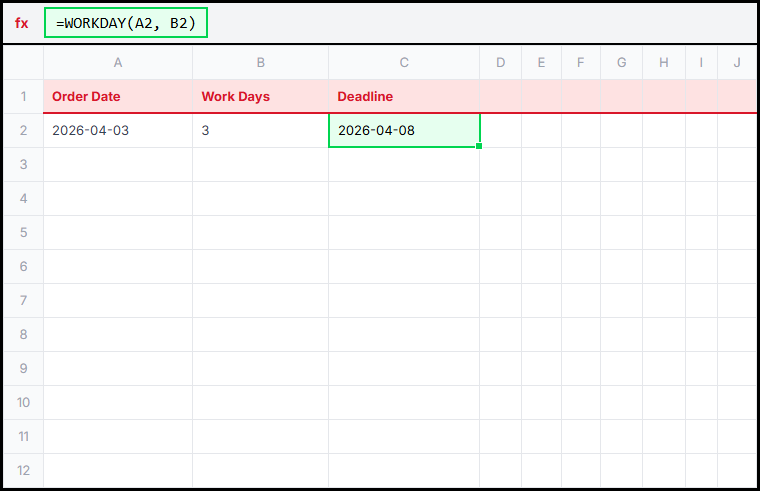 Method 2: Skip Saturdays and Sundays automatically with WORKDAY.
This is the method the challenge expects. WORKDAY starts from the date in column B and adds only working days from column C. That means a Friday start plus three workdays lands on the following Wednesday, not on Monday plus the weekend in between.
This solves the real worksheet problem because the delivery date should reflect active work time, not just calendar distance. Each row moves forward by the required number of business days, which gives us a more realistic expected delivery in column D.
=WORKDAY(B2, C2)
Method 3: Custom schedules with WORKDAY.INTL
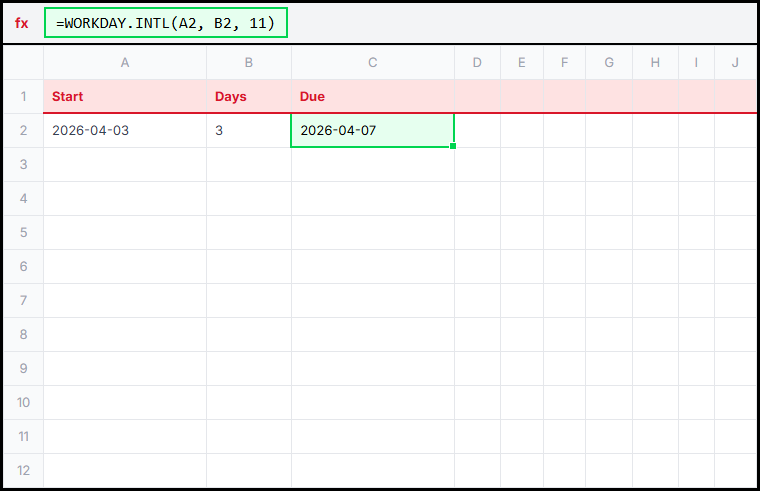 Method 3: Change the weekend pattern when the business week is not standard.
If your team works on Saturday or uses a different weekend pattern, WORKDAY.INTL gives more control. It is not required here, but it is the natural next step when one standard weekend rule is not enough.
This solves the same scheduling problem in businesses that do not follow the default Saturday-Sunday weekend. It matters when the formula needs to match a local work calendar instead of assuming every team works the same way.
=WORKDAY.INTL(A2, B2, 11)
Function Explanation
1. WORKDAY
WORKDAY returns a future or past workday after adding a given number of business days. In this challenge it is the core formula, because every expected delivery depends on it.
2. MAX
MAX returns the largest value in a range. Since later dates are larger serial numbers in Excel, it gives us the latest delivery date in the summary row.
Learn more this functionMAX
3. COUNTA
COUNTA counts non-empty cells. Here it simply totals how many project names appear in the list.
Learn more this functionCOUNTA
If you ever need holidays skipped too, WORKDAY can take a holiday range as an extra argument. The current challenge only asks us to skip weekends.
Fill the expected delivery dates with a weekend-aware formula, then complete the summary so the sheet shows how many projects are listed and which delivery date is the latest one.