Home
Challenges
Extract First Word from Text
Cleanup
Easy

Extract First Word from Text

An Excel text list contains multi-word entries, and you need to pull the first word so the data is easier to group.

AuthorExcelClash Team
PublishedApr 02, 2026
Extract First Word from Text

The Problem

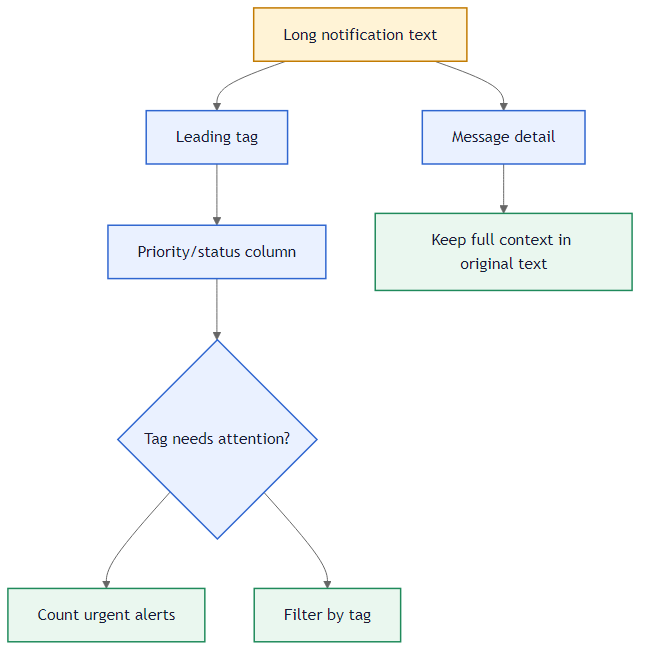
Many text lists begin with a useful tag and then continue with a longer description. If the tag stays buried inside the full sentence, filtering the sheet by priority or status takes more work than it should.

This challenge is about splitting that first piece out into its own column. Once the tag is separated, the list becomes easier to scan and the summary at the bottom becomes straightforward.

How We Solve It

We look for the first space in each entry and return everything to the left of it. In this dataset, that means the result keeps the colon, so values like URGENT: and FINAL: come through exactly as the validator expects.

Method 1: LEFT plus FIND

Left Find Illustration
Method 1: Stop at the first space and return the text before it.

This is the method used in the solution. FIND locates the first space, and LEFT returns the characters from the beginning of the text up to that point. Because the colon comes before the space, it stays in the result.

This solves the challenge because the tag always appears at the front of the notification. Once the formula stops at the first space, it leaves us with the exact label we want to count later in the summary.

=LEFT(A2,FIND(" ",A2))

Method 2: TEXTBEFORE

TextBefore Illustration
Method 2: Use TEXTBEFORE when your Excel version supports it.

If your Excel version includes TEXTBEFORE, the formula becomes shorter and easier to read. It is doing the same job as the nested formula, but in one function call.

This solves the same extraction problem with less setup. It is a cleaner option in newer Excel because you can describe the tag as everything before the first space without building the position logic yourself.

=TEXTBEFORE(A2, " ")

Method 3: Use the colon as the marker

Colon Delimiter Illustration
Method 3: Target the colon directly when the tag always ends with one.

Because these tags all end with a colon, you can also search for that character directly. That approach is useful when the first word itself is not the real target and the colon is the more reliable delimiter.

This solves the problem in a more specialized way. If the colon is the true marker of the tag, the formula can pull exactly what matters even if the wording before the first space becomes less consistent later.

=LEFT(A2, FIND(":", A2))

Function Explanation

1. FIND

FIND returns the position of a character inside a text string. In this challenge it tells us where the first word ends.

Learn more this functionFIND

2. LEFT

LEFT returns a chosen number of characters from the start of a string. Combined with FIND, it becomes a flexible way to isolate a leading tag.

Learn more this functionLEFT

3. COUNTIF

COUNTIF gives the final total of URGENT: tags after the extraction is done. That turns the cleaned column into a useful summary, not just a display field.

Learn more this functionCOUNTIF

If you use this pattern on real-world text, remember that entries without a space can trigger errors. In those cases, wrapping the formula with IFERROR is a good safety step.

Try Yourself

Extract the leading tag from each notification in column A, then complete the summary so the sheet shows how many alerts exist in total and how many of them are marked URGENT:.

1
Objective #1
Cell: B2-B6

In Column B, extract the first word (the priority tag) from the project notification in Column A.

2
Objective #2
Cell: B9

In cell B9, count the total number of notification alerts in your list.

3
Objective #3
Cell: B10

In cell B10, identify the total count of "URGENT:" alerts in your database roster.

Tactical Arena
Objectives Met: 0 / 0
Share this challenge

Let others know about this challenge!

Related Challenges
Cleanup
#26
Merge Multiple Columns into One

An Excel address sheet stores details in separate columns, and you need to combine them into one clean mailing line.

Easy
Cleanup
#27
Standardize Yes/No Responses

An Excel response sheet has mixed yes and no entries, and you need to standardize them into one clear format.

Easy
Cleanup
#28
Detect Invalid Phone Numbers

An Excel contact list has mixed phone formats, and you need to find which numbers are incomplete or contain invalid characters.

Easy
Cleanup
#29
Find Missing Membership IDs

An Excel audit compares two ID lists, and you need to find which records are missing from the active registry.

Intermediate
Discussion
0 Feedbacks
ExcelClash

ExcelClash is an interactive platform designed to level up your Excel skills through real-world exercises and challenges. Sharpen your logic, solve real spreadsheet problems, and learn faster—without boring lessons. Just hands-on practice that actually sticks.

Navigation
Back to Challenges
Go to Dashboard
Platform Home
Discover
SUM FunctionsLookup FunctionsConditional FunctionsLogical Functions
Support
About UsContact UsPrivacy PolicyTerms of Service
© 2026 ExcelClash, Inc. All rights reserved.
Objectives Met: 0 / 0