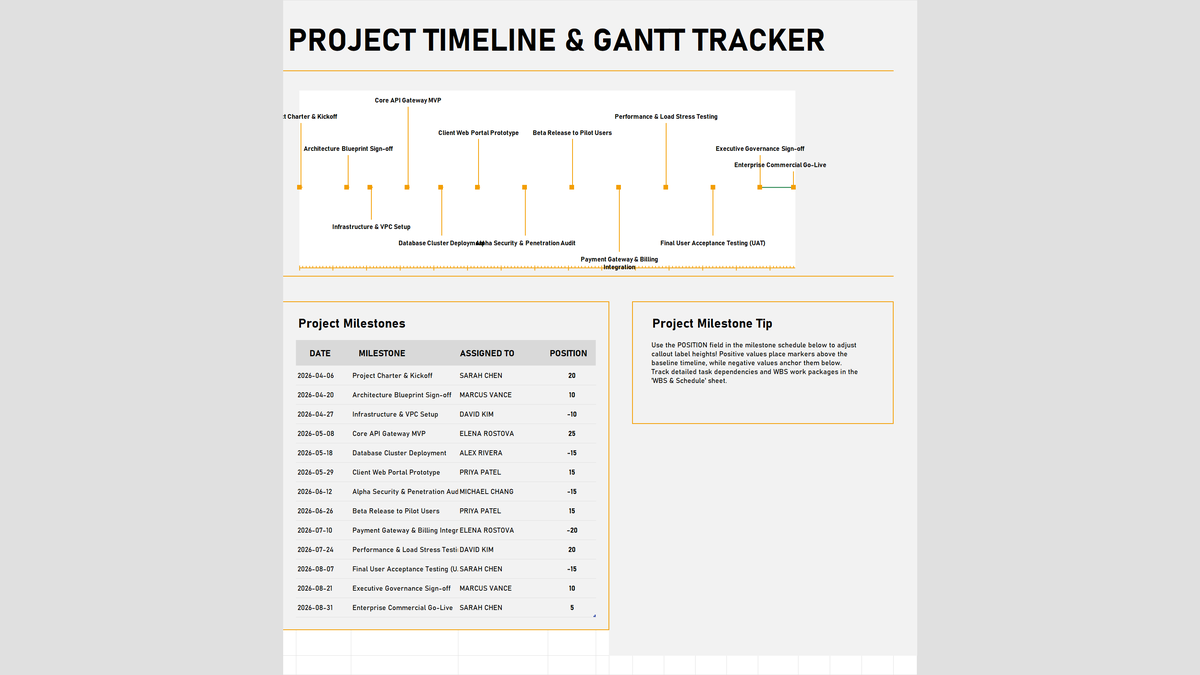
Visualizing Deadlines: Why Simple Timelines Beat 50-Page Reports
When enterprise software initiatives enter active development, project managers often generate hundred-line task lists and dense status decks. But when stakeholders and department heads meet, they usually have one simple question: "Are we still on track for our August go-live, and what deliverable is due next?"
A clean milestone roadmap answers this question immediately. By distilling dozens of sprint tasks into ten to fifteen critical delivery gates, everyone from lead engineers to executive sponsors shares an identical view of the project journey.
In this exercise, you will build an executive Project Timeline & Milestone Tracker in Excel. You will learn how to keep milestone dates dynamically synchronized with the current calendar year, format dates cleanly, adjust label callout heights to prevent cluttered text, and present a boardroom-ready roadmap.
Milestone Ledger & Roadmap Data Dictionary
Our project tracker consists of an executive roadmap pin chart up top, paired with a structured milestone register across columns C through G (rows 18 to 32). Below is the complete data dictionary detailing the fields and mechanics used.
| Column | Field Name | Formula / Type | Default Format | Workplace Meaning & Modeling Rule |
|---|---|---|---|---|
| C | DATE | =DATE(YEAR(TODAY()), M, D) | Date (YYYY-MM-DD) | Target completion date for the milestone. Automatically adapts to the current operating year. |
| D | MILESTONE | Text Deliverable | Left Align (Bold) | Formal name of the major delivery gate (e.g. Project Charter & Kickoff, Core API Gateway MVP). |
| E | ASSIGNED TO | Text Owner | Uppercase Text | Single directly accountable individual (DRI) responsible for milestone sign-off. |
| F | POSITION | Integer Coordinate | Center Align | Height coordinate for timeline chart pins. Positive (+20, +10) places labels above; negative (-10, -15) anchors below. |
| G | Baseline | Static Constant (=0) | Numeric Zero | Anchor point for the timeline baseline connecting line across all 13 milestones. |
Building Your Milestone Timeline Tracker Step by Step
Follow these three focused steps to construct your project milestone tracker. We will set up dynamic calendar formulas, apply standardized ISO date formatting, and review the final executive roadmap.
3.1Step 1: Setting Dynamic Calendar Dates with DATE and TODAY
If you hardcode static dates like "2024-04-06" into your template, the workbook feels outdated as soon as the calendar year rolls over. By wrapping Excel's =DATE() function around =YEAR(TODAY()), your milestone schedule always anchors cleanly to the current year.
Select cell C20 (the Project Charter milestone date) and enter:
=DATE(YEAR(TODAY()), 4, 6)
Excel extracts the current year (2026), combines it with April (month 4) and day 6, returning 2026-04-06.
Continue entering the milestone dates across rows 20 to 32, ending with =DATE(YEAR(TODAY()), 8, 31) for Enterprise Commercial Go-Live.
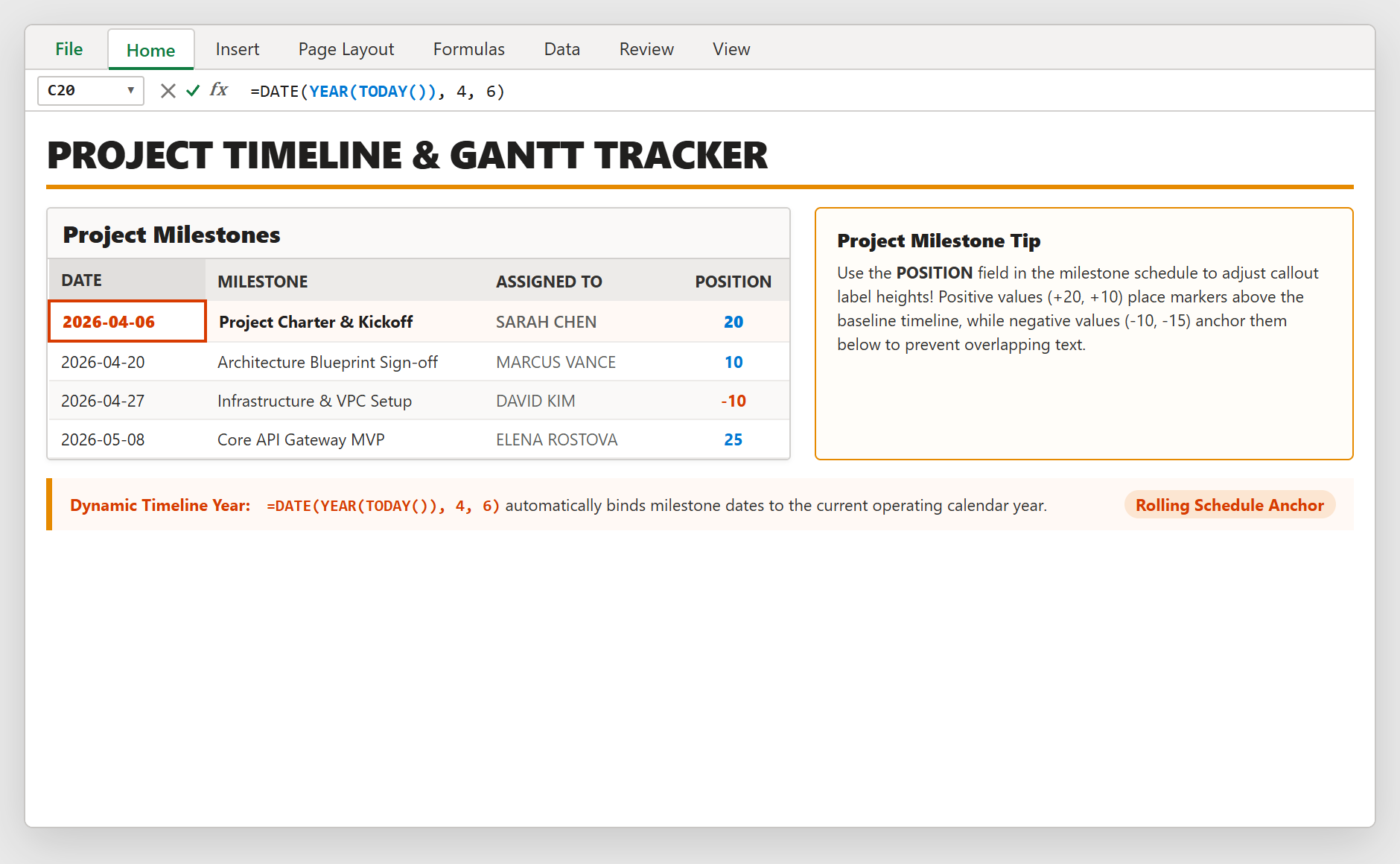
Figure 1: Formulating dynamic calendar year milestone dates using =DATE() and =YEAR(TODAY()).
3.2Step 2: Configuring Clean Date Formatting in Format Cells
Dates entered in different regional formats (like MM/DD/YYYY in the US vs DD/MM/YYYY in the UK) often create confusion during international team meetings. Is 04/06 April 6th or June 4th?
To remove all ambiguity, we apply the global ISO standard (YYYY-MM-DD).
Highlight cells C20 through C32. Press Ctrl + 1 to open the Format Cells dialog box.
Under Category, select Date. In the Type list, choose the format displaying YYYY-MM-DD (e.g. 2026-04-06), then click OK.
Now, all delivery dates display in a crystal-clear, standardized chronological format that looks professional and prevents scheduling misunderstandings.
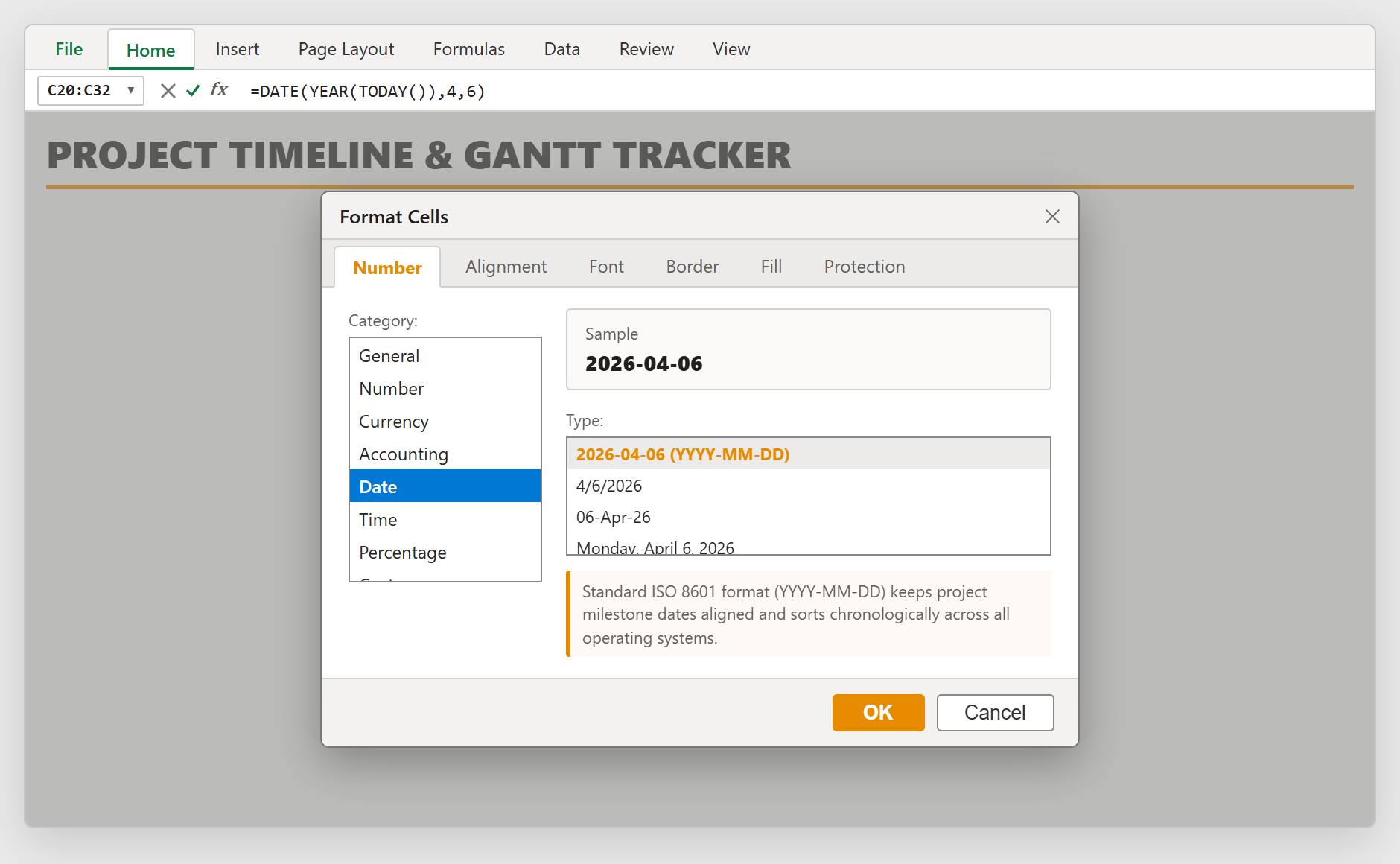
Figure 2: Applying the standardized ISO 8601 date format via the Format Cells dialog (Ctrl + 1).
3.3Step 3: Constructing the Executive Milestone Roadmap
Above the register, the roadmap line chart renders a horizontal timeline baseline (connecting all row zeros) with vertical leader pins rising or dropping to each milestone label.
Notice how the POSITION column controls visual balance: Milestone 1 (+20) sits high above the line, Milestone 2 (+10) sits slightly lower, and Milestone 3 (-10) drops beneath the line. This staggered layout ensures that even when milestones occur just one week apart, their text callouts never overlap or collide.
The final delivery gate (August 31, Enterprise Commercial Go-Live) is highlighted with an emerald green flag marker, giving your executive committee an inspiring visual finish line.
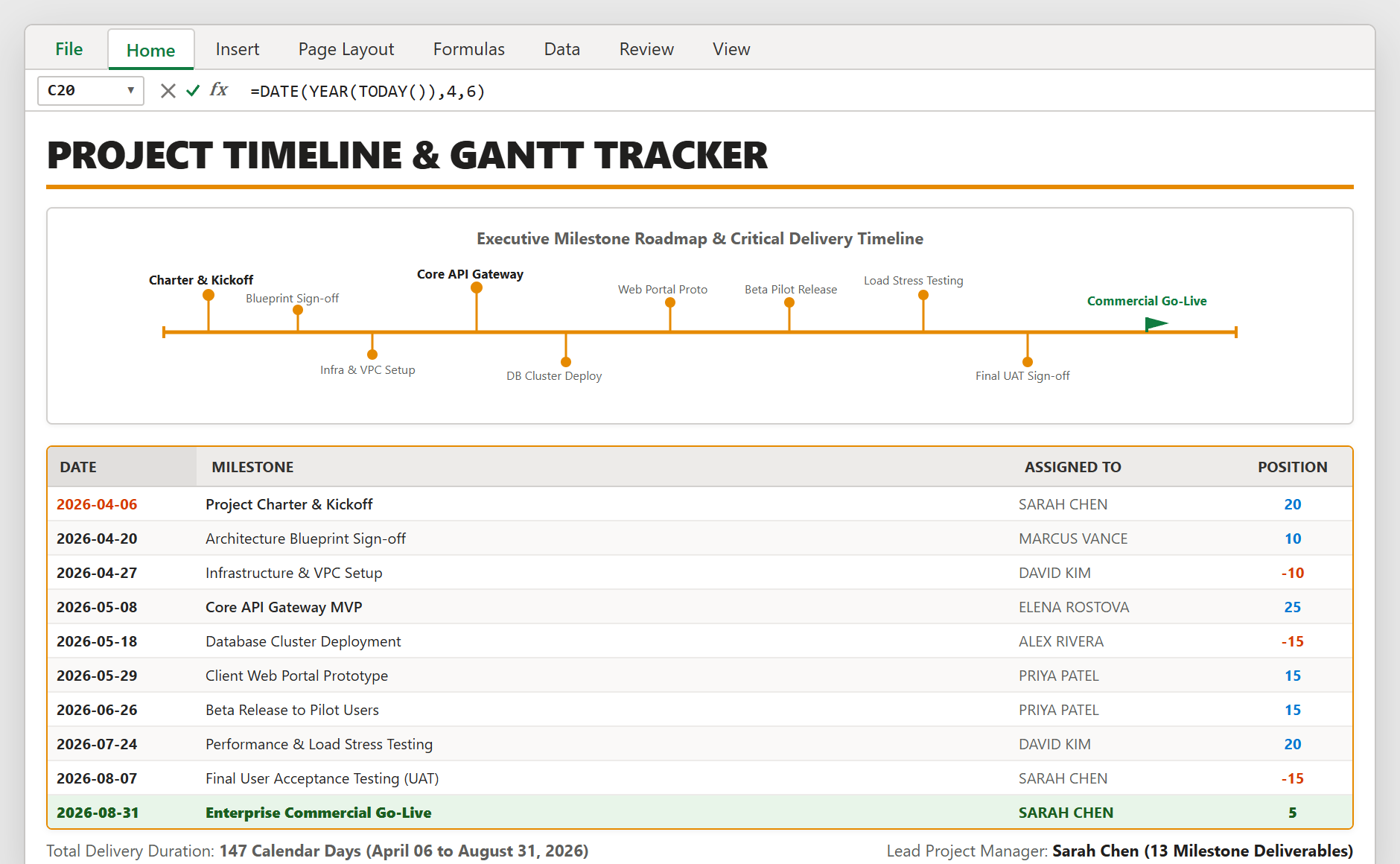
Figure 3: Complete executive milestone roadmap showing staggered leader pins and the 13-stage delivery schedule.
Project Management Best Practices: Guarding the Go-Live Date
To ensure your project reaches commercial launch on schedule, incorporate these three simple habits into your weekly team cadence:
1. Bi-Weekly Milestone Health Checks: In addition to daily standups, dedicate 15 minutes every other Monday to review the next upcoming milestone. If a gate is at risk, flag it immediately before downstream dependencies suffer.
2. Single Owner Accountability: Never assign two names to one milestone. Column E assigns each deliverable to a single individual (such as Sarah Chen or David Kim) so everyone knows exactly who signs off on completion.
3. Scope Freeze After Beta: Once Milestone 7 (Beta Release to Pilot Users) is reached on June 26, enforce a strict scope freeze. Only critical bug fixes should be approved between Beta and August 31 Go-Live.

Spreadsheet educator and web developer passionate about hands-on interactive spreadsheet practice.
Related Practical Exercises
Explore more hands-on spreadsheet models with downloadable practice workbooks.
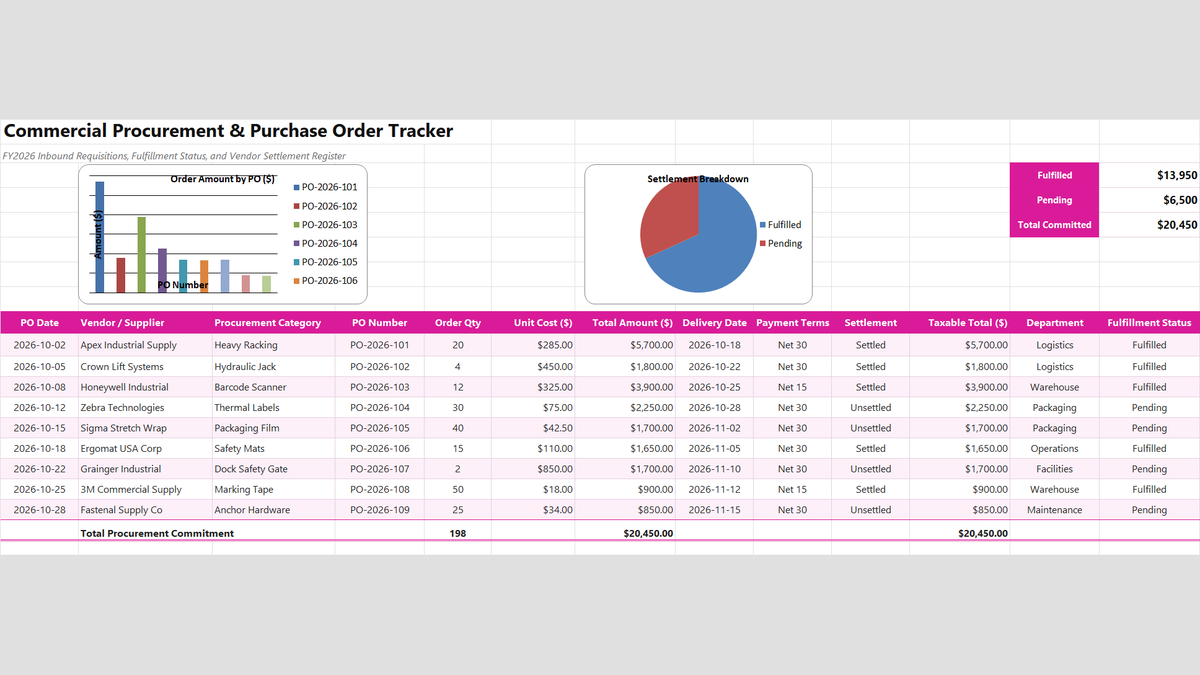 Operations
Purchase Order Generator & Tracker Excel Template
Learn how to engineer a commercial procurement and purchase order tracker in Microsoft Excel featuring line item commitment multiplication, vendor fulfillment status monitoring, and accounts payable settlement reconciliations.
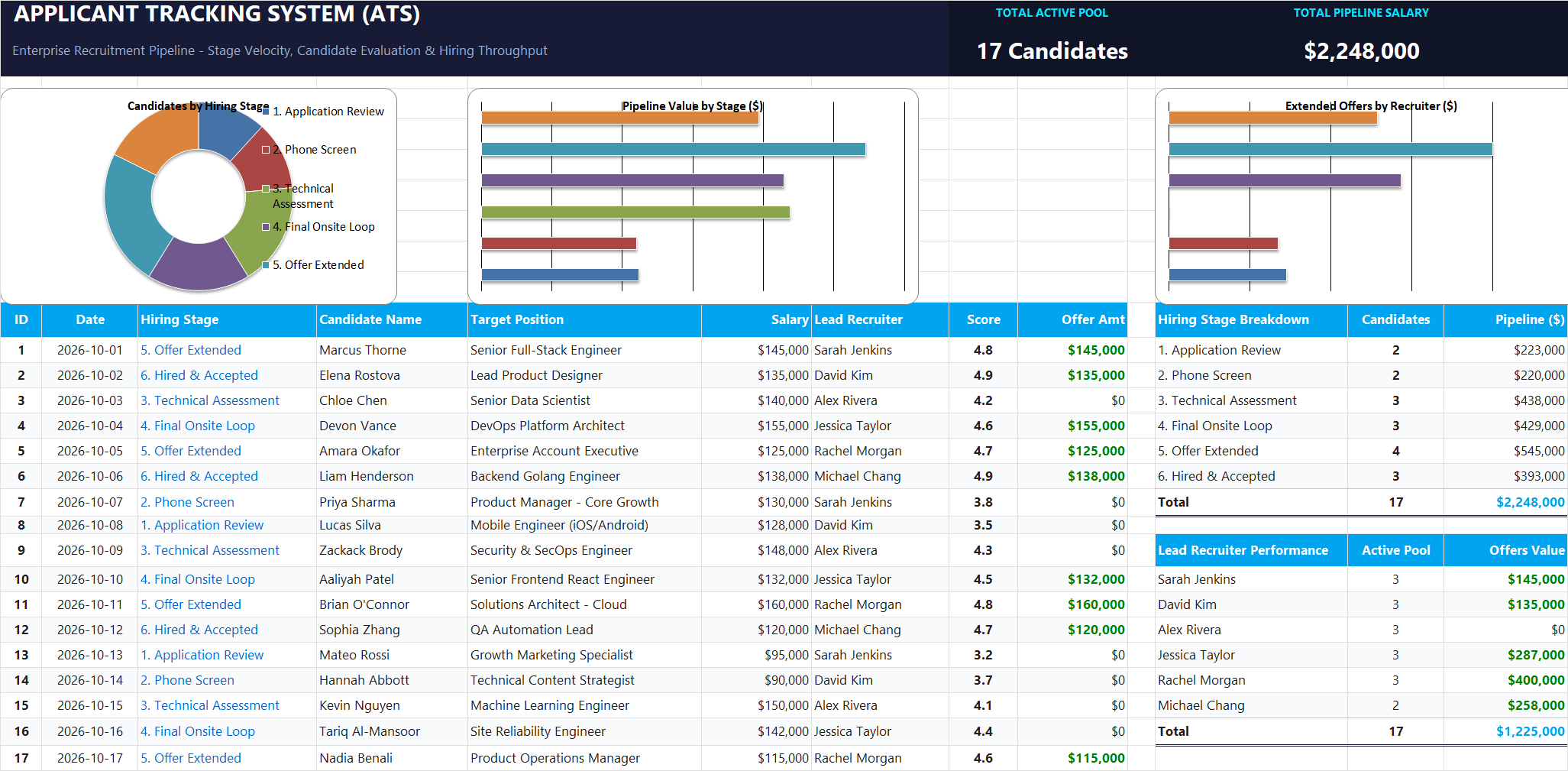 Human Resources
Applicant Tracking System (ATS) Excel Template
Tired of messy hiring spreadsheets? Learn how to build a clean Applicant Tracking System in Excel that automatically approves offers, counts applicants per stage, and updates executive salary summaries in real time.
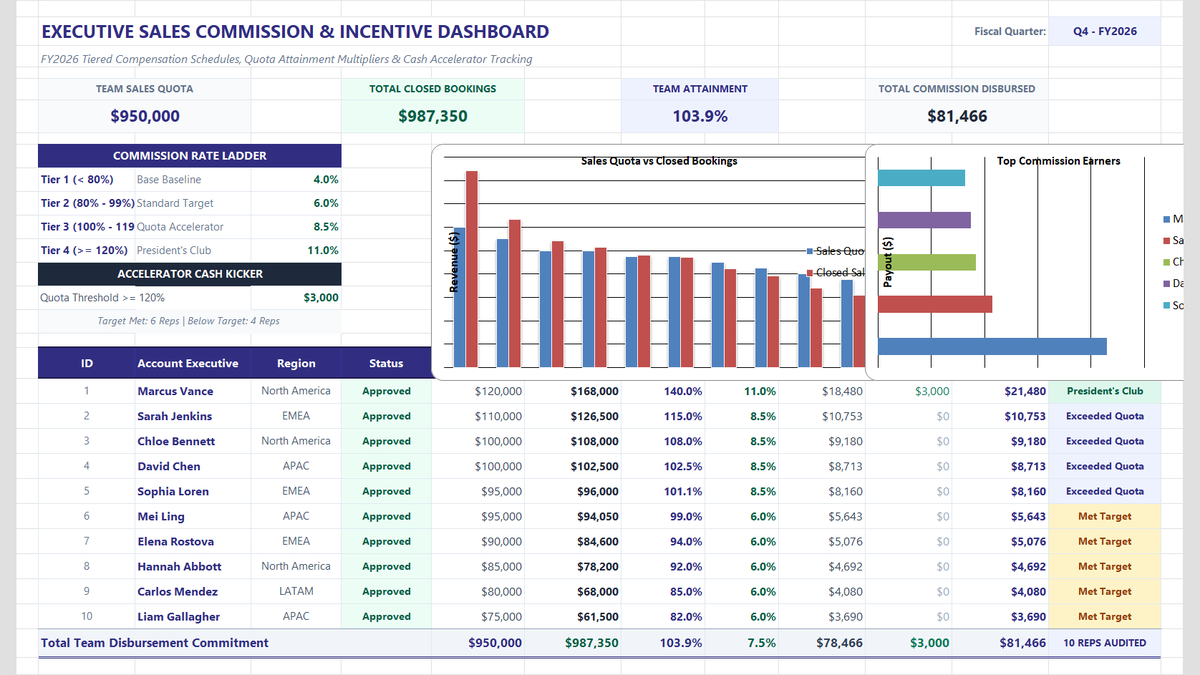 Sales
Sales Commission Calculator Excel Template
Calculate sales team commissions, quota attainment tiers, and performance accelerators in Microsoft Excel. Build an executive commission dashboard featuring tiered percentage multipliers, cash kickers for overachievers, automated performance status badges, and team payroll rollups.
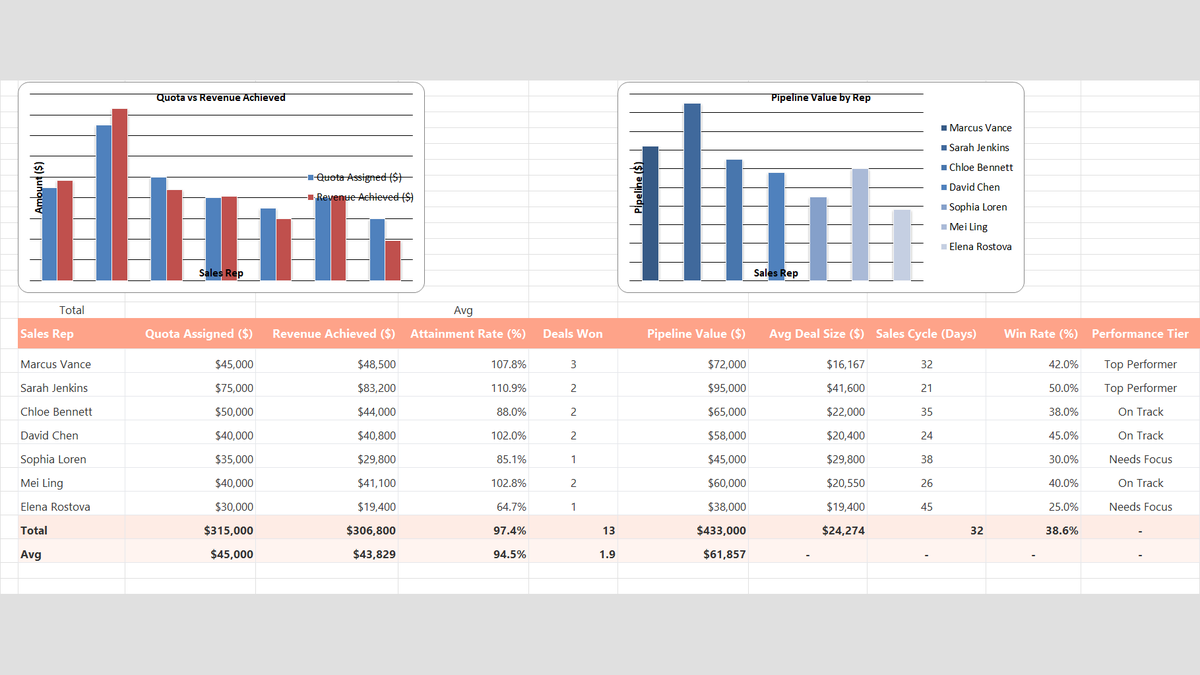 Sales
Sales Rep Performance Tracker Excel Template
Build a practical sales rep performance tracker in Microsoft Excel to measure individual quota attainment, average deal size, win rates, and team pipeline velocity.
 Sales
Sales Pipeline Tracker Excel Template
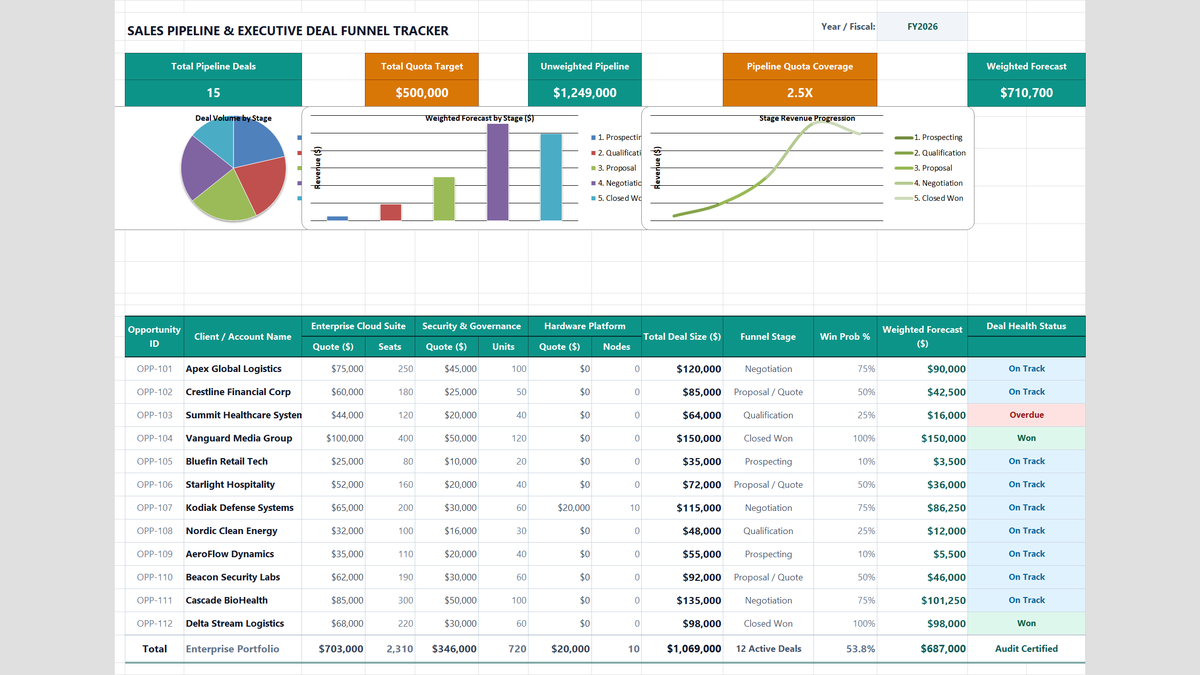
Learn how to construct an enterprise B2B sales pipeline tracker in Microsoft Excel featuring multi-product cross-sell quotes, weighted expected value forecasting, quota coverage ratios, and funnel conversion rollups.
Discussion
Ask questions, share formula tips, or discuss alternative approaches with fellow spreadsheet builders.
Loading discussion...