Building weekly staff rosters manually often causes unexpected overtime spikes, accidental understaffing during peak hours, and scheduling conflicts. Managing shifts effectively requires a clear grid that tallies hours in real time and highlights compliance issues immediately.
In this practical exercise, we will build a clean, single-sheet Weekly Employee Shift Schedule & Roster in Microsoft Excel. Modeled after modern operations management best practices, this template combines individual staff assignments, restricted shift dropdowns, automated shift counting via COUNTIF, and proactive overtime warning tags.
Shift Schedule Architecture
An effective shift schedule provides clear visibility for employees while giving department leads instant control over labor budgets and daily staffing minimums.
Our single-sheet workbook features a Nordic teal header, an executive workforce metric strip (Total Scheduled Hours, Headcount Coverage, Overtime Flags, and Shift Rotation), and a clean weekly grid tracking Monday through Sunday.
Review the data dictionary below to understand the operational column schema across columns B through L.
| Field Name | Cell Range | Data Type | How It Is Used | |
|---|---|---|---|---|
| B | Employee Name | Text | B12:B19 | Full employee legal name (e.g., Sarah Jenkins, Marcus Vance). |
| C | Operational Role | Text | C12:C19 | Job classification (Store Manager, Supervisor, Cashier, etc.). |
| D:J | Mon - Sun Daily Shifts | Dropdown | D12:J19 | Daily shift code: [M] Morning (8h), [A] Afternoon (8h), [N] Night (8h), or [OFF]. |
| K | Total Scheduled Hours | Formula | K12:K19 | Weekly hours tallied via =COUNTIF(D12:J12, "<>OFF")*8. |
| L | Shift Status | Formula | L12:L19 | Labor alert flag computed via IF statement to catch overtime. |
| B5 | Total Scheduled Hours KPI | Text / Value | B5:B7 | Department total labor hours (316 hrs out of 320h budget). |
| D5 | Headcount Coverage KPI | Text / Value | D5:D7 | Coverage status (100% Fully Staffed, Zero Open Shifts). |
| G5 | Overtime Flagged KPI | Text / Value | G5:G7 | Active overtime monitoring (1 Shift Alert, Target: ≤ 2 Employees). |
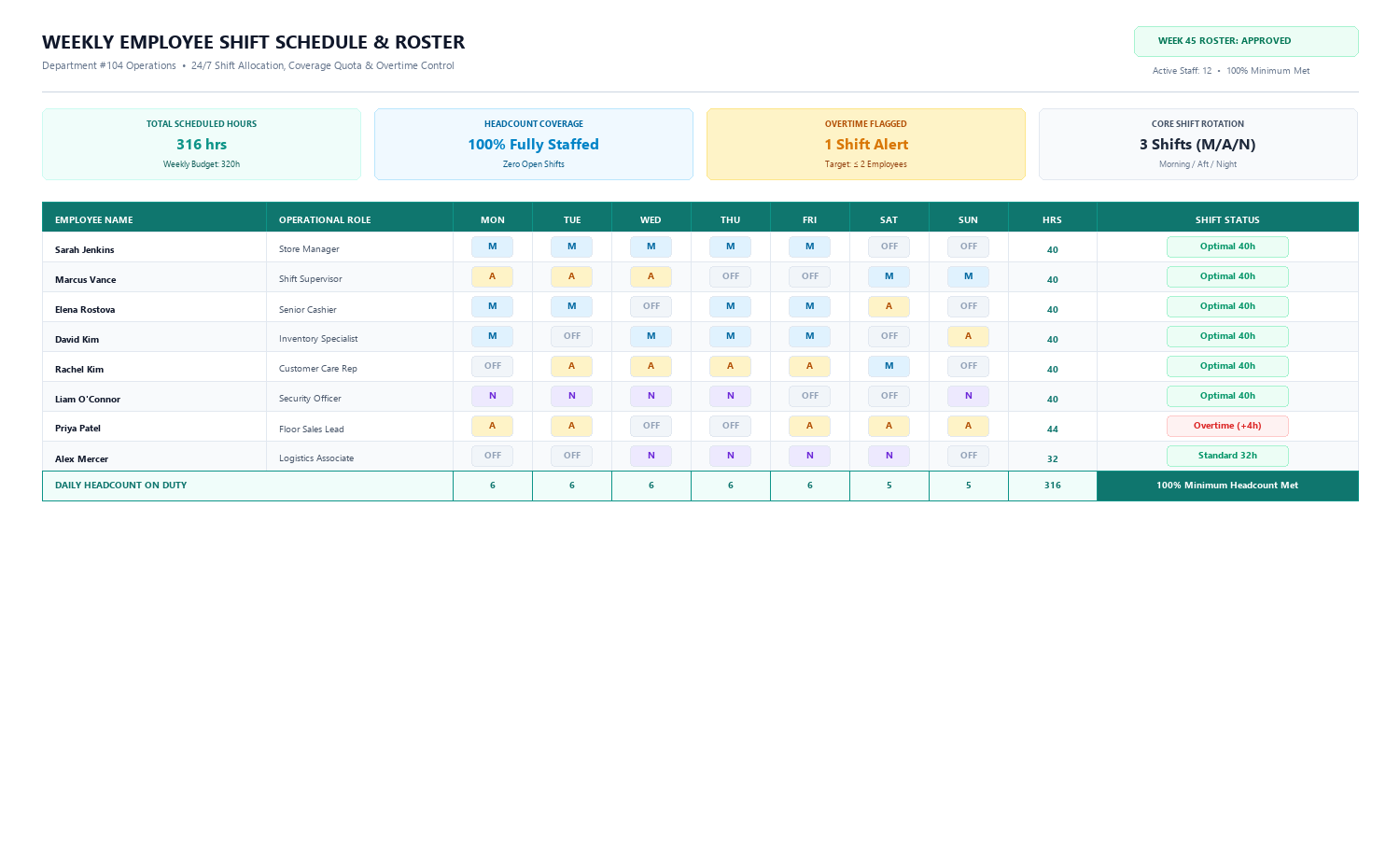
Workbook Blueprint: The Weekly Shift Schedule layout featuring executive metric cards, staff roster grid, and shift status compliance tags.
With our staff roster structure established, let us configure the input controls that eliminate scheduling typos.
Restricting Shift Codes with Data Validation (Action vs Result)
To prevent team leaders from typing inconsistent abbreviations (like "morn" or "night"), we restrict shift entries using Excel Data Validation.
Select the shift matrix range D12:J19, navigate to the Data ribbon tab, and click Data Validation.
In the dialog box, set Allow to List and enter the standard source string: M, A, N, OFF. Check both Ignore blank and In-cell dropdown, then click OK.
Each cell now displays a handy dropdown menu offering only valid operational codes: Morning (8h), Afternoon (8h), Night (8h), and Off.
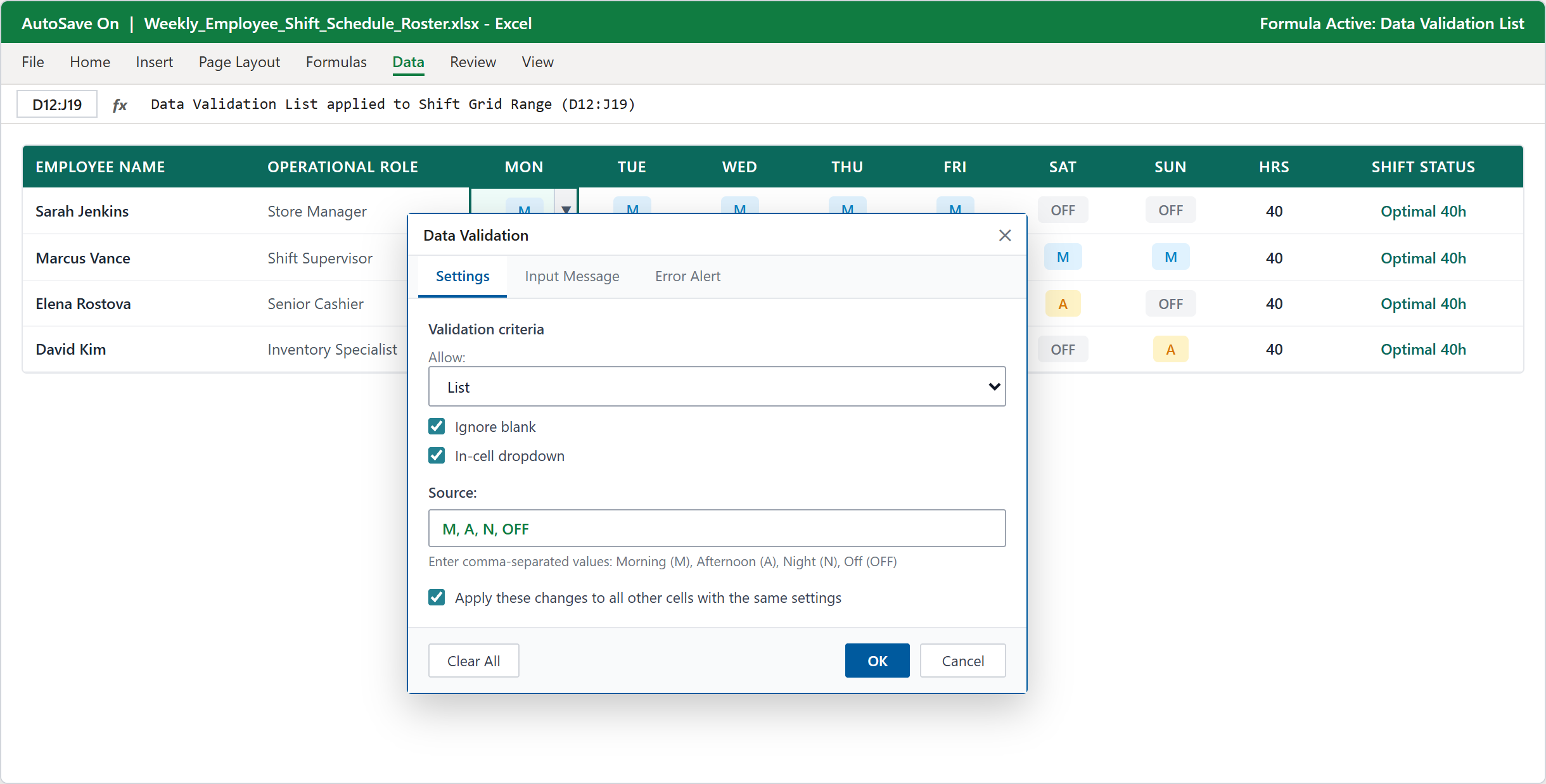
Step 1 [Action & Result]: Setting up an in-cell dropdown list (M, A, N, OFF) across range D12:J19 using Data Validation.
Highlighting Shifts with Conditional Formatting (Action vs Result)
In a busy weekly schedule, plain letters are hard to scan quickly. Applying color badges transforms raw letters into an intuitive visual heat map.
With range D12:J19 selected, open Home > Conditional Formatting > Highlight Cells Rules > Equal To.
Create four distinct rules for each shift type:
- M: Soft Blue fill (#E0F2FE) with Dark Blue text (#0284C7).
- A: Warm Amber fill (#FEF3C7) with Amber text (#D97706).
- N: Soft Purple fill (#F3E8FF) with Deep Purple text (#9333EA).
- OFF: Light Gray fill (#F3F4F6) with Slate text (#6B7280).
Open the Conditional Formatting Rules Manager to review the completed rules and verify that they apply smoothly across all seven days.
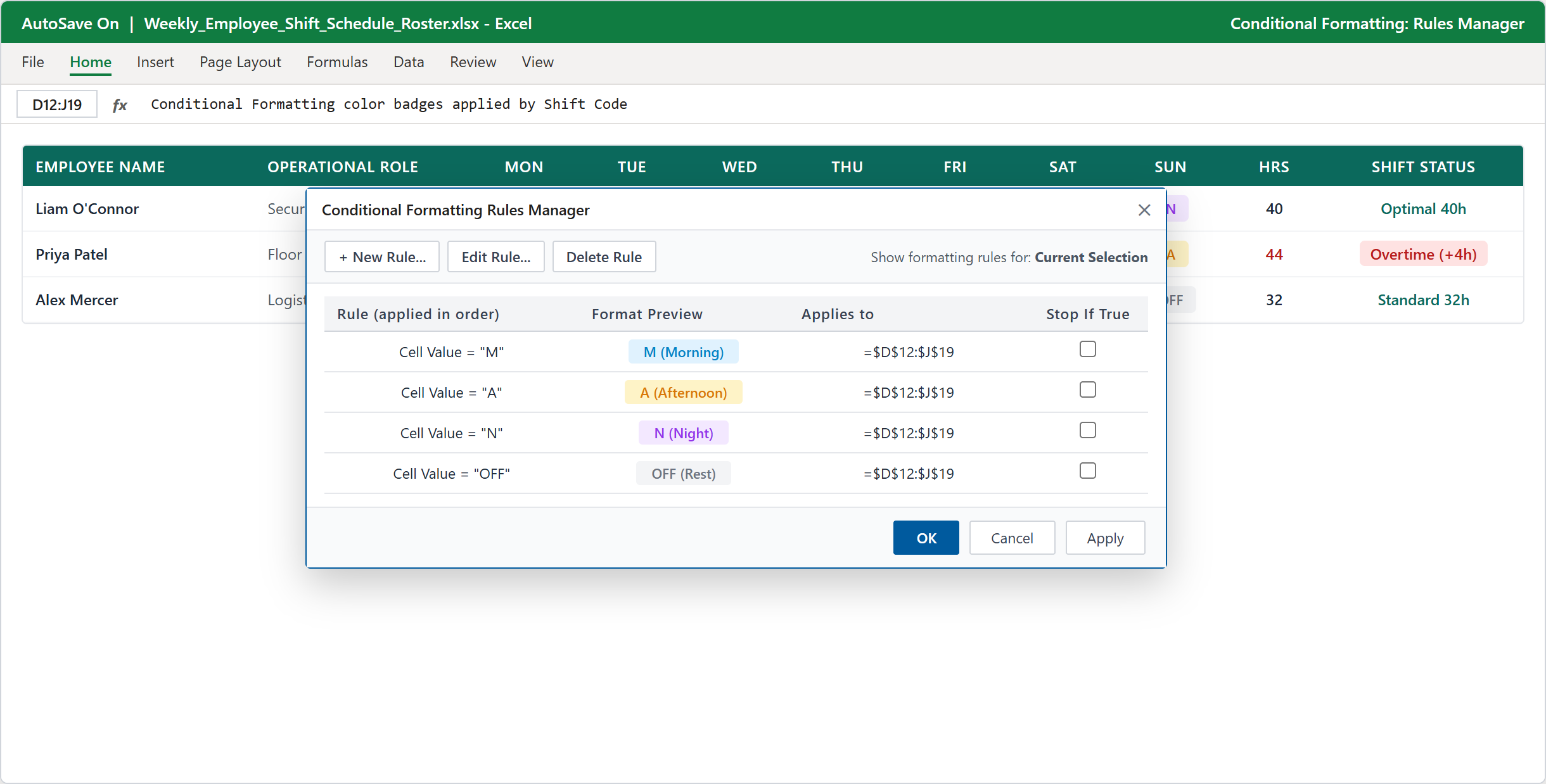
Step 2 [Action & Result]: Viewing configured conditional formatting rules for M, A, N, and OFF badges in the Rules Manager.
Tracking Hours and Reading the Roster Dashboard (Action vs Result)
Rather than manually calculating total work hours, column K automates weekly totals by counting active shifts and multiplying by 8 hours.
In cell K12, enter the formula: =COUNTIF(D12:J12, "<>OFF")*8. For Sarah Jenkins, 5 active morning shifts evaluate to 40 Hours.
In cell L12, evaluate employee workload status: =IF(K12>40, "Overtime (+" & (K12-40) & "h)", IF(K12=40, "Optimal 40h", "Standard " & K12 & "h")).
When Priya Patel takes on an extra shift (44 hours), cell L18 instantly triggers an amber alert badge (Overtime (+4h)). Across the bottom footer row, daily headcount formulas confirm that minimum staffing thresholds (6 employees on weekdays, 5 on weekends) are 100% met.
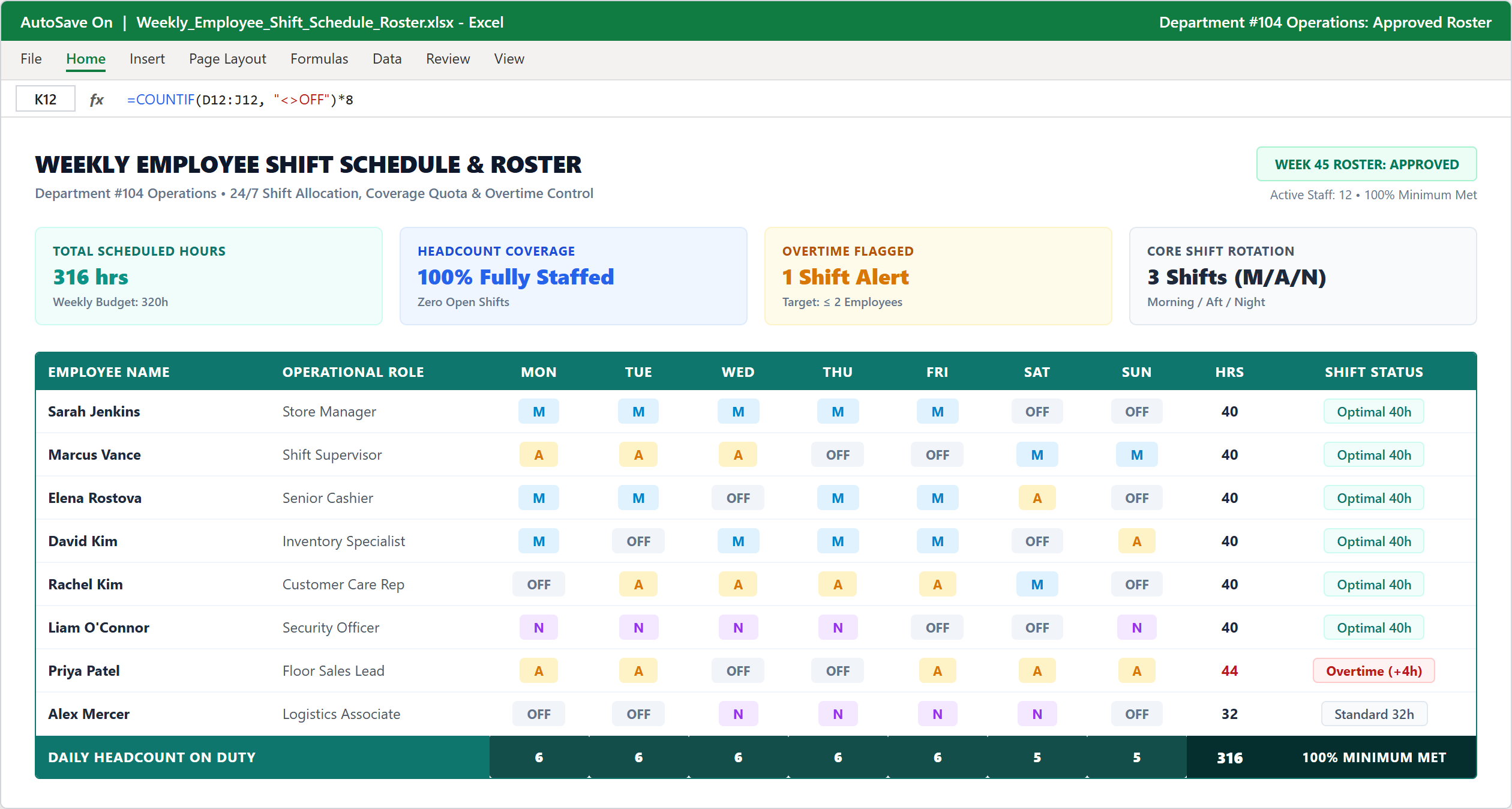
Step 3 [Action & Result]: The finished executive dashboard displaying 4 KPI summary cards, color-coded weekly schedule, and daily headcount totals.
Conclusion & Next Steps
You have successfully built an executive-ready Weekly Employee Shift Schedule & Roster in Microsoft Excel.
With automated shift counting, clear overtime alerts, and high-level headcount scorecards, your team can coordinate weekly staffing smoothly while maintaining strict labor budget compliance.
Download the complete template below or practice modifying weekly shift assignments directly in the ExcelClash spreadsheet playground.

Spreadsheet educator and web developer passionate about hands-on interactive spreadsheet practice.
Related Practical Exercises
Explore more hands-on spreadsheet models with downloadable practice workbooks.
 Productivity
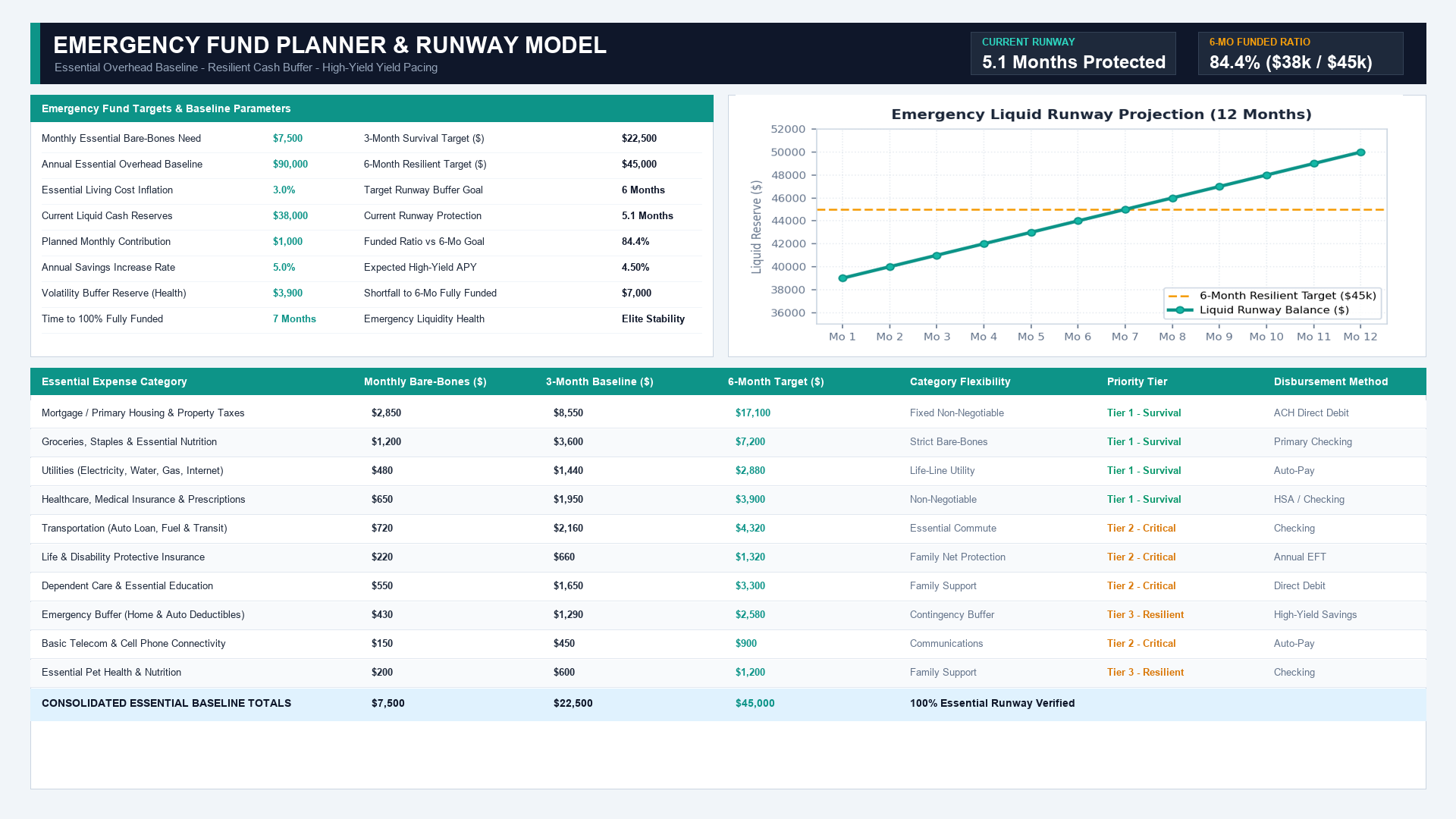
Emergency Fund Planner Excel Template
Learn how to build a resilient Emergency Fund Planner in Microsoft Excel featuring bare-bones baseline calculations, 3-month and 6-month runway multipliers, funded ratio tracking, and savings pacing.
 Finance
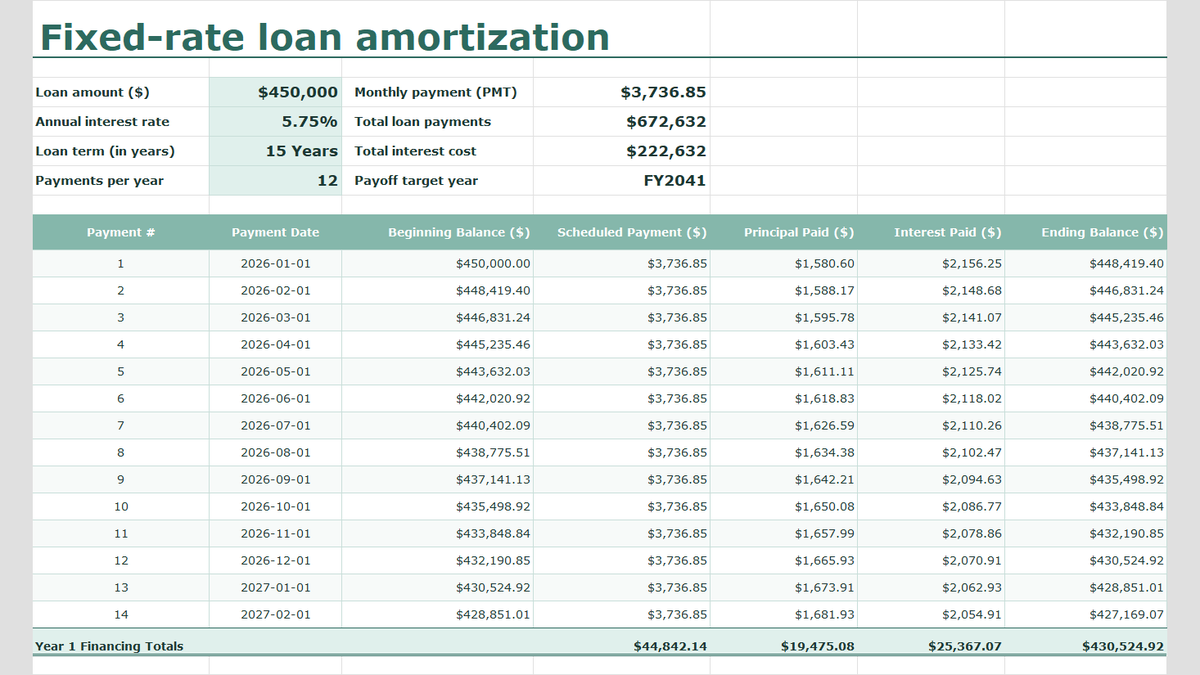
Fixed-Rate Loan Amortization Schedule Excel Template
Learn fixed-rate commercial debt structuring in Microsoft Excel. Build a rigorous amortization schedule featuring level debt service calculations with =PMT(), interest and principal bifurcation, dynamic balance rollforwards, accounting ledger formatting, and annual debt covenant rollups.
 Productivity
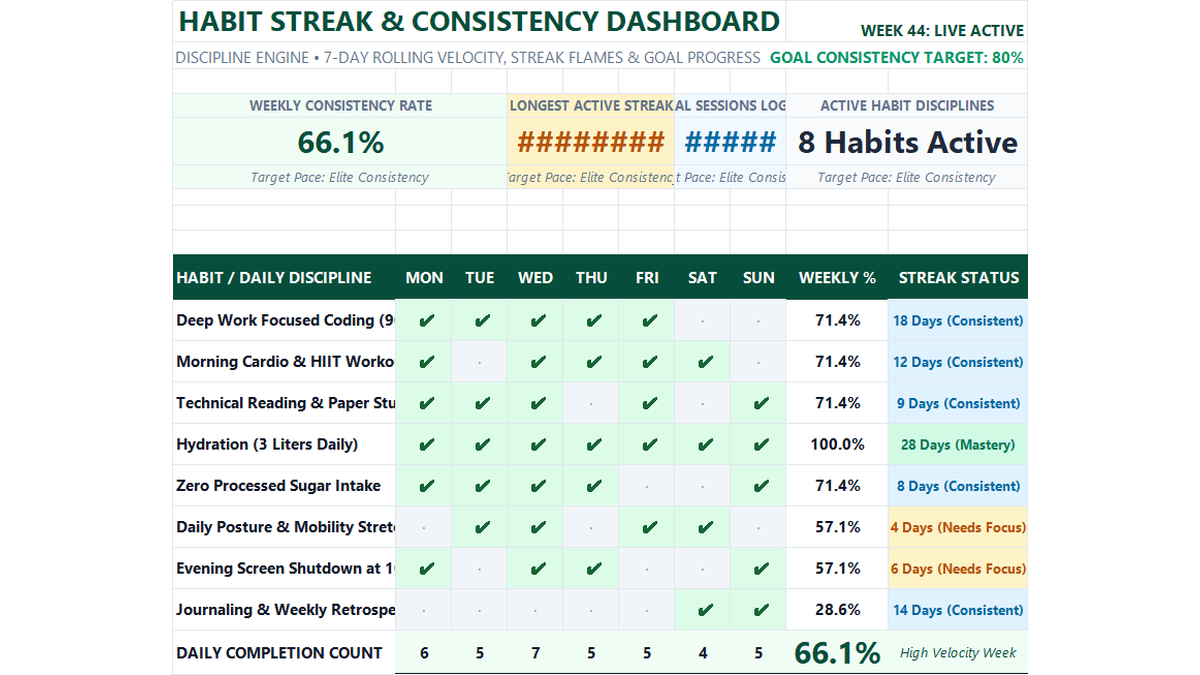
Daily Habit Tracker Excel Template
Build a practical daily habit tracker in Microsoft Excel to track 7-day consistency rates, checkmark styling, streak milestones, and overall productivity scorecards.
 Sales
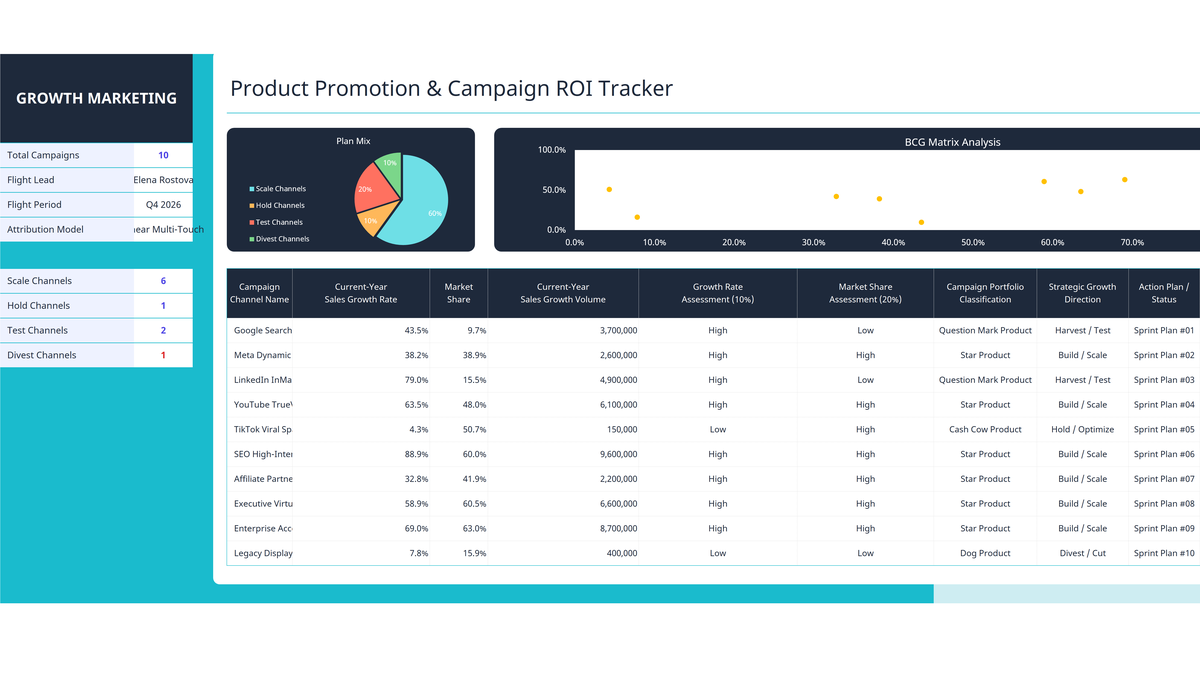
Marketing Campaign ROI Tracker Excel Template
Evaluate marketing channels, advertising returns, and campaign growth in Microsoft Excel. Build an executive campaign ROI tracker featuring growth rate percentage formatting, automated BCG matrix portfolio classification (Star, Cash Cow, Question Mark, Dog), and executive dashboard visualizations.
 Productivity
Monthly Memo Calendar Excel Template
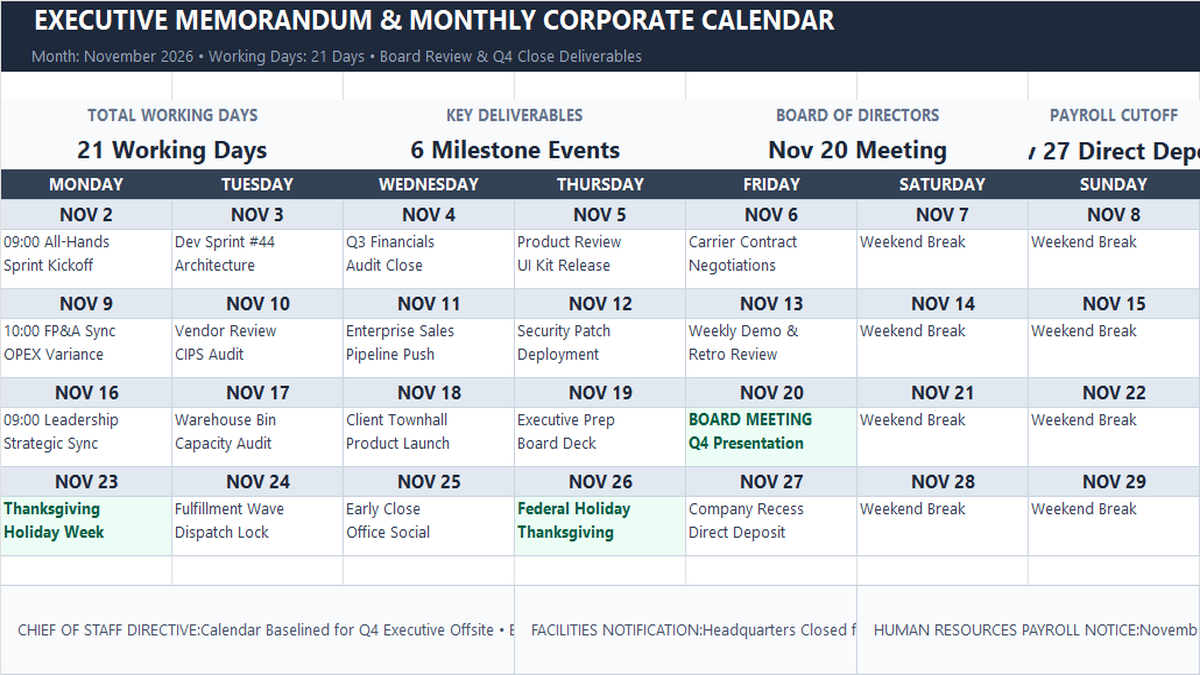
Learn how to construct a monthly executive memo calendar in Microsoft Excel featuring single-sheet architecture, working days rollups with NETWORKDAYS, milestone event highlights, and department directive memos.
Discussion
Ask questions, share formula tips, or discuss alternative approaches with fellow spreadsheet builders.
Loading discussion...